Setting Up Currencies
This guide explains how to configure the supported currencies in the Exigo Admin portal, including how to add new currencies, adjust their display order, and remove currencies that are no longer needed.
Table of Contents
- Overview
- Accessing Currency Settings
- Viewing the Currency List
- Adding a Currency
- Reordering Currencies
- Removing a Currency
- Saving Changes
Overview
The Company Currency Settings module allows administrators to define which currencies are available for transactions across the Exigo platform. These settings control the currency options presented to customers during order placement, invoicing, and account management.
Key Features:
- Add currencies from a global list using standard currency codes
- Set the display priority to control which currency appears first in dropdowns
- Remove currencies that are no longer supported by your business
- Changes apply platform-wide across orders, commissions, and customer accounts
Accessing Currency Settings
Navigation Path
- Log in to the Exigo Admin portal at
login.exigo.com
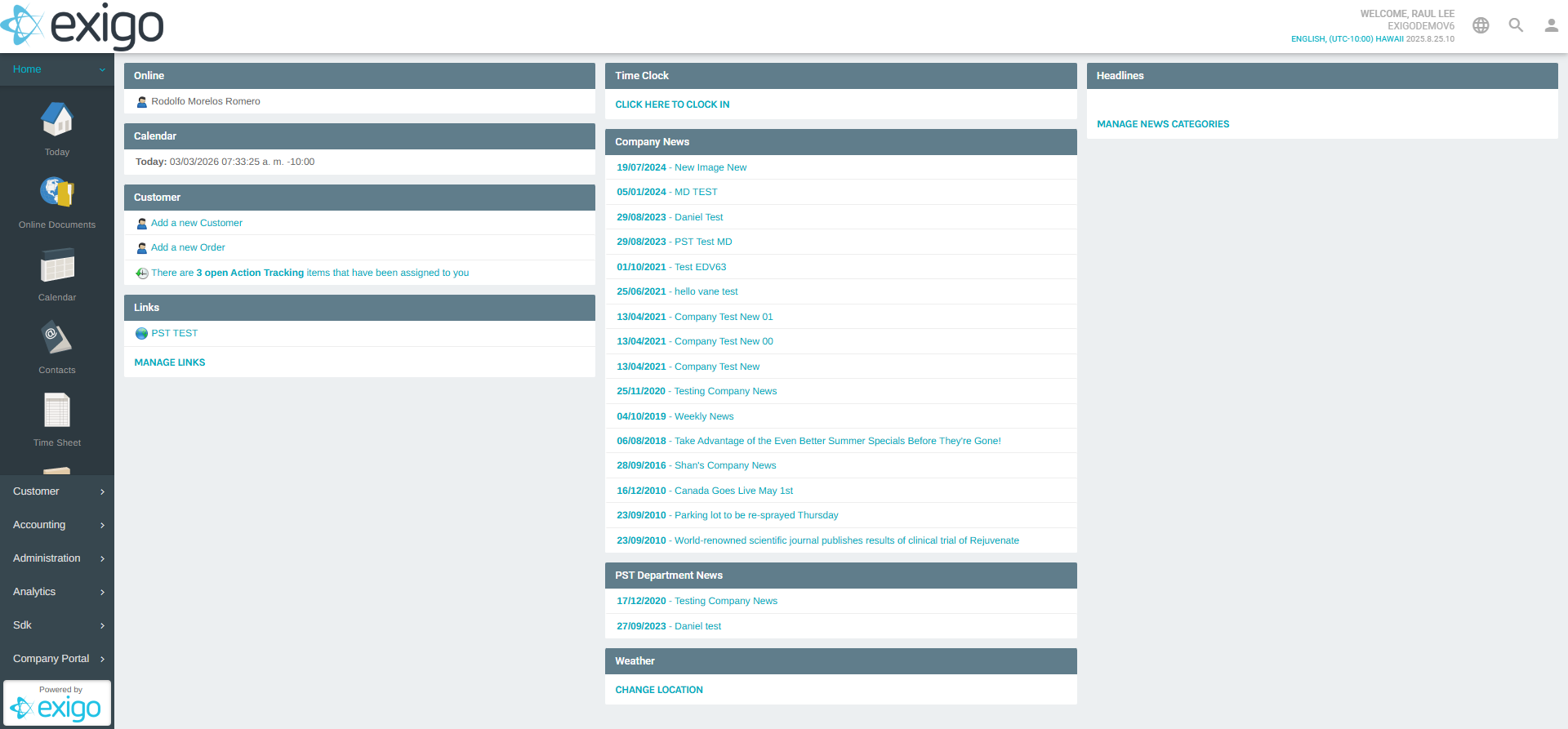
- From the left sidebar, navigate to Administration > Settings
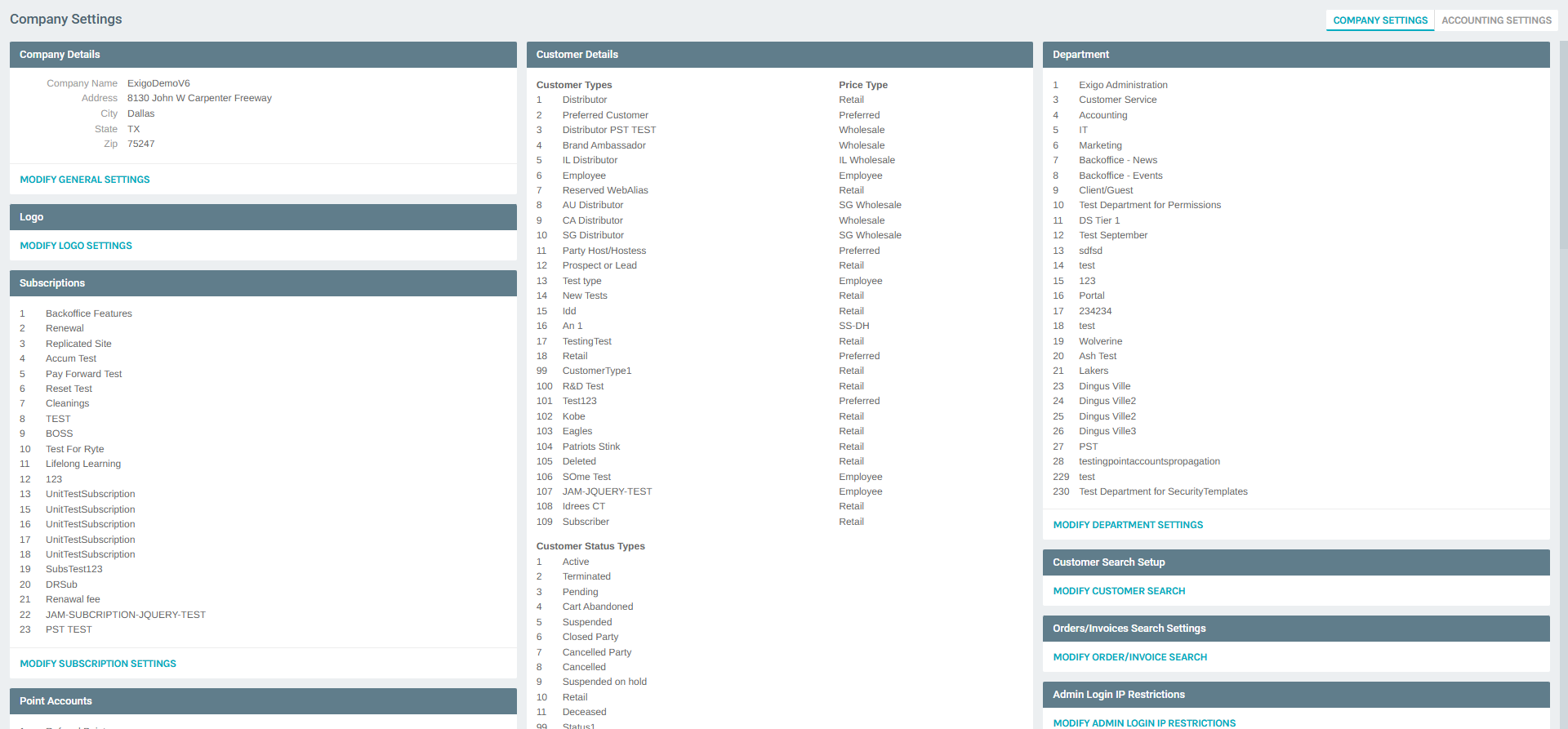
- On the Company Settings page, click the ACCOUNTING SETTINGS tab at the top
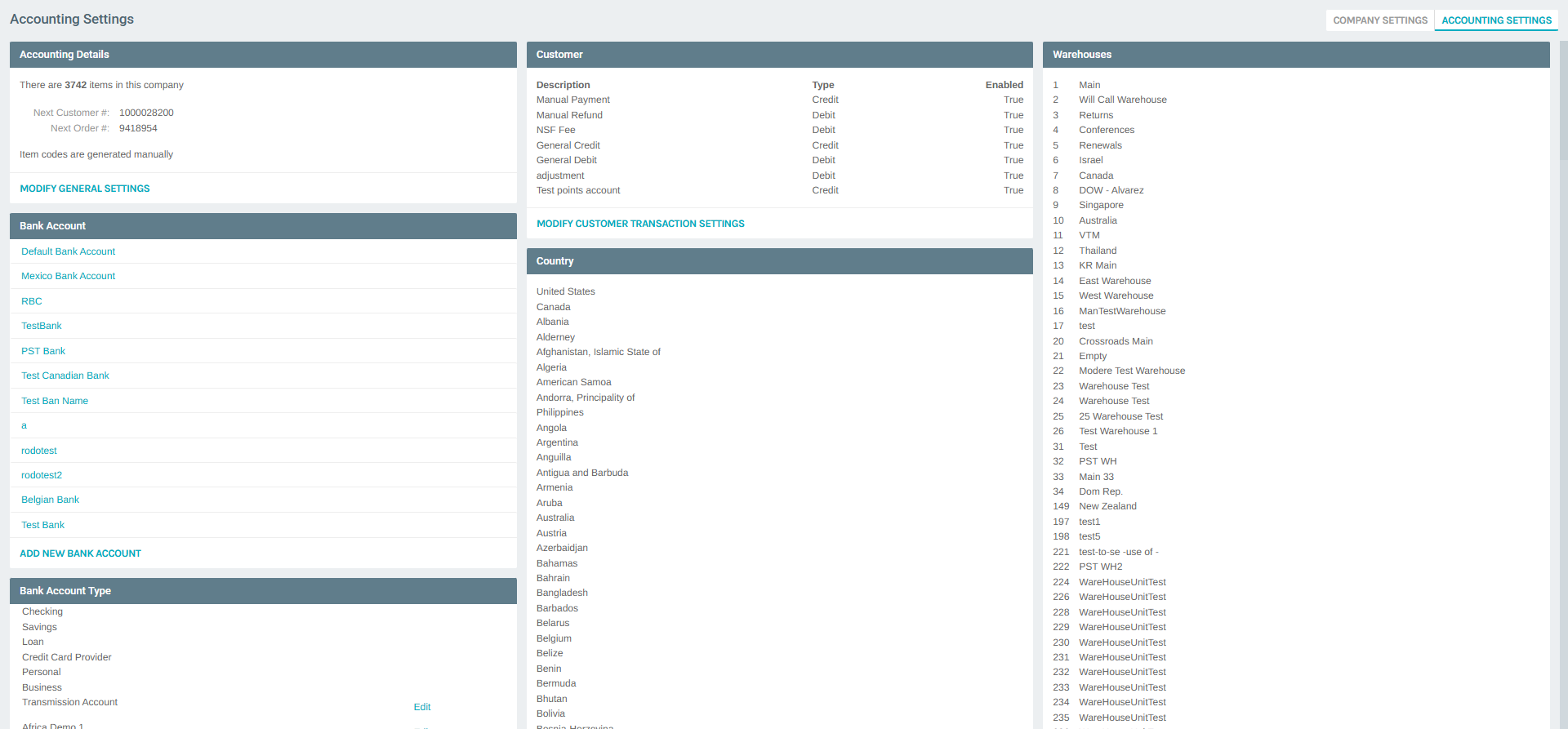
- Scroll down the Accounting Settings summary page to find the Language section, then click MODIFY LANGUAGE SETTINGS — this opens the same popup where currency settings are located
Tip: You can also click MODIFY COUNTRY SETTINGS in the Country section — both links open the same Accounting Settings popup on the Country tab, which also contains the Currency section.
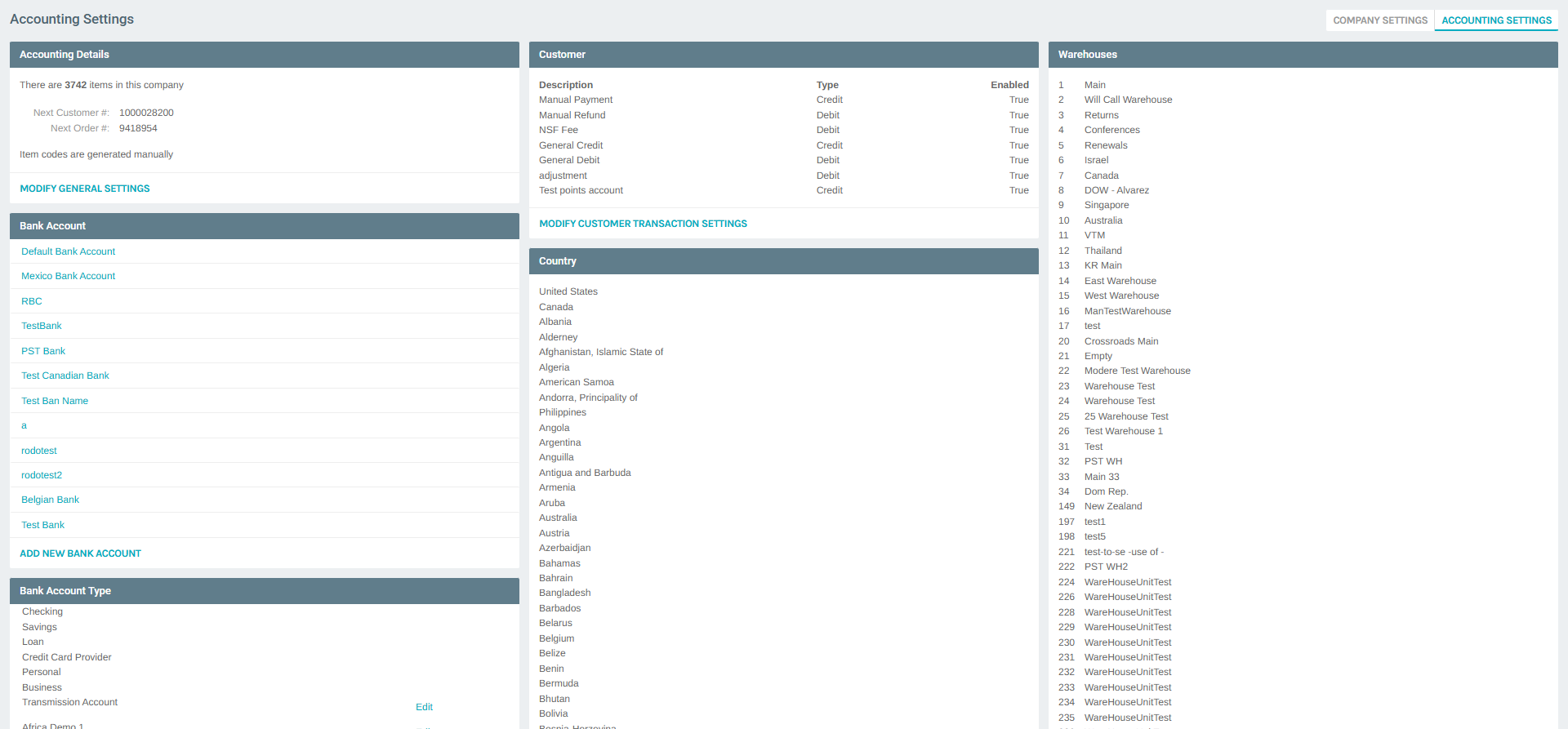
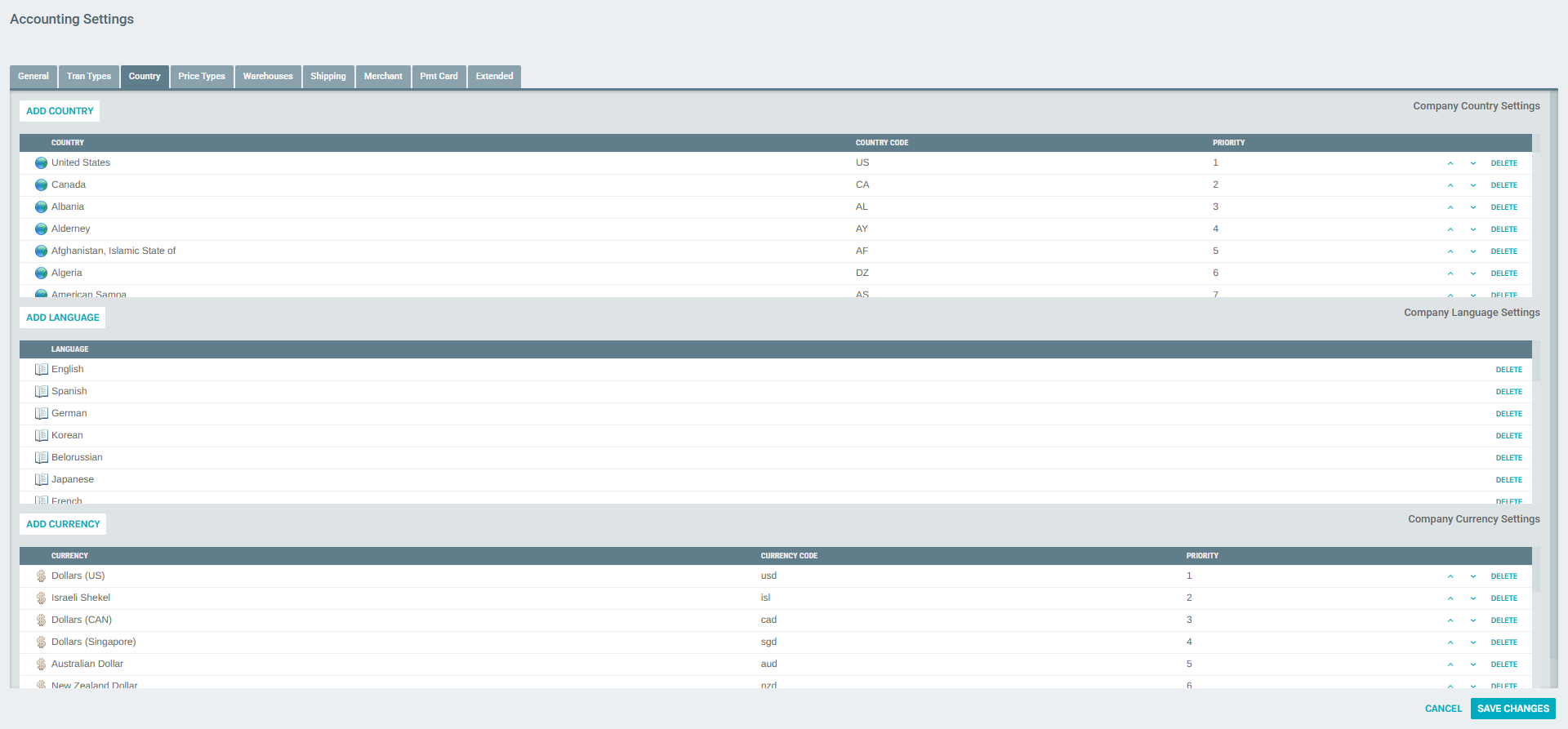
The Accounting Settings popup will open on the Country tab. Scroll down past the Country and Language sections to reach Company Currency Settings.
Viewing the Currency List
The Company Currency Settings table is located at the bottom of the Country tab. It displays all currently configured currencies with the following columns:
| Column | Description |
|---|---|
| Currency | Full currency name (e.g., Dollars (US), Euro, Pounds (UK)) |
| Currency Code | Short code used internally in the system (e.g., usd, eur, gbp) |
| Priority | Display order in dropdowns — lower number = higher position |
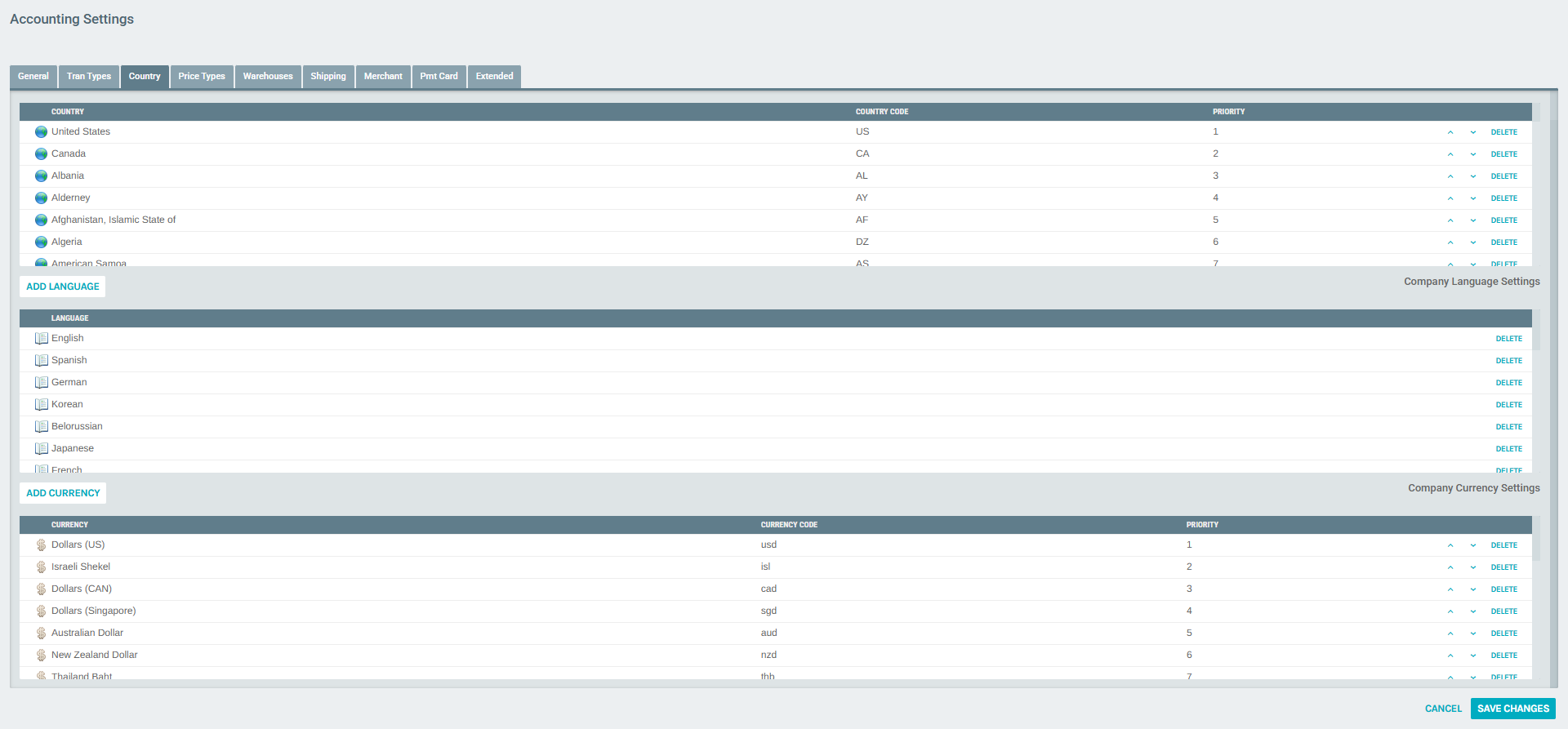
The currency with Priority 1 is treated as the primary/default currency throughout the platform. Currencies are shown in this order in any currency selection dropdown.
Adding a Currency
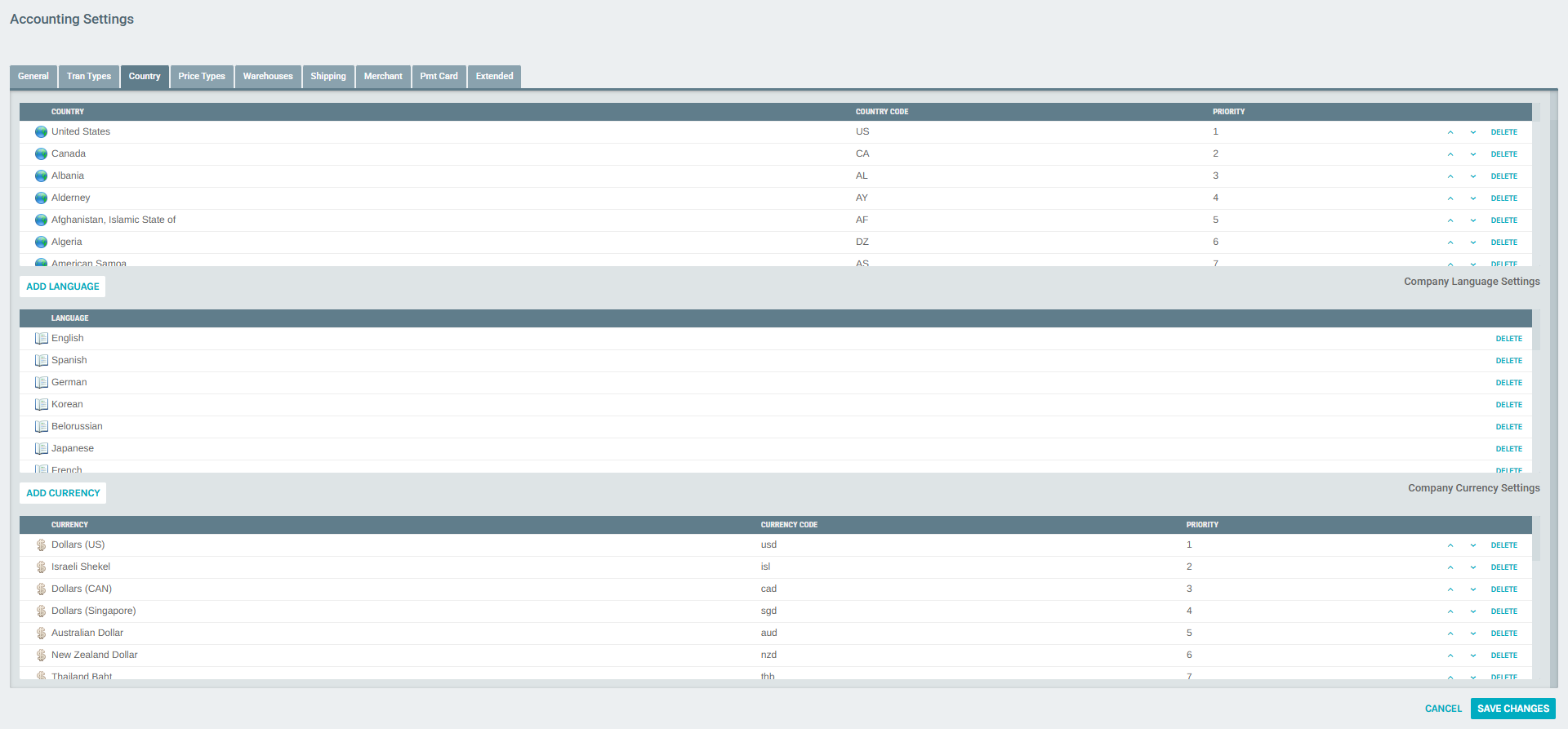
- Scroll to the Company Currency Settings section within the Country tab
- Click the ADD CURRENCY button above the currency table
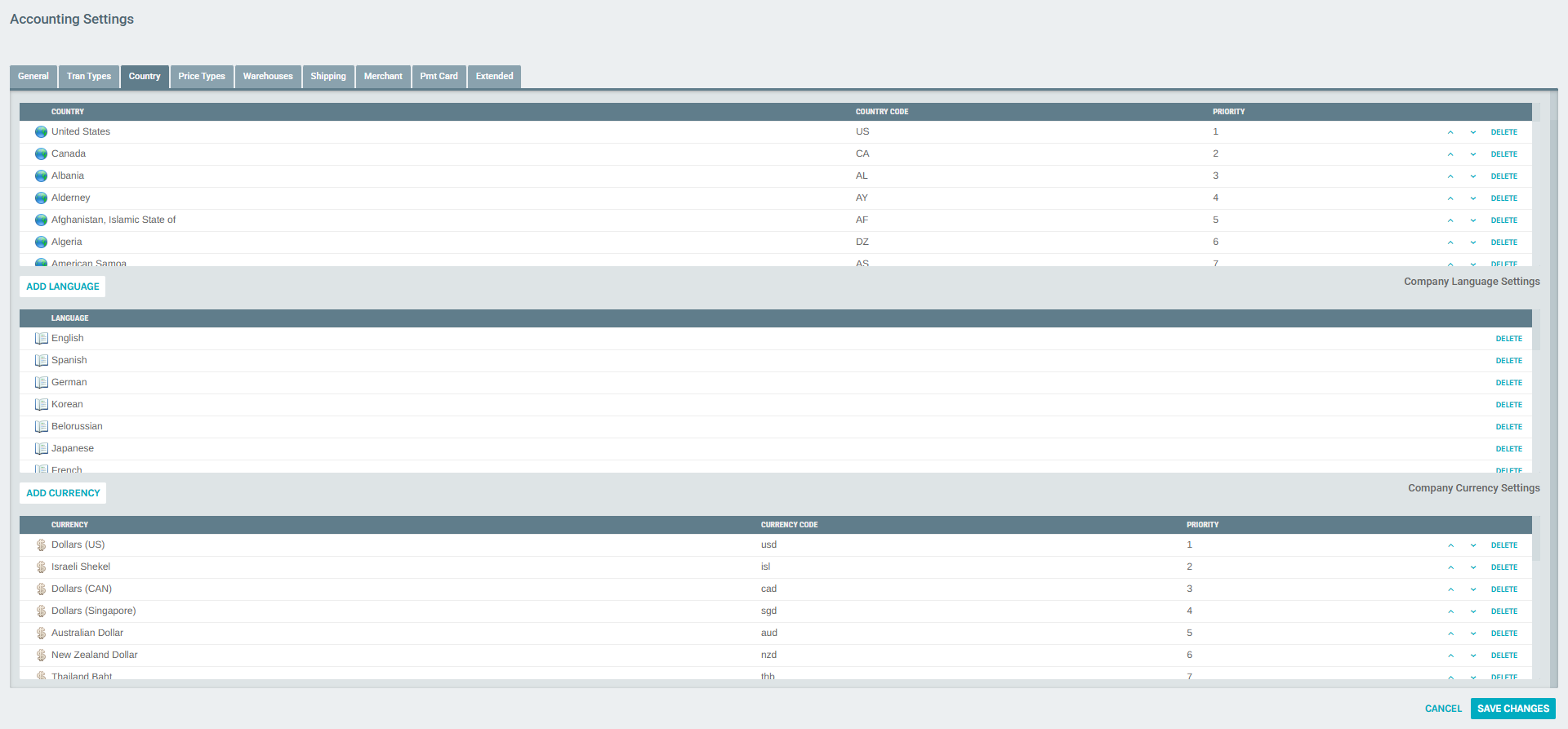
- The Company Currency Setup dialog will appear
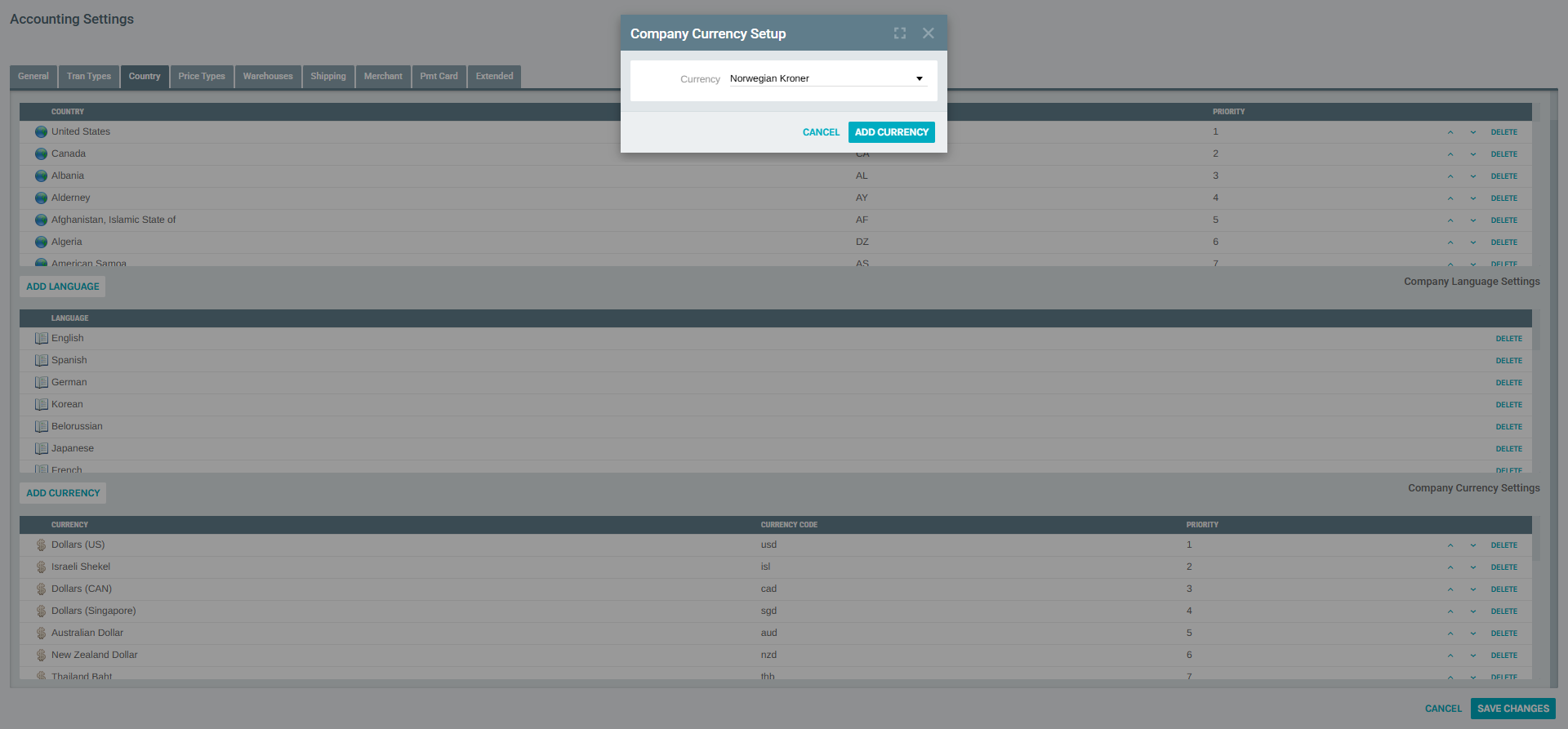
- Click the Currency dropdown to browse all available currencies
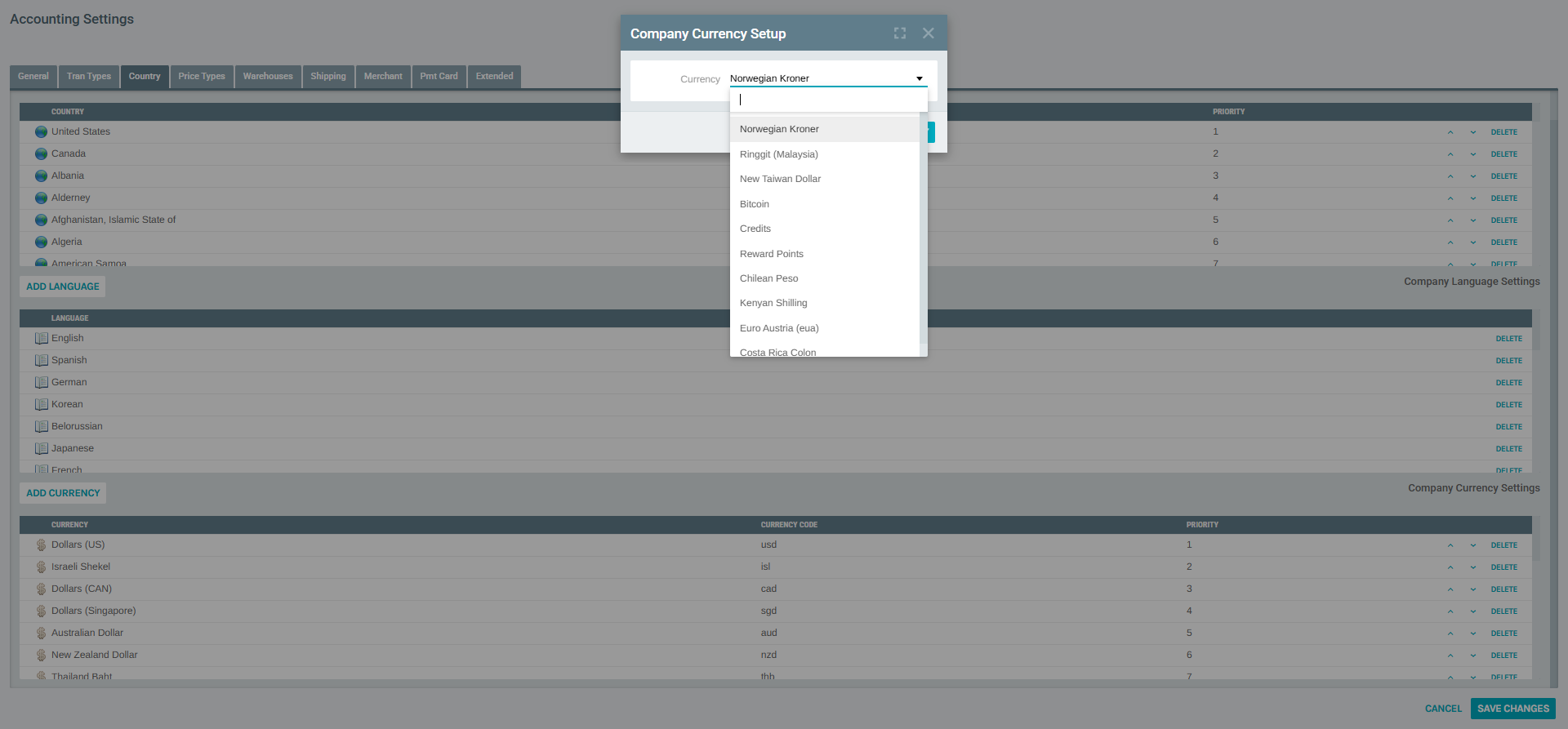
- Select the currency you want to add from the list
- Click ADD CURRENCY to confirm
- The new currency will appear at the bottom of the currency list with the next available priority number
- Click SAVE CHANGES at the top of the popup to persist the change
Note: Currency codes in Exigo are 3-character identifiers (e.g.,
usd,eur,cad). These codes are used across orders, invoices, commissions, and API calls.
Reordering Currencies
Each row in the currency table has ▲ and ▼ arrow buttons on the right side. Use these to adjust the display priority:
- Click ▲ (expand_less) to move a currency up — lowers the priority number
- Click ▼ (expand_more) to move a currency down — increases the priority number
The currency at Priority 1 appears as the default selection in currency dropdowns across the platform. Place the most commonly used currency (typically your home currency) at the top.
Best Practice: Set your primary transactional currency (e.g.,
usdfor US companies) at Priority 1 to ensure it appears as the default on order and invoice forms.
Removing a Currency
- Locate the currency you want to remove in the Company Currency Settings table
- Click the DELETE button on the right side of the currency row
- The currency will be removed from the list immediately in the UI
- Click SAVE CHANGES to finalize the deletion
Warning: Removing a currency may impact existing orders, invoices, auto orders, and customer accounts that are configured to use that currency. Ensure no active records depend on a currency before removing it.
Saving Changes
All modifications to currencies (and to countries and languages on the same tab) are applied only after clicking the SAVE CHANGES button at the top of the Accounting Settings popup.
- To discard all pending changes, click CANCEL
- Changes take effect immediately after saving and apply platform-wide