Creating Static Kits
This guide explains how to create a Static Kit in the Exigo platform. A Static Kit is an item that bundles together a fixed set of individual items (components) sold as a single product at a set price. The components and quantities are predefined and do not change per order.
Table of Contents
- Overview
- Accessing the Items List
- Creating a New Static Kit
- General Tab Fields
- Item Type Options
- Configuring Pricing
- Adding Components (Bill of Materials)
- Adding a Component
- Editing or Removing a Component
- Tax and Shipping Options
- Viewing a Static Kit Summary
Overview
A Static Kit in Exigo is a special item type where:
- A fixed list of component items (Bill of Materials) is bundled together.
- The kit is sold as a single catalog item with its own item code, pricing, and BV/CV values.
- When an order is placed for the kit, the system automatically includes all defined components.
- Pricing, tax, and shipping can be calculated at either the kit level or the component (detail) level.
Static Kits are commonly used for starter packages, product bundles, and promotional packs.
Accessing the Items List
- Log in to the Exigo Admin portal at
login.exigo.com. - From the left sidebar, navigate to Accounting > Items.
This opens the Items list, which displays all catalog items including standard items and kits.
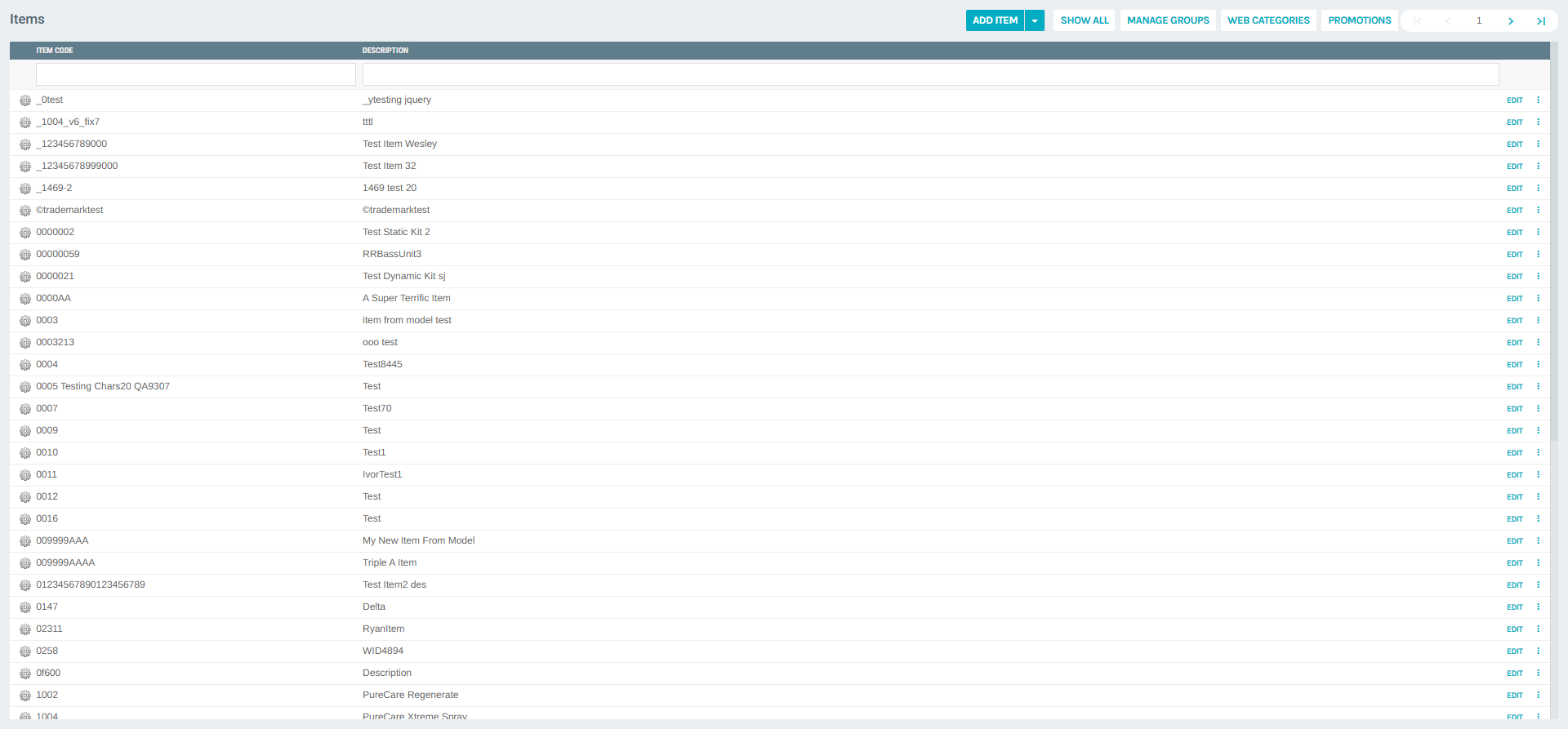
The list shows each item's Item Code and Description. You can use the search boxes at the top of each column to filter items, and navigate between pages using the pagination controls.
The toolbar at the top provides the following actions:
| Button | Description |
|---|---|
| ADD ITEM | Opens the form to create a new item |
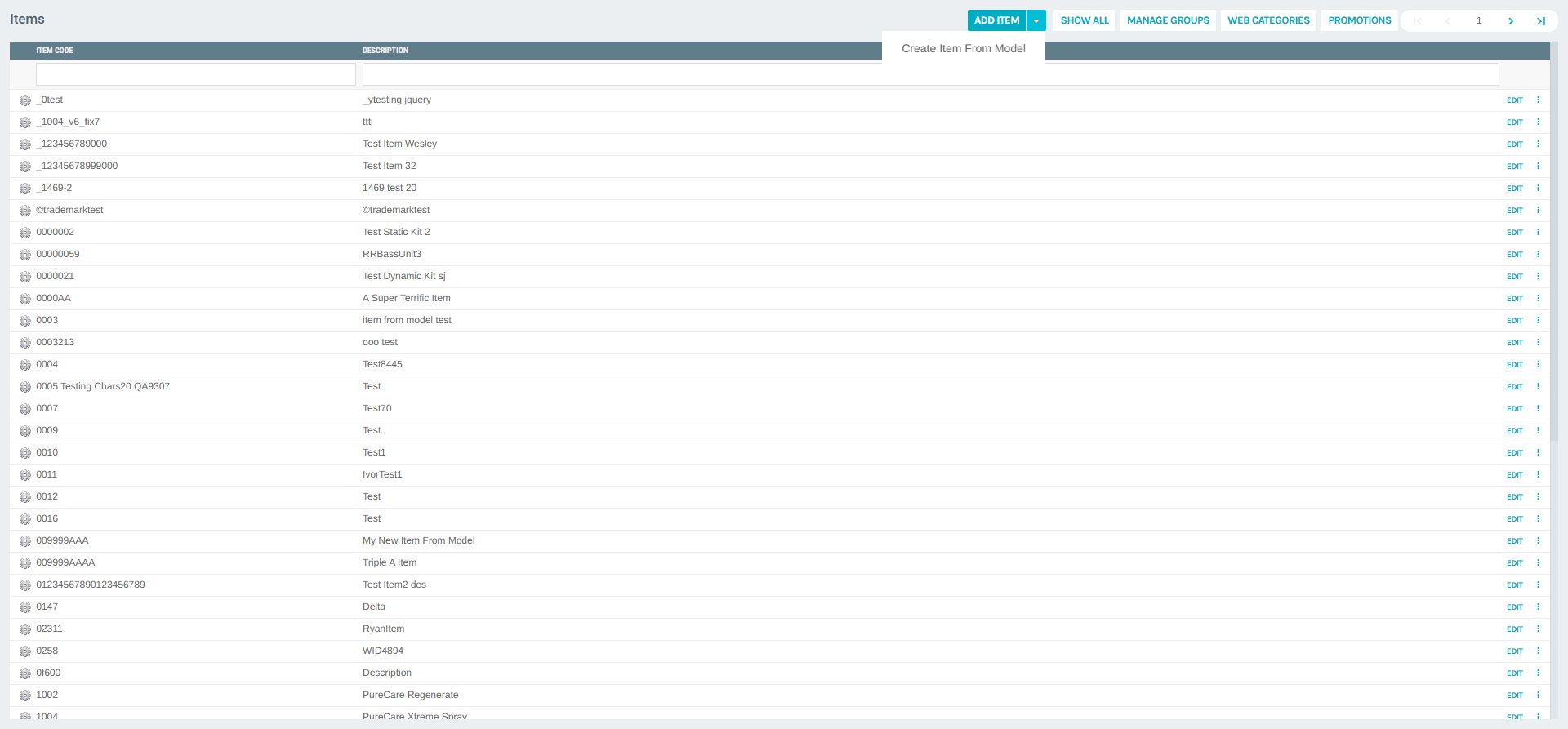
| Dropdown arrow (▾) | Shows additional options such as Create Item From Model |
| SHOW ALL | Displays all items including inactive ones |
| MANAGE GROUPS | Manages item groupings |
| WEB CATEGORIES | Manages web category tree for the catalog |
| PROMOTIONS | Manages item promotions |
Creating a New Static Kit
Click the ADD ITEM button (not the dropdown arrow) to open the Add Item form. The form opens in a popup with multiple tabs.
General Tab Fields
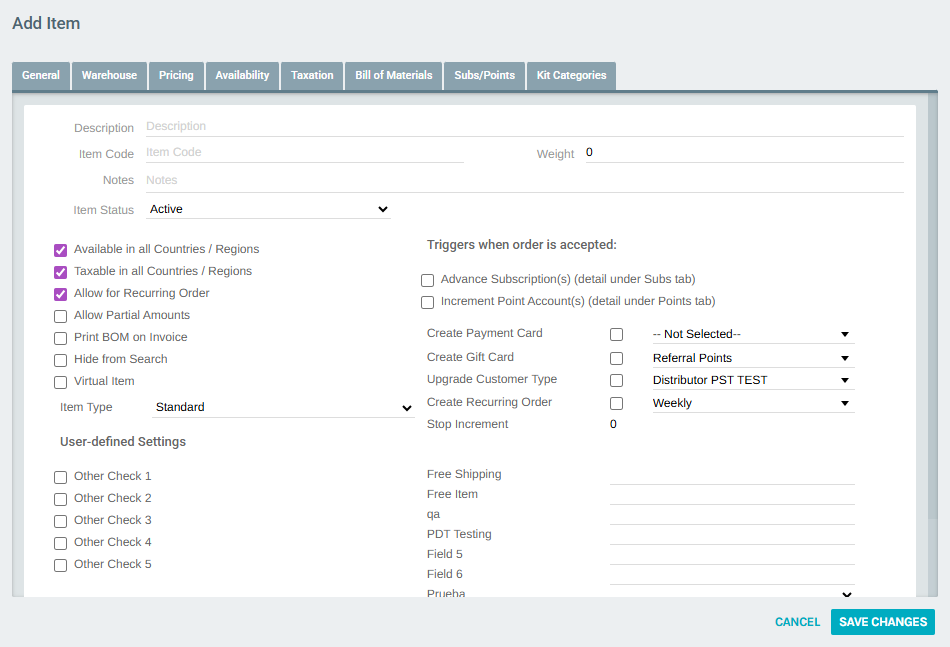
The General tab is the first tab shown. It contains the core configuration for the item:
| Field | Description |
|---|---|
| Description | The display name of the kit item |
| Item Code | Unique identifier for the kit (e.g., STARTERBUNDLE) |
| Weight | Physical weight of the item for shipping calculations |
| Notes | Internal notes (not visible to customers) |
| Item Status | Active or Deleted |
| Available in all Countries / Regions | When checked, the item is available in all markets |
| Taxable in all Countries / Regions | When checked, taxes apply across all markets |
| Allow for Recurring Order | Allows the item to be added to recurring/autoship orders |
| Allow Partial Amounts | Allows fractional quantities |
| Print BOM on Invoice | Prints the list of component items on the invoice |
| Hide from Search | Hides this item from customer-facing search |
| Virtual Item | Marks this as a non-physical item |
| Item Type | Sets the item type (see below) |
Item Type Options
The Item Type dropdown determines how the item behaves:
| Type | Description |
|---|---|
| Standard | A regular single item |
| Static Kit | A fixed bundle of items defined in the Bill of Materials |
| Dynamic Kit | A kit where the customer can choose items from predefined categories |
| Static Kit (Legacy) | Previous version of the static kit format |
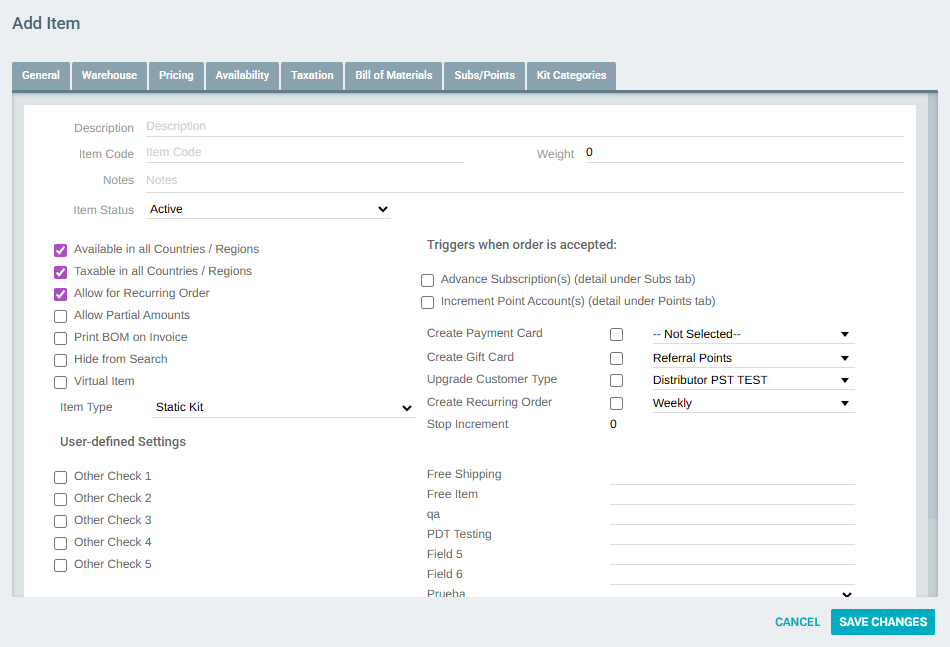
To create a Static Kit, select Static Kit from the Item Type dropdown.
Triggers When Order is Accepted
This section allows you to configure automatic actions that occur when an order containing this item is accepted:
| Trigger | Description |
|---|---|
| Advance Subscription(s) | Advances a customer's subscription period |
| Increment Point Account(s) | Adds points to a customer's account |
| Create Payment Card | Creates a stored payment method |
| Create Gift Card | Generates a gift card for the customer |
| Upgrade Customer Type | Changes the customer to a different customer type |
| Create Recurring Order | Sets up an automatic recurring order |
Configuring Pricing
After setting the General fields, navigate to the Pricing tab to configure prices per currency and price type.
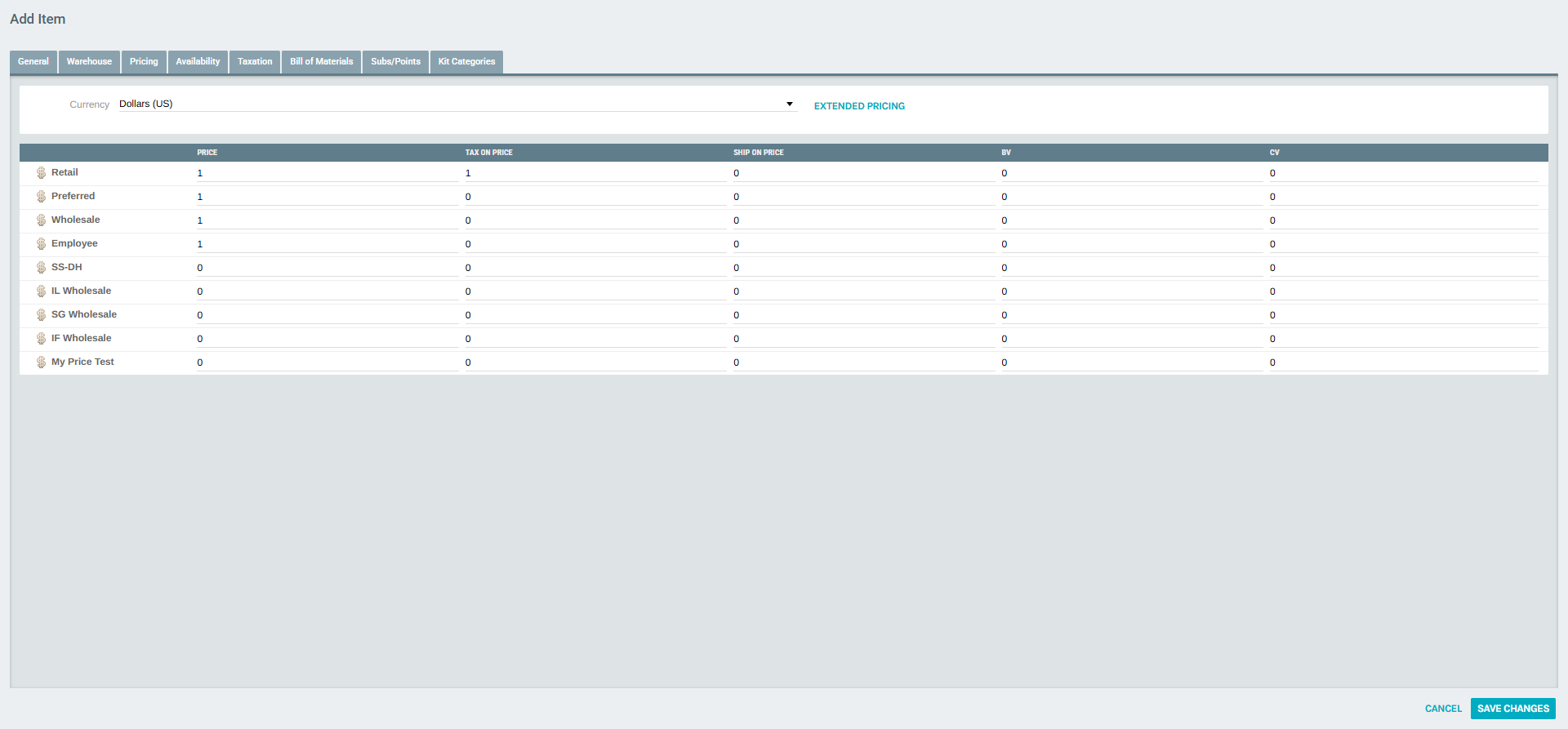
The Pricing tab shows a table with the following columns for each configured price type (e.g., Retail, Preferred, Wholesale, Employee):
| Column | Description |
|---|---|
| Price Type | The customer segment this price applies to (e.g., Retail, Wholesale) |
| Price | The sale price of the kit |
| Tax on Price | The taxable amount for this price point |
| Ship on Price | The shipping basis amount |
| BV | Business Volume assigned to this item |
| CV | Commission Volume assigned to this item |
Use the Currency selector at the top to configure prices for different currencies (USD, ISL, CAD, SGD, AUD, etc.).
Adding Components (Bill of Materials)
Navigate to the Bill of Materials tab to define which individual items are included in the Static Kit and in what quantities.
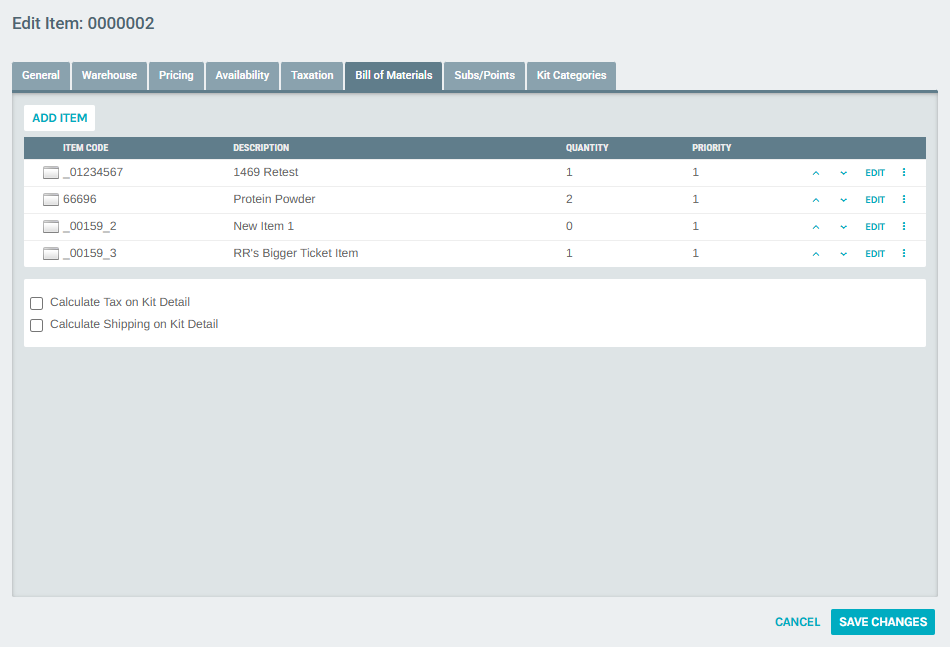
The table lists each component item with:
| Column | Description |
|---|---|
| Item Code | The item code of the component |
| Description | The description of the component |
| Quantity | How many units of this component are included in the kit |
| Priority | The display/processing order of the component |
| Arrow buttons (▲▼) | Reorder components up or down |
| EDIT | Opens the edit dialog for this component |
| Context menu (⋮) | Additional options including Delete |
Adding a Component
Click the ADD ITEM button at the top of the Bill of Materials tab to open the Item Kit Setup dialog.
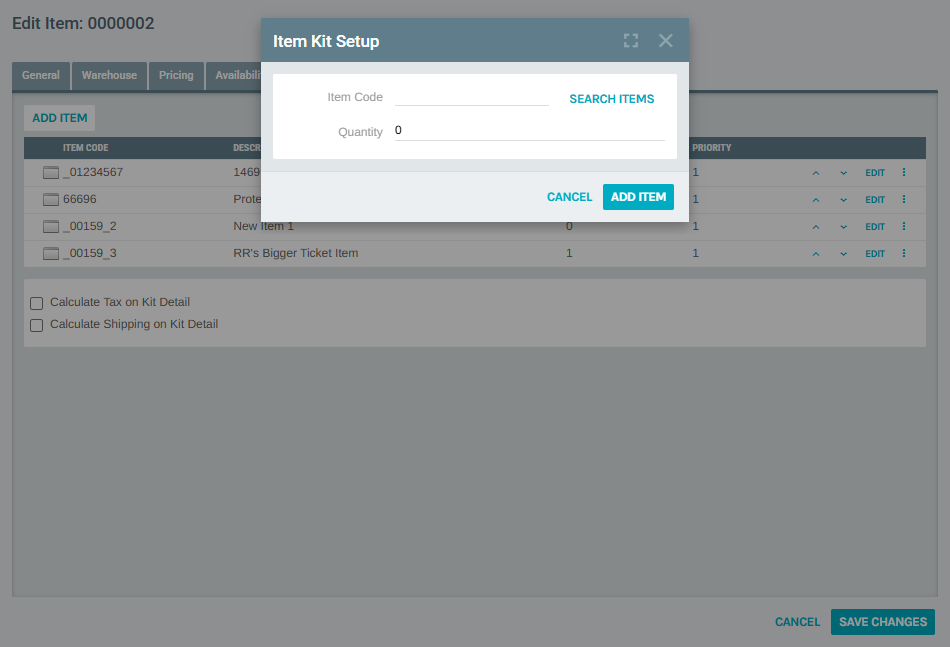
In the dialog:
- Enter the Item Code of the component item you want to add, or use the SEARCH ITEMS button to search by name.
- Enter the Quantity (number of units included in the kit).
- Click ADD ITEM to confirm, or CANCEL to discard.
Editing or Removing a Component
- Click EDIT next to a component row to open the Item Kit Setup dialog and modify the quantity.
- Click the context menu button (⋮) on a component row for additional options including Delete.
Tax and Shipping Options
At the bottom of the Bill of Materials tab, two checkboxes control how tax and shipping are calculated for the kit:
| Checkbox | Description |
|---|---|
| Calculate Tax on Kit Detail | When checked, tax is calculated based on each individual component's pricing. When unchecked, tax is calculated on the kit's total price |
| Calculate Shipping on Kit Detail | When checked, shipping is calculated per component. When unchecked, shipping is based on the kit's overall weight/price |
Viewing a Static Kit Summary
After saving a Static Kit, you can view its full summary by navigating to the Item Portal. From the Items list, click the context menu (⋮) next to the kit and select View Item Summary.
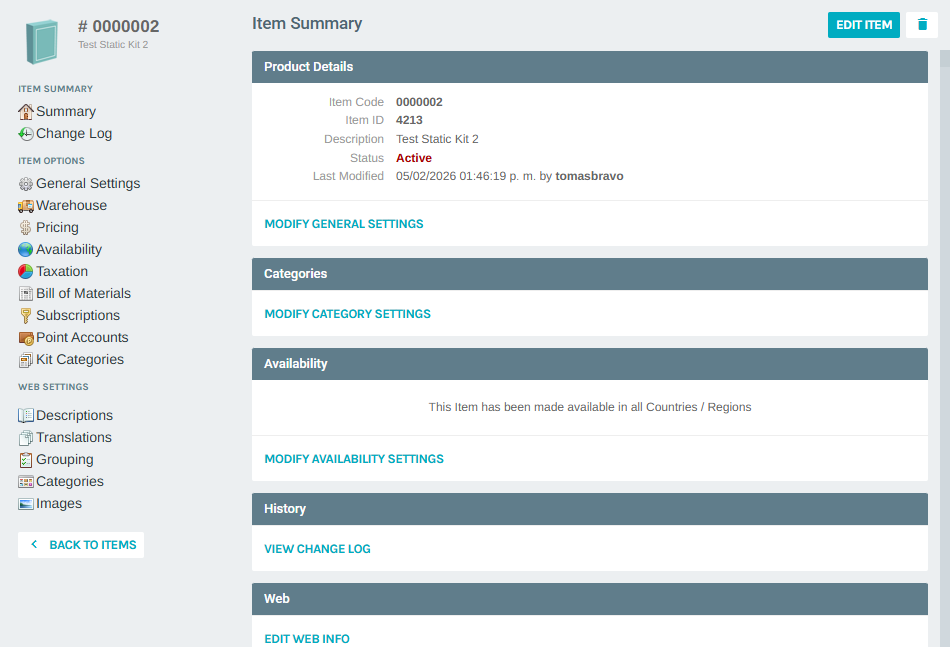
The Item Summary portal displays three main sections:
Product Details
Shows the item's code, internal ID, description, status, and last modified information. Contains a link to Modify General Settings.
Pricing
Displays all configured prices across each currency and price type combination (Retail, Preferred, Wholesale, etc.) with their BV and CV values.
Warehouse
Lists every configured warehouse with its availability status, current stock level, and vendor assignment for this item.
The left sidebar navigation provides quick links to all item configuration sections: - Summary — General product details - Change Log — History of modifications - General Settings — Core item configuration - Warehouse — Warehouse availability settings - Pricing — Price type configuration - Availability — Country/region availability - Taxation — Tax category assignments - Bill of Materials — Kit component management - Subscriptions — Recurring order settings - Point Accounts — Commission point configuration - Kit Categories — Dynamic kit category settings - Web Settings — Descriptions, images, translations for the online catalog