Home > Links
Overview
The Links module, accessible from Home > Links in the Exigo admin panel, provides a personal bookmark manager for admin users. Links are organized into folders and allow users to store frequently visited URLs with a descriptive label. The module uses a two-panel layout: the left panel shows the folder tree, and the right panel displays the contents of the selected folder.
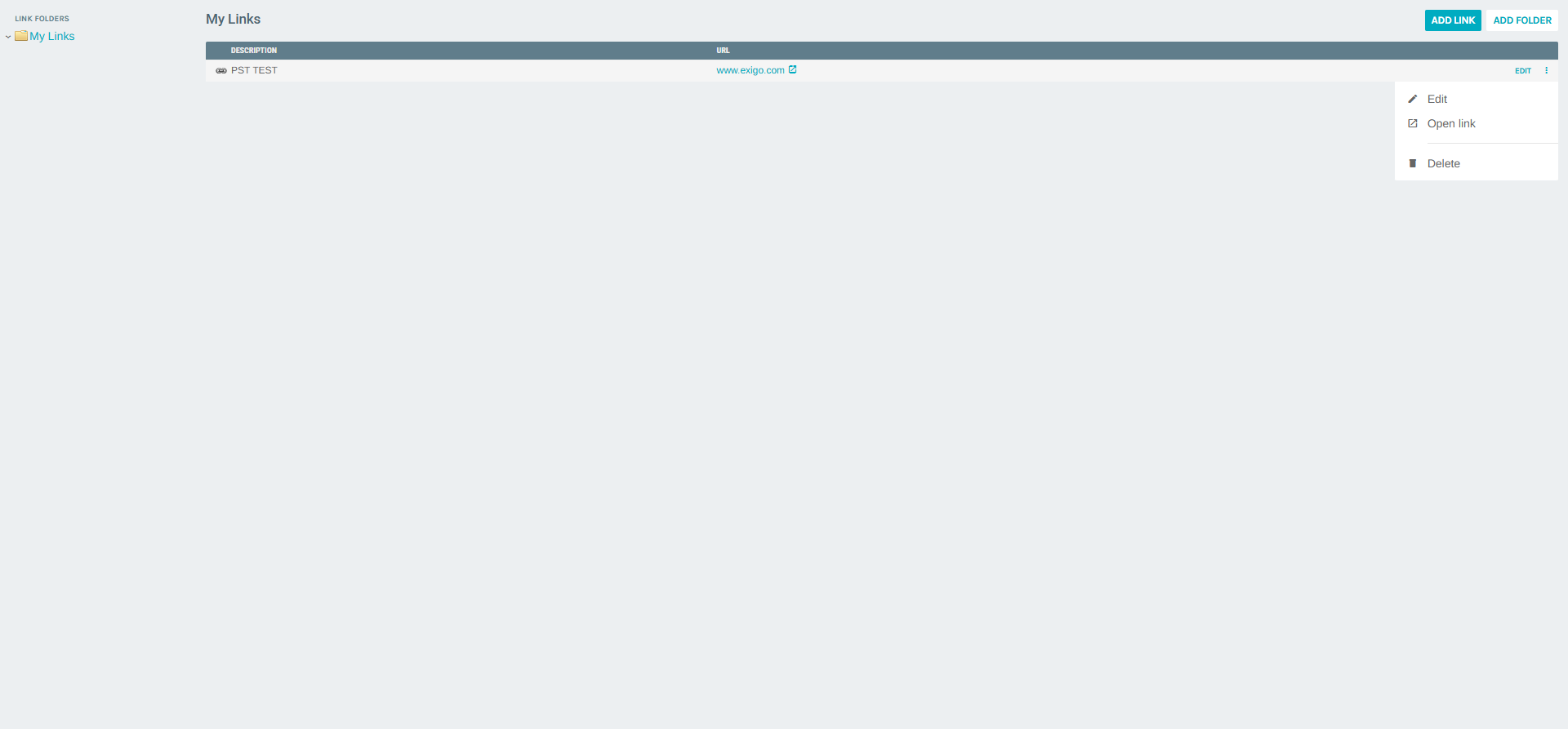
Navigating to Links
- Log in to the Exigo admin panel.
- In the left sidebar, expand the Home section.
- Click Links.
The Links portal opens with the My Links root folder selected by default.
Links Portal Layout
The portal is divided into two sections:
| Panel | Description |
|---|---|
| Link Folders (left) | Hierarchical folder tree. Click a folder to view its contents in the right panel. |
| Folder Contents (right) | Displays links and subfolders inside the selected folder, with options to add links or subfolders. |
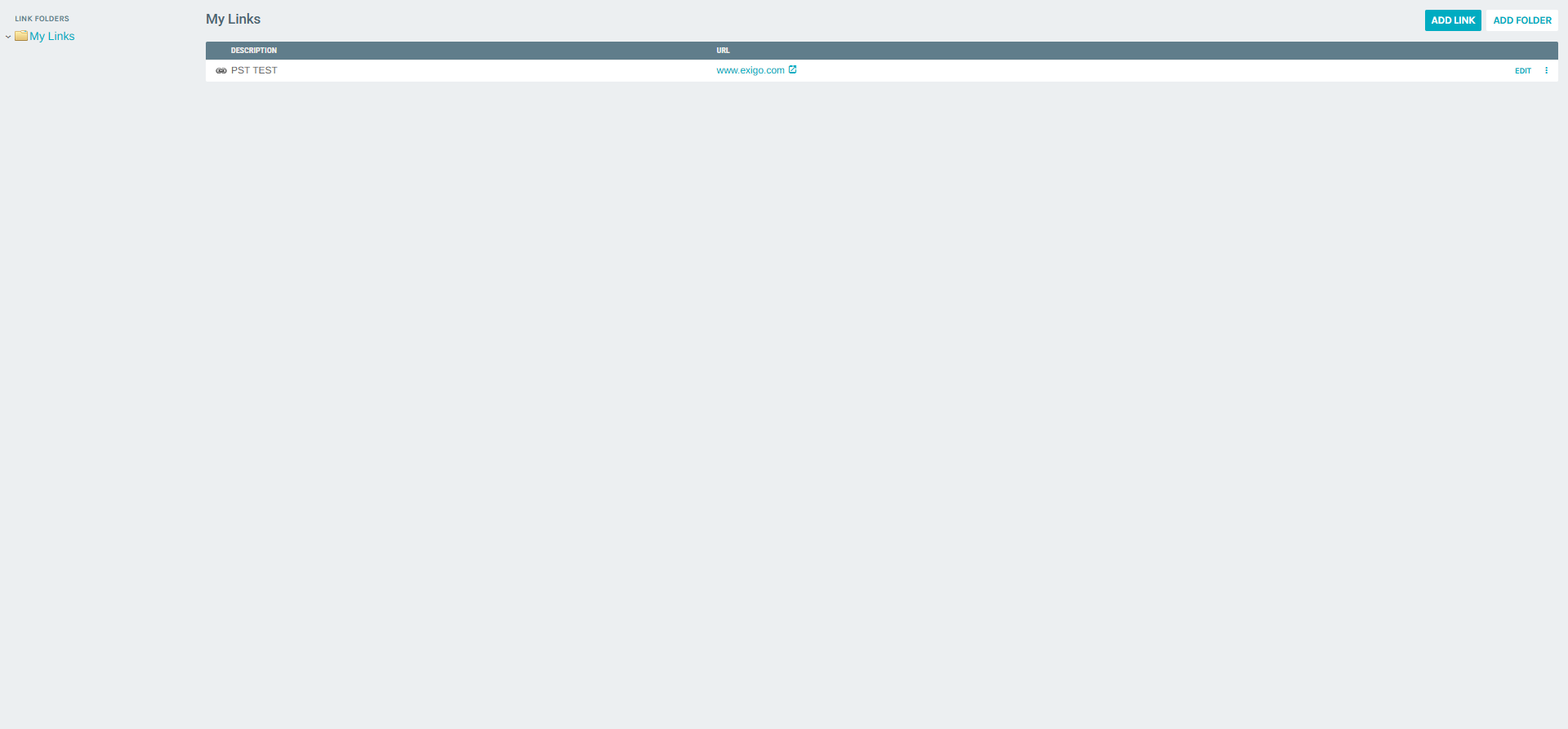
Folder Contents Columns
| Column | Description |
|---|---|
| Description | The display name of the link |
| URL | The web address of the link, shown as a clickable launch icon |
| (Actions) | EDIT button and context menu (⋮) |
Link Row Actions
Each link row provides:
- EDIT — Opens the Edit Link form.
- more_vert (⋮) — Opens a context menu with additional options.
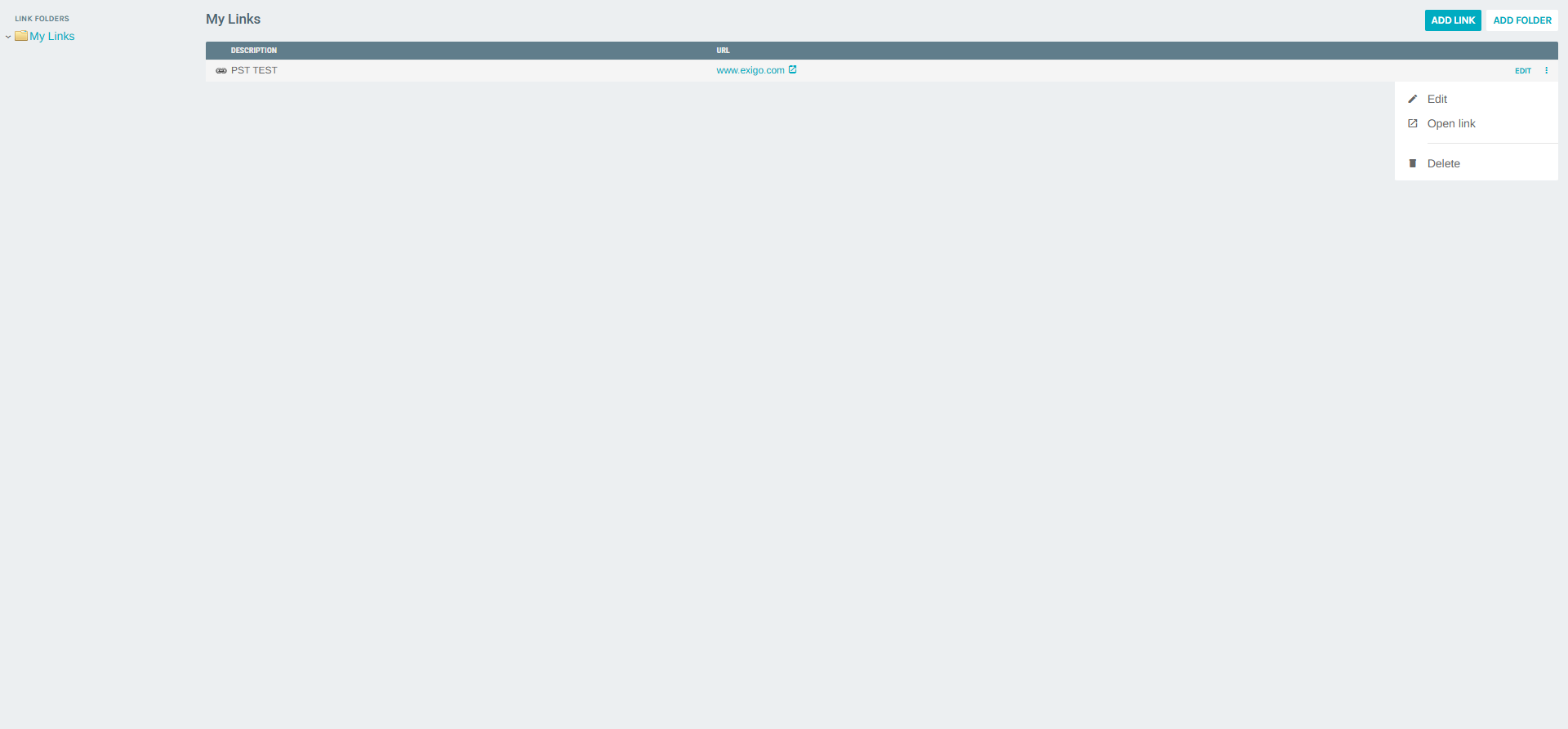
The context menu provides:
| Option | Description |
|---|---|
| Edit | Opens the Edit Link form |
| Open link | Navigates directly to the link's URL |
| Delete | Permanently removes the link |
Adding a New Link
From within a folder's content view, click ADD LINK to open the Add Link form.
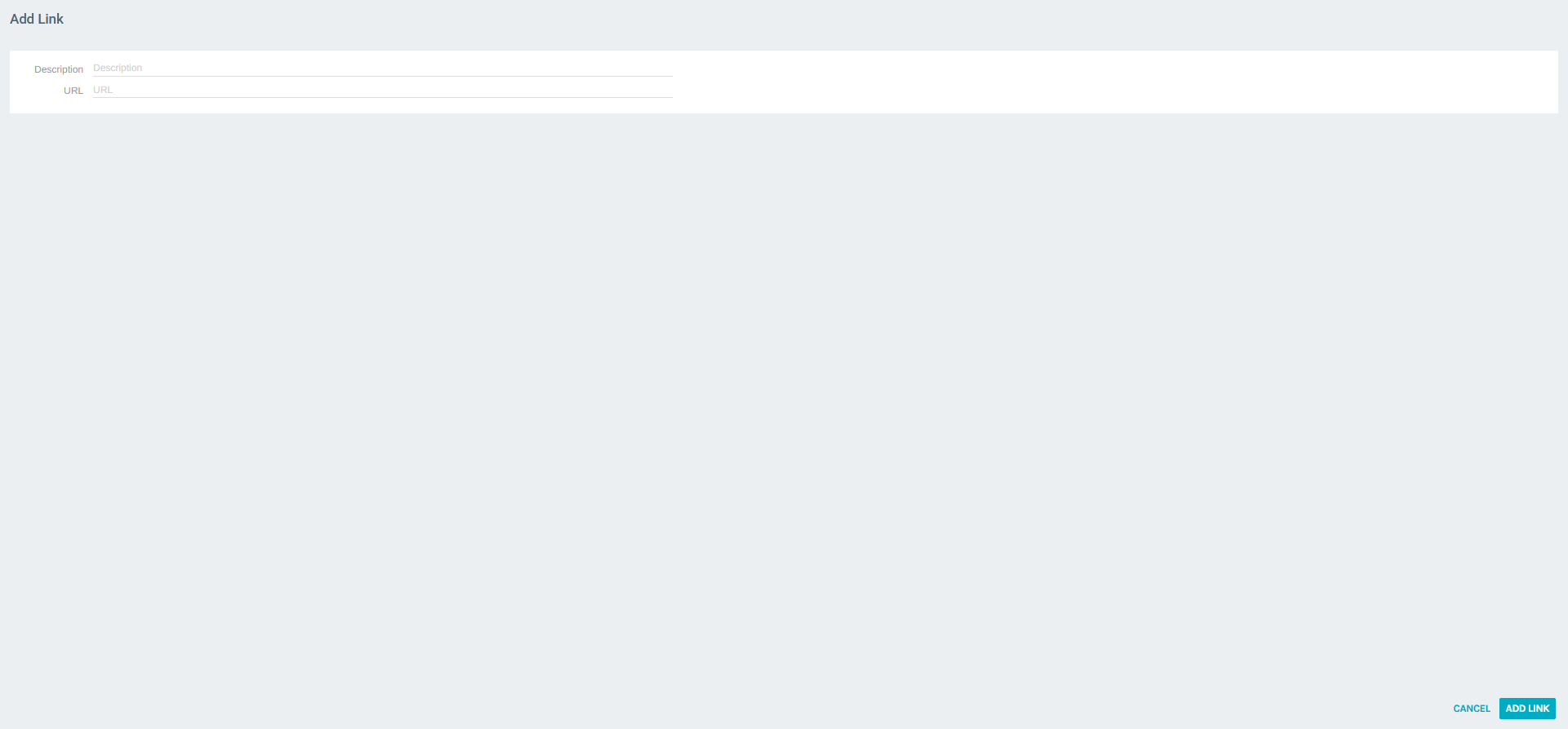
Form Fields
| Field | Description |
|---|---|
| Description | The display name for the link (required) |
| URL | The full web address of the link (required) |
After completing the fields, click ADD LINK to save, or CANCEL to discard.
Adding a New Folder
From within a folder's content view, click ADD FOLDER to create a subfolder.
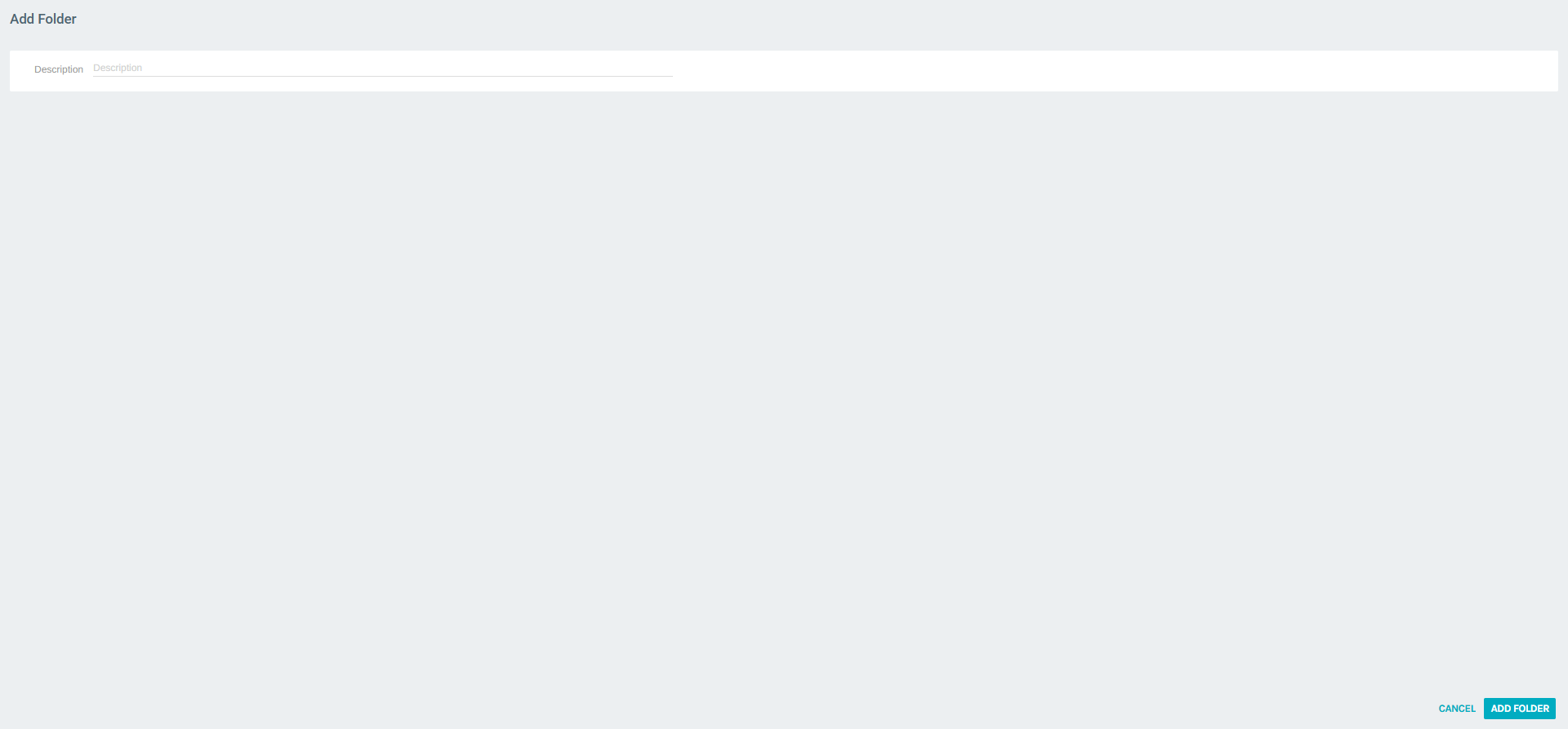
Form Fields
| Field | Description |
|---|---|
| Description | The name of the new folder (required) |
Click ADD FOLDER to save, or CANCEL to discard. The new folder will appear in the left panel tree and inside the current folder's content view.
Editing a Link
To edit an existing link:
- Locate the link in the folder content view.
- Click EDIT on the link row, or select Edit from the context menu (⋮).
- The Edit Link form opens with the existing description and URL pre-filled.
- Modify the desired fields.
- Click SAVE CHANGES to apply the updates.
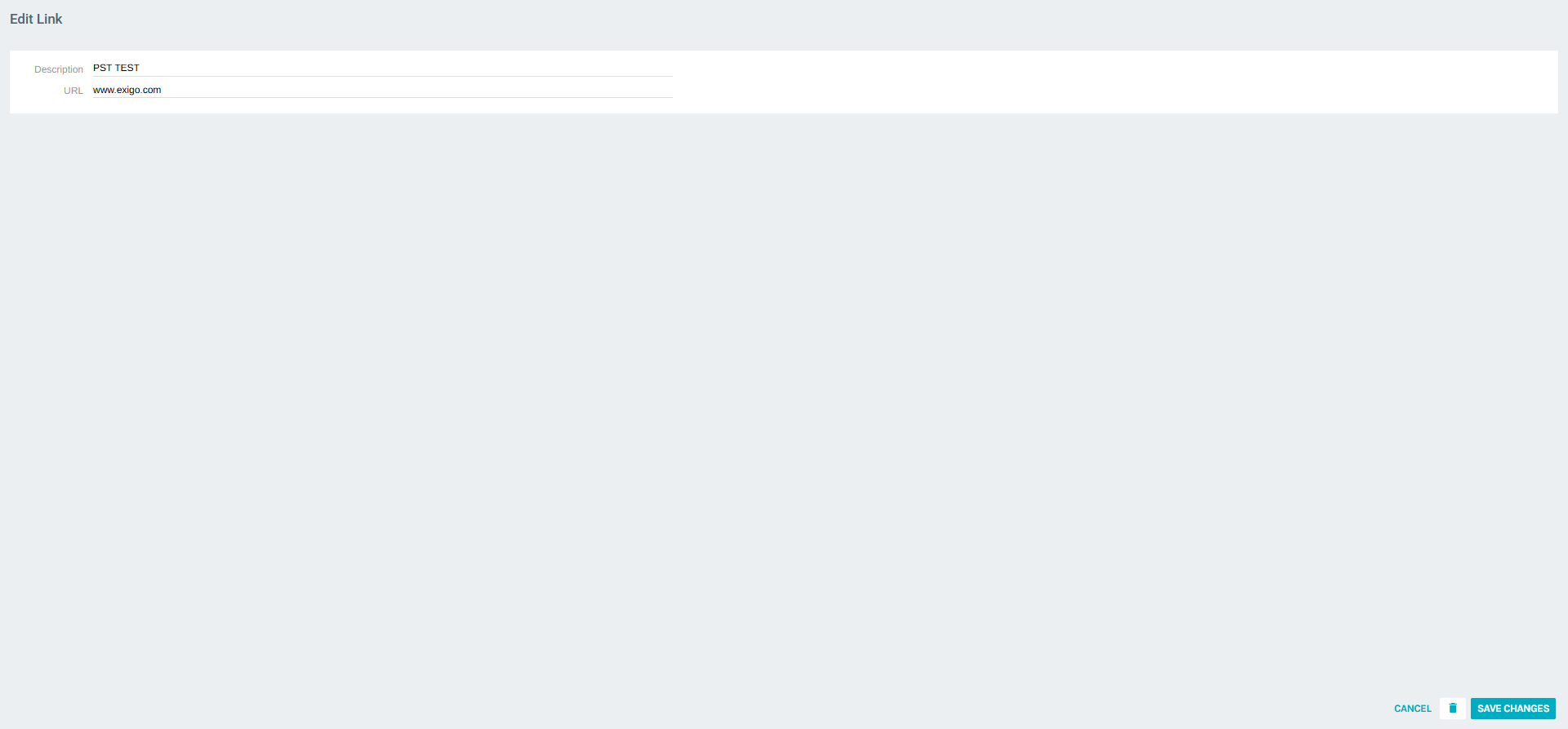
The Edit Link form also includes a delete icon (trash) in the header to remove the link directly.
Deleting a Link
Links can be deleted in two ways:
- From the folder content view: click the context menu (⋮) and select Delete.
- From the Edit Link form: click the trash icon in the form header.
Permanent Action
Deleting a link is permanent and cannot be undone.
Summary
| Feature | Description |
|---|---|
| Location | Home > Links |
| Scope | Per-user (not shared organization-wide) |
| Organization | Hierarchical folders (My Links root + subfolders) |
| Link Fields | Description, URL |
| Actions | Add link, Add folder, Edit link, Open link, Delete link |