Home Password
Overview
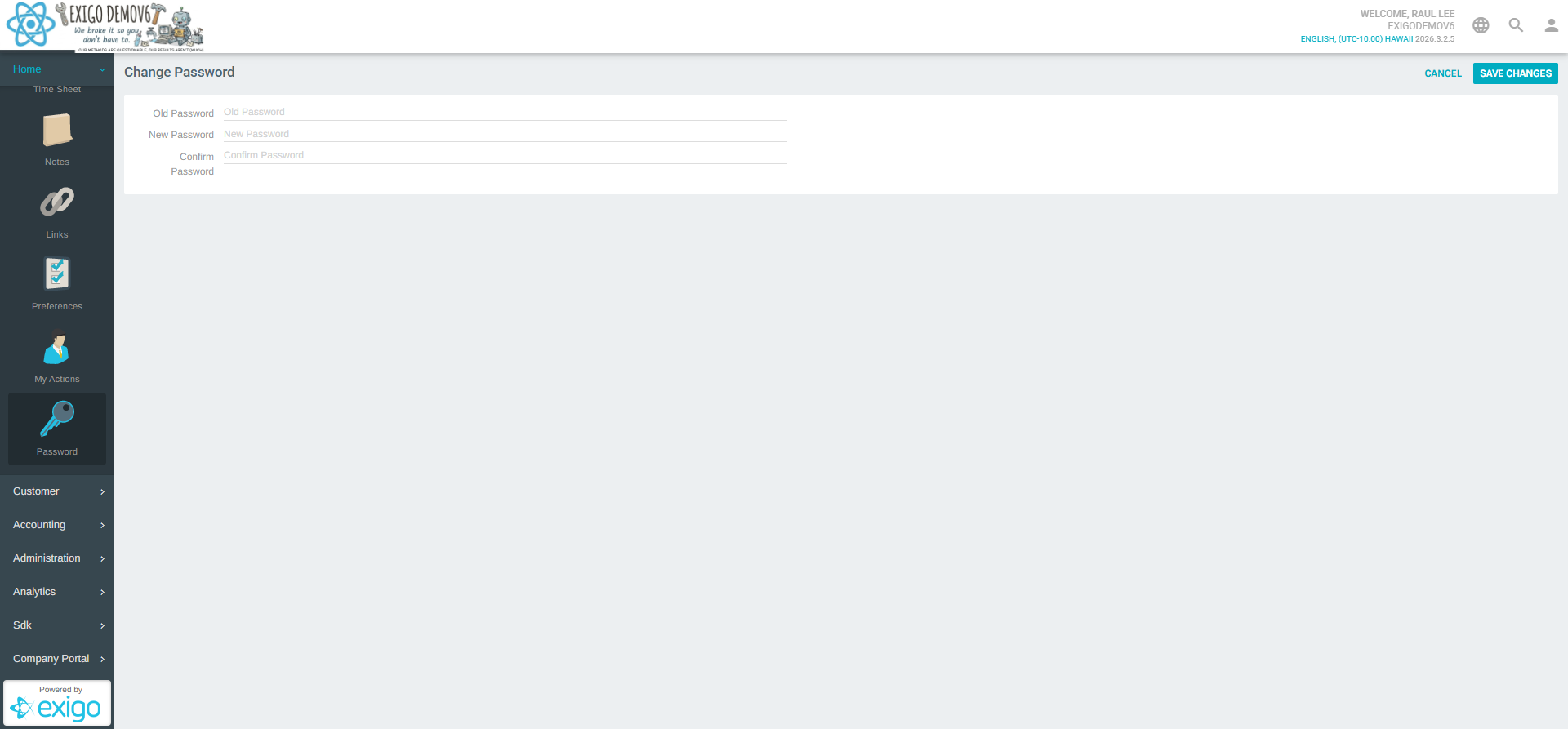
Home > Password provides a quick way for admin users to change their own login password directly from the Exigo admin panel. The form requires the current password for verification and asks for the new password to be entered twice to prevent typos.
Accessing the Password Page
- Log in to the Exigo admin panel.
- In the left navigation sidebar, click Home to expand the submenu.
- Select Password.
Note
The Password option is also accessible via Home > Preferences on the Password tab within the Edit Preferences dialog.
Change Password Form
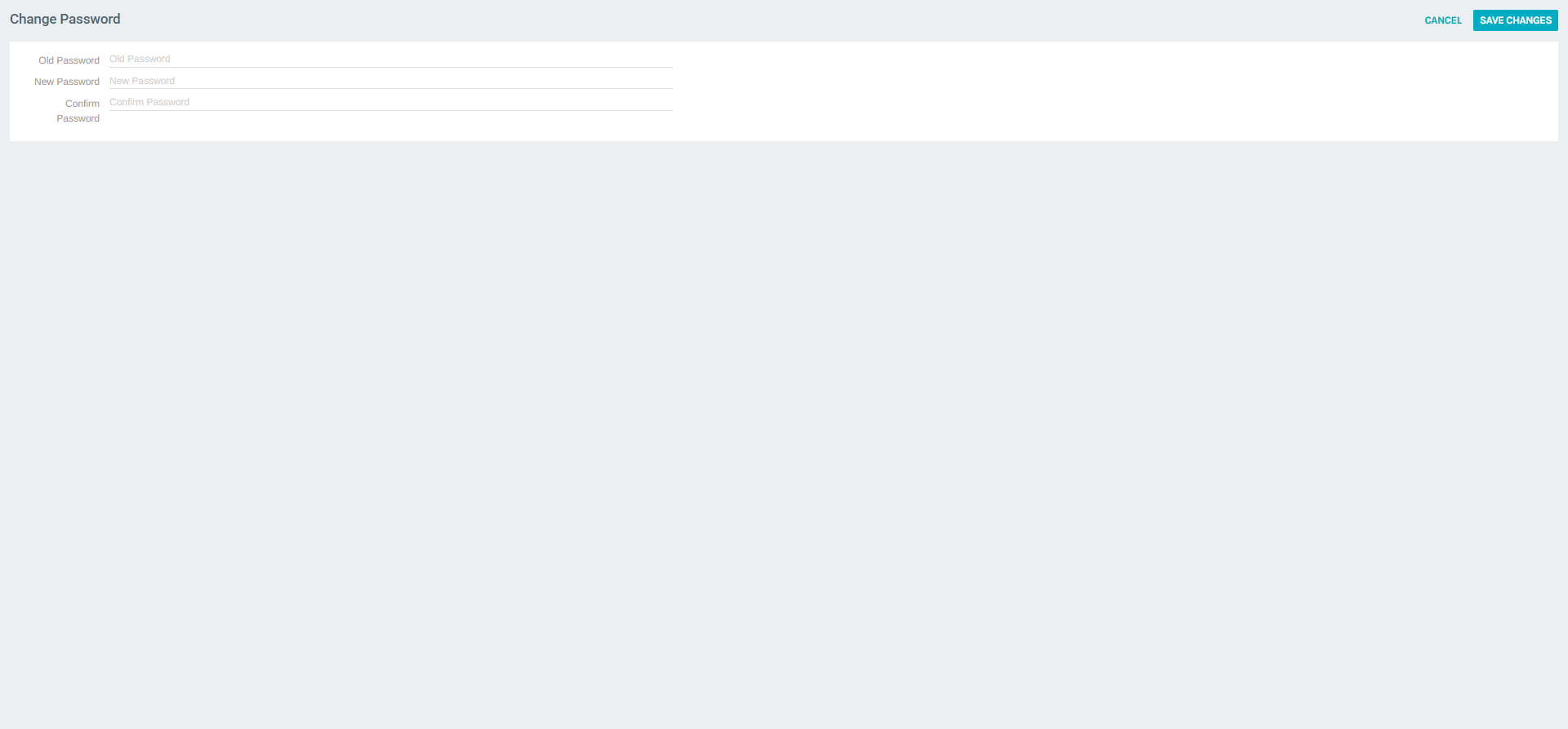
The Change Password form contains three required fields:
| Field | Description |
|---|---|
| Old Password | The user's current active password. Required to authenticate the change request. |
| New Password | The new password to set. Must meet the platform's password requirements. |
| Confirm Password | Re-enter the new password to confirm it matches. |
Actions
- SAVE CHANGES — Submits the form and updates the password. A success message is shown upon completion.
- CANCEL — Discards any input and returns to the previous screen without making any changes.
Password Requirements
When setting a new password, ensure it meets the security requirements configured for your Exigo environment. Typical requirements include:
- Minimum character length
- A mix of uppercase and lowercase letters
- At least one number or special character
If the new password does not meet the requirements, or if the Old Password is incorrect, the system will display a validation error.
Summary
| Feature | Details |
|---|---|
| Location | Home > Password |
| Purpose | Allow the current admin user to change their own login password |
| Required Fields | Old Password, New Password, Confirm Password |
| Related | Home > Preferences (Password tab) |