Home > Time Sheet
Overview
The Time Sheet module, accessible from Home > Time Sheet in the Exigo admin panel, allows users to track and manage their work hours by logging individual time cards. Each time card records the start and end time, the associated job type, and optional notes. The module displays hours in a weekly grid view and provides a summary report showing hours across all logged weeks.
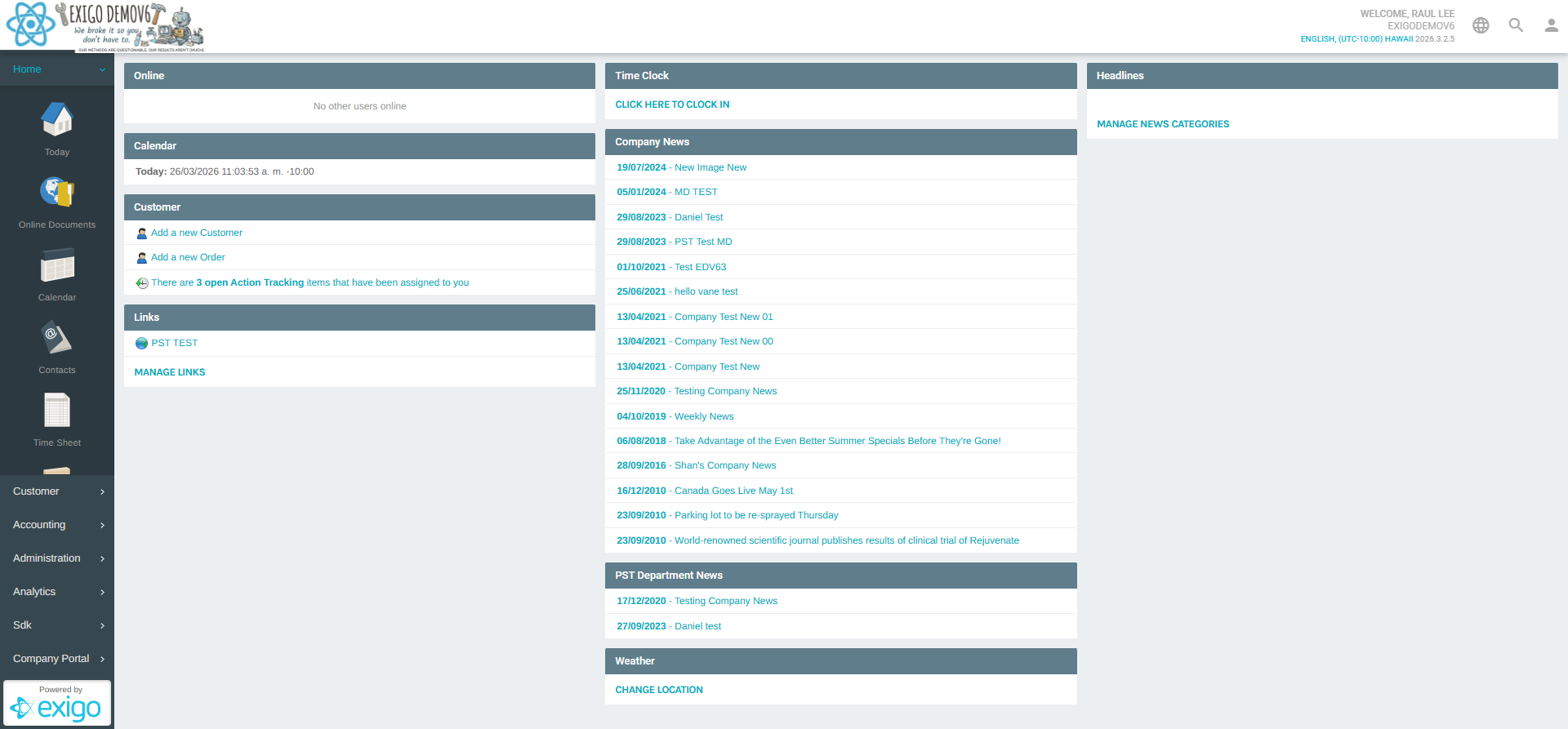
Navigating to Time Sheet
- Log in to the Exigo admin panel.
- In the left sidebar, expand the Home section.
- Click Time Sheet.
The Time Sheet weekly view will open, defaulting to the current week.
Time Sheet Weekly View
The main Time Sheet view displays a weekly grid organized by job and day. Each row represents a job, with hours logged per day of the week.
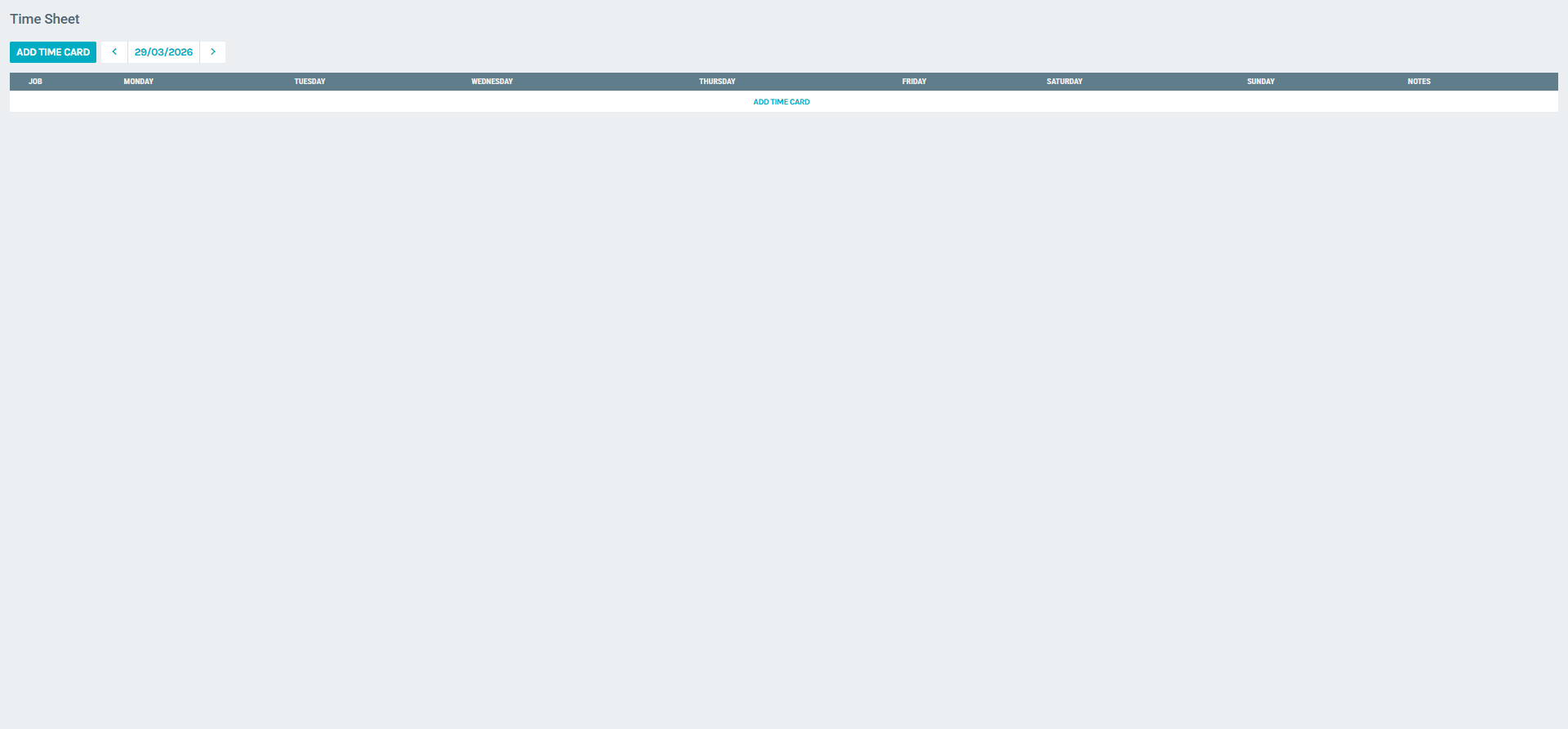
Navigation Controls
| Control | Description |
|---|---|
| ADD TIME CARD | Opens the form to create a new time entry |
| chevron_left (‹) | Navigate to the previous week |
Week Ending Date (e.g. 29/03/2026) |
Clickable link to the Time Sheet Summary view |
| chevron_right (›) | Navigate to the next week |
Weekly Grid Columns
| Column | Description |
|---|---|
| Job | The job category assigned to the time entry |
| Monday – Sunday | Hours logged per weekday for that job |
| Notes | Any notes attached to the time card |
| (Actions) | EDIT button and context menu (⋮) |
When a week contains time entries, the grid displays hours per day along with a Date Totals section that summarizes hours by job and shows the weekly total.
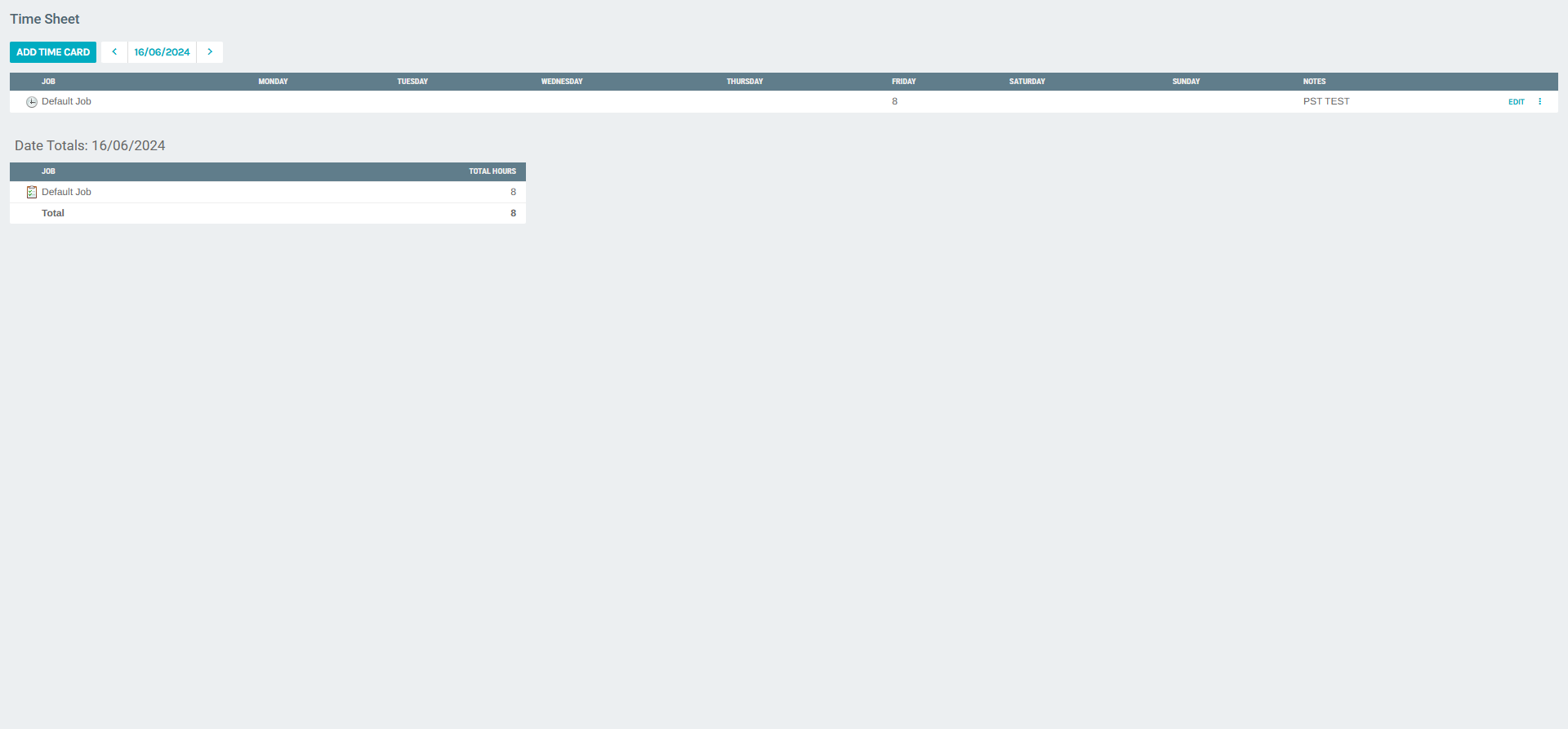
Row Actions
Each time card row includes:
- EDIT — Opens the Edit Time Card form for that entry.
- more_vert (⋮) — Opens a context menu with additional options.
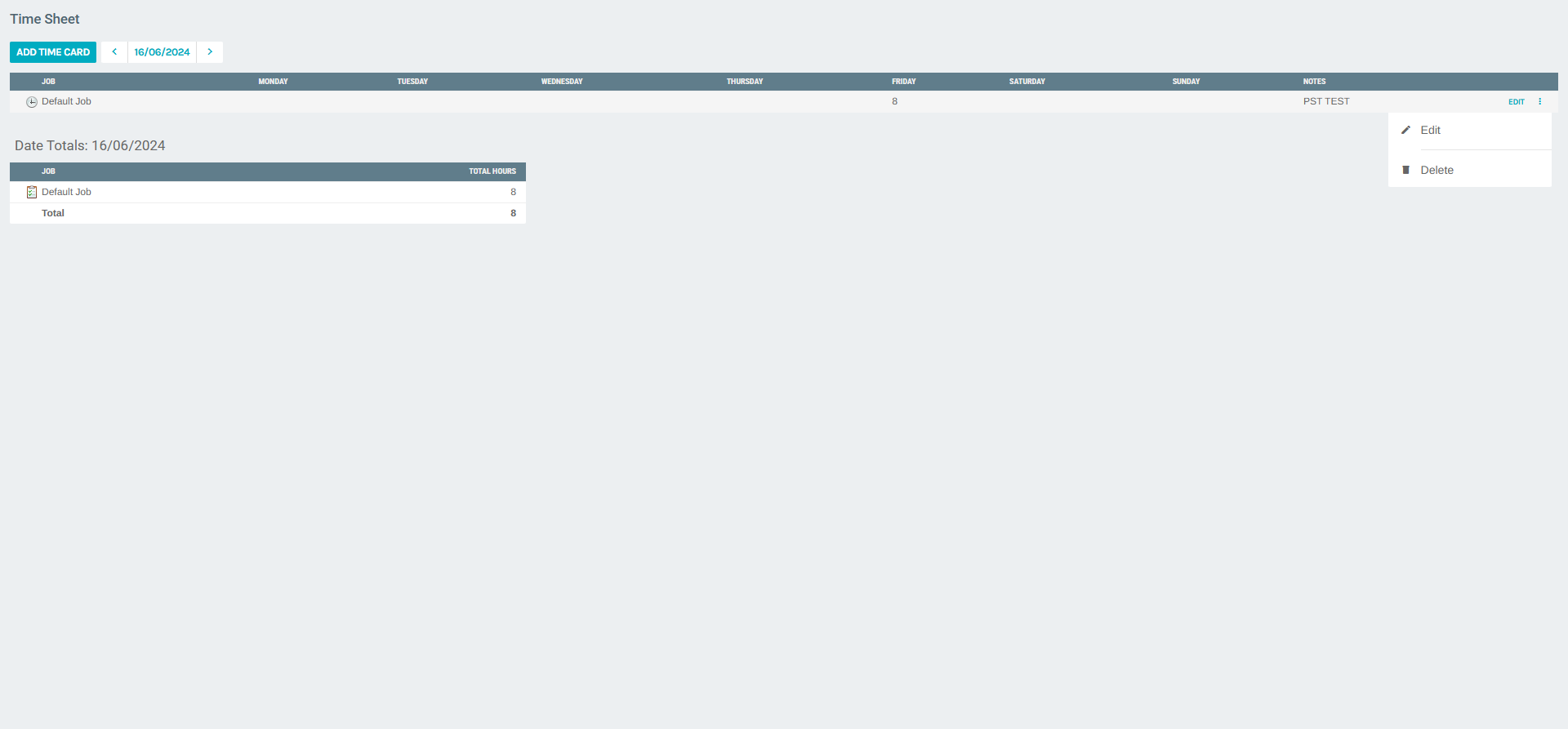
The context menu provides:
| Option | Description |
|---|---|
| Edit | Opens the Edit Time Card form |
| Delete | Permanently removes the time card entry |
Adding a New Time Card
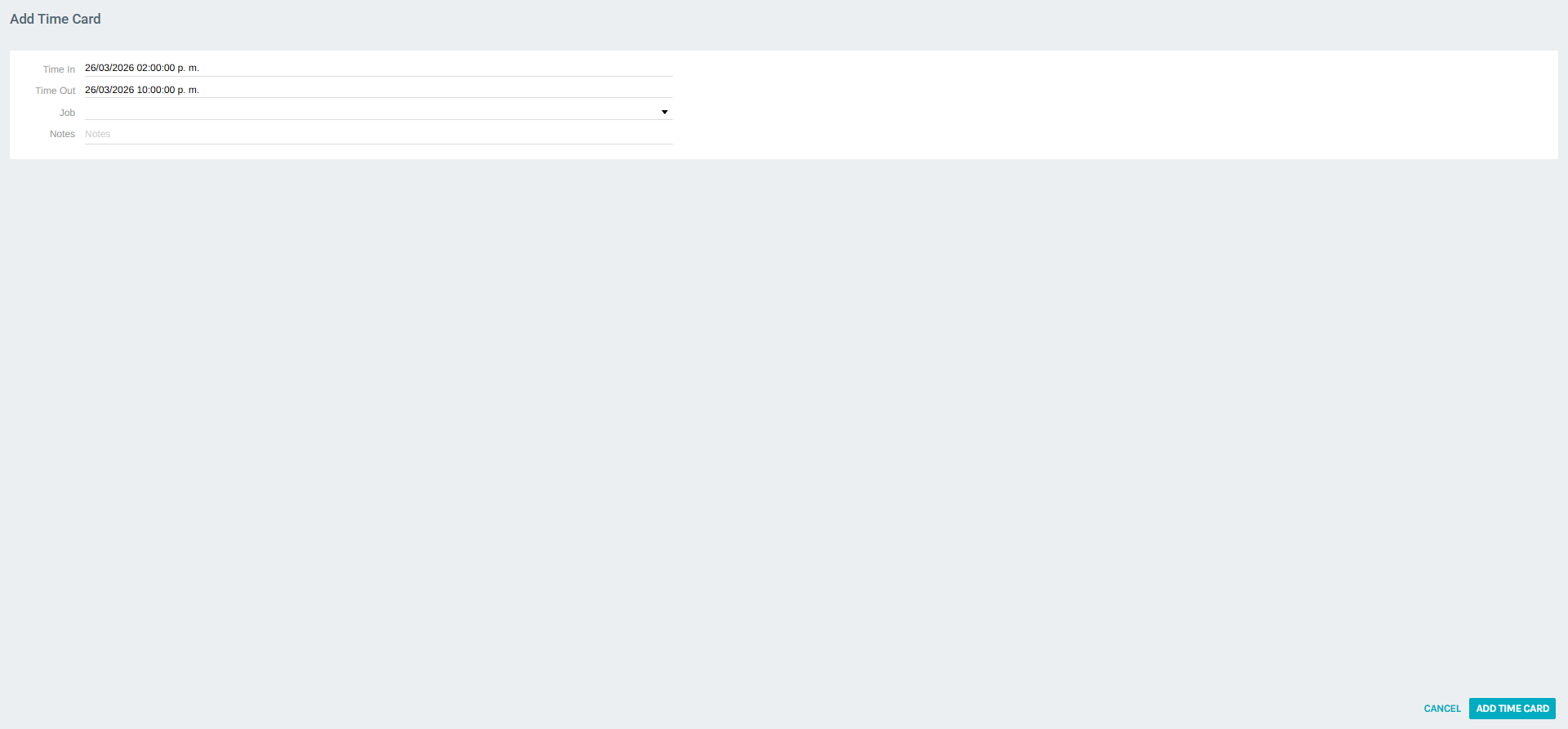
Click ADD TIME CARD from the Time Sheet view to open the creation form.
Form Fields
| Field | Description |
|---|---|
| Time In | Start date and time for the work period (pre-filled with current date) |
| Time Out | End date and time for the work period |
| Job | Dropdown to select the job type associated with this entry |
| Notes | Free-text field for any relevant notes about the time entry |
Job Dropdown
The Job dropdown lists all available job categories configured in the system. Select the appropriate job for the time being logged.
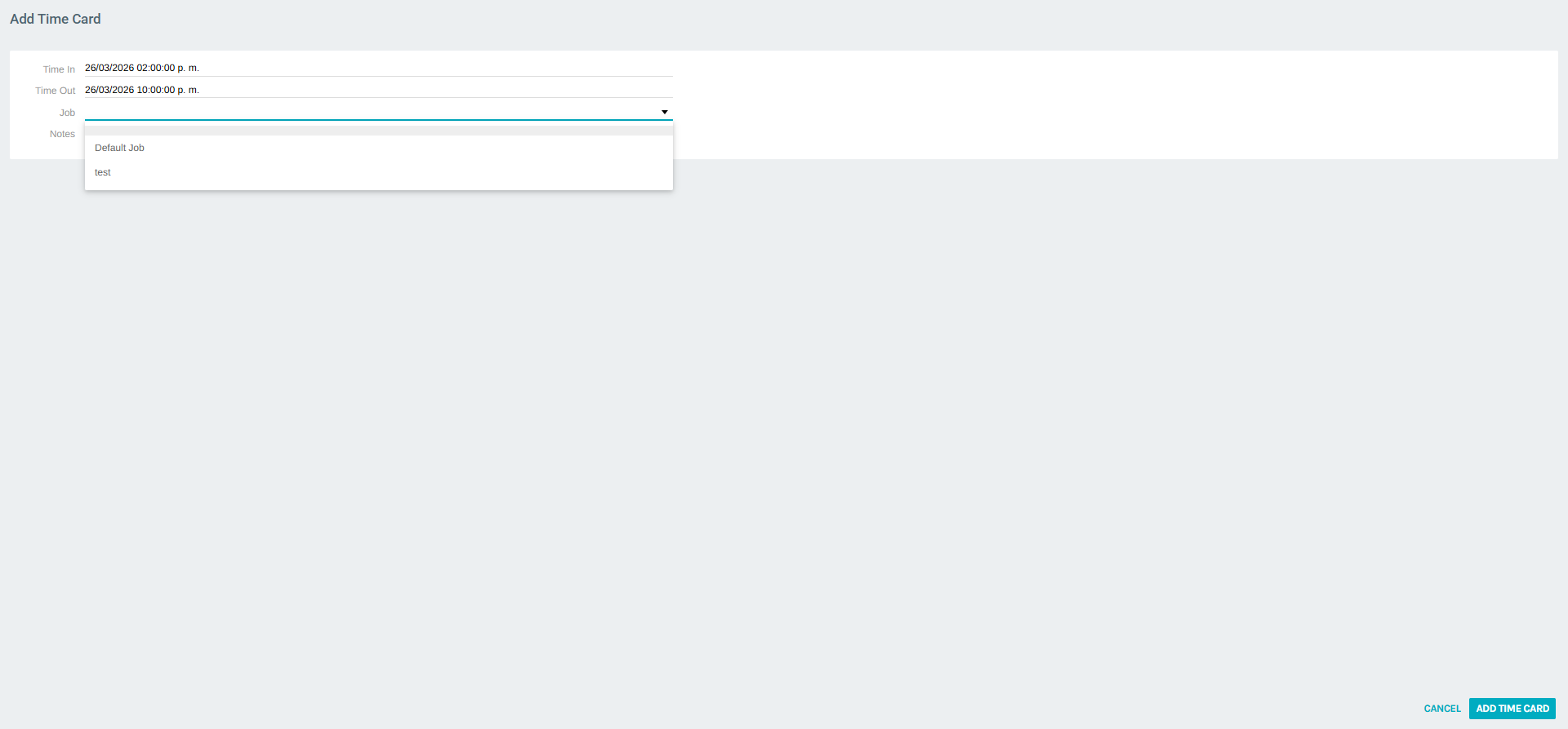
After filling in the fields, click ADD TIME CARD to save the entry, or CANCEL to discard.
Editing a Time Card
To edit an existing time card:
- Locate the entry in the weekly grid.
- Click EDIT on the row, or select Edit from the context menu (⋮).
- The Edit Time Card form opens with all previously saved values pre-filled.
- Modify the desired fields.
- Click SAVE CHANGES to apply the updates.
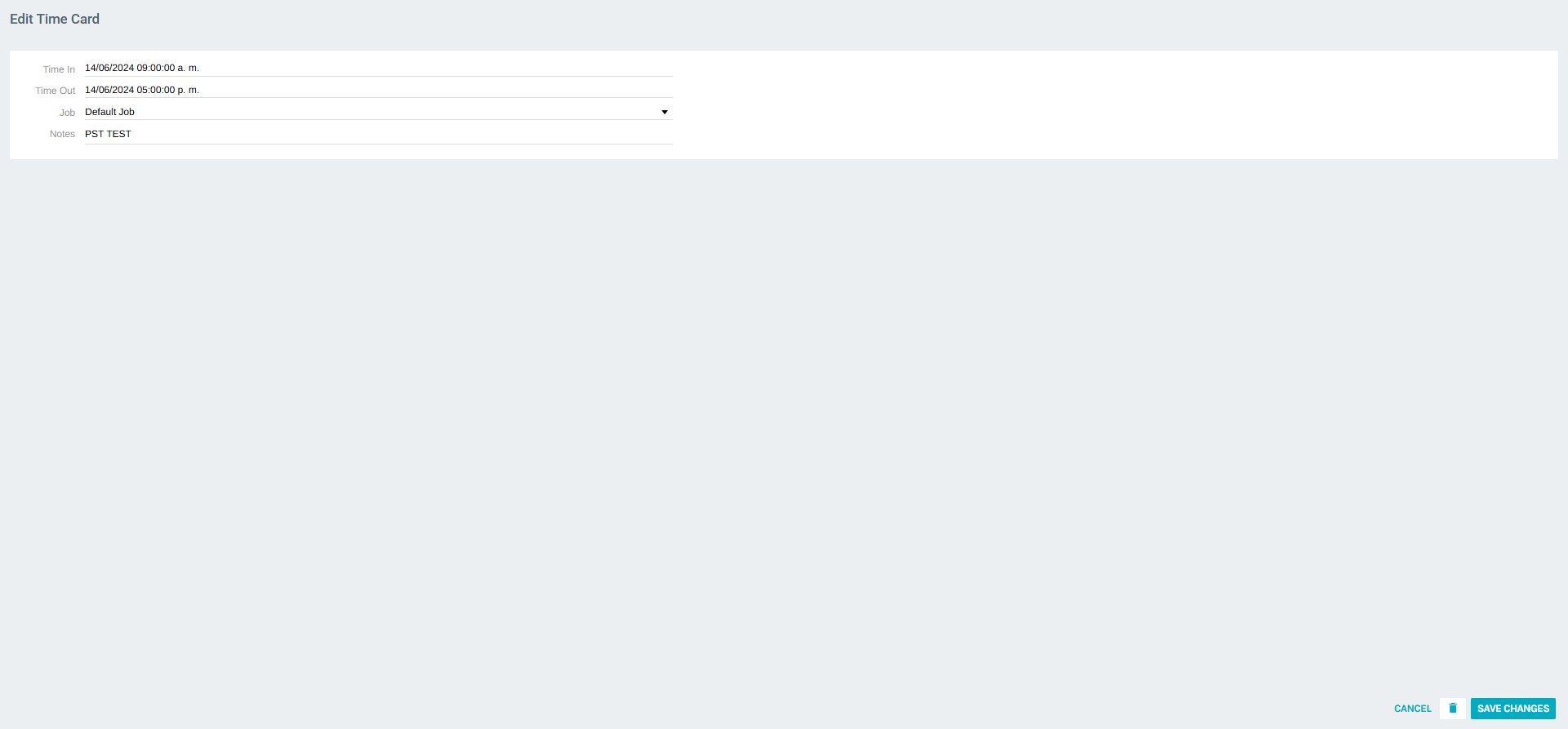
The Edit form also includes a delete icon (trash) in the header to remove the entry directly.
Deleting a Time Card
Time cards can be deleted in two ways:
- From the weekly grid: click the context menu (⋮) and select Delete.
- From the Edit Time Card form: click the trash icon in the form header.
Permanent Action
Deleting a time card is permanent and cannot be undone.
Time Sheet Summary
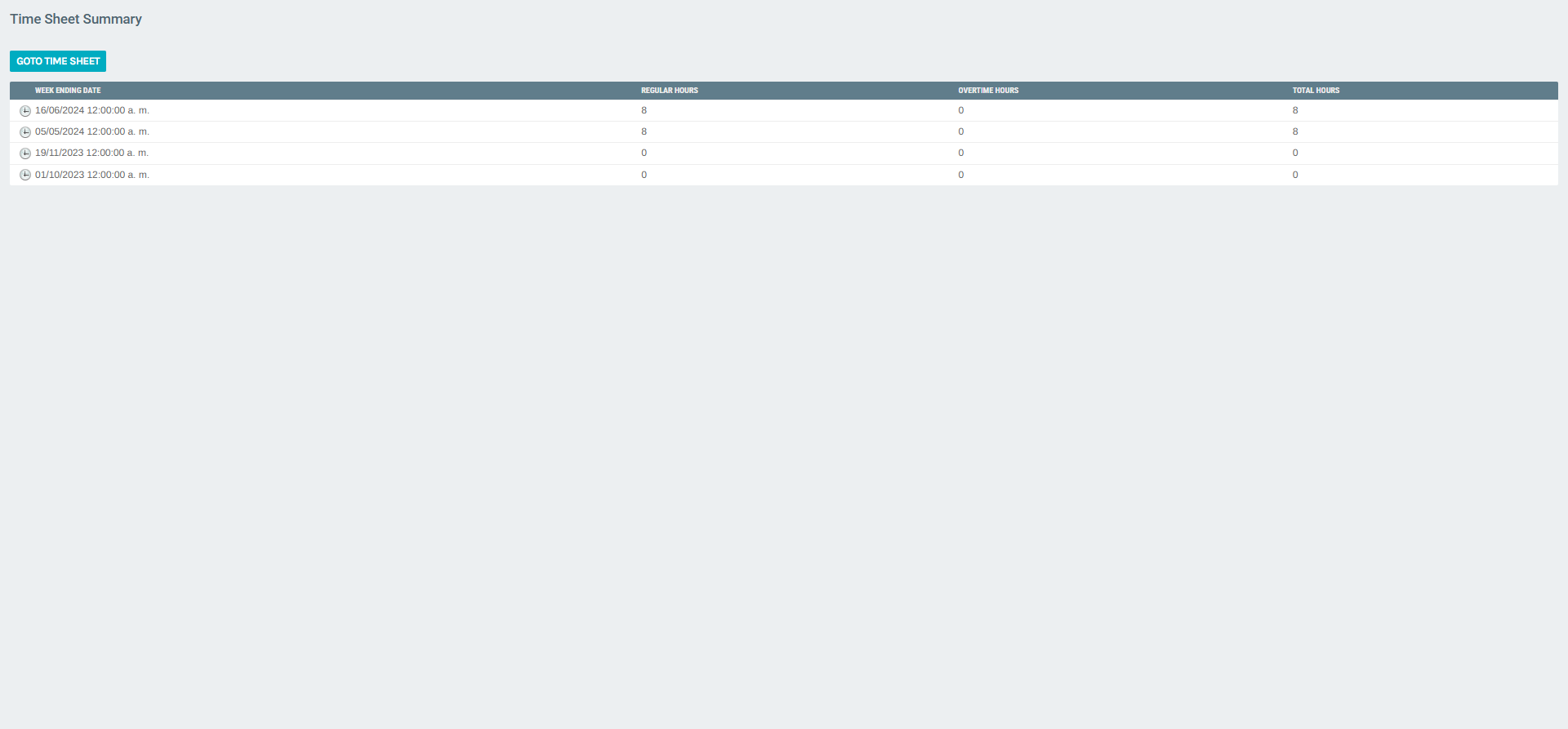
The Time Sheet Summary view provides a historical overview of all logged weeks. Access it by clicking the Week Ending Date link in the Time Sheet navigation bar.
Summary Table Columns
| Column | Description |
|---|---|
| Week Ending Date | The last day of the tracked work week |
| Regular Hours | Standard hours logged for the week |
| Overtime Hours | Any overtime hours logged |
| Total Hours | Sum of Regular + Overtime hours |
From the Summary view, click GOTO TIME SHEET to return to the weekly detail view.
Summary
| Feature | Description |
|---|---|
| Location | Home > Time Sheet |
| Scope | Per-user (personal time tracking) |
| View | Weekly grid (Mon–Sun) by job |
| Time Card Fields | Time In, Time Out, Job, Notes |
| Actions | Add, Edit, Delete time cards |
| Summary View | Aggregated hours per week (Regular, Overtime, Total) |