Configuring Shipping Methods
Overview
Shipping Methods in Exigo define how orders are shipped to customers. Each shipping method is tied to a specific Carrier and Warehouse, and determines how the shipping cost is calculated (by product price, product weight, or via a live web query to the carrier).
To access Shipping Methods configuration, navigate to:
Administration → Settings → Accounting Settings → Shipping tab
1. Accessing the Shipping Settings
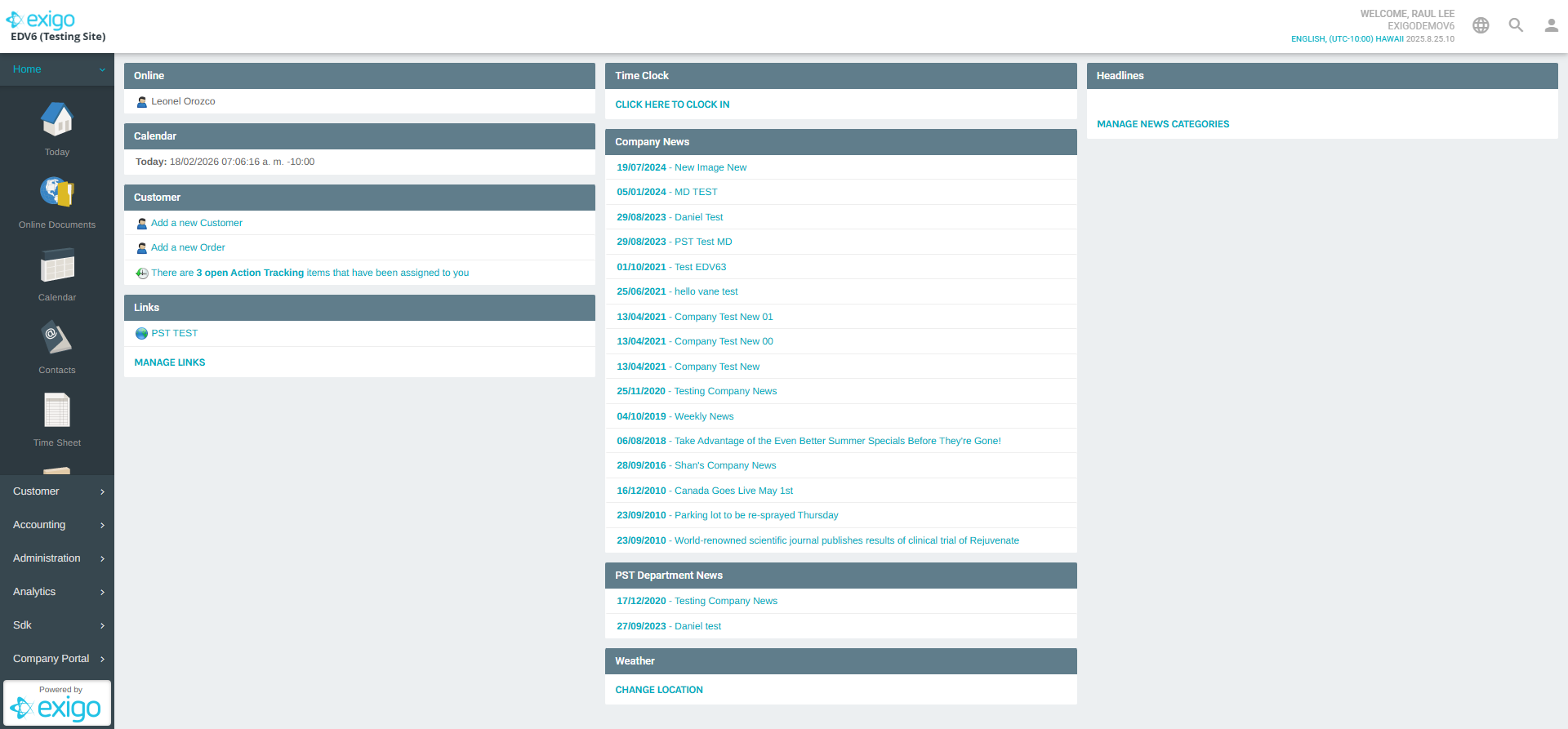
From the main Exigo admin dashboard, go to Administration in the left navigation menu, then click Settings. In the Settings page, click the ACCOUNTING SETTINGS tab at the top.
Once inside Accounting Settings, click the Shipping tab to view all configured shipping methods.
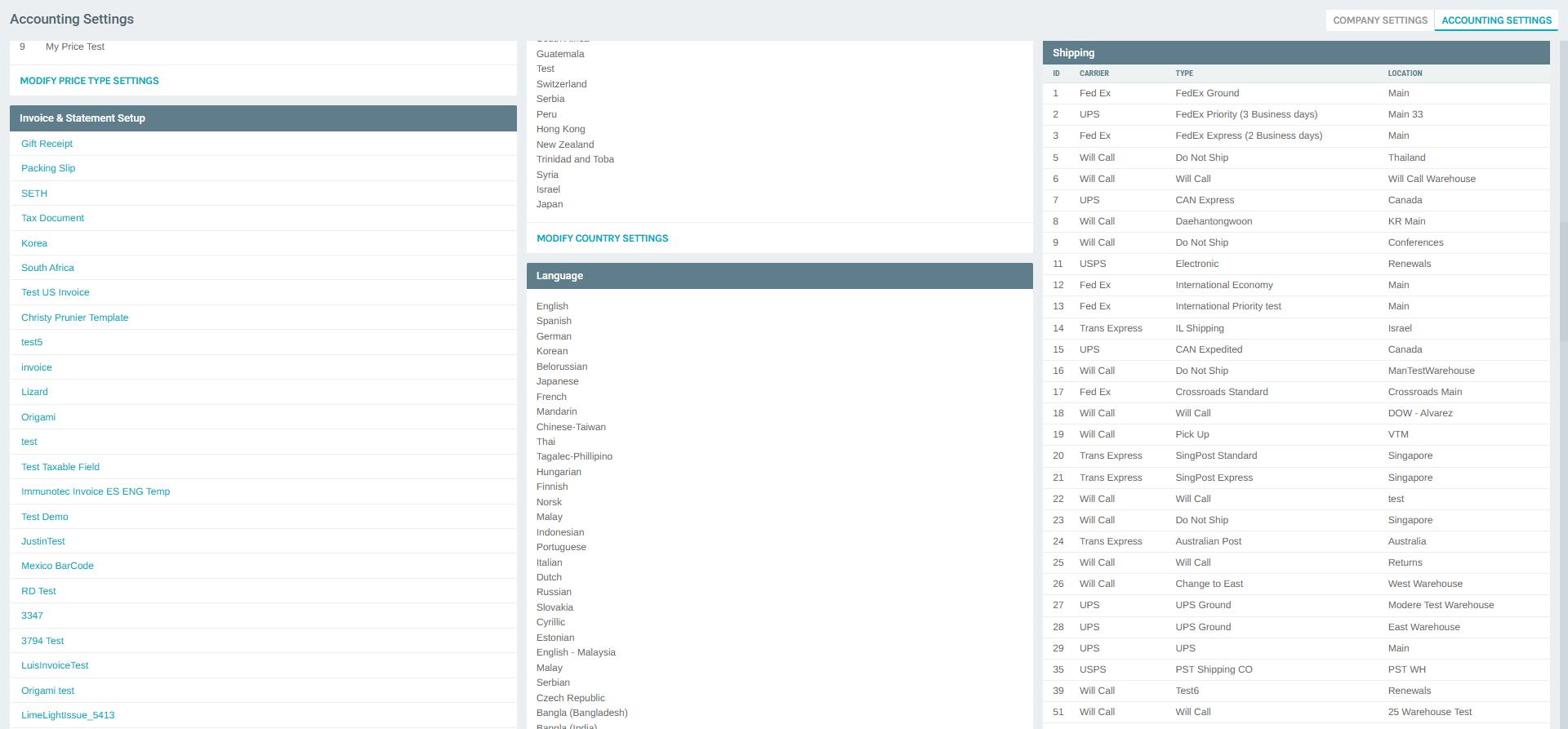
2. Shipping Methods List
The Shipping tab displays a table of all configured shipping methods with the following columns:
| Column | Description |
|---|---|
| ID | Unique numeric identifier for the shipping method |
| Carrier | The shipping carrier (e.g., Fed Ex, UPS, USPS, Will Call, Trans Express, Yamato) |
| Description | Human-readable name displayed to customers or staff |
| Location | The warehouse or location this method is associated with |
| Calculate | How shipping cost is determined: By Product Price, By Product Weight, or Get Price from Web |
| Priority | Sort order when displaying options to customers (lower number = higher priority) |
Each row also has an EDIT button and a ⋮ (more_vert) menu with additional options.
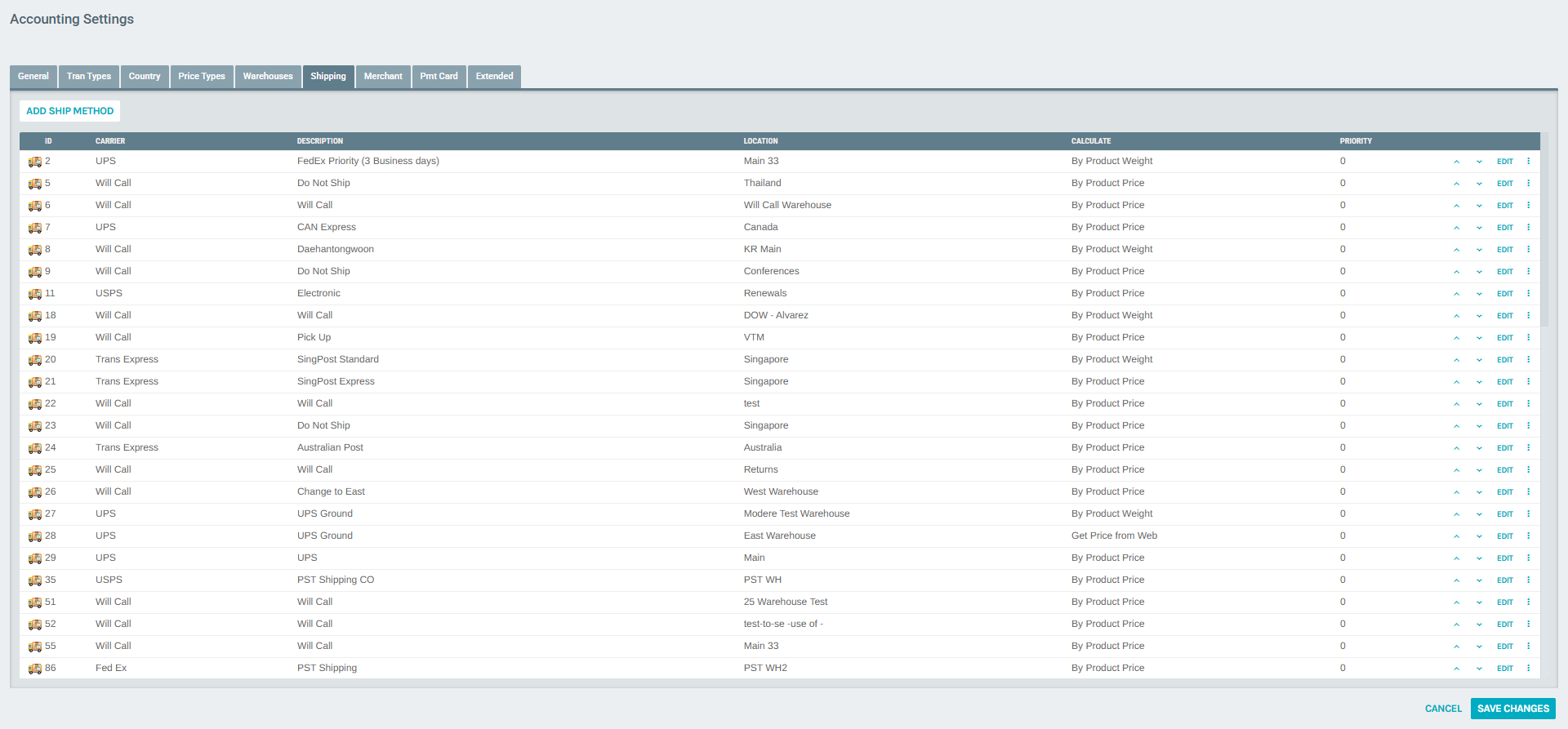
Example shipping methods configured in ExigoDemoV6:
| ID | Carrier | Description | Location | Calculate | Priority |
|---|---|---|---|---|---|
| 1 | Fed Ex | FedEx Ground | Main | By Product Price | 20 |
| 2 | UPS | FedEx Priority (3 Business days) | Main 33 | By Product Weight | 0 |
| 3 | Fed Ex | FedEx Express (2 Business days) | Main | By Product Price | 1 |
| 5 | Will Call | Do Not Ship | Thailand | By Product Price | 0 |
| 6 | Will Call | Will Call | Will Call Warehouse | By Product Price | 0 |
| 7 | UPS | CAN Express | Canada | By Product Price | 0 |
| 11 | USPS | Electronic | Renewals | By Product Price | 0 |
| 12 | Fed Ex | International Economy | Main | By Product Price | 4 |
| 14 | Trans Express | IL Shipping | Israel | By Product Weight | 2 |
| 20 | Trans Express | SingPost Standard | Singapore | By Product Weight | 0 |
| 24 | Trans Express | Australian Post | Australia | By Product Price | 0 |
| 28 | UPS | UPS Ground | East Warehouse | Get Price from Web | 0 |
3. Adding a New Shipping Method
Click the ADD SHIP METHOD button at the top of the Shipping tab to open the Ship Method Setup form.
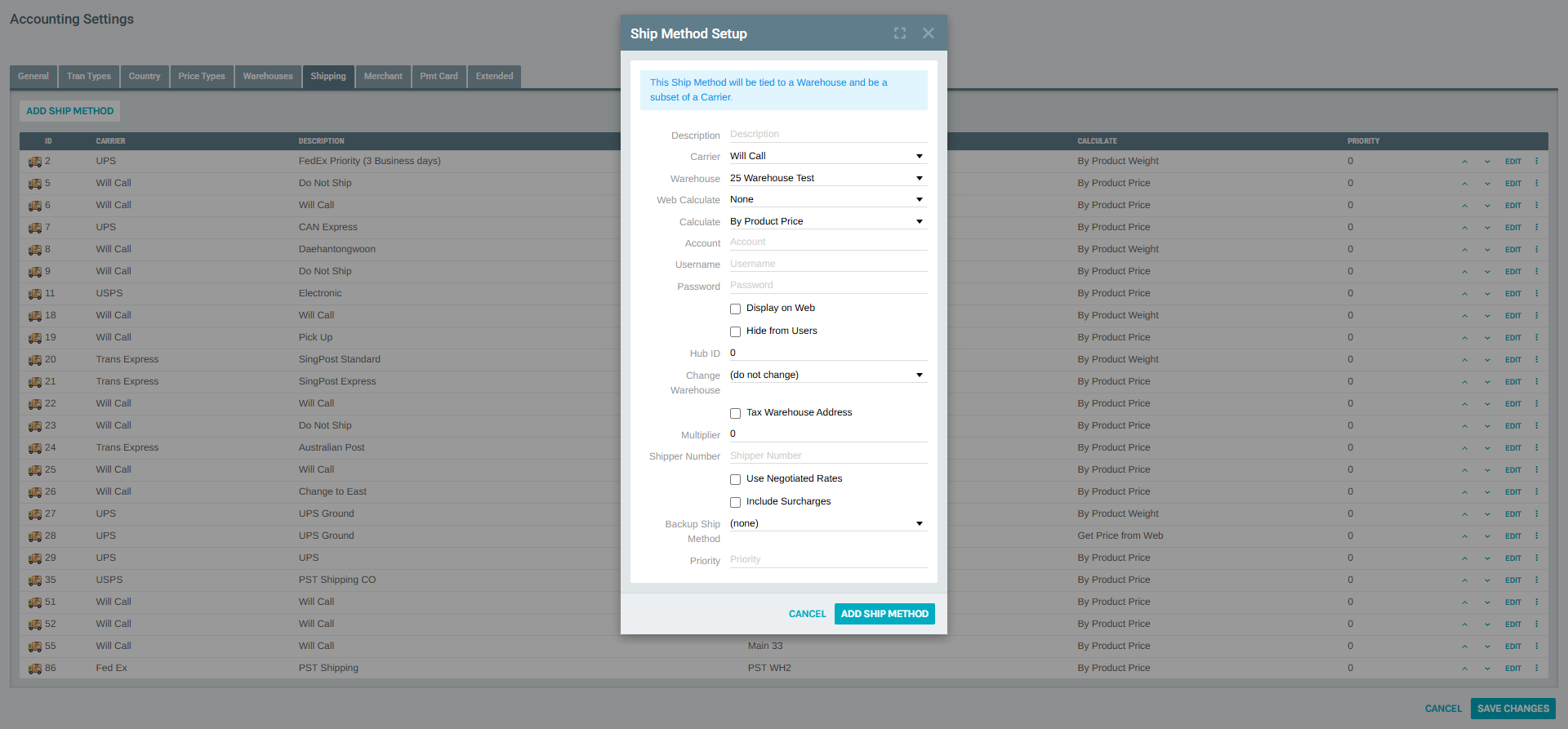
Ship Method Setup Fields
| Field | Description |
|---|---|
| Description | Name of the shipping method (required) |
| Carrier | Select the shipping carrier from the dropdown (Will Call, Fed Ex, UPS, USPS, Trans Express, Yamato, etc.) |
| Warehouse | The warehouse this method is linked to |
| Web Calculate | Web service used to fetch real-time rates (e.g., FedEx WS Ground, UPS). Leave as None for fixed-rate methods |
| Calculate | How shipping cost is determined: By Product Price, By Product Weight, or Get Price from Web |
| Account | Carrier account number (used for integrated/live rate methods) |
| Username | Carrier API username |
| Password | Carrier API password |
| Display on Web | Checkbox — if checked, this method is visible to customers in the web store |
| Hide from Users | Checkbox — hides this method from end users (useful for internal/warehouse-only methods) |
| Hub ID | Carrier hub identifier |
| Change Warehouse | Optionally redirect orders to a different warehouse at checkout |
| Tax Warehouse Address | Checkbox — use warehouse address for tax calculation |
| Multiplier | Rate multiplier applied to the calculated shipping cost (default: 1.0) |
| Shipper Number | Carrier-specific shipper number |
| Use Negotiated Rates | Checkbox — apply negotiated/discounted carrier rates |
| Include Surcharges | Checkbox — include carrier surcharges in the shipping cost |
| Backup Ship Method | Fallback method if this one fails |
| Priority | Sort order (lower = shown first to customers) |
Click ADD SHIP METHOD to save the new method, or CANCEL to discard.
4. Editing an Existing Shipping Method
Click the EDIT link on any row in the shipping methods list to open the Ship Method Setup form pre-populated with the existing method's data.
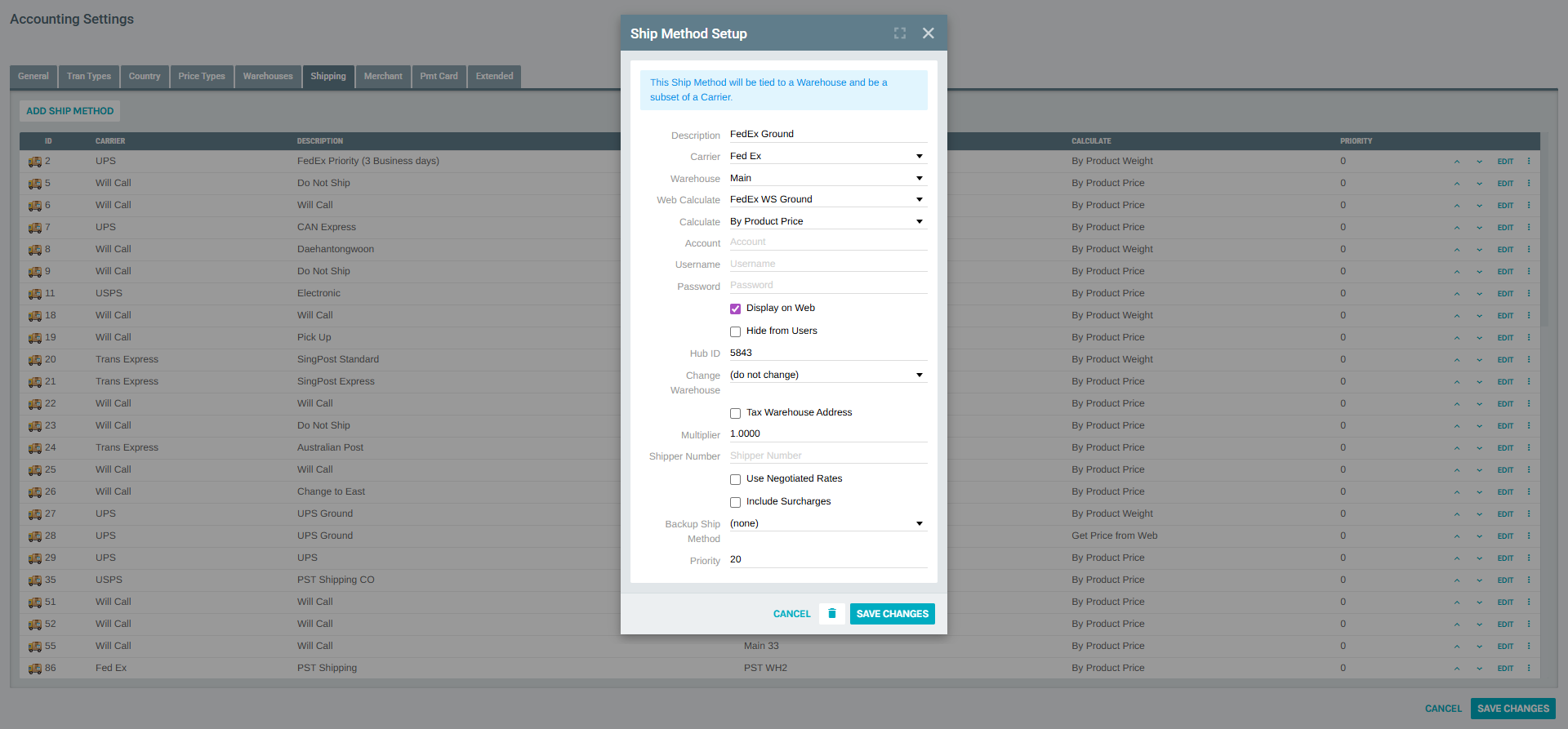
The edit form contains the same fields as the Add form (see section 3 above), with the addition of a Delete button (trash icon) to remove the method permanently.
After making changes, click SAVE CHANGES to apply them.
5. Row Actions Menu (⋮)
Each shipping method row has a ⋮ (more_vert) button that expands a context menu with additional actions:
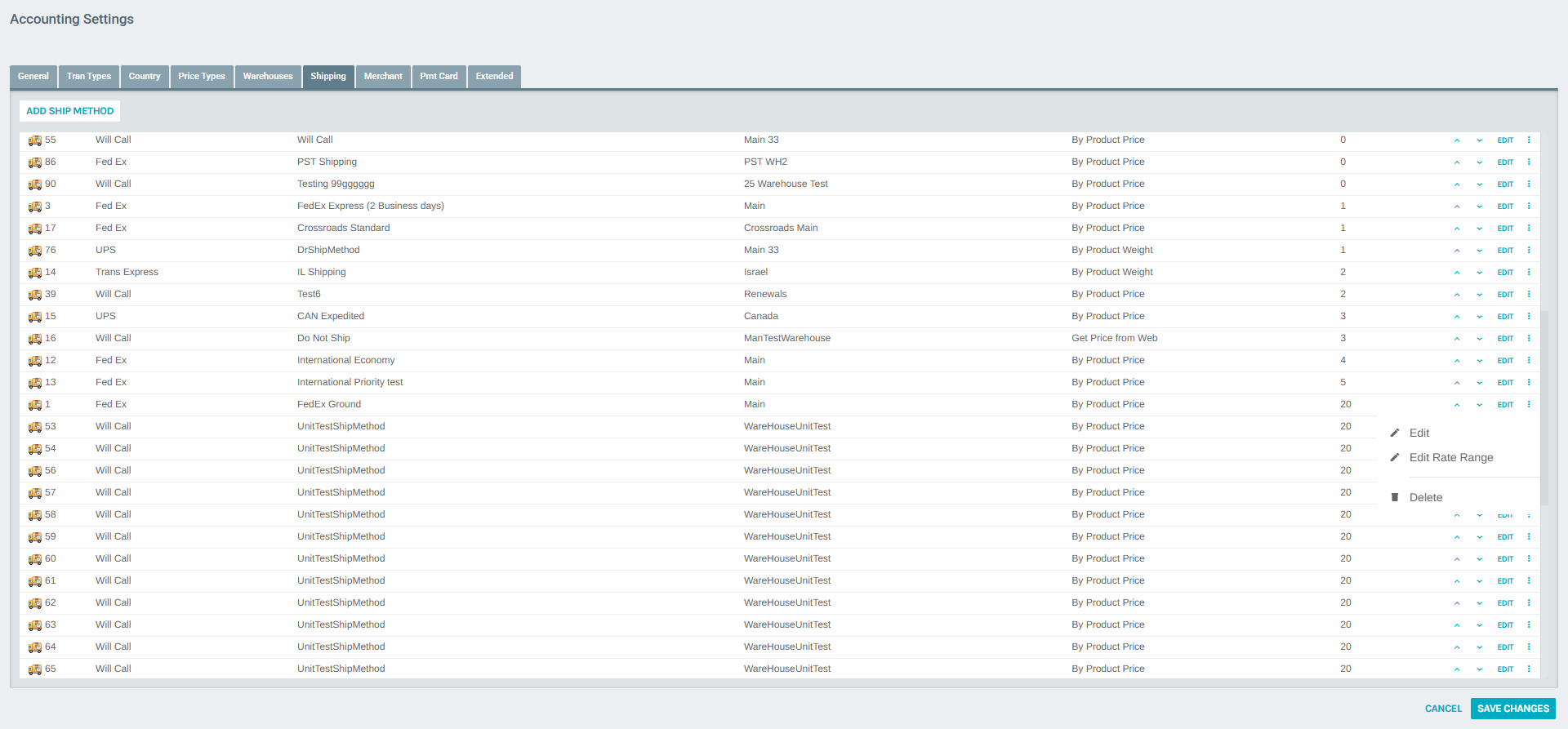
| Action | Description |
|---|---|
| Edit | Opens the Ship Method Setup form (same as clicking EDIT) |
| Edit Rate Range | Opens the Rate Range Editor to configure tiered shipping costs |
| Delete | Permanently deletes the shipping method |
6. Rate Range Editor
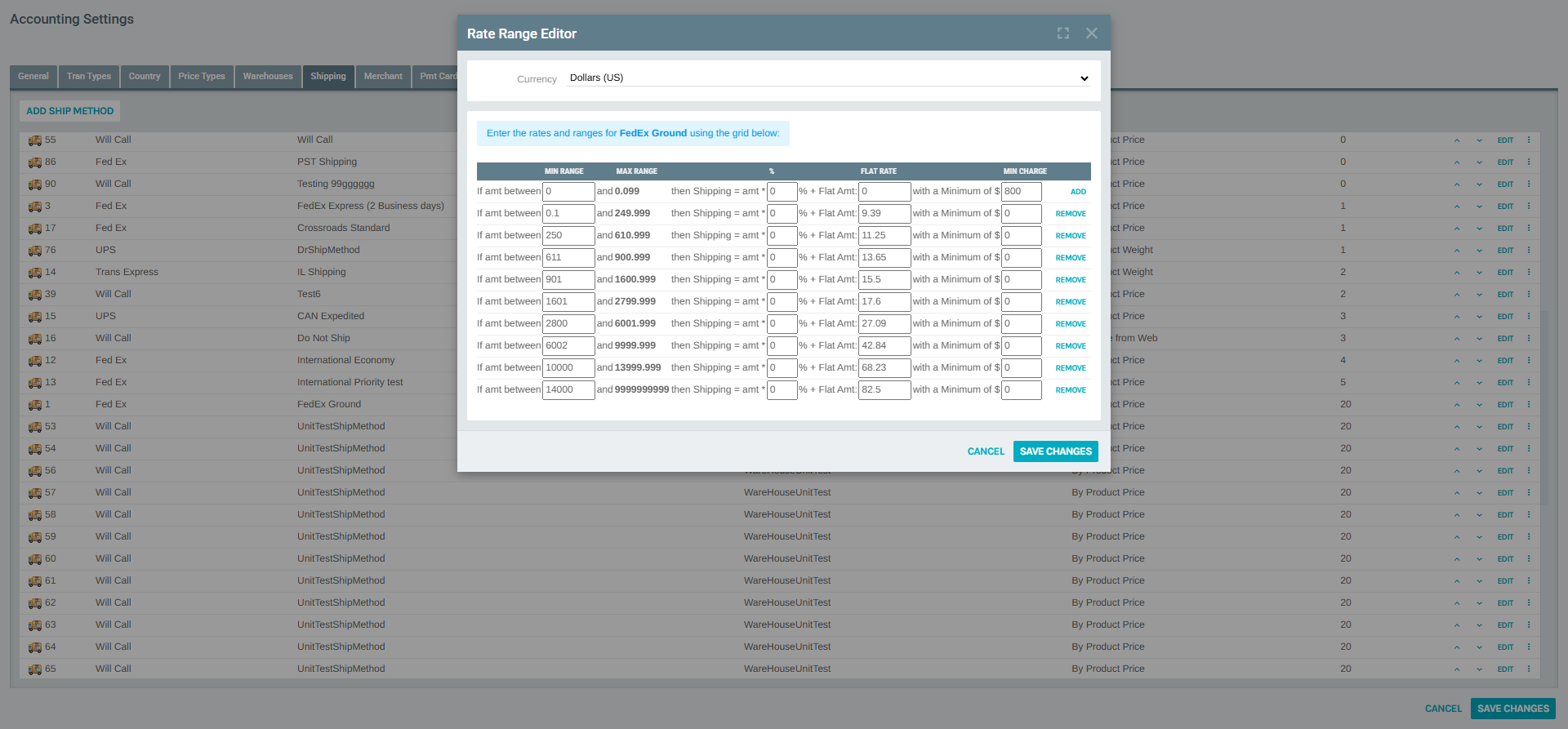
The Rate Range Editor allows you to configure tiered shipping cost tables for a shipping method. This is used when the Calculate option is set to By Product Price or By Product Weight.
Access it via the ⋮ menu → Edit Rate Range on any shipping method row.
Rate Range Configuration
At the top of the editor, select the Currency for which these ranges apply. Multiple currencies can be configured for international shipping methods.
Each rate range row uses the formula:
If amount is between [Min Range] and [Max Range], then Shipping = amount × [%] + [Flat Rate], with a minimum of $[Min Charge]
Example – FedEx Ground rate table (USD):
| Min Range | Max Range | % | Flat Rate | Min Charge |
|---|---|---|---|---|
| $0.00 | $0.09 | 0% | $0.00 | $8.00 |
| $0.10 | $249.99 | 0% | $9.39 | $0.00 |
| $250.00 | $610.99 | 0% | $11.25 | $0.00 |
| $611.00 | $900.99 | 0% | $13.65 | $0.00 |
| $901.00 | $1,600.99 | 0% | $15.50 | $0.00 |
| $1,601.00 | $2,799.99 | 0% | $17.60 | $0.00 |
| $2,800.00 | $6,001.99 | 0% | $27.09 | $0.00 |
| $6,002.00 | $9,999.99 | 0% | $42.84 | $0.00 |
| $10,000.00 | $13,999.99 | 0% | $68.23 | $0.00 |
| $14,000.00 | $9,999,999,999 | 0% | $82.50 | $0.00 |
- Click ADD on the first row to add a new range at the bottom of the list.
- Click REMOVE on any existing row to delete that range.
- Click SAVE CHANGES when done.
7. Test Integrated Shipping
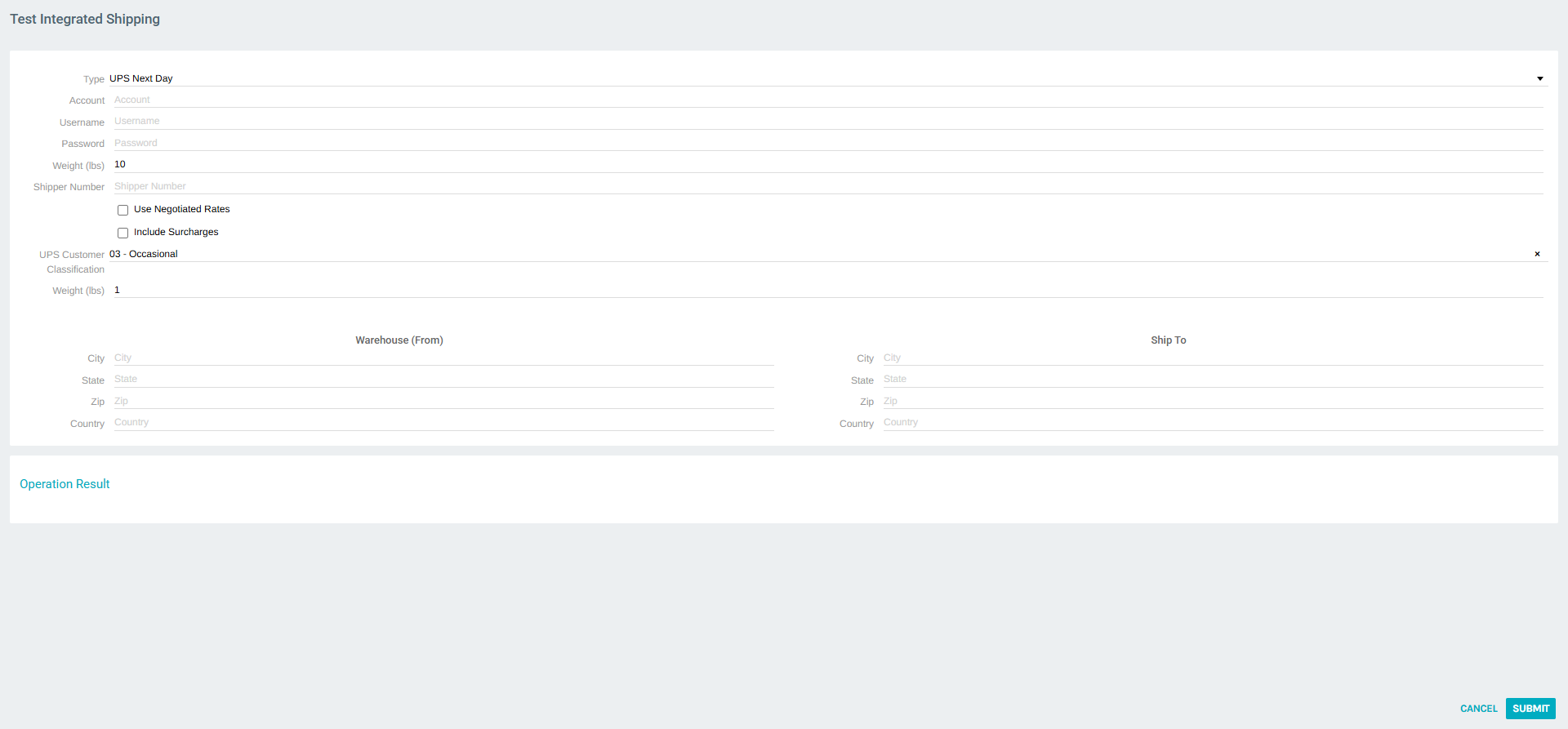
The Test Integrated Shipping tool allows administrators to validate that a carrier's API connection and rate retrieval is working correctly before going live.
Navigate to it from Administration → Settings → Accounting Settings → Shipping tab → TEST INTEGRATED SHIPPING button.
Test Form Fields
| Field | Description |
|---|---|
| Type | Select the carrier type to test (e.g., UPS Next Day, FedEx WS Ground, etc.) |
| Account | Carrier account number |
| Username | Carrier API username |
| Password | Carrier API password |
| Weight (lbs) | Package weight used for the test query |
| Shipper Number | Carrier shipper number |
| Use Negotiated Rates | Checkbox — test with negotiated rates enabled |
| Include Surcharges | Checkbox — include surcharges in the test |
| UPS Customer Classification | UPS-specific rate type (e.g., 03 – Occasional) |
| Warehouse (From) – City | Origin city |
| Warehouse (From) – State | Origin state code |
| Warehouse (From) – Zip | Origin ZIP code |
| Warehouse (From) – Country | Origin country code |
| Ship To – City | Destination city |
| Ship To – State | Destination state code |
| Ship To – Zip | Destination ZIP code |
| Ship To – Country | Destination country code |
Click SUBMIT to run the test. The Operation Result section at the bottom will display the carrier's response, including the calculated shipping rates or any error messages.
Summary
Exigo's Shipping Methods module provides a flexible framework for configuring how shipping costs are calculated and presented to customers. Key capabilities include:
- Multiple carriers supported: FedEx, UPS, USPS, Trans Express, Yamato, Will Call (pickup), and custom carriers
- Flexible cost calculation: flat rate tiers by price/weight ranges, percentage-based markups, or live rates from carrier APIs
- Per-warehouse configuration: each shipping method is linked to a specific warehouse
- Web store control: methods can be shown or hidden from customers
- Backup methods: failover to an alternative shipping method if the primary is unavailable
- Multi-currency rate tables: separate rate ranges can be configured per currency
- API testing tool: built-in utility to validate carrier integration before deployment