Restrict Payment Type by Warehouse Setting (Admin)
This guide explains how to configure the Restrict Payment Type by Warehouse feature in Exigo Admin. This feature allows you to control which payment types are accepted for orders placed through specific warehouses and order types.
Overview
By default, all configured payment types are accepted for all warehouses. When this restriction is enabled, you can define granular rules that block specific payment types for particular warehouse and order type combinations.
The configuration involves two parts:
- Enable the restriction under Administration > Settings > Company Settings
- Define restriction rules under Administration > Settings > Accounting Settings > Payments Restricted by Warehouse
Step-by-step
1) Navigate to Company Settings
- In the left navigation sidebar, expand Administration
- Click Settings
- The Company Settings tab loads by default
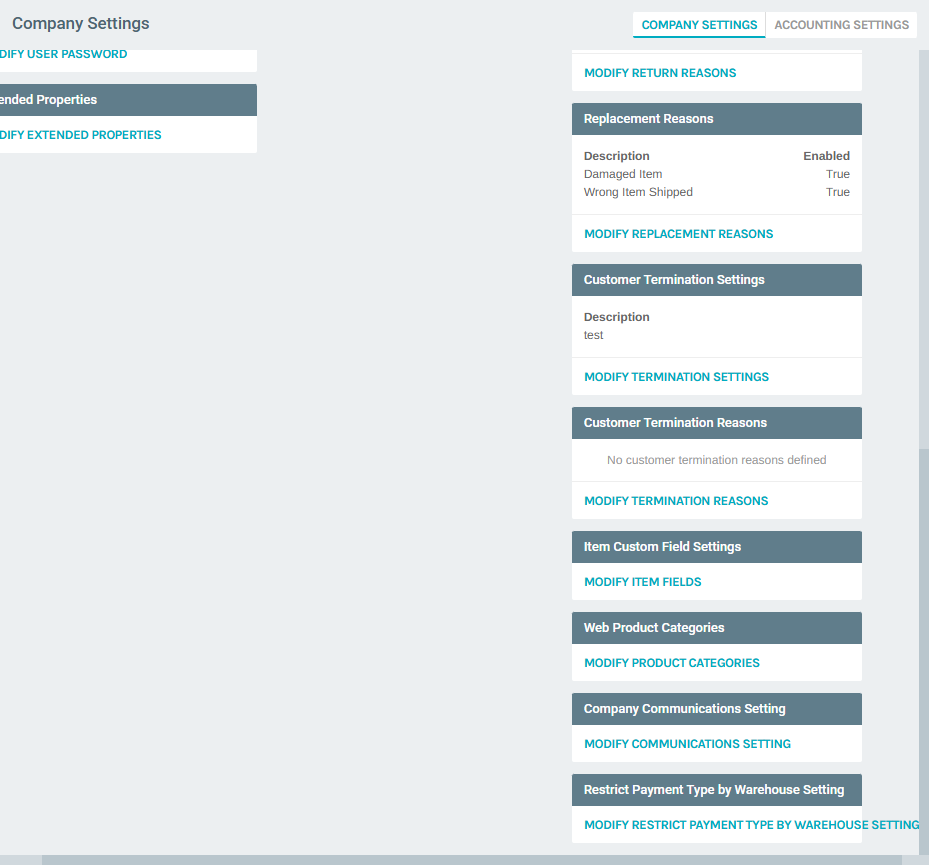
2) Locate the Restrict Payment Type by Warehouse Section
Scroll to the bottom of the Company Settings page. The Restrict Payment Type by Warehouse Setting panel provides a link to MODIFY RESTRICT PAYMENT TYPE BY WAREHOUSE SETTING.
3) Enable the Restriction
Click MODIFY RESTRICT PAYMENT TYPE BY WAREHOUSE SETTING. The settings page displays a single checkbox.
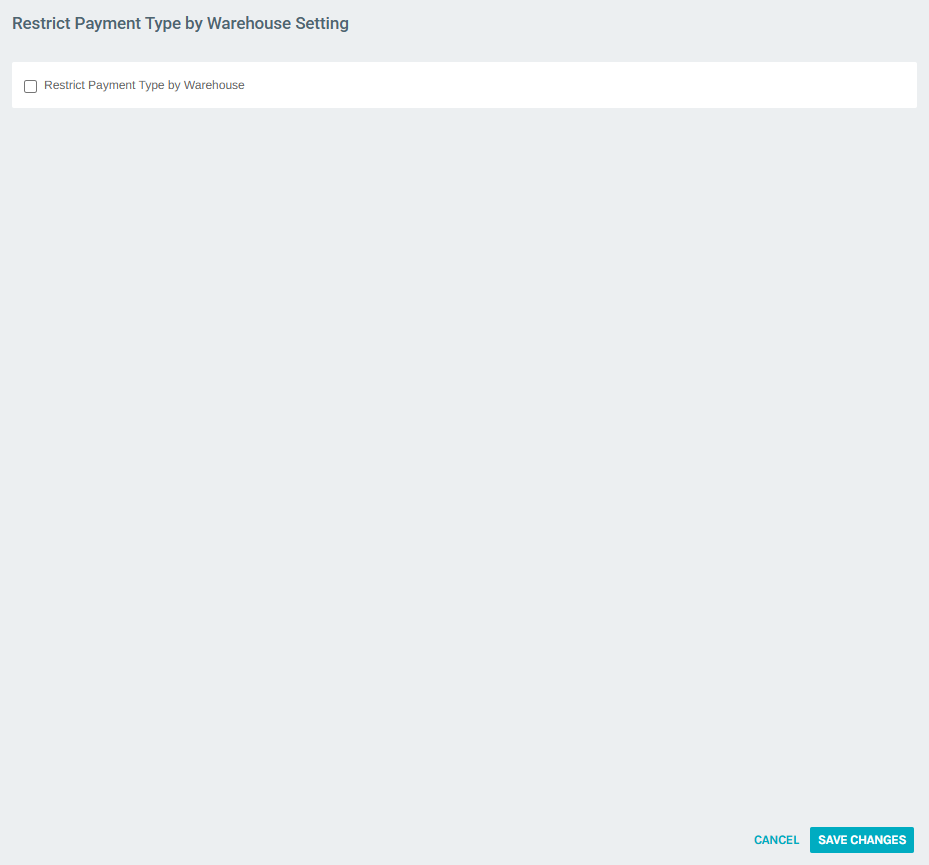
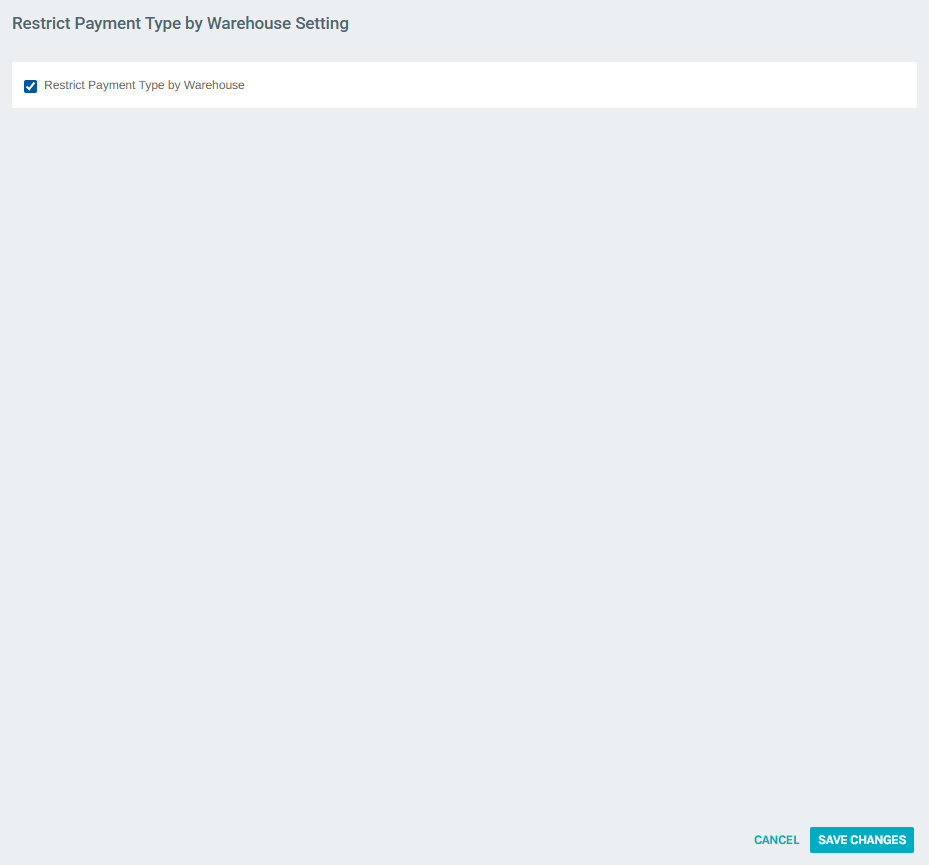
- Check the Restrict Payment Type by Warehouse checkbox to enable the feature
- Click SAVE CHANGES
Warning
Enabling this setting without defining any restriction rules has no effect. You must also configure the specific payment restrictions in Accounting Settings (see next steps).
Configuring Payment Restriction Rules
4) Navigate to Accounting Settings
Go back to Administration > Settings and switch to the Accounting Settings tab. Scroll down to find the Payments Restricted by Warehouse panel and the Payment Types panel above it.
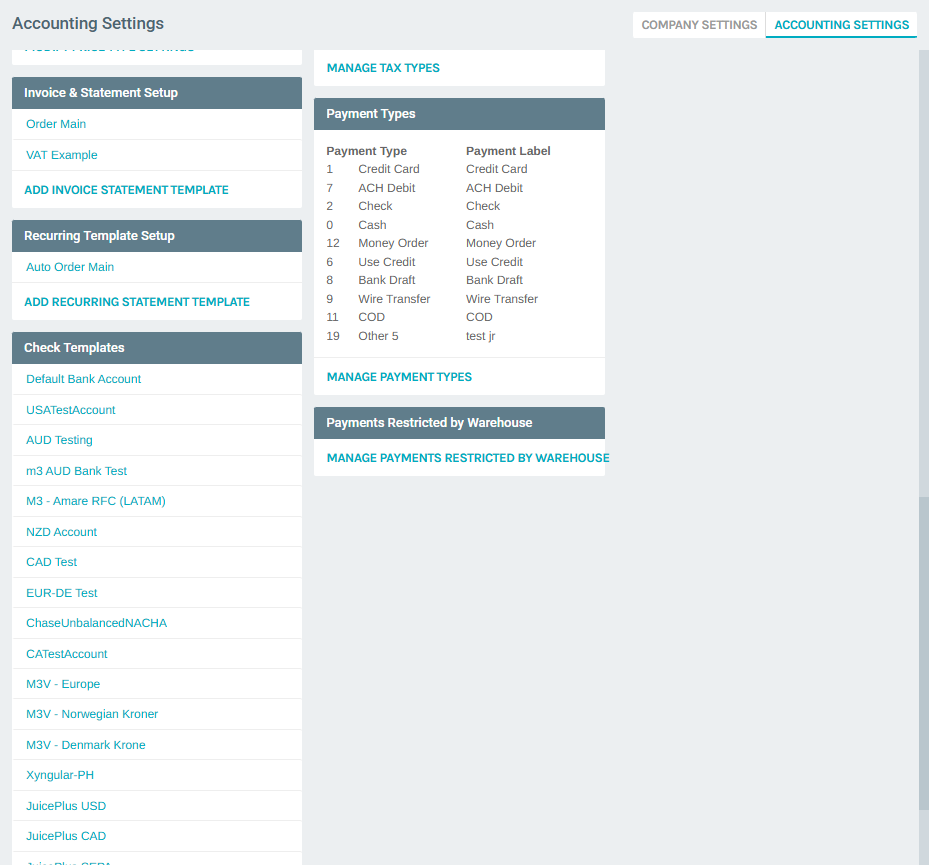
Click MANAGE PAYMENTS RESTRICTED BY WAREHOUSE to open the restriction rules list.
5) View the Restriction Rules List
The Manage Payments Restricted by Warehouse page displays all configured restriction rules. Each rule shows the Payment Type and Payment Label.
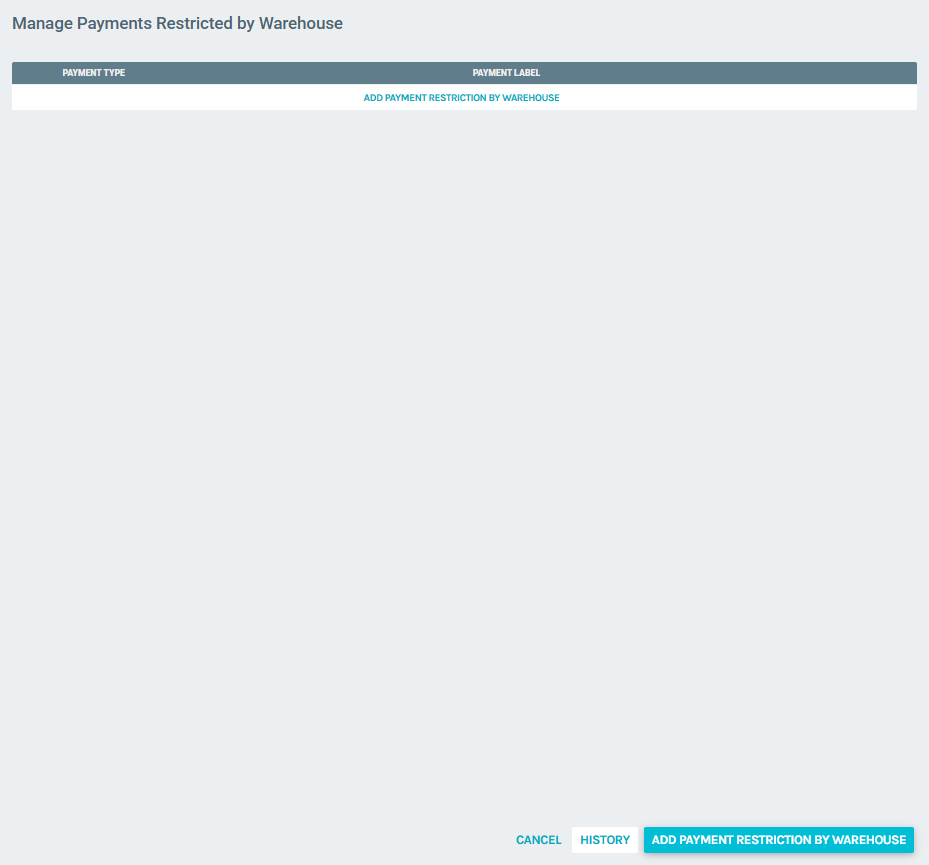
The list also provides:
- ADD PAYMENT RESTRICTION BY WAREHOUSE: Create a new restriction rule
- HISTORY: View the change log for restriction rules
- CANCEL: Return to the Accounting Settings page
6) Add a New Payment Restriction
Click ADD PAYMENT RESTRICTION BY WAREHOUSE. A popup form appears with two configuration areas:
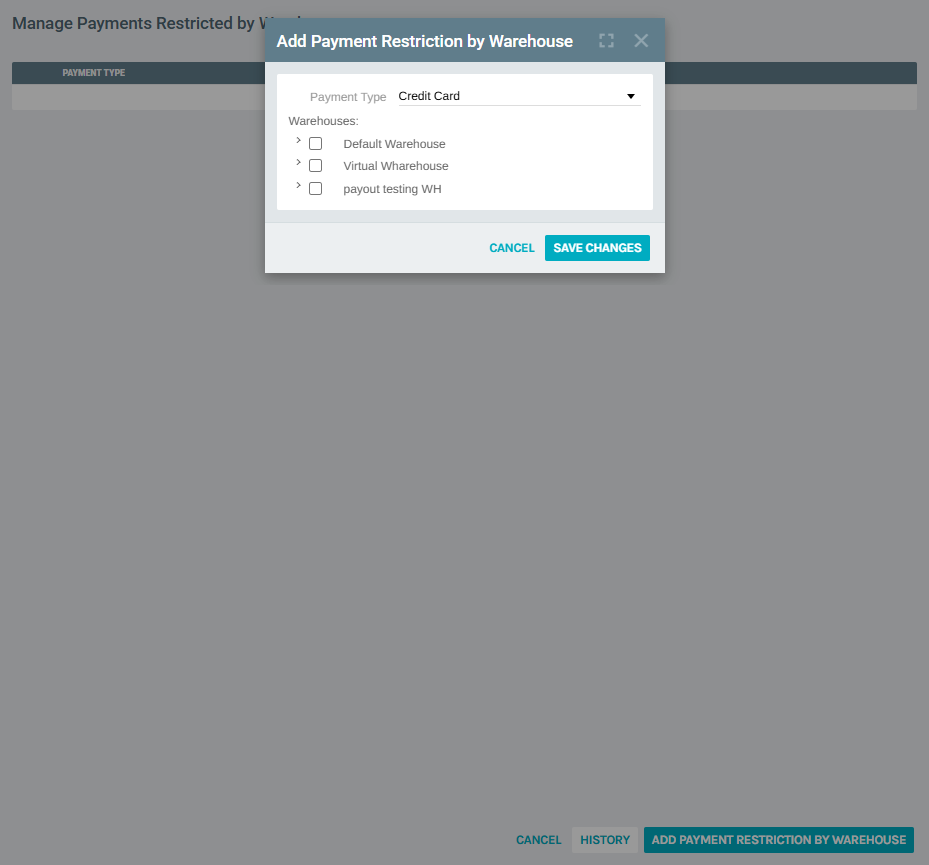
Payment Type
Select the payment type to restrict from the dropdown. Available payment types match your company's configured payment types:
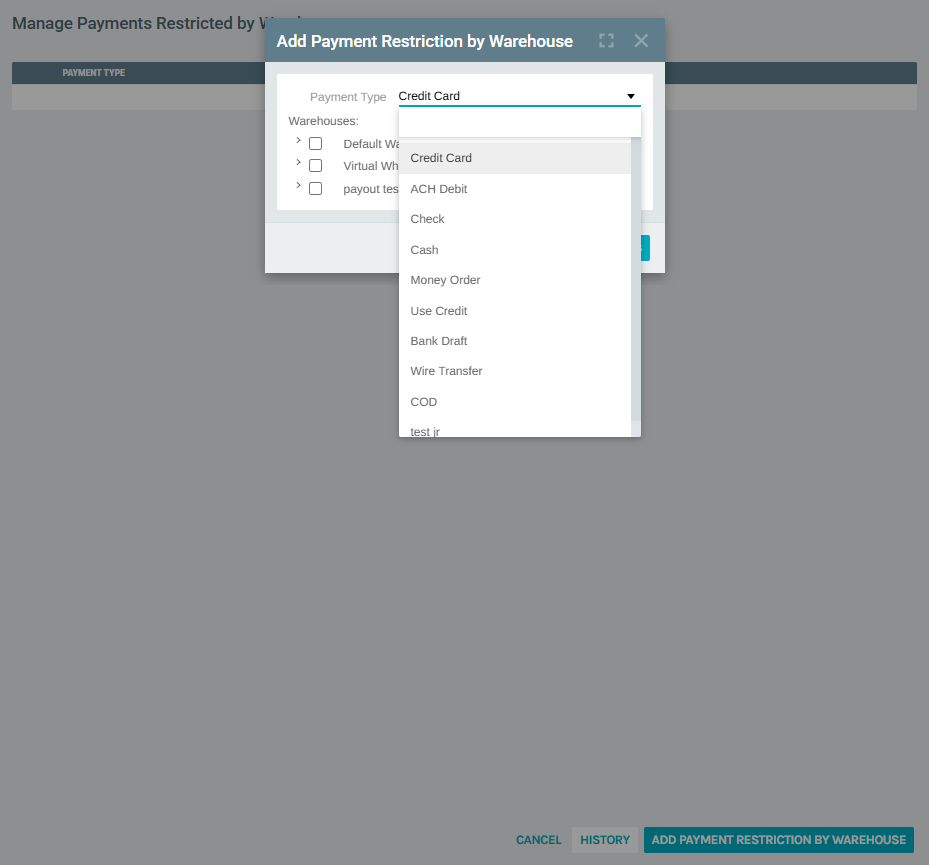
| Payment Type | Description |
|---|---|
| Credit Card | Credit/debit card payments |
| ACH Debit | Automated clearing house debit |
| Check | Check payments |
| Cash | Cash payments |
| Money Order | Money order payments |
| Use Credit | Apply existing account credit |
| Bank Draft | Bank draft payments |
| Wire Transfer | Wire transfer payments |
| COD | Cash on delivery |
Note
The available payment types in the dropdown are determined by your company's configured payment types under Accounting Settings.
Warehouses
Each warehouse in your company is listed with a checkbox and an expandable arrow. Check a warehouse to restrict the selected payment type for that warehouse.
Clicking the expand arrow (>) next to a warehouse reveals Order Type sub-checkboxes, allowing you to restrict the payment type only for specific order types within that warehouse:
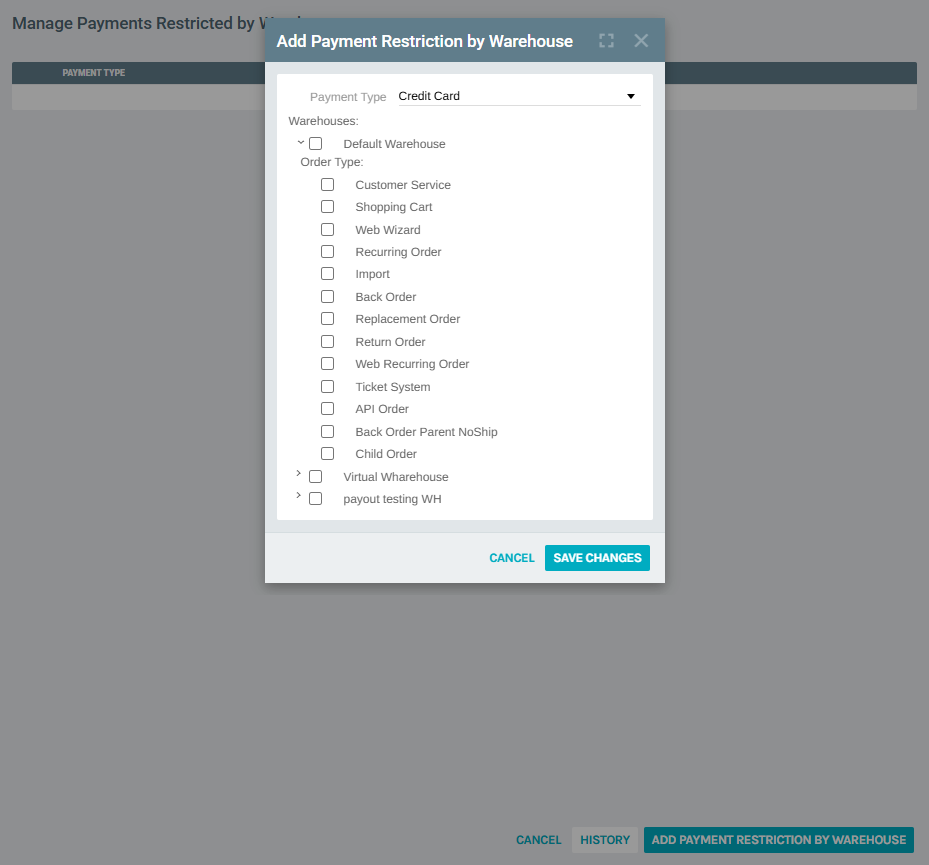
| Order Type | Description |
|---|---|
| Customer Service | Orders created through customer service |
| Shopping Cart | Online shopping cart orders |
| Web Wizard | Web wizard enrollment orders |
| Recurring Order | Scheduled recurring (auto-ship) orders |
| Import | Imported orders |
| Back Order | Back orders |
| Replacement Order | Replacement orders for damaged/incorrect shipments |
| Return Order | Return/refund orders |
| Web Recurring Order | Web-initiated recurring orders |
| Ticket System | Orders created through the ticket system |
| API Order | Orders created via the API |
| Back Order Parent NoShip | Parent back orders with no shipment |
| Child Order | Child orders (from split shipments or kits) |
Saving
- Check the desired warehouse(s) and optionally expand to select specific order types
- Click SAVE CHANGES to create the restriction rule
- Click CANCEL to discard
7) Edit or Delete a Restriction Rule
From the restriction rules list, each entry has:
- An Edit link to modify the warehouse and order type selections
- A more options menu (three-dot icon) with a delete option
Notes
- The Restrict Payment Type by Warehouse checkbox in Company Settings acts as a global toggle. If unchecked, all restriction rules are ignored and all payment types are accepted everywhere.
- When a warehouse checkbox is checked without expanding to select specific order types, the payment type is restricted for all order types in that warehouse.
- When specific order types are selected under a warehouse, the restriction applies only to those order types — the payment type remains available for unselected order types.
- Use the HISTORY link on the restriction rules list to audit changes made to payment restrictions over time.
- Multiple restriction rules can be created for different payment types, each with their own warehouse and order type selections.