Accounting / Items
Overview
The Items module in the Exigo admin panel provides a centralized catalog management system for all products and services in the system. Administrators can create, edit, search, and organize items with detailed settings for warehousing, pricing, availability, taxation, bill of materials, subscriptions, and web configurations.
Access path: Accounting → Items
Items List
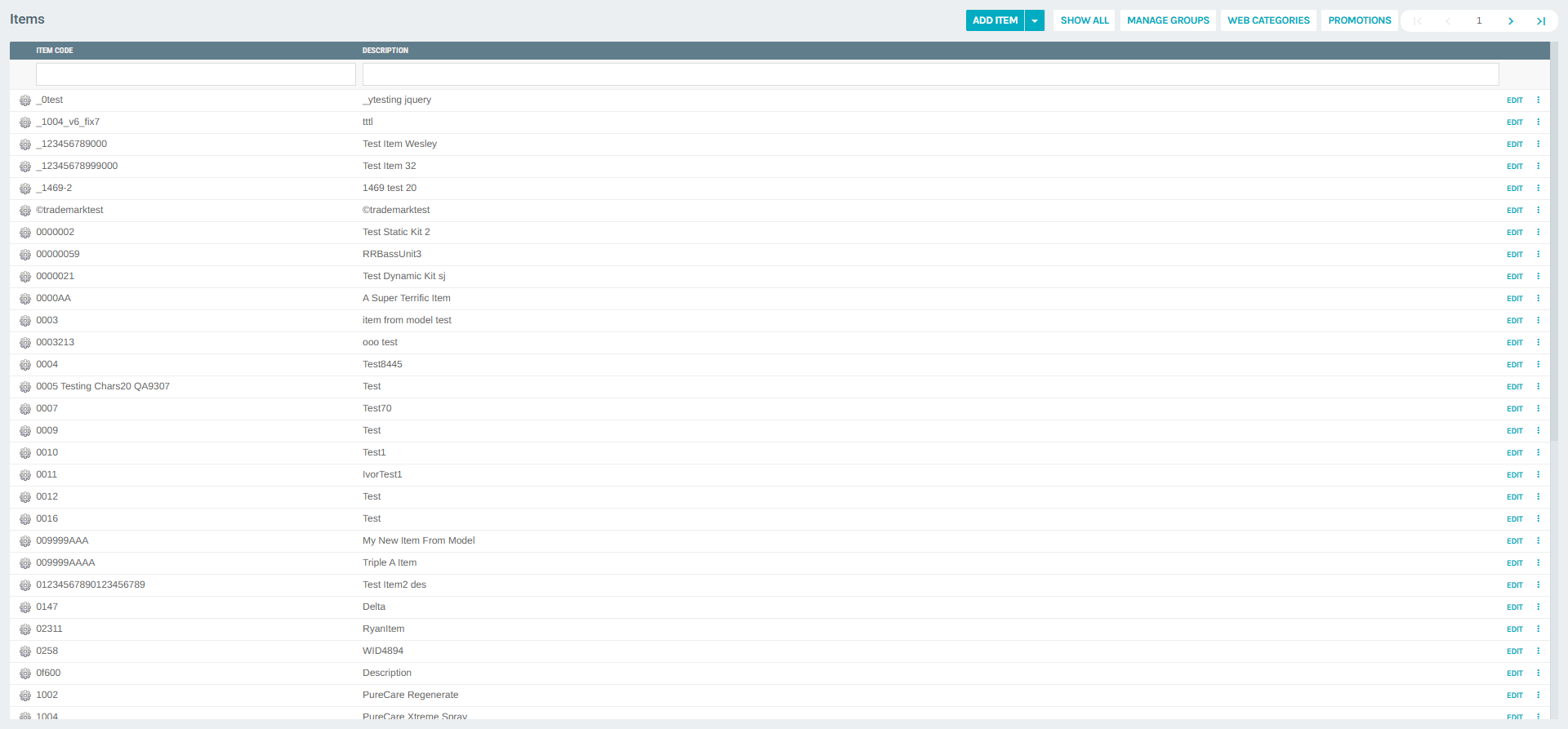
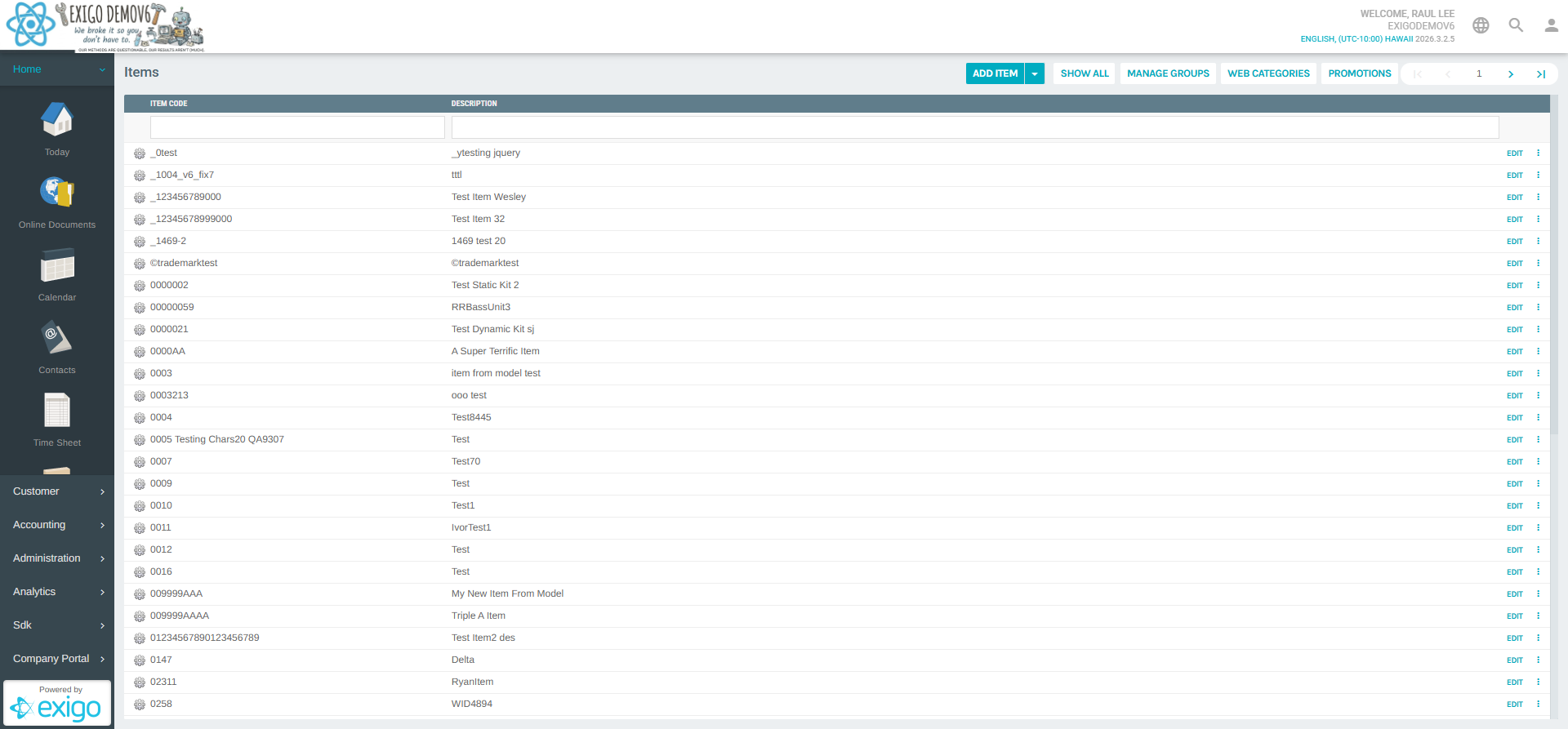
The main entry point for the Items module displays a paginated list of all items in the system.
Action Buttons
| Button | Description |
|---|---|
| ADD ITEM | Opens a popup to create a new Standard item |
| ▾ (dropdown) | Additional creation option: Create Item From Model — creates a new item based on an existing one |
| SHOW ALL | Toggles display between active-only items and all items |
| MANAGE GROUPS | Navigates to the Item Group management list |
| WEB CATEGORIES | Navigates to the Web Category tree for organizing items on e-commerce sites |
| PROMOTIONS | Navigates to the Item Promotions list |
List Columns
| Column | Description |
|---|---|
| (Checkbox) | Select individual items for bulk operations |
| ITEM CODE | The unique code identifying the item; sortable and filterable |
| DESCRIPTION | The item's name/description; sortable and filterable |
| (Actions) | EDIT button and ⋮ context menu per row |
Pagination
Navigation controls (first / previous / page number / next / last) appear above the list to browse through the full catalog.
Row Actions (Context Menu)
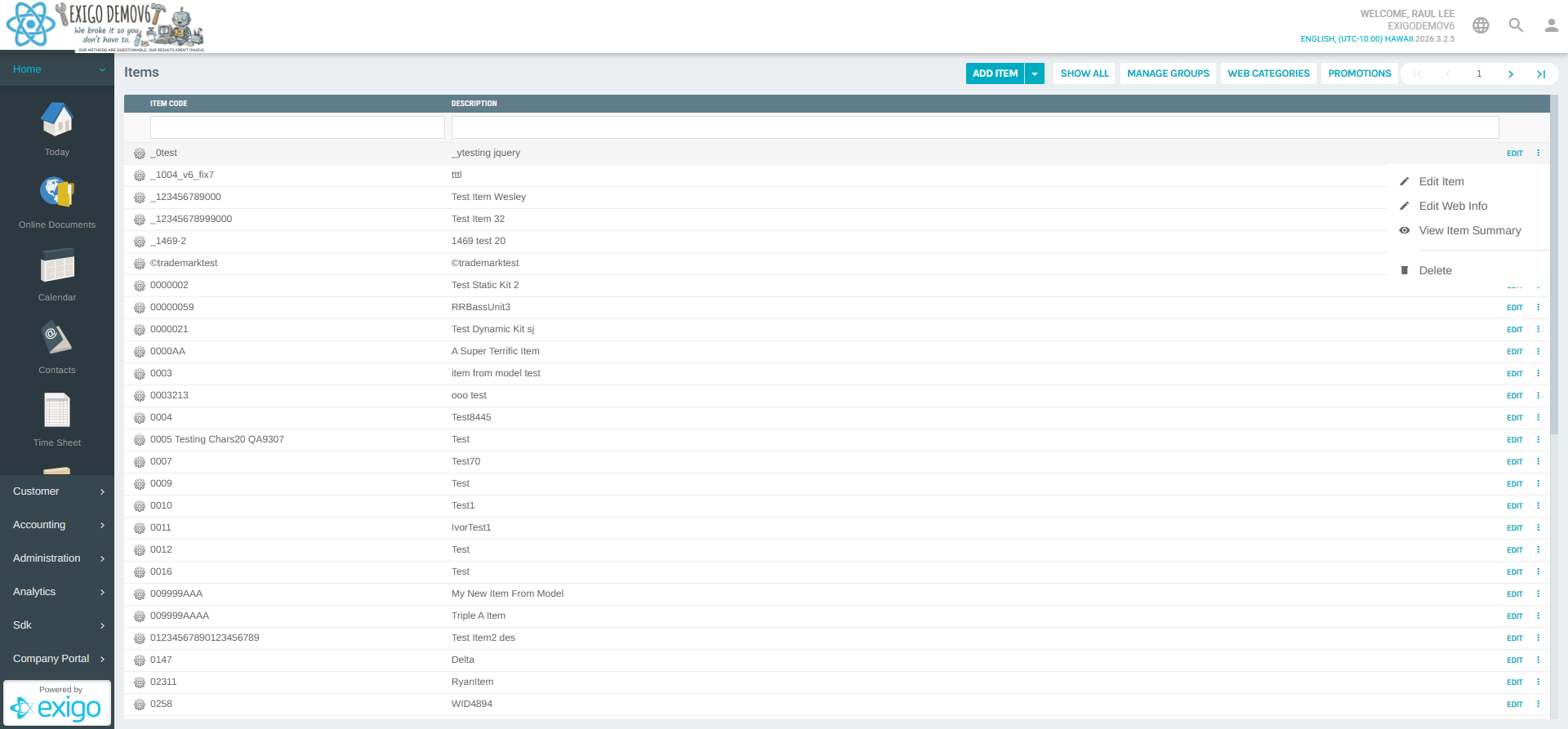
Clicking the ⋮ icon on any item row reveals the context menu:
| Action | Description |
|---|---|
| Edit Item | Opens the full Item Edit form (General Settings, Warehouse, Pricing, etc.) |
| Edit Web Info | Opens the Item Web Settings page for managing online descriptions, images, grouping, and categories |
| View Item Summary | Opens the Item Portal — a dashboard-style overview of the item |
| Delete | Navigates to the delete confirmation page for the item |
ADD ITEM Dropdown
Clicking the dropdown arrow (▾) next to ADD ITEM shows the additional creation option:
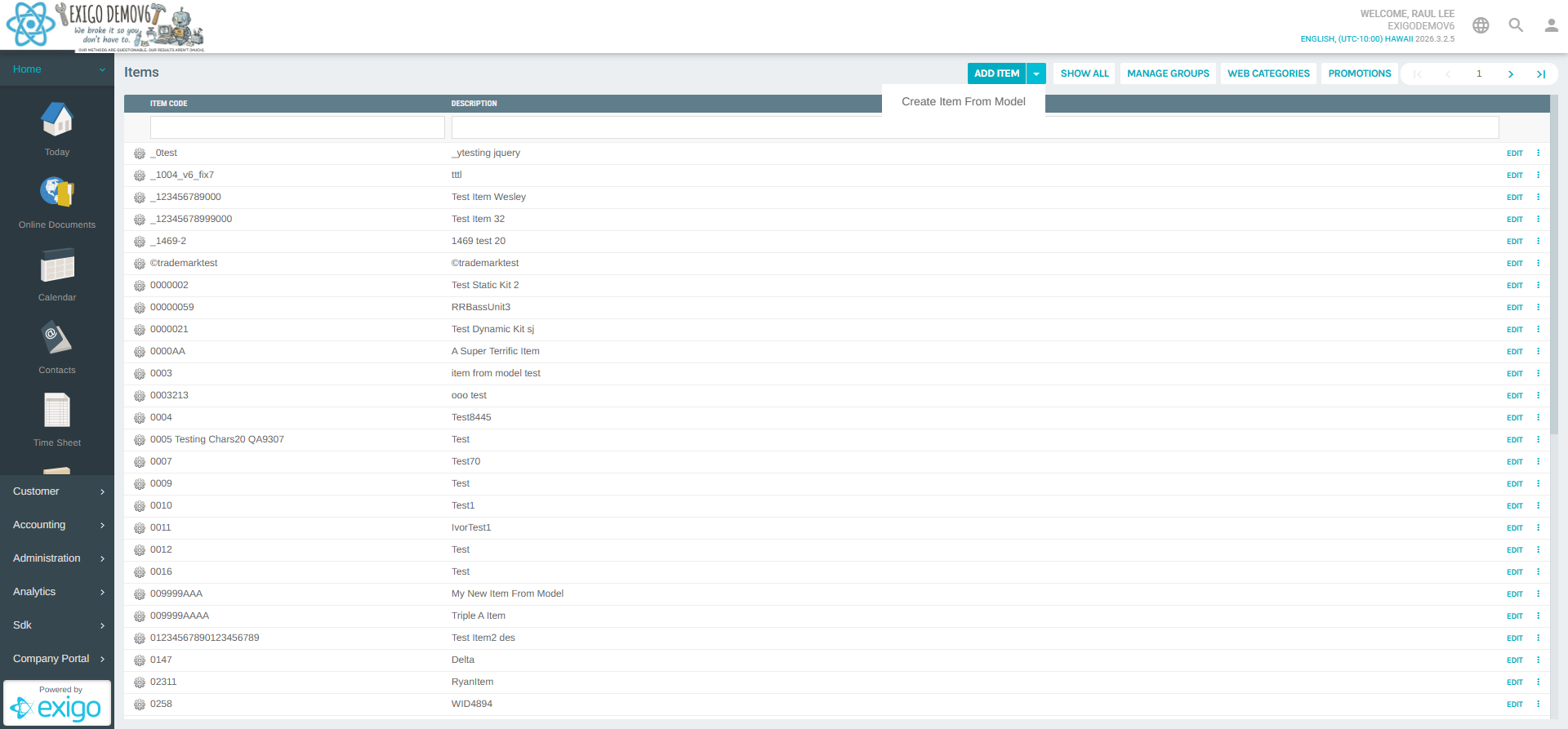
- Create Item From Model — Creates a copy of an existing item as a starting point for a new one.
Item Portal (View Item Summary)
The Item Portal provides a comprehensive at-a-glance view of an item's configuration. It uses a left sidebar for navigation and a main content area to display details.
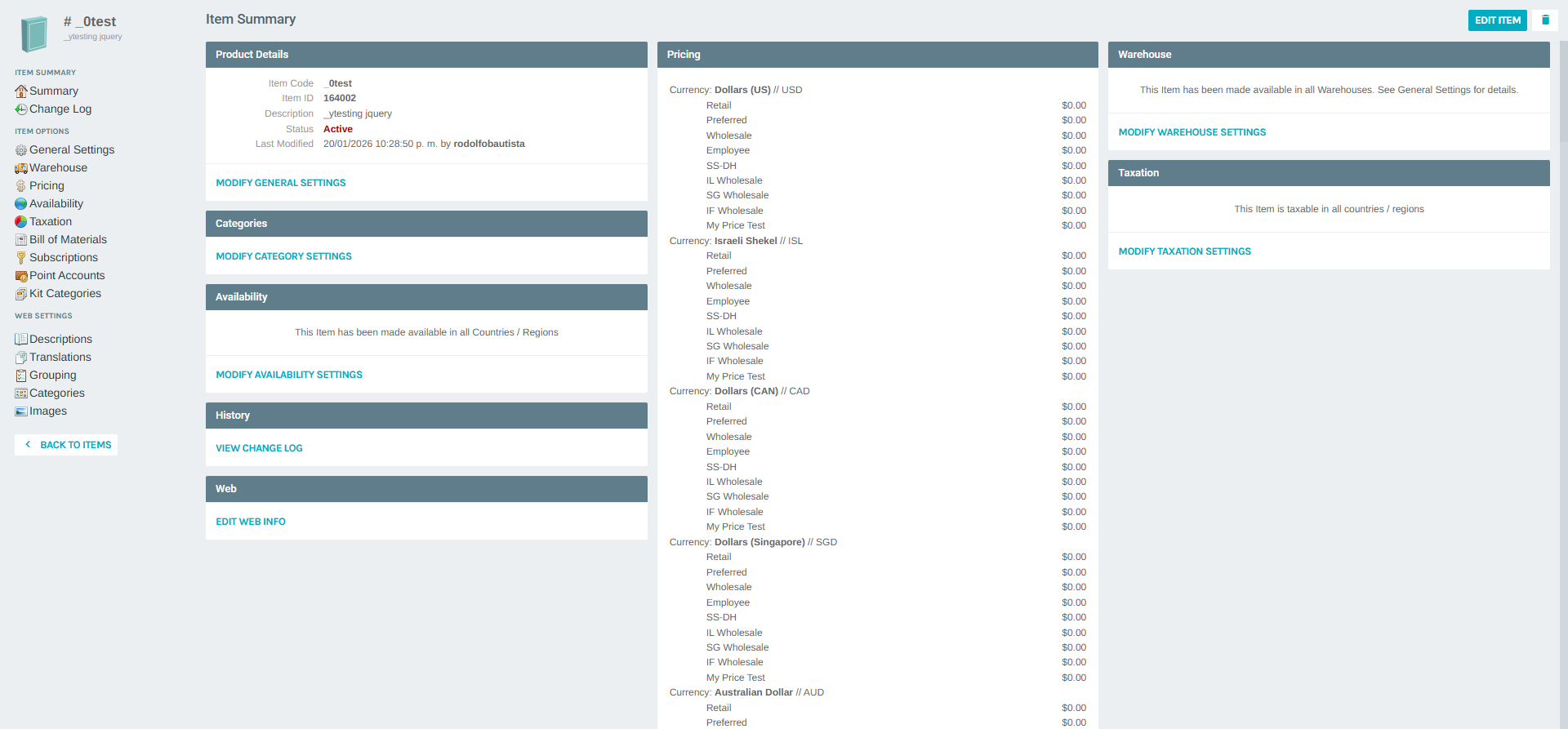
Sidebar Sections
ITEM SUMMARY - Summary — Displays product details, categories, availability, pricing, and history - Change Log — Shows the history of changes to the item
ITEM OPTIONS — Links to the Item Edit form tabs: - General Settings - Warehouse - Pricing - Availability - Taxation - Bill of Materials - Subscriptions - Point Accounts - Kit Categories
WEB SETTINGS — Links to manage e-commerce configurations: - Descriptions - Translations - Grouping - Categories - Images
Summary Content
The summary view (loaded inside the main content iframe) displays:
| Section | Details |
|---|---|
| Product Details | Item Code, Item ID, Description, Status, Last Modified (by whom) |
| Categories | Item group category assignments |
| Availability | Countries/Regions where the item is available |
| History | Link to VIEW CHANGE LOG |
| Web | Link to EDIT WEB INFO |
| Pricing | Prices per price type per currency (Retail, Preferred, Wholesale, Employee, etc.) |
Each section has a MODIFY *** SETTINGS or EDIT button that opens the respective edit form.
Item Edit Form
The Item Edit form is accessible by clicking EDIT on the items list or Edit Item from the context menu. It is organized into eight tabs.
Tab 1 — General
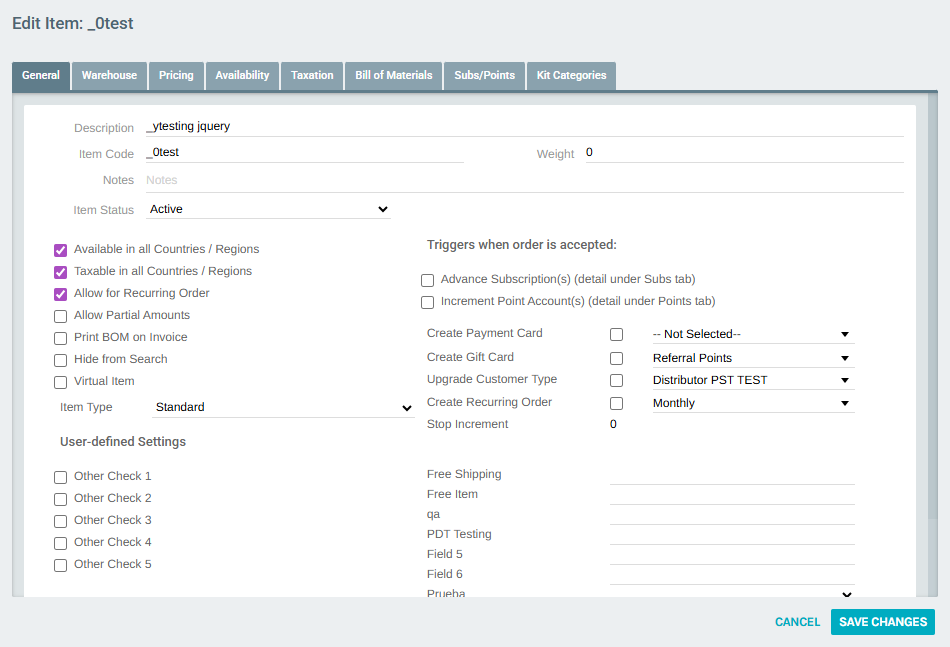
| Field | Description |
|---|---|
| Description | The item's display name |
| Item Code | Unique identifier code |
| Weight | Item weight (numeric) |
| Notes | Free-form internal notes |
| Item Status | Dropdown: Active or Deleted |
| Item Type | Dropdown: Standard, Static Kit, Dynamic Kit, Static Kit (Legacy) |
Checkbox options: - Available in all Countries / Regions - Taxable in all Countries / Regions - Allow for Recurring Order - Allow Partial Amounts - Print BOM on Invoice - Hide from Search - Virtual Item
Triggers when order is accepted:
| Trigger | Description |
|---|---|
| Advance Subscription(s) | Advances customer subscriptions (configured in Subs tab) |
| Increment Point Account(s) | Adds points to a point account (configured in Points tab) |
| Create Payment Card | Creates a payment card when item is purchased |
| Create Gift Card | Creates a gift card linked to a card type |
| Upgrade Customer Type | Changes the customer's type upon purchase |
| Create Recurring Order | Enrolls the customer in a recurring order |
User-defined Settings: Configurable custom checkboxes (Other Check 1–5) and text/dropdown fields that can be tailored per company requirements.
Tab 2 — Warehouse
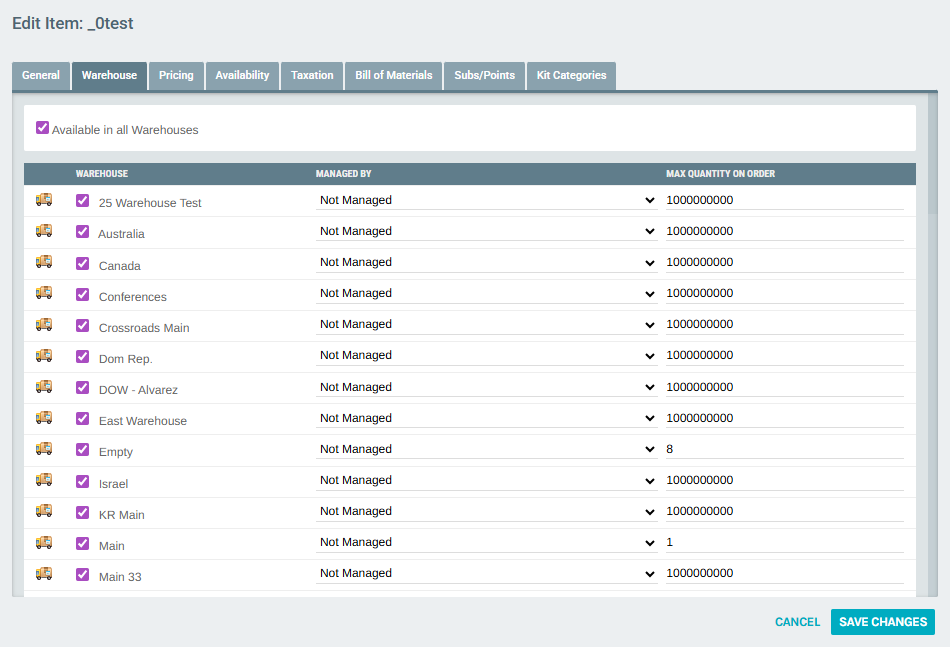
Controls which warehouses carry this item and their fulfillment behavior.
- Available in all Warehouses checkbox (when unchecked, individual warehouses can be selected)
- Per-warehouse configuration:
| Column | Description |
|---|---|
| (Checkbox) | Enable/disable the item for this warehouse |
| WAREHOUSE | Name of the warehouse |
| MANAGED BY | Inventory management method: Not Managed / Managed By Inventory / Purchase Ordered / Discontinued / On BackOrder / Managed by Inventory Auto BackOrder |
| MAX QUANTITY ON ORDER | Maximum units that can be ordered from this warehouse at one time |
Tab 3 — Pricing
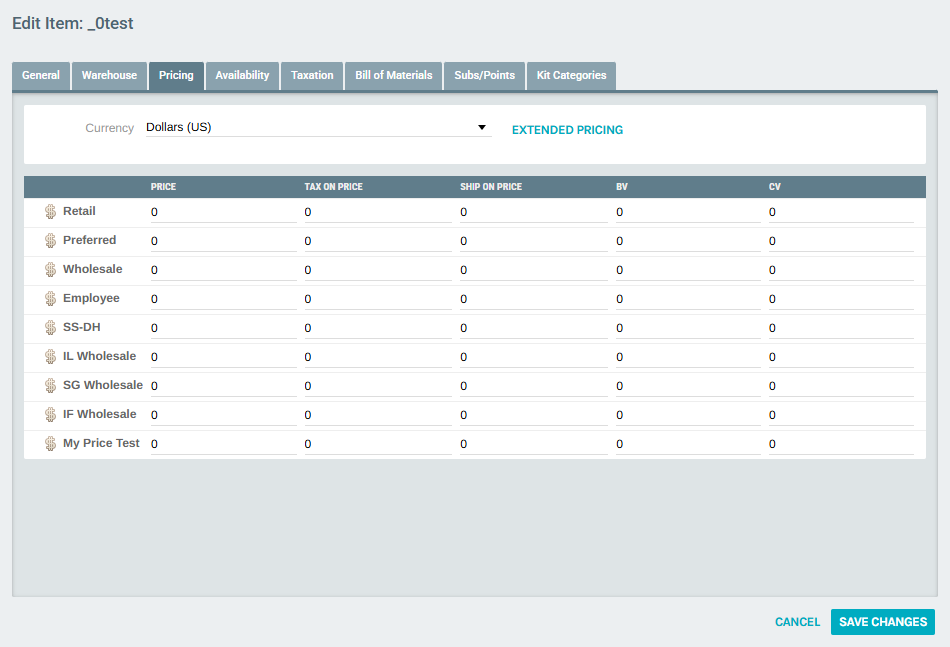
Defines prices per currency and per price type, with extended pricing options.
- Currency dropdown — Select the currency to edit prices for
- EXTENDED PRICING table:
| Column | Description |
|---|---|
| (Price Type) | Row label: Retail, Preferred, Wholesale, Employee, and any custom price types |
| PRICE | Base sale price |
| TAX ON PRICE | Tax amount applied to the price |
| SHIP ON PRICE | Shipping amount applied to the price |
| BV | Business Volume (commission qualification volume) |
| CV | Commission Volume |
Tab 4 — Availability
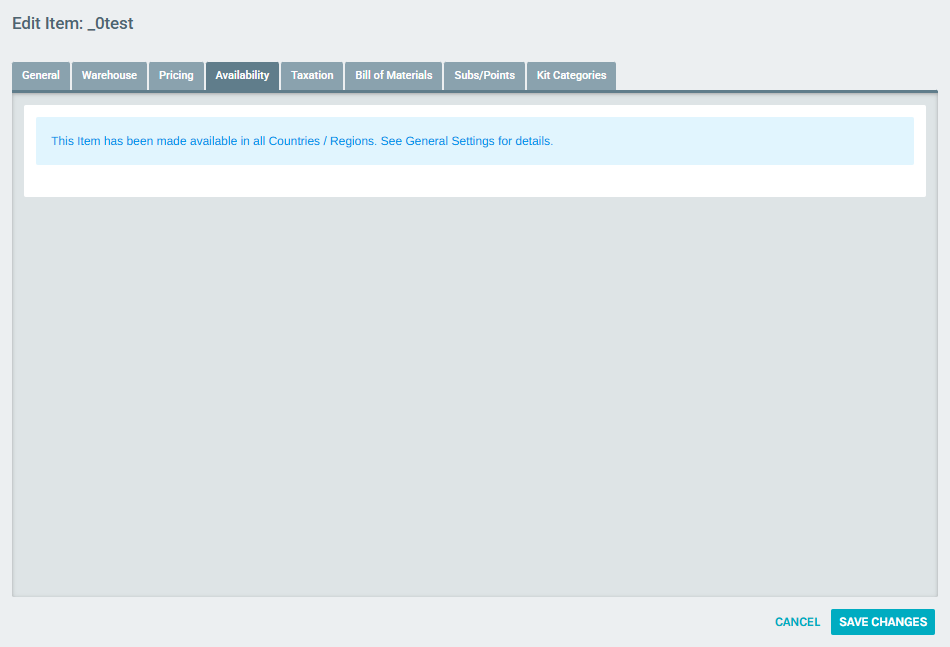
Controls in which countries and/or regions the item can be purchased.
- Available in all Countries / Regions checkbox (inherited from General tab)
- Individual country/region checkboxes can be selected if the item is not globally available
Tab 5 — Taxation
Manages tax rules applied to this item when ordered. Allows enabling or disabling taxability and assigning specific tax codes per region.
Tab 6 — Bill of Materials
Defines the component items that make up a kit or bundle. Used for Static Kits and Dynamic Kits to list the individual products included.
Tab 7 — Subs/Points
Configures subscription advancement rules and point account increments triggered when this item is purchased (linked to the triggers set in the General tab).
Tab 8 — Kit Categories
For Dynamic Kits, defines the categories of items that customers can choose from when building their kit.
Navigation
- BACK TO ITEMS link (in the Item Portal) — Returns to the Items list (
/Item/ItemList) - MANAGE GROUPS — Navigate to Item Group management
- WEB CATEGORIES — Navigate to the Web Category tree
- PROMOTIONS — Navigate to Item Promotions