Configuring Item Pricing and Taxation
Overview
Exigo allows you to configure prices and taxation rules for each item individually. Pricing is managed per price type (e.g., Retail, Wholesale, Preferred) and per currency, enabling you to support multi-currency operations. Taxation can be applied globally across all countries/regions or granularly by country and state/region.
Accessing the Items List
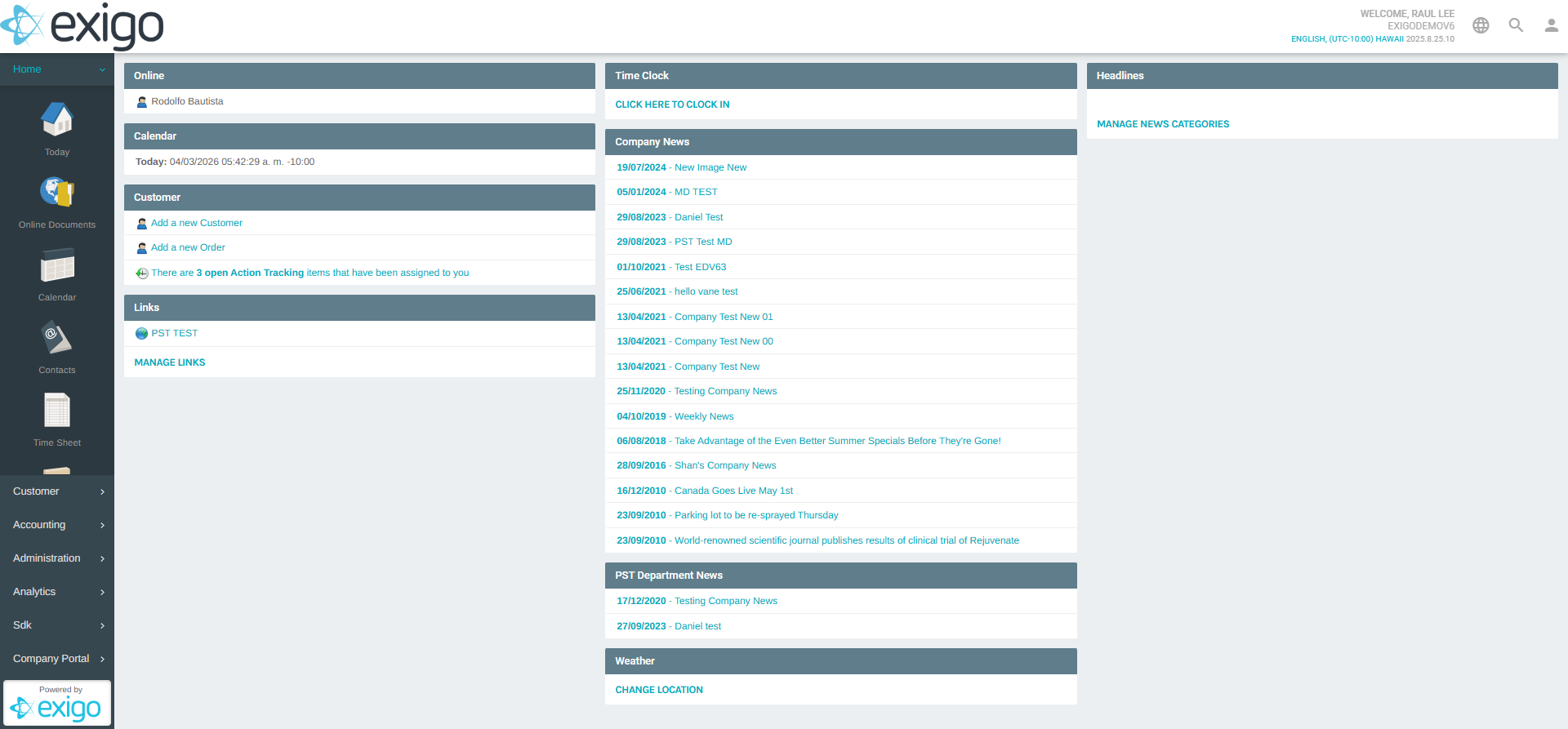
From the left navigation panel, expand the Accounting section and click Items.
This takes you to the Items List, which displays all items registered in the system with their item code and description.
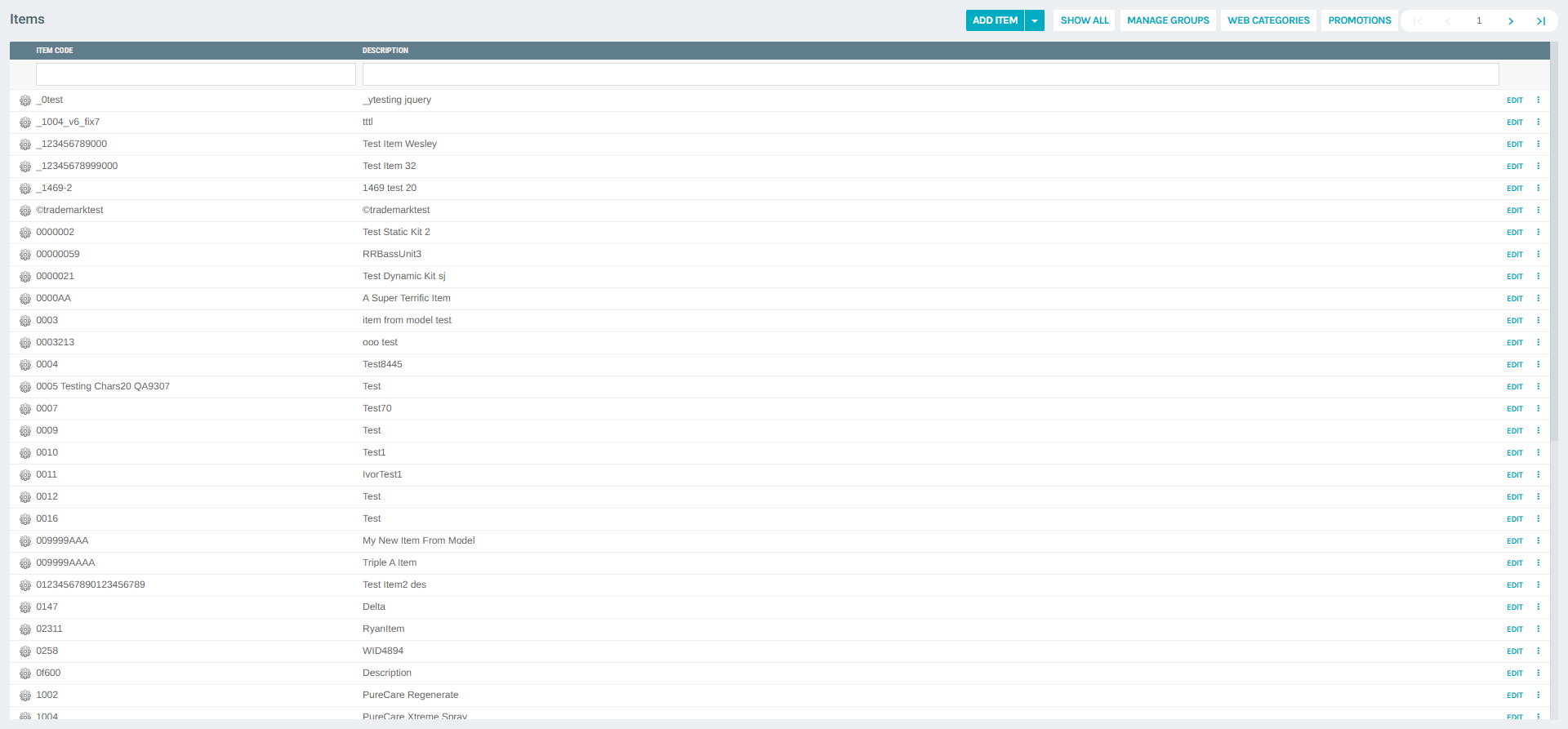
You can search for a specific item using the search boxes at the top of the Item Code and Description columns.
Opening an Item for Editing
Click the EDIT link next to any item to open its configuration page.
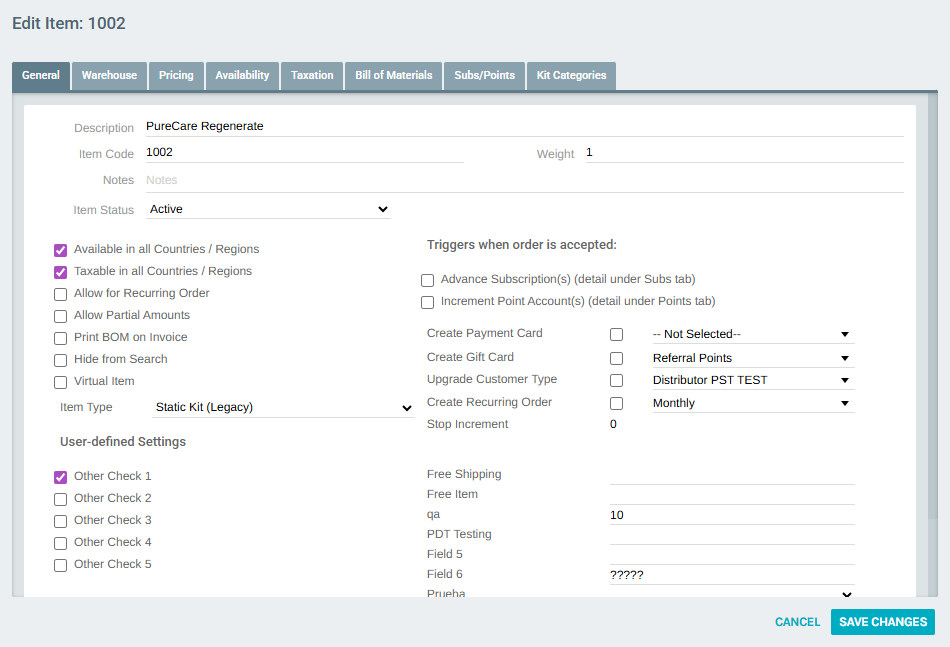
The item edit page is organized into tabs:
| Tab | Description |
|---|---|
| General | Basic item settings, status, type, and taxation/availability flags |
| Warehouse | Warehouse inventory settings |
| Pricing | Price values per price type and currency |
| Availability | Country/region availability rules |
| Taxation | Country/region taxation rules |
| Bill of Materials | Kit component definitions |
| Subs/Points | Subscription and point account configurations |
| Kit Categories | Dynamic kit category setup |
Configuring Item Pricing
Pricing Tab
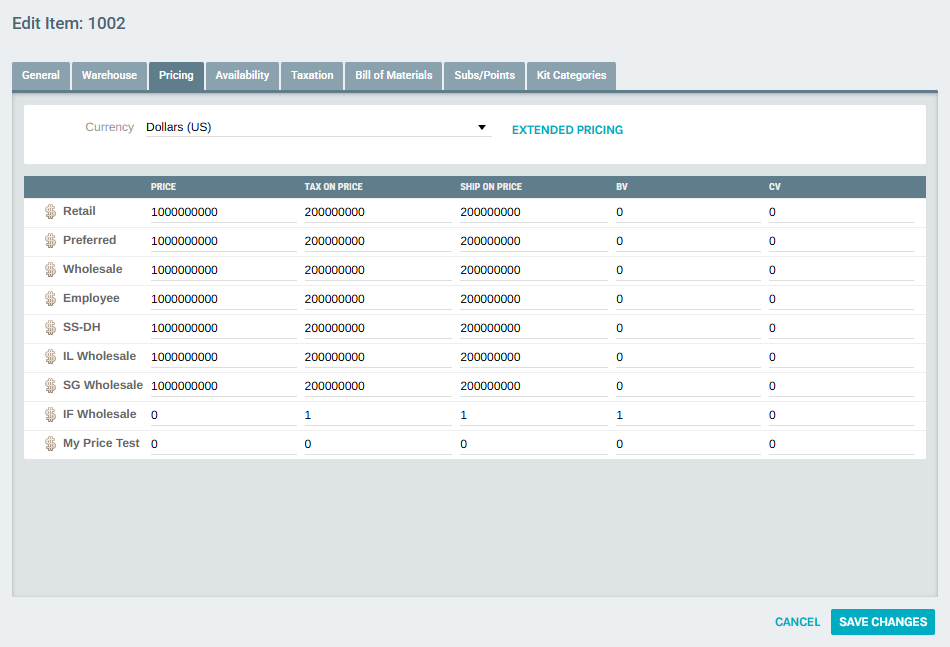
Click the Pricing tab to configure prices for each price type.
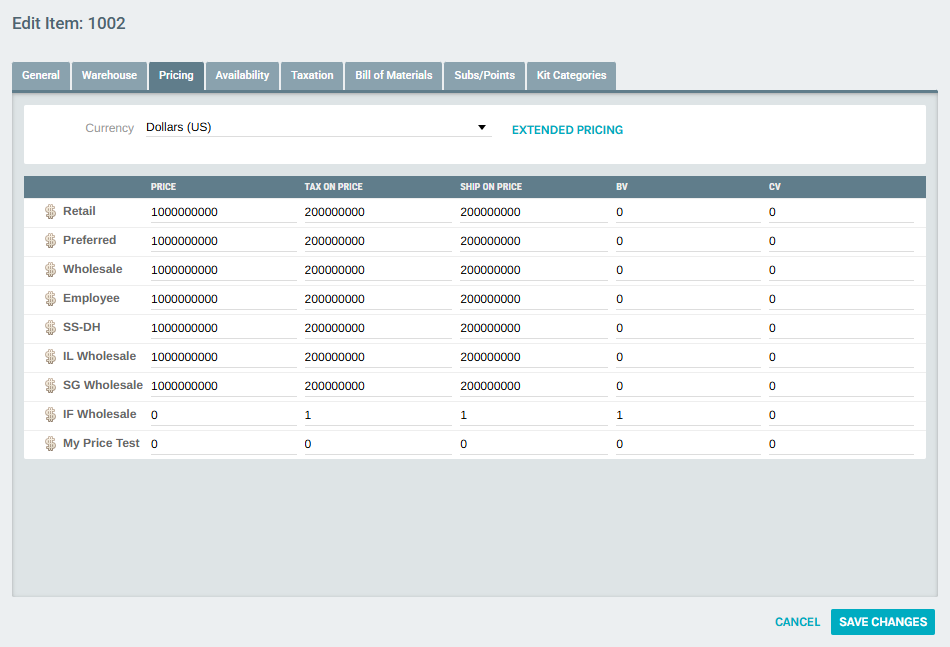
The pricing table displays one row per price type configured in your system (e.g., Retail, Preferred, Wholesale, Employee, SS-DH, IL Wholesale, SG Wholesale, IF Wholesale) and the following columns:
| Column | Description |
|---|---|
| Price | The base selling price for this price type |
| Tax On Price | The portion of the price that is taxable |
| Ship On Price | The portion of the price used for shipping calculation |
| BV | Business Volume — used for commission calculations |
| CV | Commission Volume — used for commission calculations |
Configuring Prices for Multiple Currencies
The Currency dropdown at the top of the Pricing tab allows you to configure prices for each currency independently.
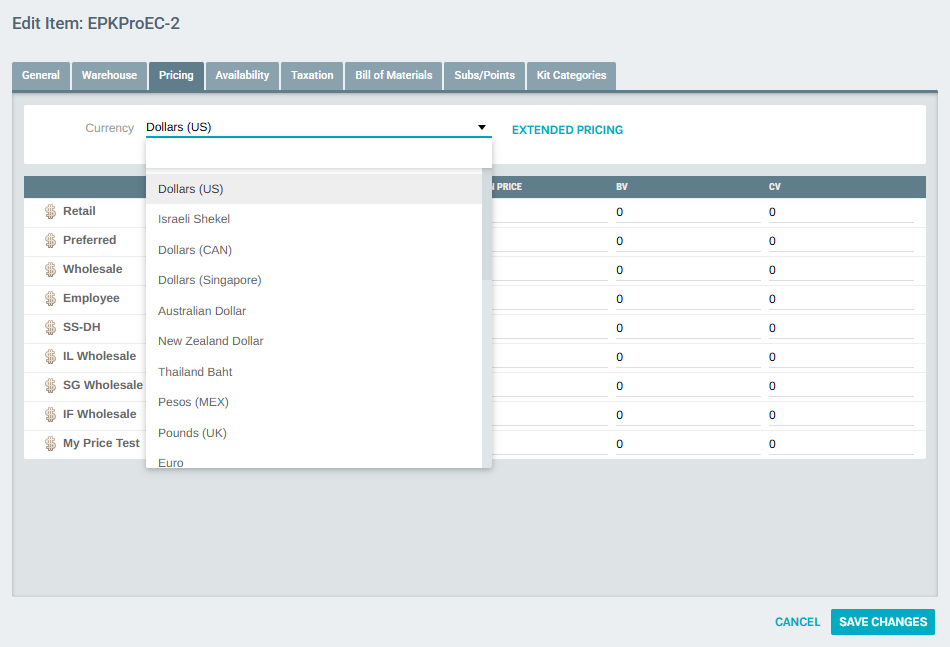
Select the desired currency from the dropdown to view and edit prices for that currency.
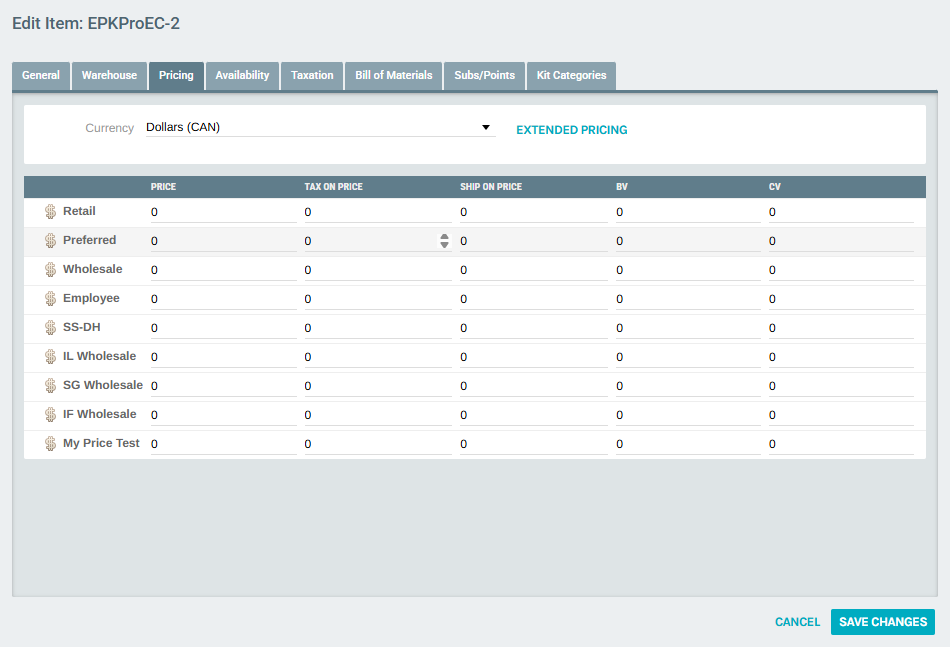
Each currency maintains its own set of price values, allowing items to have different prices in different markets.
Configuring Item Taxation
Taxation Settings on the General Tab
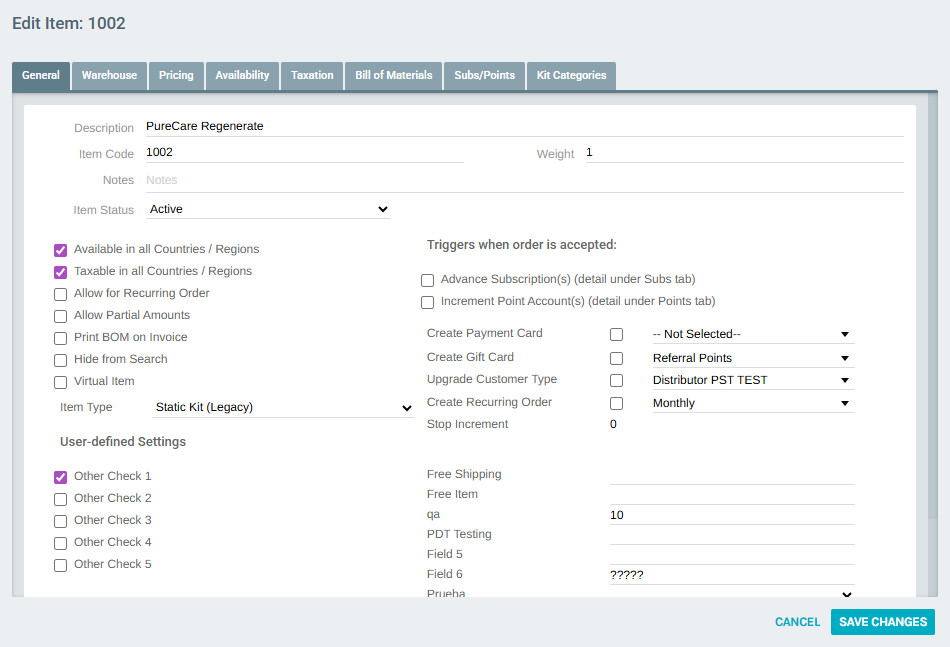
The General tab contains two key checkboxes that control availability and taxation behavior globally:
- Available in all Countries / Regions — When checked, the item is available in every country/region. When unchecked, the Availability tab lets you select specific regions.
- Taxable in all Countries / Regions — When checked, the item is taxed in all countries/regions. When unchecked, the Taxation tab lets you select specific regions where tax applies.
Taxation Tab — Taxable in All Regions
When Taxable in all Countries / Regions is checked on the General tab, the Taxation tab displays the following informational message:
This Item has been made taxable in all Countries / Regions. See General Settings for details.
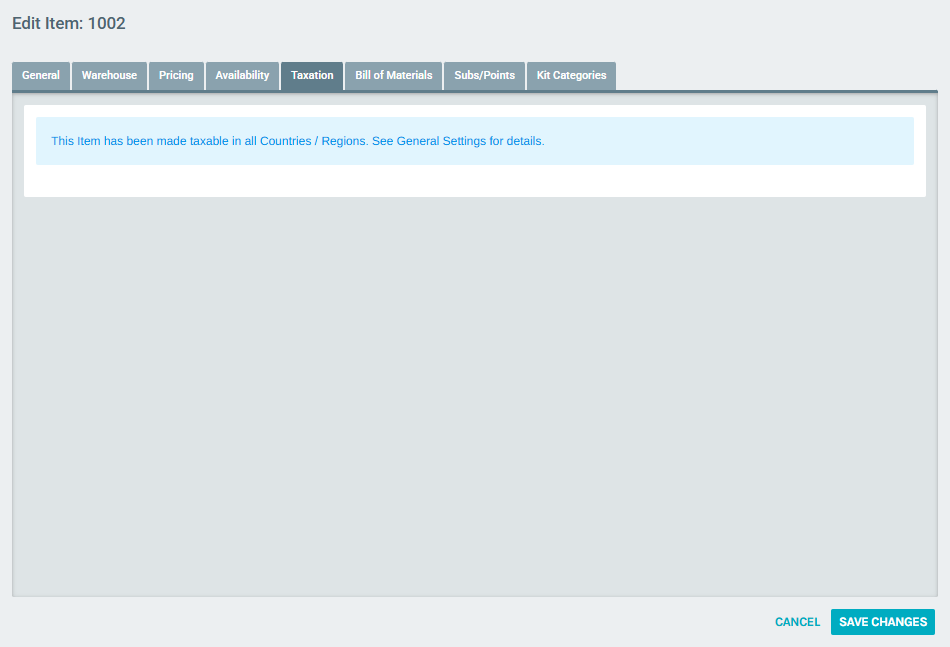
To configure taxation per region, go to the General tab and uncheck Taxable in all Countries / Regions, then save. The Taxation tab will then display the per-region configuration interface.
Taxation Tab — Per-Region Configuration
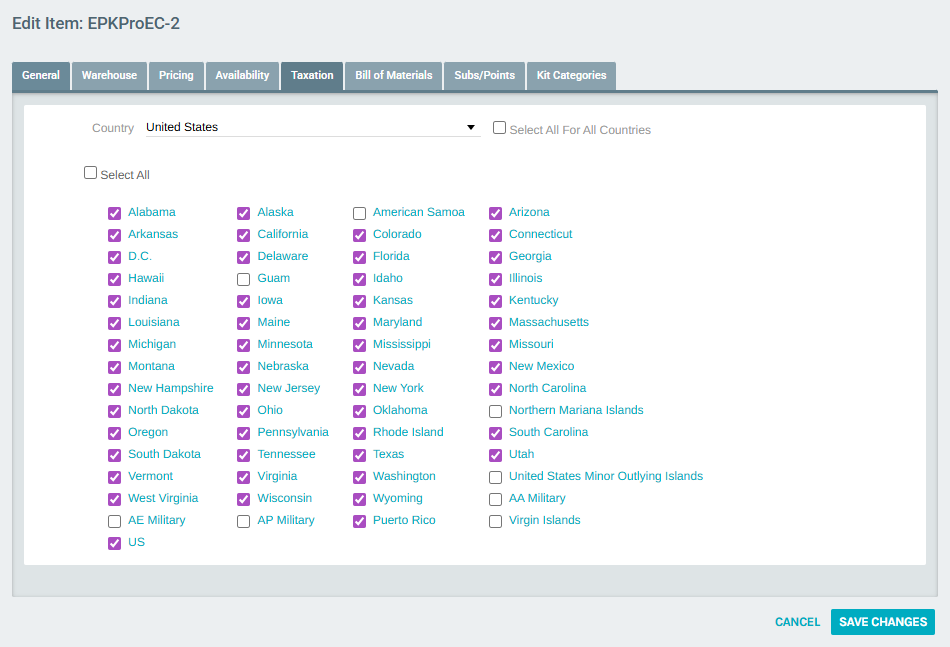
When taxation is configured per region, the Taxation tab shows a Country dropdown and a list of states/regions with checkboxes.
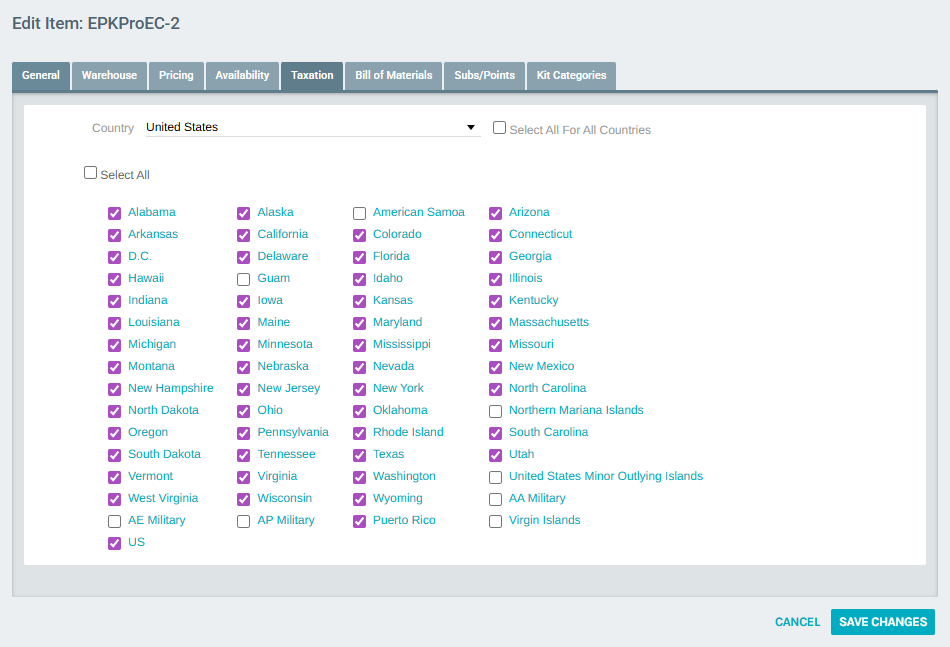
- Use the Country dropdown to switch between supported countries.
- Check the box next to each state or region where the item should be taxable.
- Use Select All to enable taxation for all regions within the selected country at once.
- Use Select All For All Countries to apply taxation across every country and region simultaneously.
Saving Changes
After configuring pricing and taxation settings, click SAVE CHANGES at the top of the item edit page to apply all updates. To discard changes, click CANCEL.
Note
Pricing changes take effect immediately upon saving. Ensure all price types and currencies are correctly configured before saving to avoid unintended pricing in customer-facing applications.