Customer Tracking
Overview
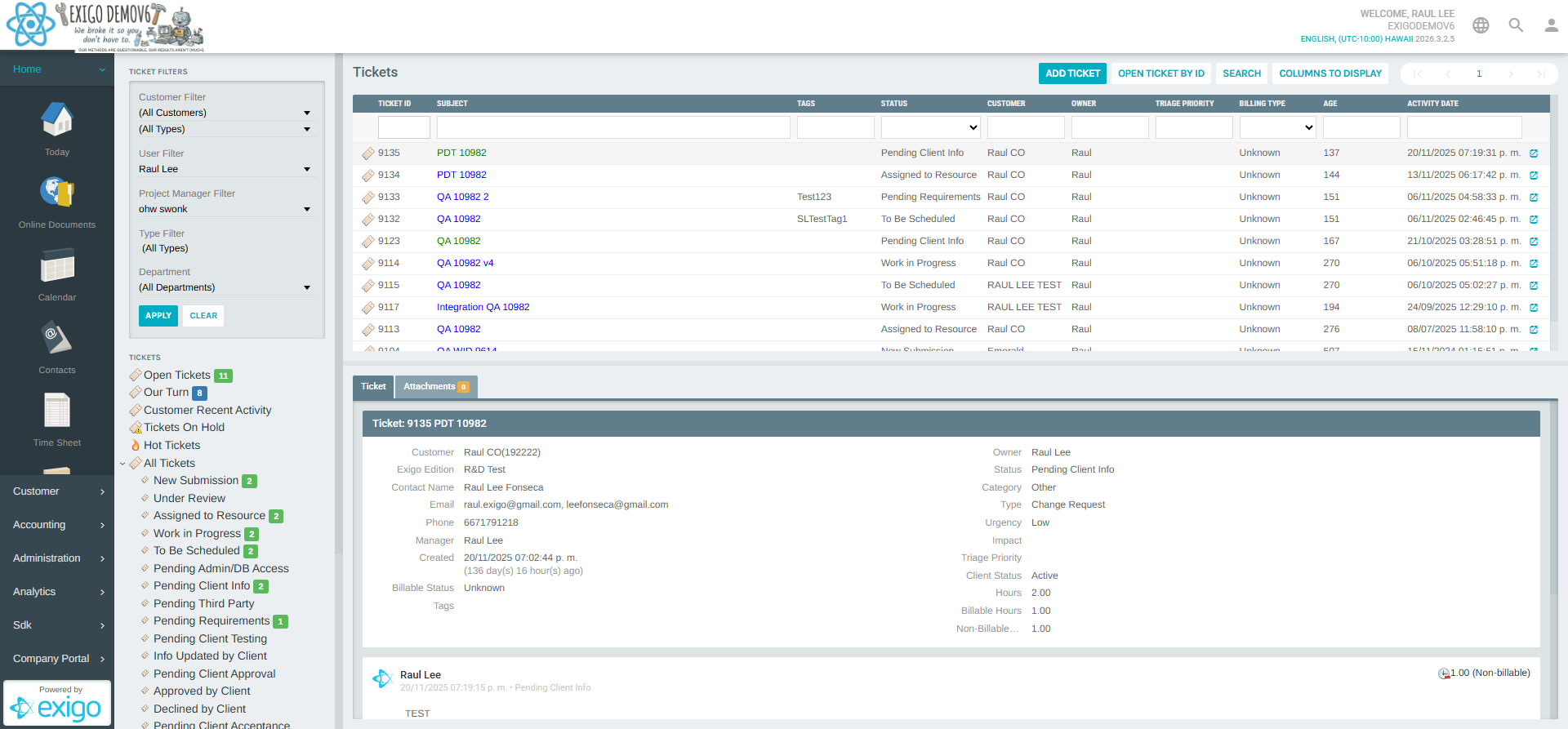
Customer > Customer Tracking is the ticket management system built into the Exigo admin panel. It allows admin teams to create, track, and manage support and change-request tickets on behalf of customers. Each ticket can go through a defined lifecycle of statuses, be assigned to team members, tracked by billable hours, and filtered by customer, department, or type.
Accessing Customer Tracking
Navigate to Customer > Customer Tracking from the left sidebar.
Portal Layout
The Customer Tracking portal is split into two main areas:
- Left panel – Ticket Filters and a navigable list of ticket categories/statuses.
- Right pane – The ticket list for the selected category, with an inline ticket detail view.
Ticket Filters
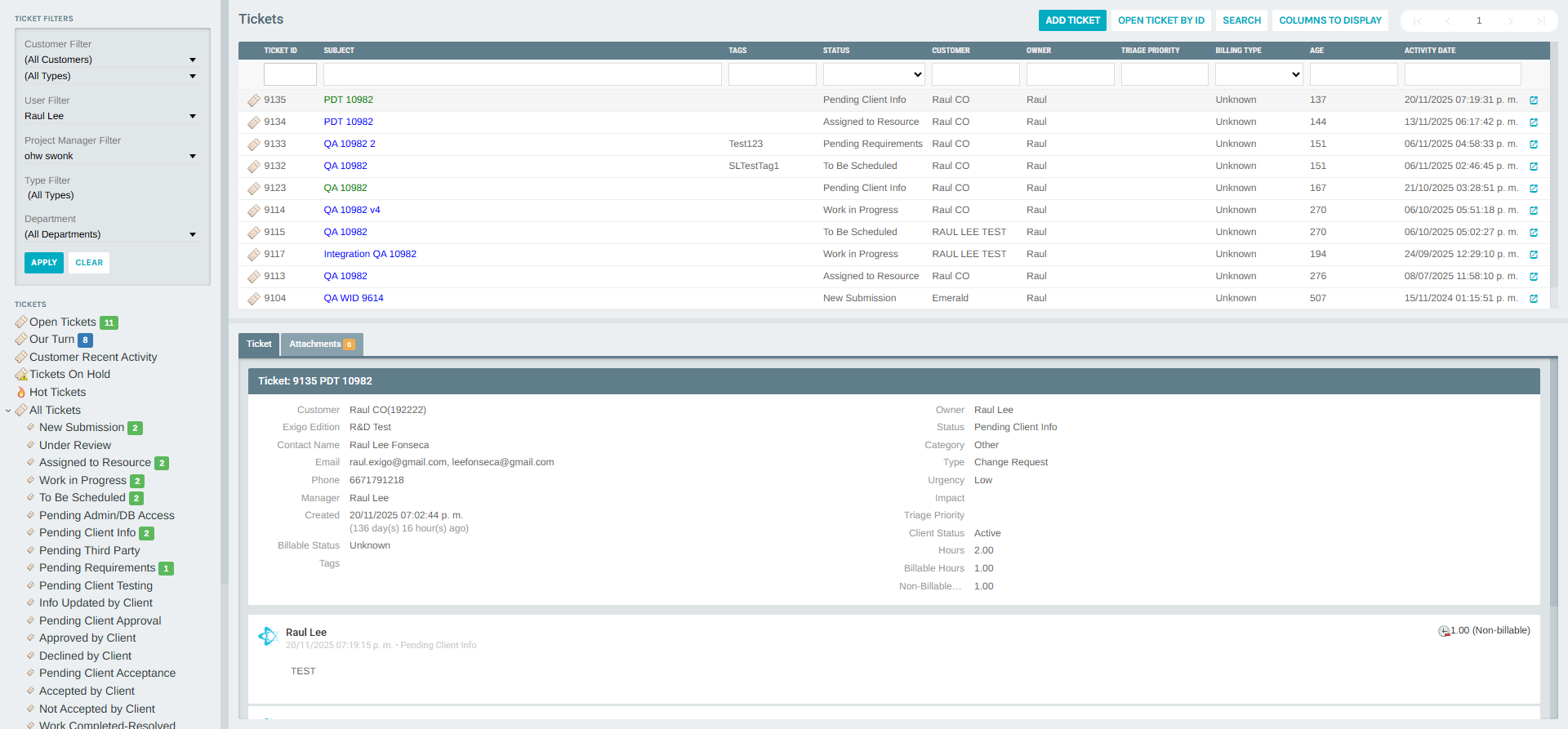
Located in the left panel, the TICKET FILTERS section allows you to narrow down the ticket list before selecting a category:
| Filter | Description |
|---|---|
| Customer Filter | Filter by a specific customer account or all customers |
| Customer Type | Filter by customer type |
| User Filter | Filter by the assigned admin user (owner) |
| Project Manager Filter | Filter by the project manager assigned to the ticket |
| Type Filter | Filter by ticket type (links to a type filter management page) |
| Department | Filter by internal department |
Click APPLY to apply the active filters, or CLEAR to reset them all.
Ticket Categories (Status Navigation)
Below the filters, the TICKETS section lists all available ticket status views. Each entry shows the category name and, where applicable, a live count of matching tickets in parentheses.
Smart Views
| View | Description |
|---|---|
| Open Tickets | All tickets that are currently open (not closed/cancelled) |
| Our Turn | Tickets where the next action is expected from the Exigo team |
| Customer Recent Activity | Tickets recently updated by the customer |
| Tickets On Hold | Tickets paused pending further information or action |
| Hot Tickets | High-priority tickets requiring urgent attention |
| All Tickets | Complete list of all tickets regardless of status |
Status Views
| Status | Description |
|---|---|
| New Submission | Ticket just submitted, awaiting initial review |
| Under Review | Being reviewed by the Exigo team |
| Assigned to Resource | Assigned to a specific team member |
| Work in Progress | Actively being worked on |
| To Be Scheduled | Accepted but not yet started; pending scheduling |
| Pending Admin/DB Access | Waiting for admin or database access to proceed |
| Pending Client Info | Waiting for additional information from the customer |
| Pending Third Party | Blocked by a third-party dependency |
| Pending Requirements | Requirements not yet finalized |
| Pending Client Testing | Delivered; waiting for the client to test |
| Info Updated by Client | Client has provided updated information |
| Pending Client Approval | Awaiting client sign-off before proceeding |
| Approved by Client | Client has approved the proposed solution |
| Declined by Client | Client has declined the proposed solution |
| Pending Client Acceptance | Work complete; waiting for formal client acceptance |
| Accepted by Client | Client has accepted the delivered work |
| Not Accepted by Client | Client rejected the delivered work |
| Work Completed-Resolved | Work has been completed and the issue is resolved |
| Closed | Ticket is fully closed |
| Cancelled | Ticket was cancelled and will not be actioned |
| Future Feature | Logged as a future enhancement request |
| Estimate Needed | Work estimate required before proceeding |
| Suspended | Ticket temporarily suspended |
| Pending Deployment | Work done; waiting to be deployed to production |
| Inactive Client Tickets | Tickets from inactive/terminated client accounts |
Additional Views
| View | Description |
|---|---|
| Time and Activity | Summary of time logged and activity across tickets |
| Open Ticket Summary | Aggregate view grouping open tickets by customer and status |
| Billing | Weekly billing overview for time-tracked tickets |
Ticket List
Clicking any category in the left panel loads the matching Tickets grid in the right pane.
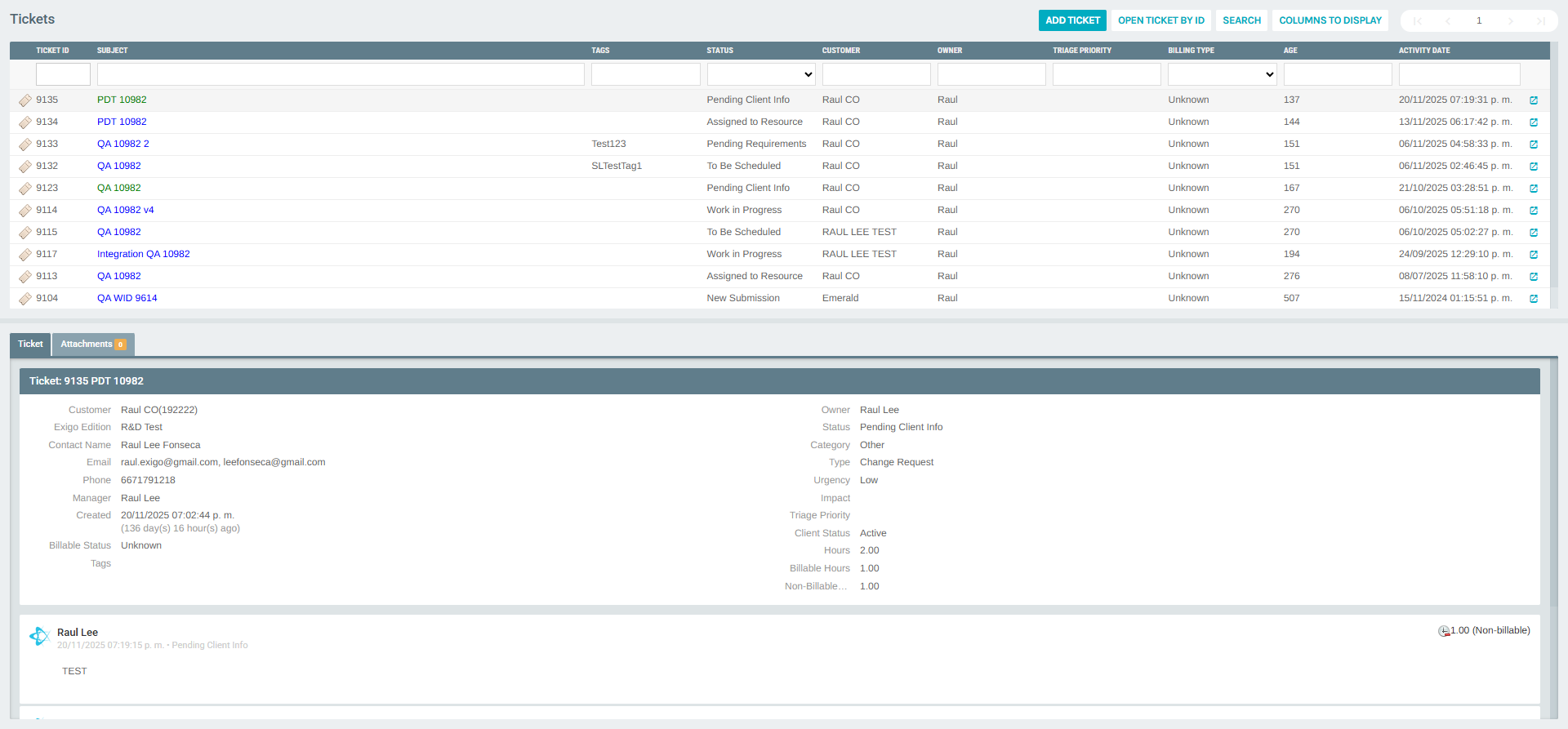
Action Bar
| Action | Description |
|---|---|
| ADD TICKET | Opens the New Customer Ticket form |
| OPEN TICKET BY ID | Jump directly to a ticket by entering its ID |
| SEARCH | Opens the search/filter panel for the ticket list |
| COLUMNS TO DISPLAY | Configure which columns appear in the grid |
List Columns
| Column | Description |
|---|---|
| Ticket ID | Unique numeric identifier for the ticket |
| Subject | Short description or title of the ticket |
| Tags | Labels applied to the ticket for categorization |
| Status | Current workflow status (dropdown filter available) |
| Customer | Customer account the ticket belongs to |
| Owner | Admin user responsible for the ticket |
| Triage Priority | Calculated priority from Urgency × Impact |
| Billing Type | Unknown / Non-billable / Billable |
| Age | Number of days since the ticket was created |
| Activity Date | Date/time of the last activity on the ticket |
Each row includes a launch icon that opens the ticket detail in the inline pane on the right.
Ticket Detail
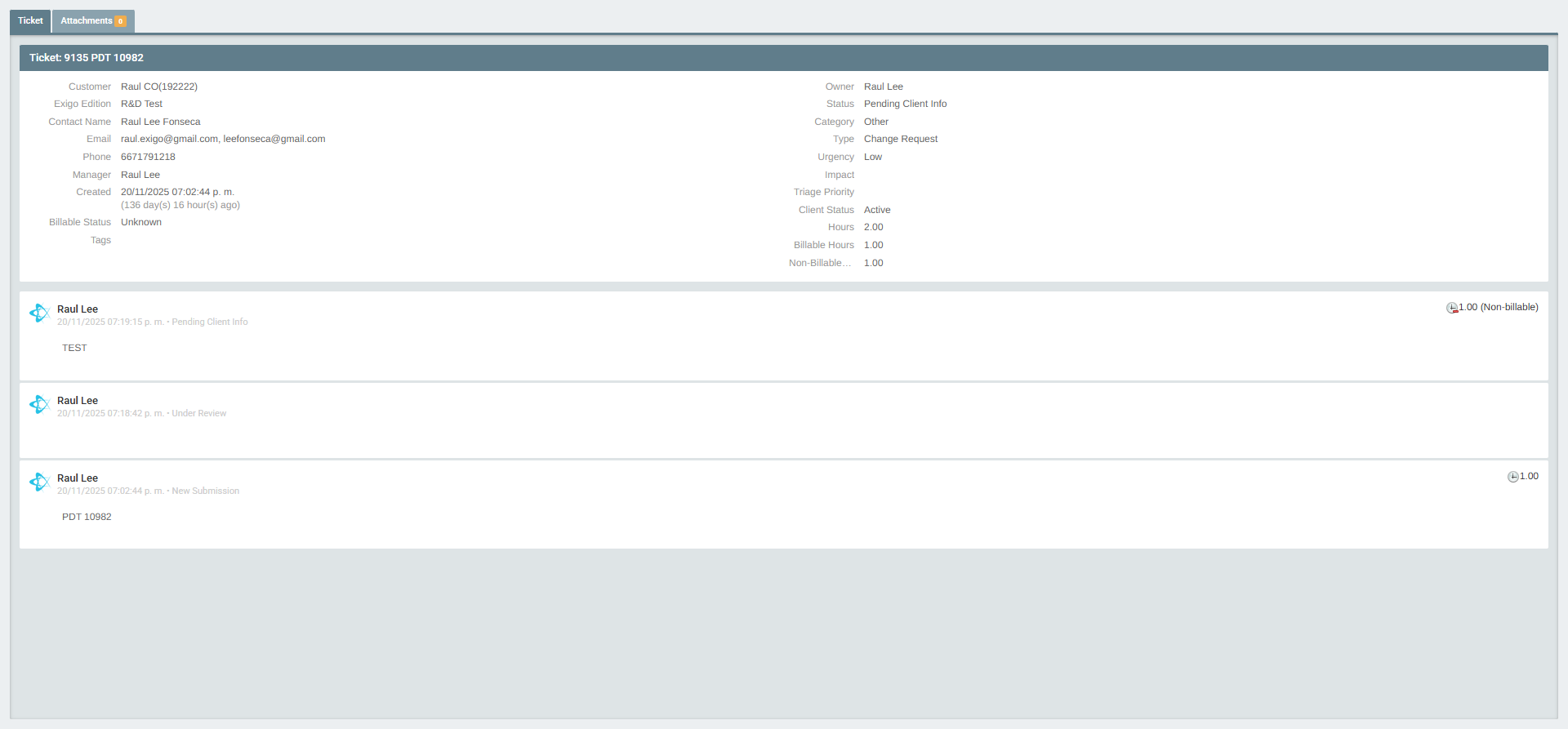
Clicking a ticket row opens its detail in a side pane (or directly when accessed via URL). The detail view is organized into tabs:
- Ticket – Full metadata and activity history
- Attachments – Files attached to the ticket
Ticket Metadata Fields
| Field | Description |
|---|---|
| Customer | Associated customer account (with ID) |
| Exigo Edition | Edition/type of Exigo the customer is on |
| Contact Name | Primary contact person at the customer |
| Contact email addresses | |
| Phone | Contact phone number |
| Manager | Assigned Exigo manager for this customer |
| Created | Date/time the ticket was created (with age in days) |
| Billable Status | Whether time logged is billable |
| Tags | Labels applied to the ticket |
| Owner | Admin user responsible for the ticket |
| Status | Current workflow status |
| Category | High-level grouping (e.g., Bug, Change Request, Other) |
| Type | Specific ticket type (e.g., Change Request, Bug Fix) |
| Urgency | Urgency level (e.g., Low, Medium, High) |
| Impact | Impact level (e.g., Low, Medium, High) |
| Triage Priority | Auto-calculated from Urgency and Impact |
| Client Status | Whether the client account is Active or Inactive |
| Hours | Total hours logged on this ticket |
| Billable Hours | Subset of hours marked as billable |
| Non-Billable Hours | Subset of hours marked as non-billable |
Activity History
Below the metadata, the ticket displays a chronological log of all status changes and notes, showing: - The name of the user who made the update - The date/time of the update - The status the ticket was moved to - Hours logged and whether they were billable - Any notes or descriptions added at that time
Adding a New Ticket
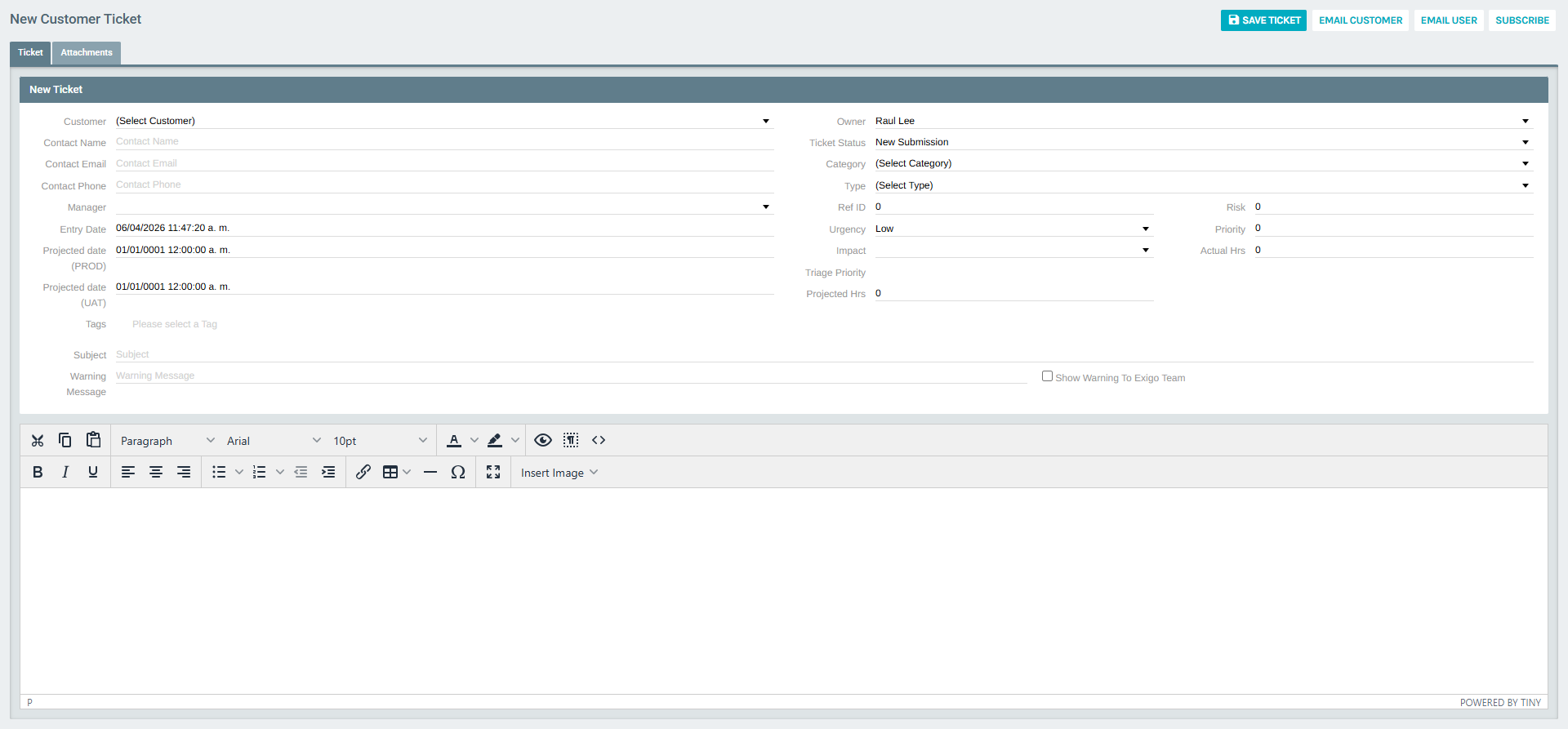
Click ADD TICKET from any ticket list view to open the New Customer Ticket form.
New Ticket Form Fields
| Field | Description |
|---|---|
| Customer | Select the customer account for this ticket |
| Contact Name | Primary contact person at the customer |
| Contact Email | Email for the contact |
| Contact Phone | Phone for the contact |
| Manager | Assign the managing admin user |
| Entry Date | Auto-populated with the current date/time |
| Projected date (PROD) | Expected production deployment date |
| Projected date (UAT) | Expected UAT completion date |
| Tags | Apply one or more tags to the ticket |
| Owner | Admin user assigned as owner |
| Ticket Status | Initial status (defaults to New Submission) |
| Category | High-level ticket category |
| Type | Specific ticket type |
| Ref ID | External reference ID (optional) |
| Urgency | Urgency level |
| Impact | Impact level |
| Projected Hrs | Estimated hours to complete |
| Risk | Risk rating |
| Priority | Manual priority override |
| Actual Hrs | Hours actually worked (updated over time) |
| Subject | Short title for the ticket |
| Warning Message | Optional internal warning shown to the team |
| Show Warning To Exigo Team | Checkbox to display the warning to Exigo staff |
| Description | Full rich-text description of the ticket (TinyMCE editor) |
Form Actions
| Button | Action |
|---|---|
| SAVE TICKET | Save and create the ticket |
| EMAIL CUSTOMER | Send an email notification to the customer |
| EMAIL USER | Send an email notification to the assigned user |
| SUBSCRIBE | Subscribe the current user to receive updates on this ticket |
Open Ticket Summary
The Open Ticket Summary view provides an aggregate grid showing the count of open tickets per customer, broken down by status column.
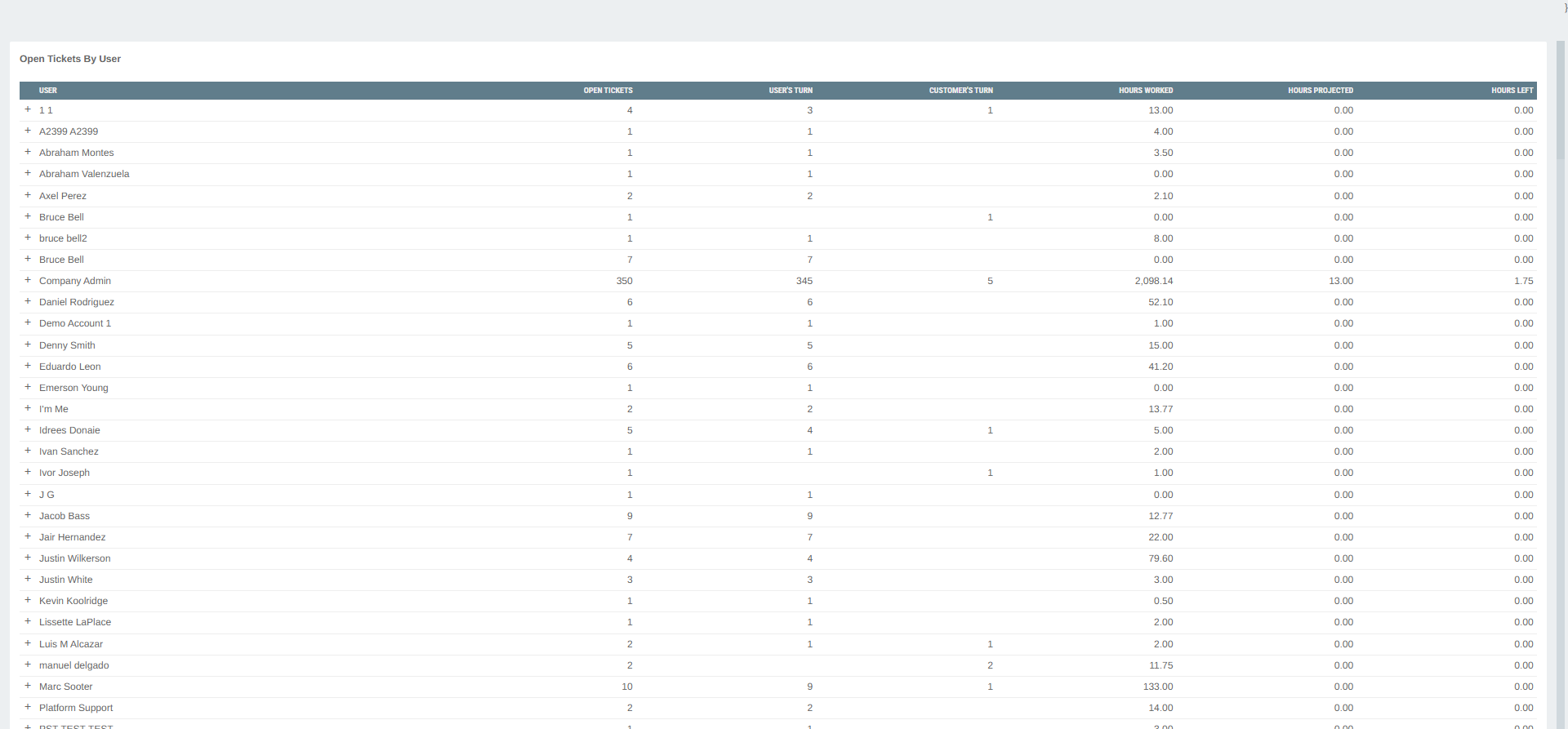
This view is useful for a quick birds-eye view of all customers and where their tickets currently stand in the workflow.
Tips
- Use the Ticket Filters at the top of the left panel to scope the view to a specific customer or team member before browsing status categories.
- The Our Turn view is a quick way for the team to find tickets where Exigo is expected to take the next action.
- Hot Tickets surfaces tickets that need immediate attention.
- The Age column helps identify tickets that may have been inactive for too long.
- Use COLUMNS TO DISPLAY to customize the ticket grid to show only the fields most relevant to your workflow.