Creating Dynamic Kits
This guide explains how to create a Dynamic Kit in the Exigo platform. A Dynamic Kit is an item that allows customers to choose from predefined Kit Categories, where each category contains a pool of eligible items. Unlike a Static Kit, the components are not fixed — customers select their preferred items from each assigned category when placing an order.
Table of Contents
- Overview
- Accessing the Items List
- Creating a New Dynamic Kit
- General Tab Fields
- Item Type: Dynamic Kit
- Configuring Pricing
- Configuring the Bill of Materials (Category Assignments)
- Adding a Category to the Bill of Materials
- Reordering and Removing Categories
- Tax and Shipping Options
- Assigning Kit Categories
- Viewing a Dynamic Kit Summary
Overview
A Dynamic Kit in Exigo is a special item type where:
- The kit is composed of Kit Categories, each of which contains a pool of selectable items.
- Customers choose which items they want from each assigned category when placing an order.
- The number of items a customer can select from each category is controlled by the Quantity field in the Bill of Materials.
- The kit is sold as a single catalog item with its own item code, pricing, and BV/CV values.
Dynamic Kits are ideal for enrollment packs, "choose your bundle" promotions, or any scenario where customers should have flexibility in their selection.
Key differences from Static Kits:
| Feature | Static Kit | Dynamic Kit |
|---|---|---|
| Components | Fixed items bundled together | Categories from which customers choose |
| Customer flexibility | None — same items for all | Yes — customers pick items per category |
| Bill of Materials | Lists individual items | Lists Kit Categories with quantities |
| Kit Categories tab | Not used | Used to assign available categories |
Accessing the Items List
- Log in to the Exigo Admin portal at
login.exigo.com - From the left sidebar, navigate to Accounting > Items
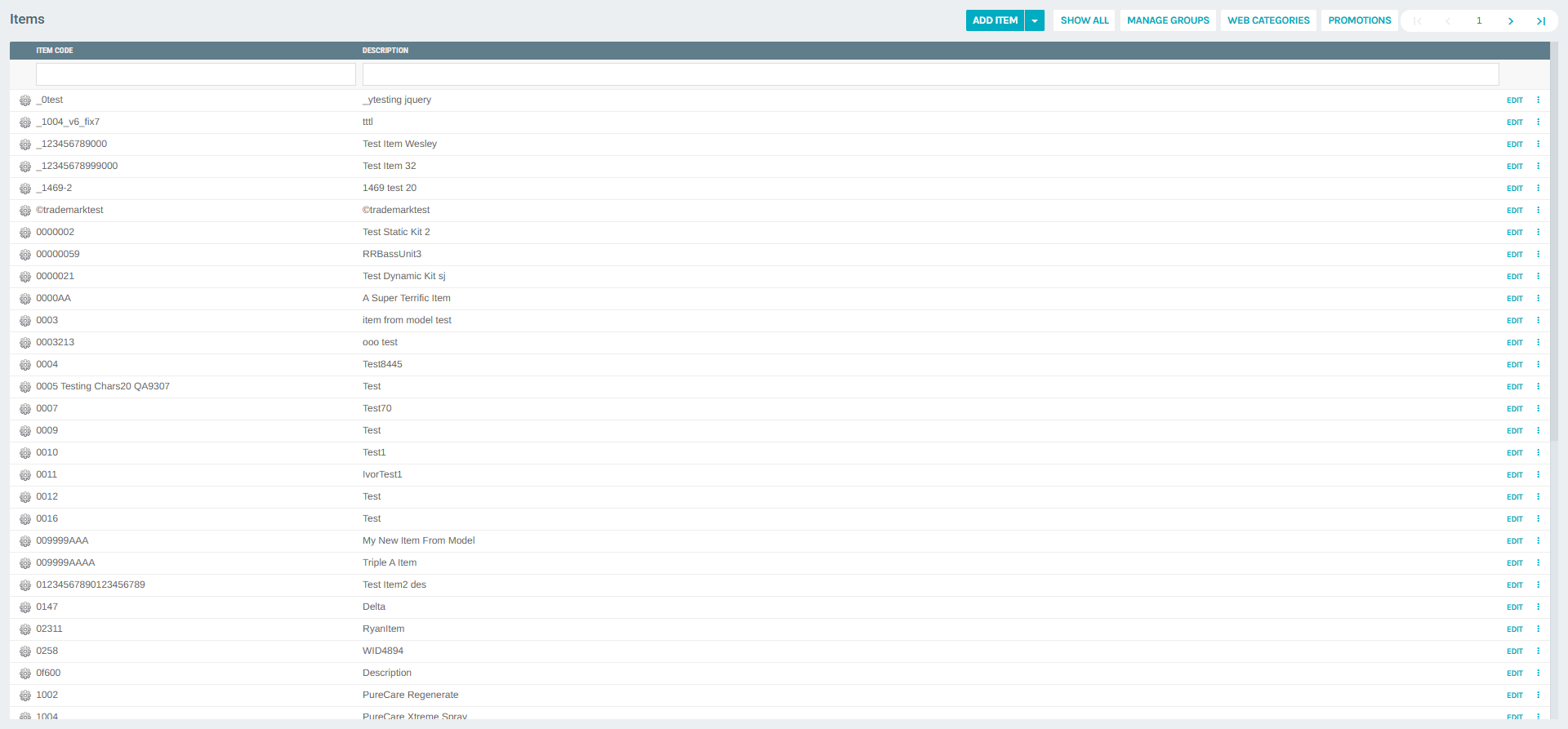
The Items list displays all catalog items with their item codes and descriptions.
Creating a New Dynamic Kit
Starting from the Items List
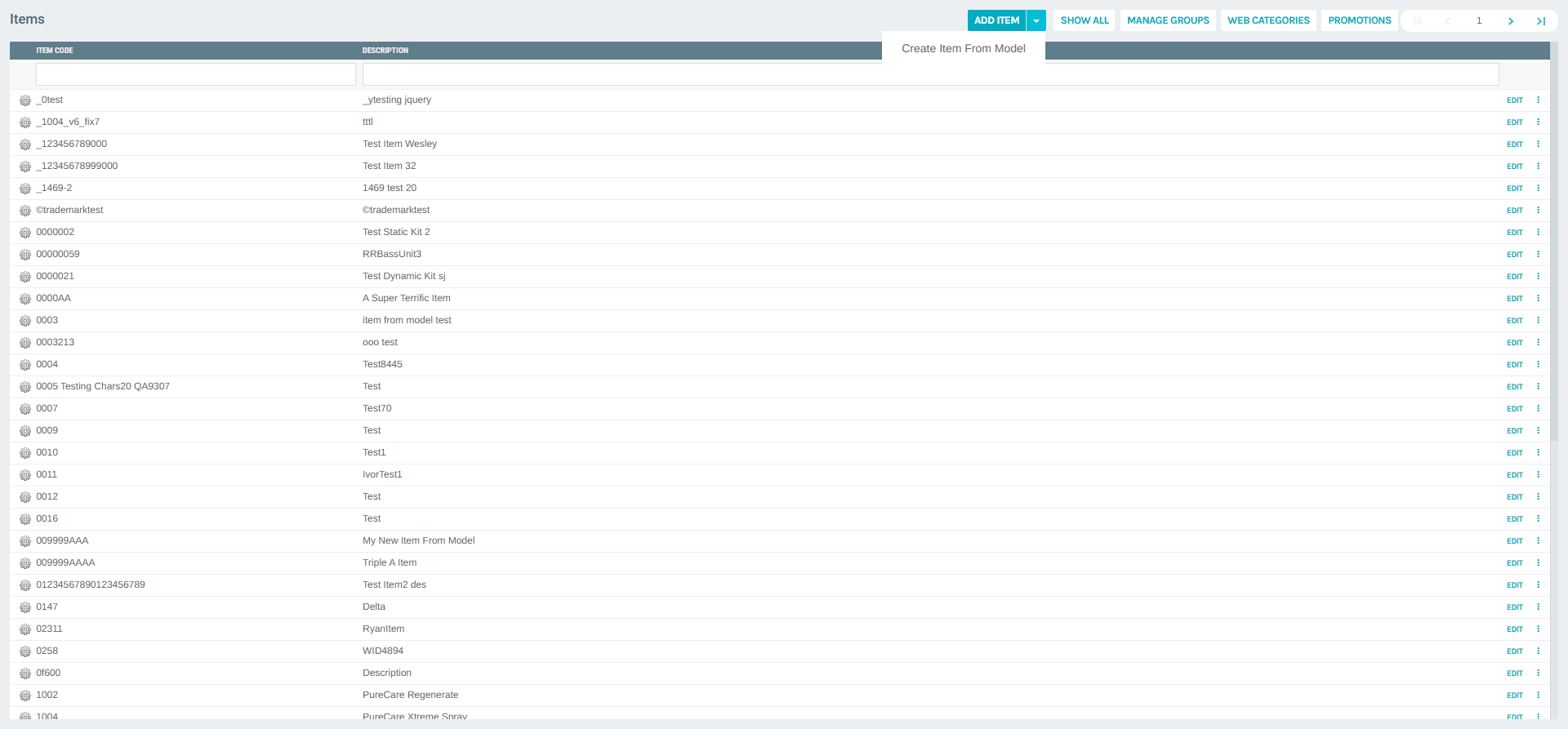
From the Items list, click the ADD ITEM button in the top-right area of the page. A dropdown appears with the option to:
- Add Item — opens a blank item form
- Create Item From Model — creates an item based on an existing one
General Tab Fields
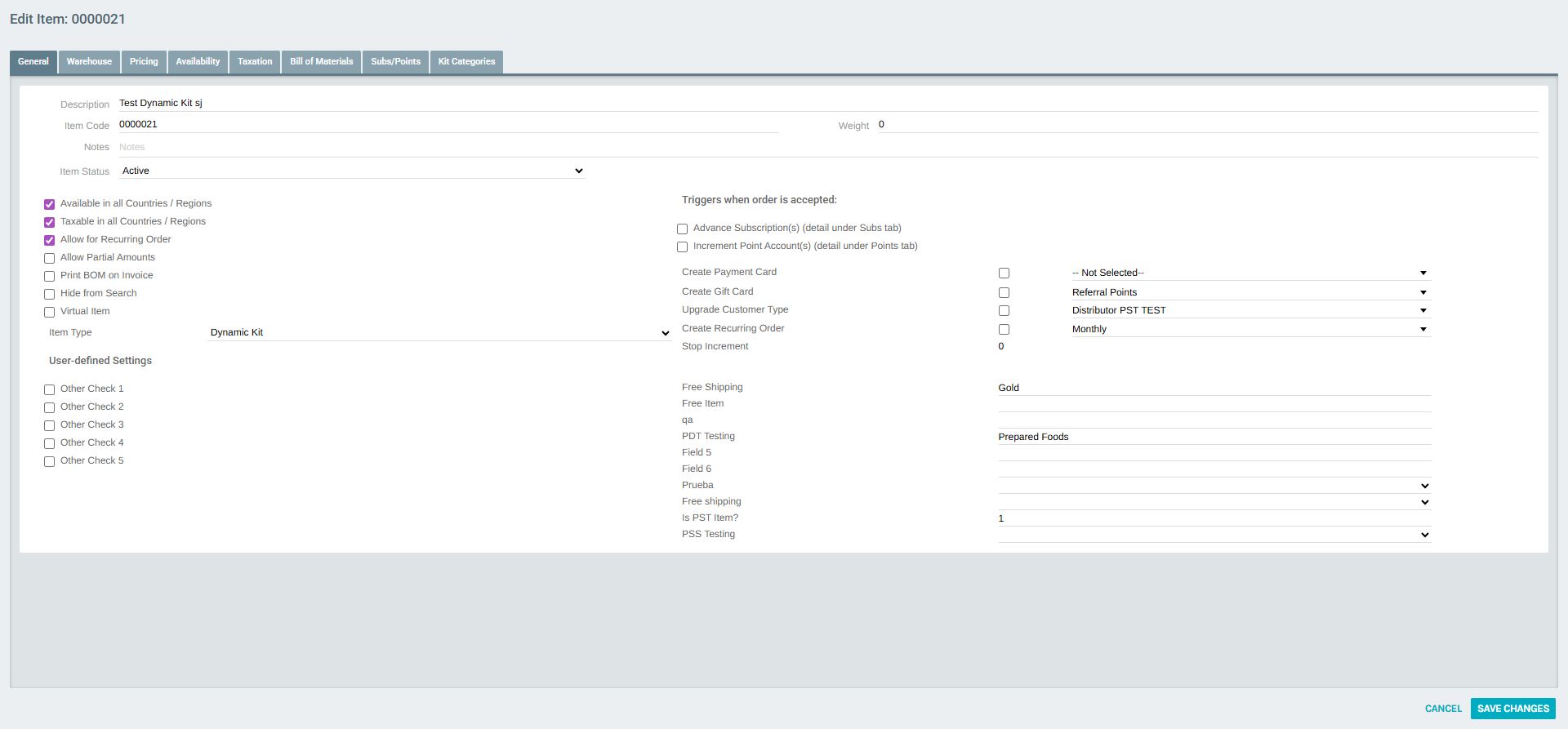
After creating or editing an item, the General tab is the first configuration screen. Fill in the following fields:
| Field | Description |
|---|---|
| Description | The display name for the kit |
| Item Code | A unique alphanumeric identifier for the kit |
| Weight | The physical weight of the item (used for shipping calculations) |
| Notes | Internal notes for administrative reference |
| Item Status | Set to Active to make the kit available, or Deleted to remove it |
| Item Type | Must be set to Dynamic Kit |
Additional checkboxes control behaviors such as availability by country, taxability, recurring order eligibility, and more.
Item Type: Dynamic Kit
To configure an item as a Dynamic Kit, locate the Item Type dropdown in the General tab and select Dynamic Kit.
Note: Selecting
Dynamic Kitenables the Kit Categories tab (tab 8) and modifies the Bill of Materials tab to work with category assignments instead of individual items.
Configuring Pricing
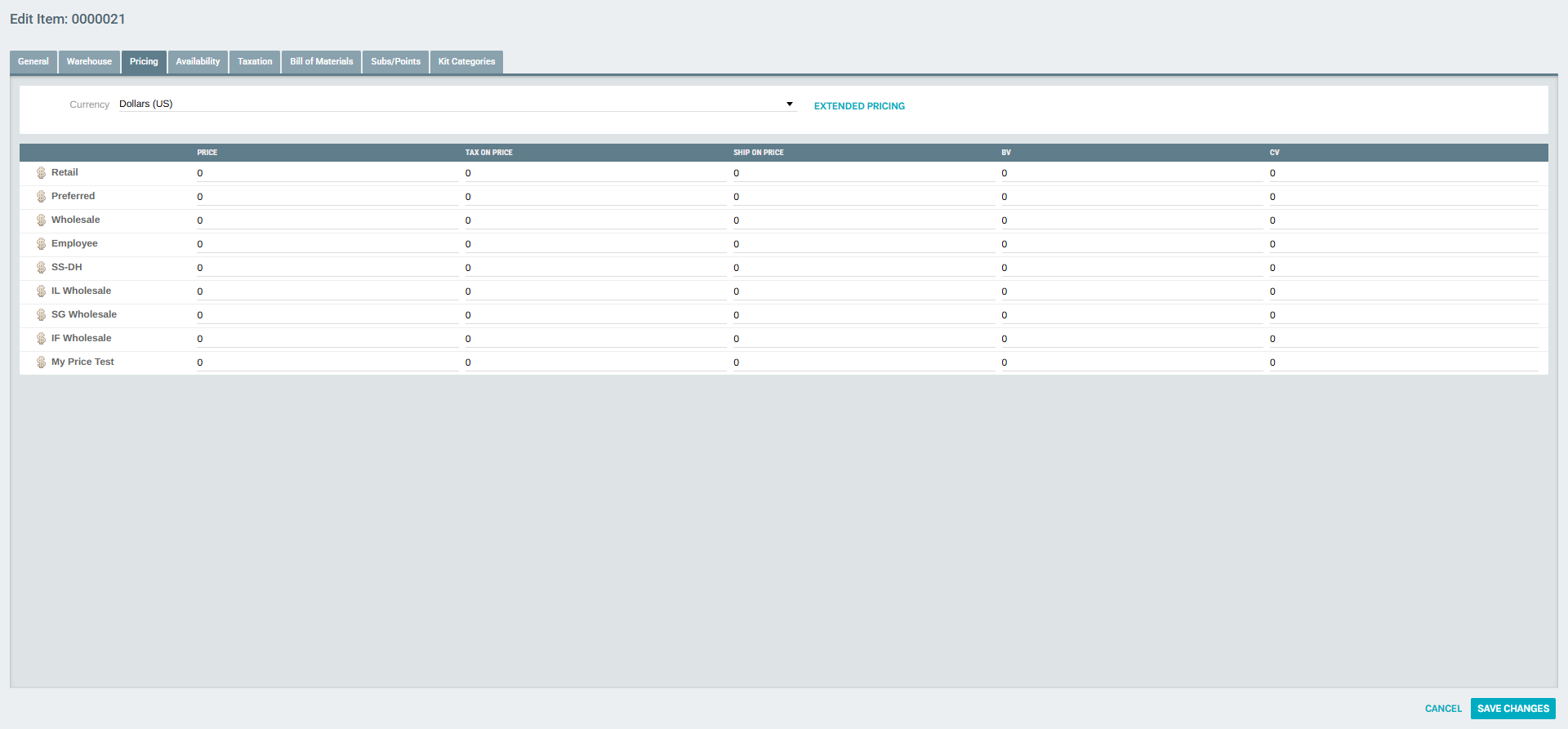
Navigate to the Pricing tab to configure the kit's price across different price types and currencies.
| Column | Description |
|---|---|
| Price | The base price for each price type (Retail, Wholesale, Employee, etc.) |
| Tax On Price | The taxable portion of the price |
| Ship On Price | The amount subject to shipping calculations |
| BV | Business Volume — used for commission calculations |
| CV | Commission Volume — used for commission calculations |
Use the Currency dropdown at the top of the Pricing tab to configure pricing for different currencies.
Configuring the Bill of Materials (Category Assignments)
The Bill of Materials tab for Dynamic Kits works differently than for Static Kits. Instead of listing individual items, it lists Kit Categories that will be presented to customers at order time.
Each row in the Bill of Materials represents one category from which the customer can select items.
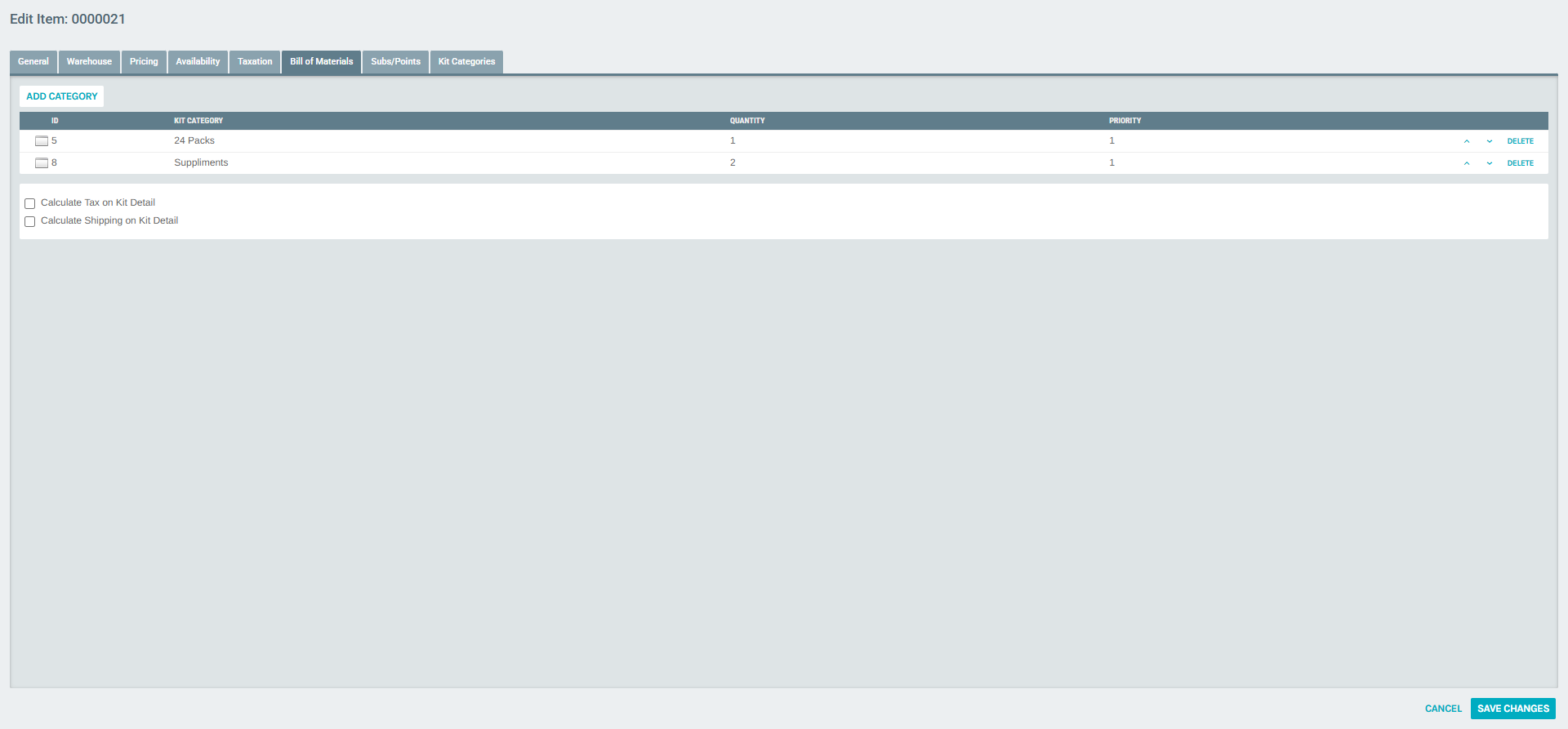
The table columns are:
| Column | Description |
|---|---|
| ID | The internal Kit Category ID |
| Kit Category | The name of the category (e.g., "24 Packs", "Suppliments") |
| Quantity | The number of items the customer must or can select from this category |
| Priority | The display order of the category in the selection flow |
Adding a Category to the Bill of Materials
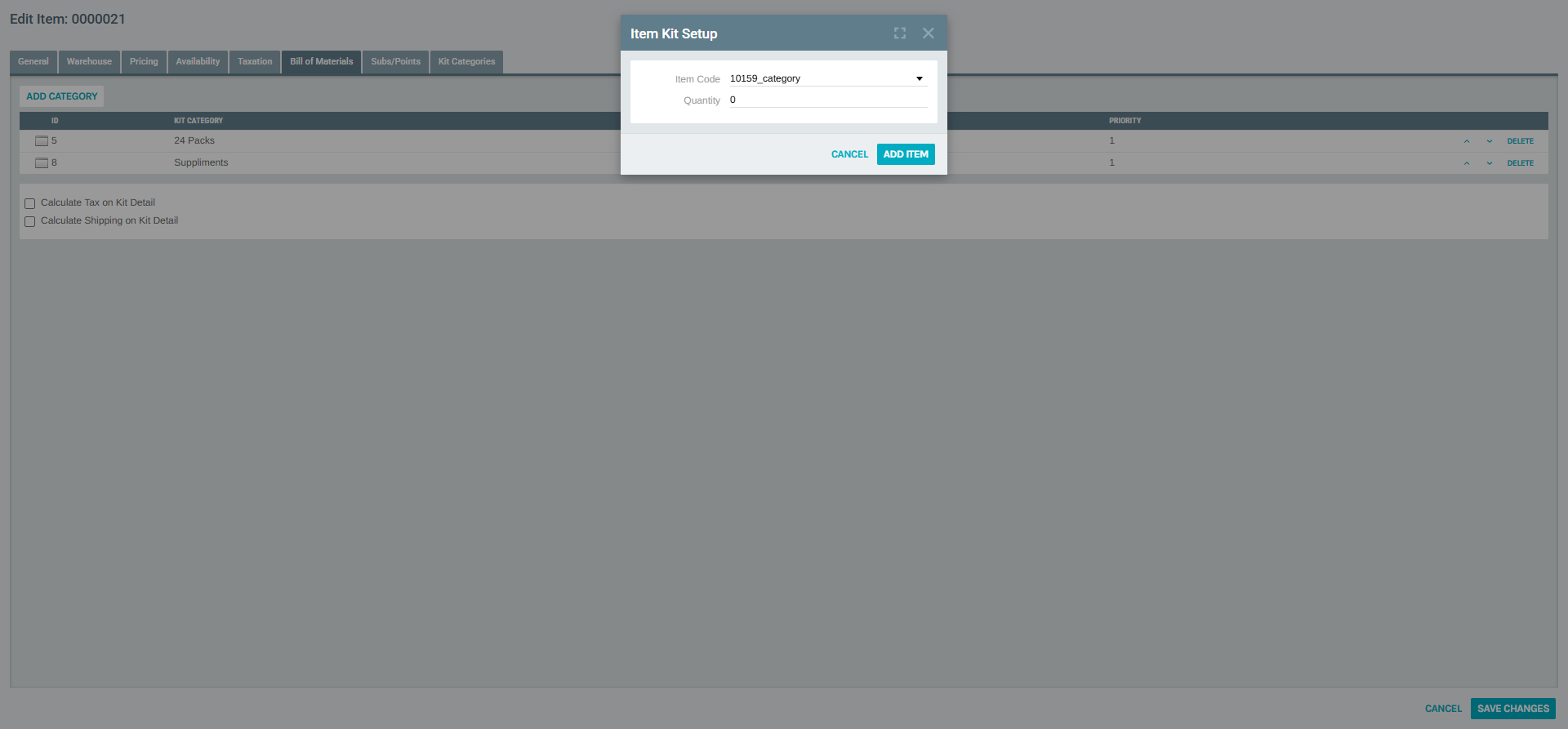
- Click the ADD CATEGORY button above the table
- The Item Kit Setup dialog will appear
- Select the Item Code (Kit Category) from the dropdown
- Set the Quantity — how many items the customer can pick from this category
- Click ADD ITEM to save the category assignment
Reordering and Removing Categories
- Use the up and down arrow buttons on each row to adjust the display priority of categories.
- Click DELETE to remove a category from the kit's Bill of Materials.
Tax and Shipping Options
At the bottom of the Bill of Materials tab, two checkboxes control how tax and shipping are calculated:
| Option | Description |
|---|---|
| Calculate Tax on Kit Detail | When checked, tax is calculated at the individual item level within each category |
| Calculate Shipping on Kit Detail | When checked, shipping is calculated at the individual item level |
Assigning Kit Categories
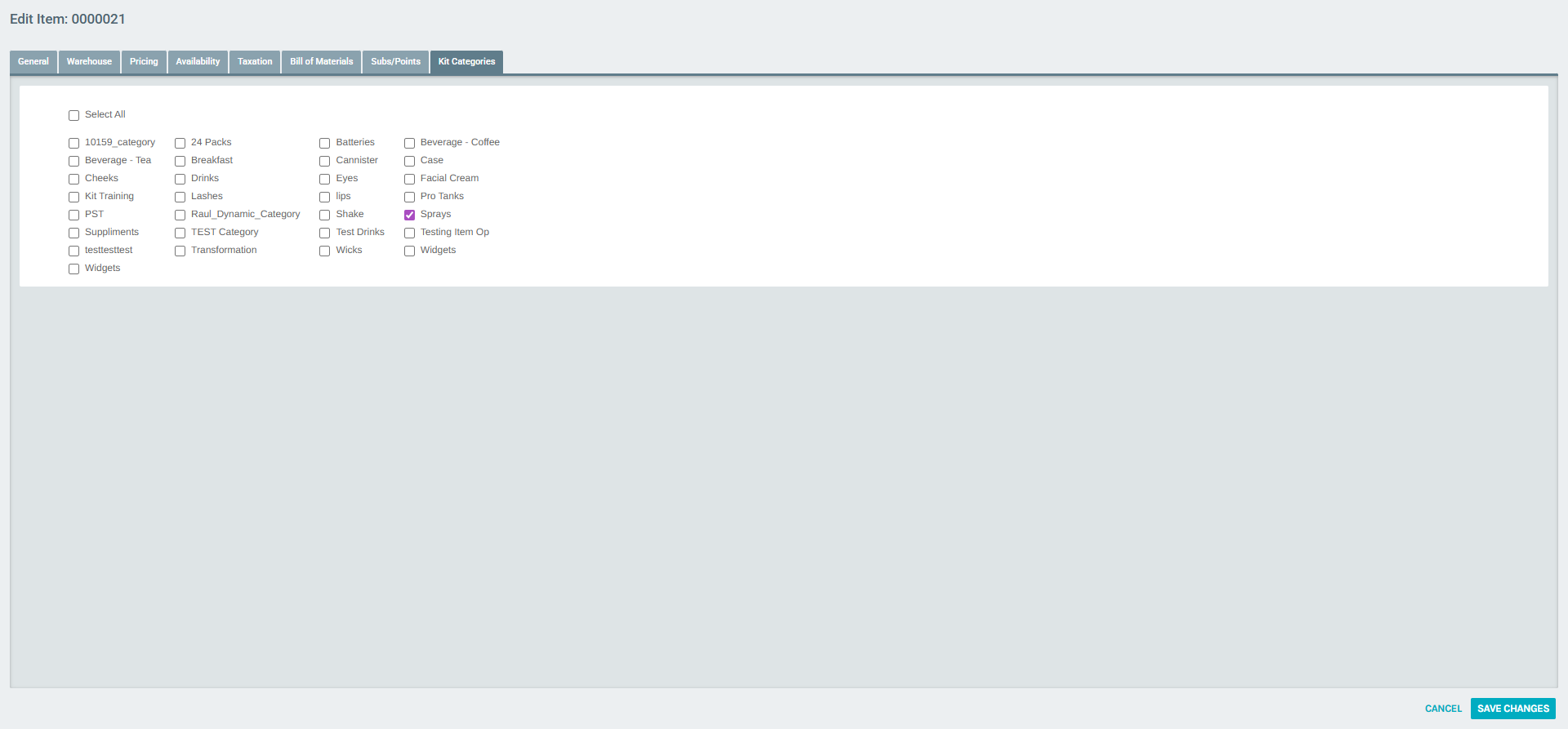
The Kit Categories tab (tab 8) shows the global list of all available Kit Categories in the system. Use this tab to select which categories this Dynamic Kit draws from.
- Each category is shown with a checkbox.
- Check the categories that should be available for this kit.
- Use Select All to check all available categories at once.
Note: Kit Categories are global entities in the Exigo platform. They define pools of items that can be shared across multiple Dynamic Kits. The categories visible in this tab are managed at the system level and contain their own items which customers select from during checkout.
Viewing a Dynamic Kit Summary
Once a Dynamic Kit has been saved, you can view its full summary from the Item Portal:
- Navigate to Accounting > Items
- Find the Dynamic Kit in the list and click the more options (⋮) menu
- Select View Item Summary
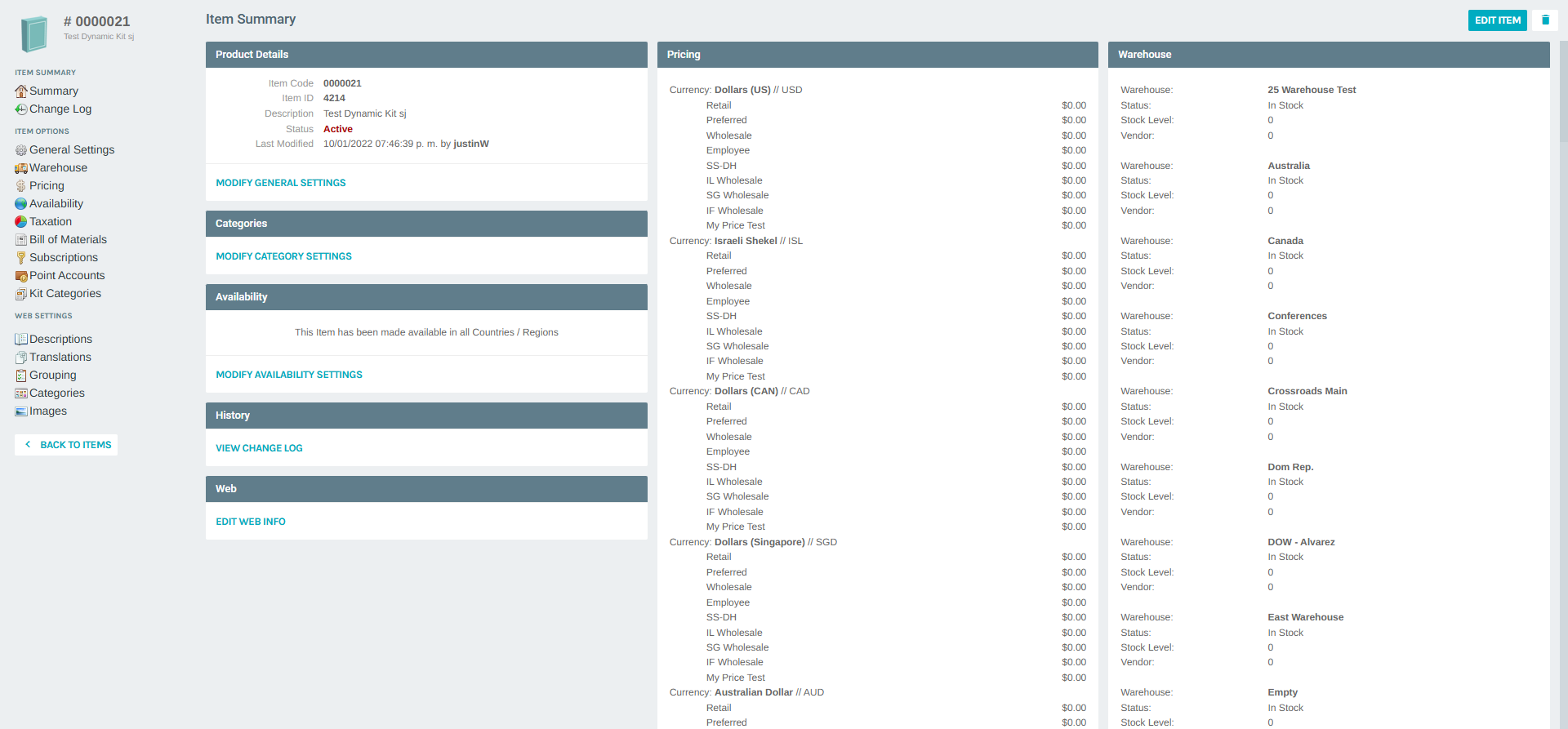
The Item Portal shows a full overview of the kit including:
- Product Details — Item Code, Item ID, Description, Status, and last modified information
- Categories section with a link to Modify Category Settings
- Pricing — all configured price types across currencies
- Warehouse — availability and stock levels per warehouse
- Web Settings — quick access to Descriptions, Translations, Grouping, Categories, and Images
From the left sidebar of the Item Portal, you can also quickly navigate to: - Kit Categories — jump to the Kit Categories assignment tab - Bill of Materials — review or update the category assignments