Home > Online Documents (Admin)
Online Documents is a file management portal within Exigo Admin that allows you to store, organize, and share documents and images across your organization. It functions as a shared drive with personal and company-wide storage folders.
Navigate to it via the left sidebar: Home → Online Documents.
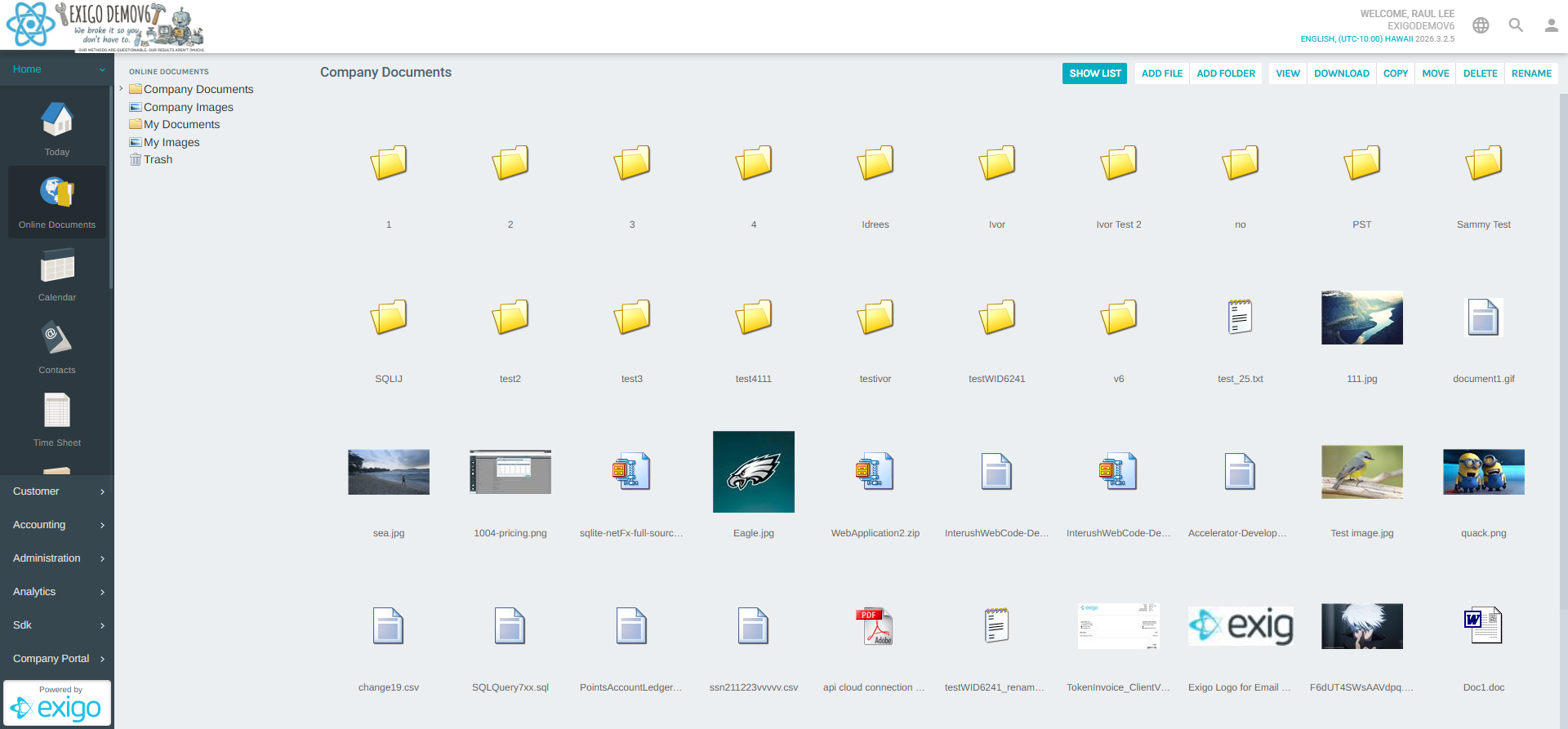
Overview
The portal is divided into two panels:
- Left panel — Navigation tree with predefined folders.
- Right panel — Contents of the selected folder (supports Thumbnails or List views).
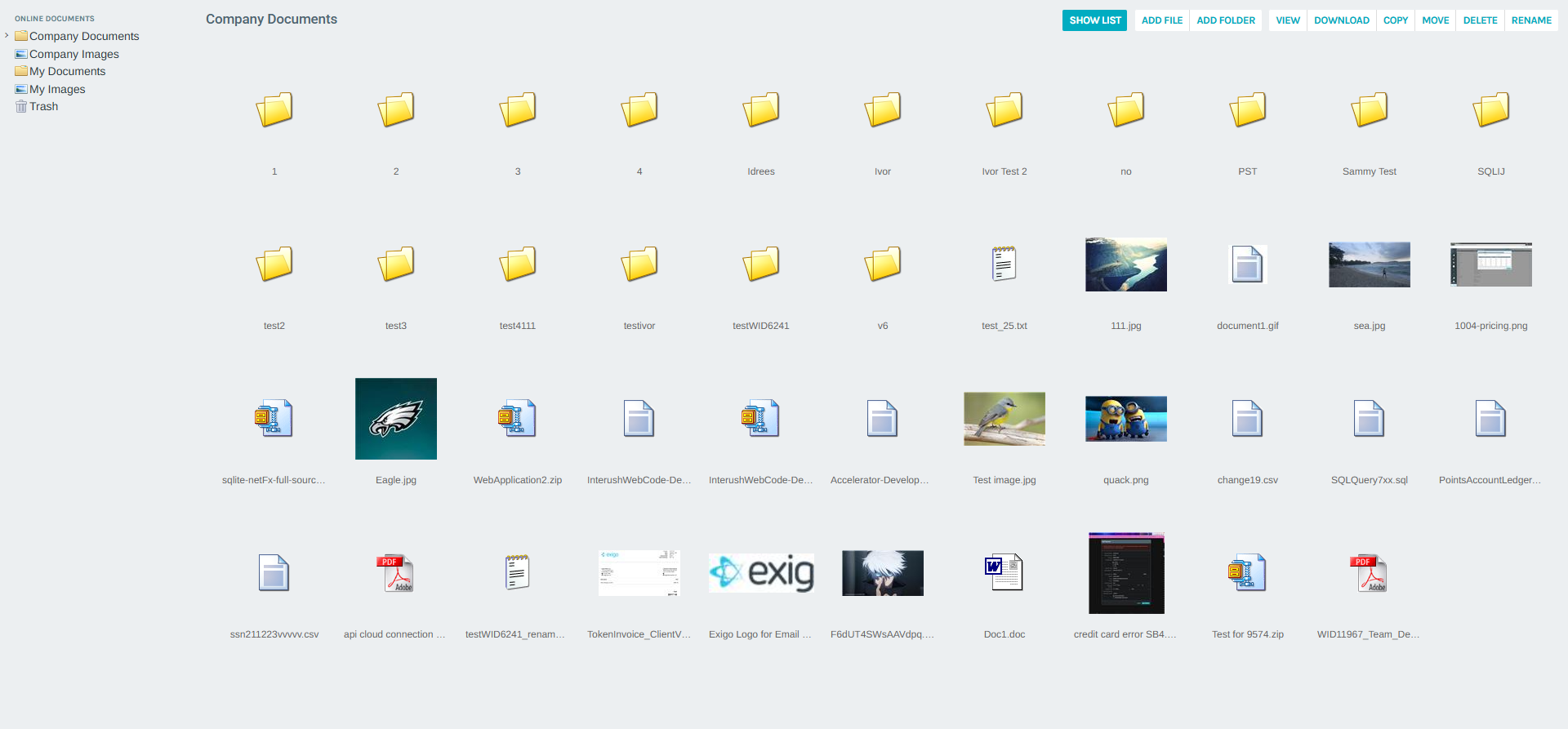
Folder Structure
The portal contains five root-level folders:
| Folder | Scope | Description |
|---|---|---|
| Company Documents | Company-wide | Shared repository of documents accessible to all admin users |
| Company Images | Company-wide | Shared repository of images accessible to all admin users |
| My Documents | Personal | Private document storage for the logged-in user |
| My Images | Personal | Private image storage for the logged-in user |
| Trash | Personal | Deleted items pending permanent removal |
Each folder can contain both subfolders and files of any type.
Viewing Documents
Thumbnails View
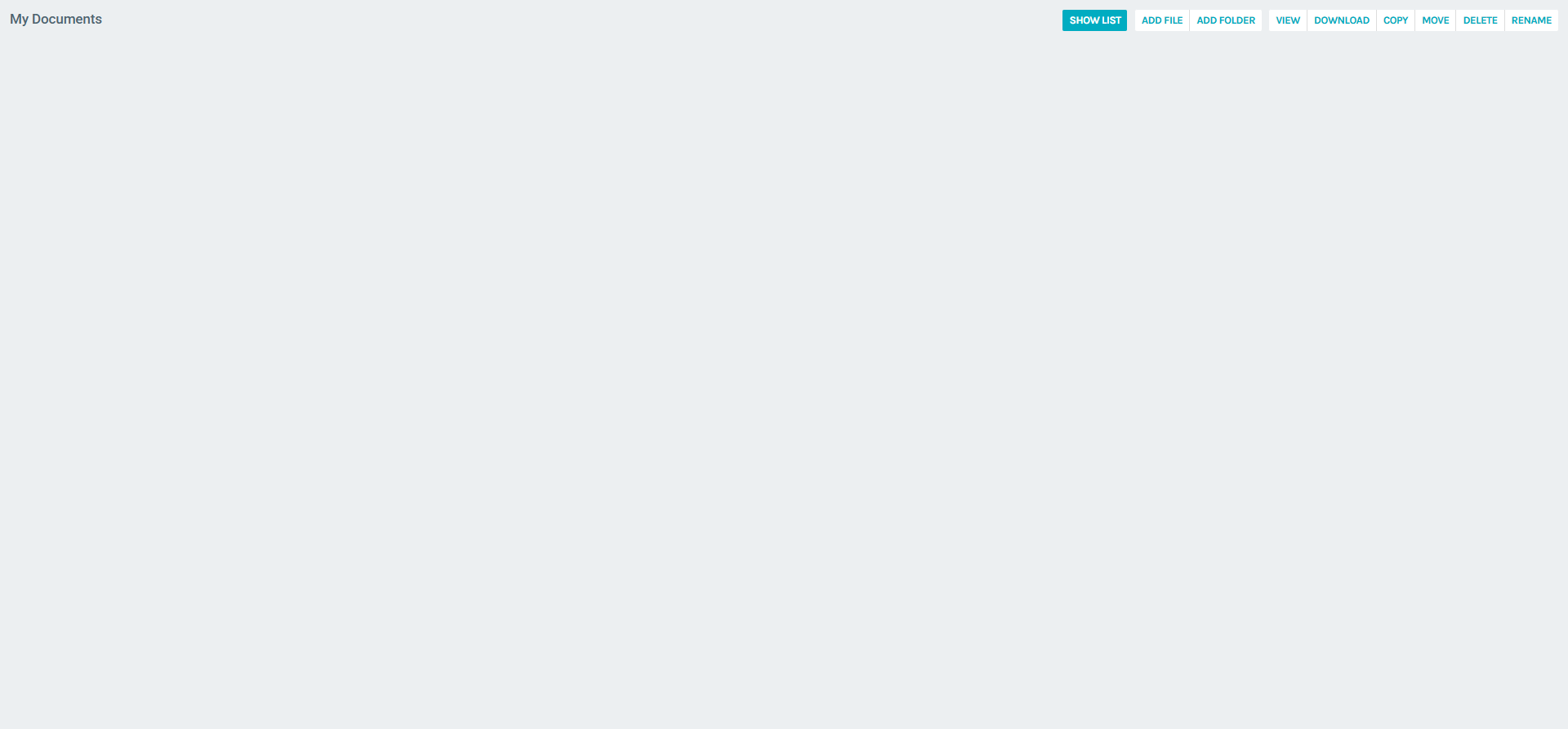
The default view displays files and folders as a thumbnail grid. Folders appear as icons with their name below. Files display a preview thumbnail where available.
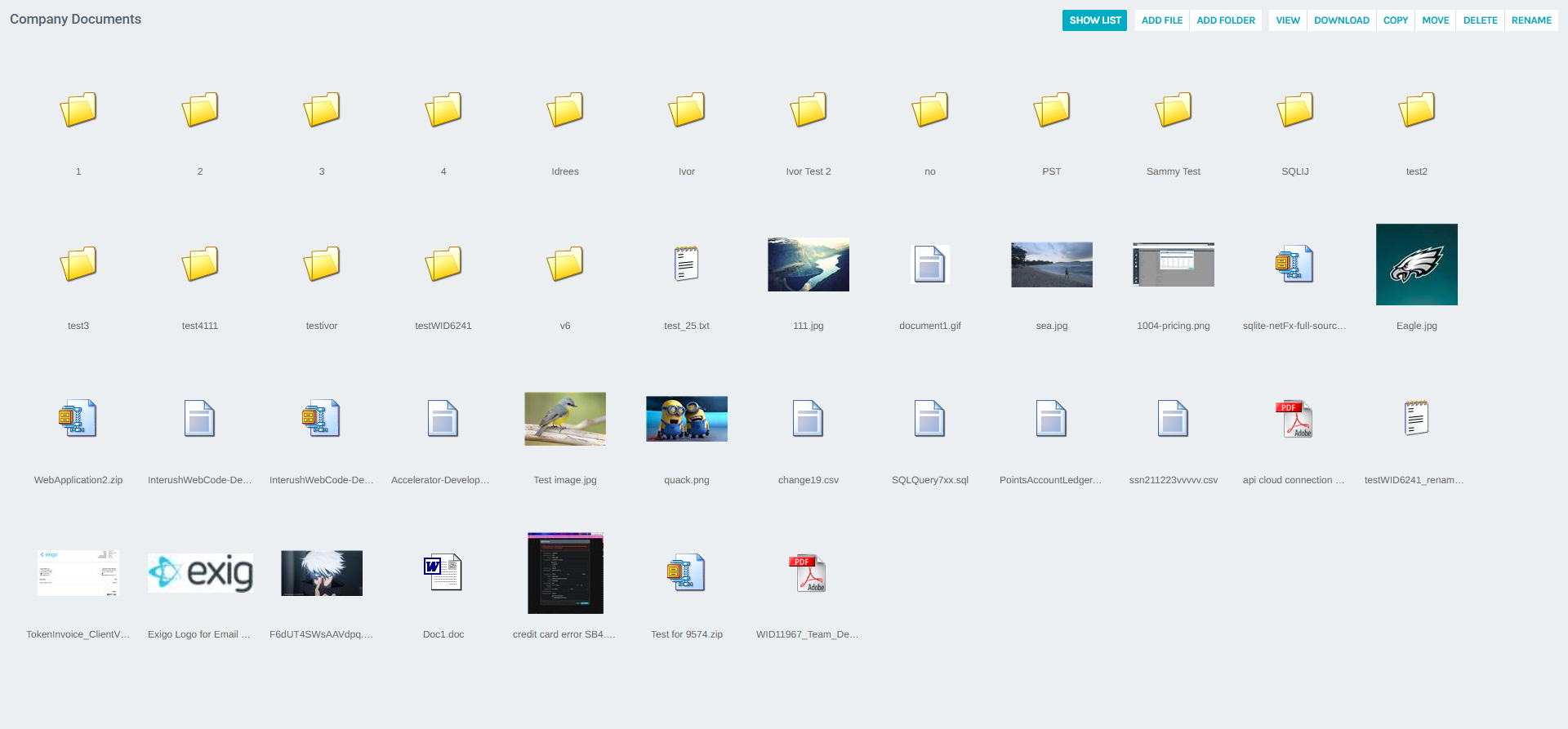
Click SHOW LIST to switch to the list view.
List View
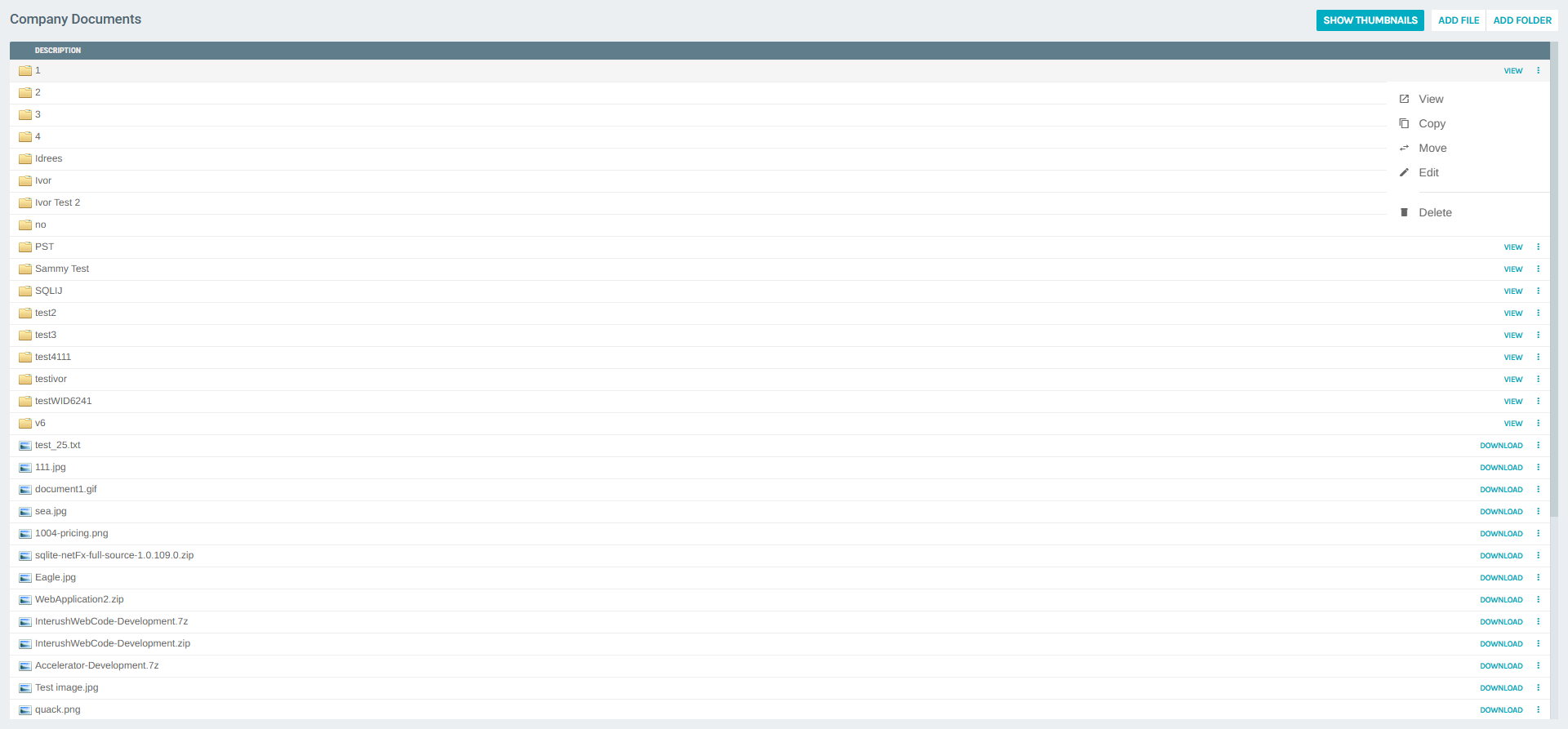
The list view displays all items in a sortable table with columns for name and action buttons. Folders show a VIEW button; files show a DOWNLOAD button.
Each row has a ⋮ (more options) button that opens a context menu with additional actions.
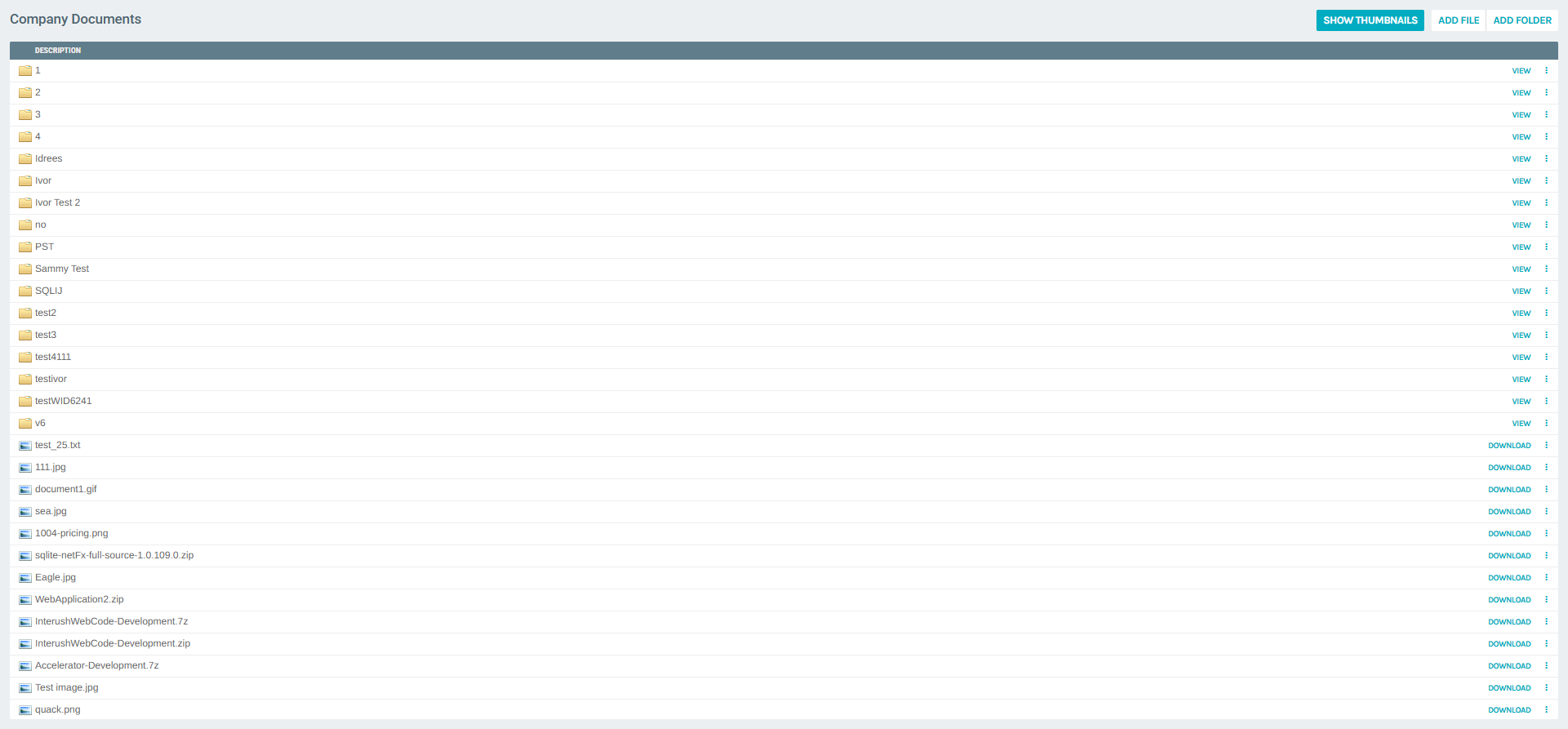
Click SHOW THUMBNAILS to return to the thumbnail grid.
Folder & File Actions
Context Menu
Clicking the ⋮ button next to any item opens a context menu with the following options:
| Action | Available for | Description |
|---|---|---|
| View | Folders | Opens the folder to browse its contents |
| Copy | Folders & Files | Copies the item to another location |
| Move | Folders & Files | Moves the item to another location |
| Edit | Folders | Renames or edits the folder |
| Delete | Folders & Files | Sends the item to Trash |
Adding Files
Click ADD FILE in the toolbar to open the file upload form. You can upload up to 10 files at once, with a maximum size of 100 MB per file.
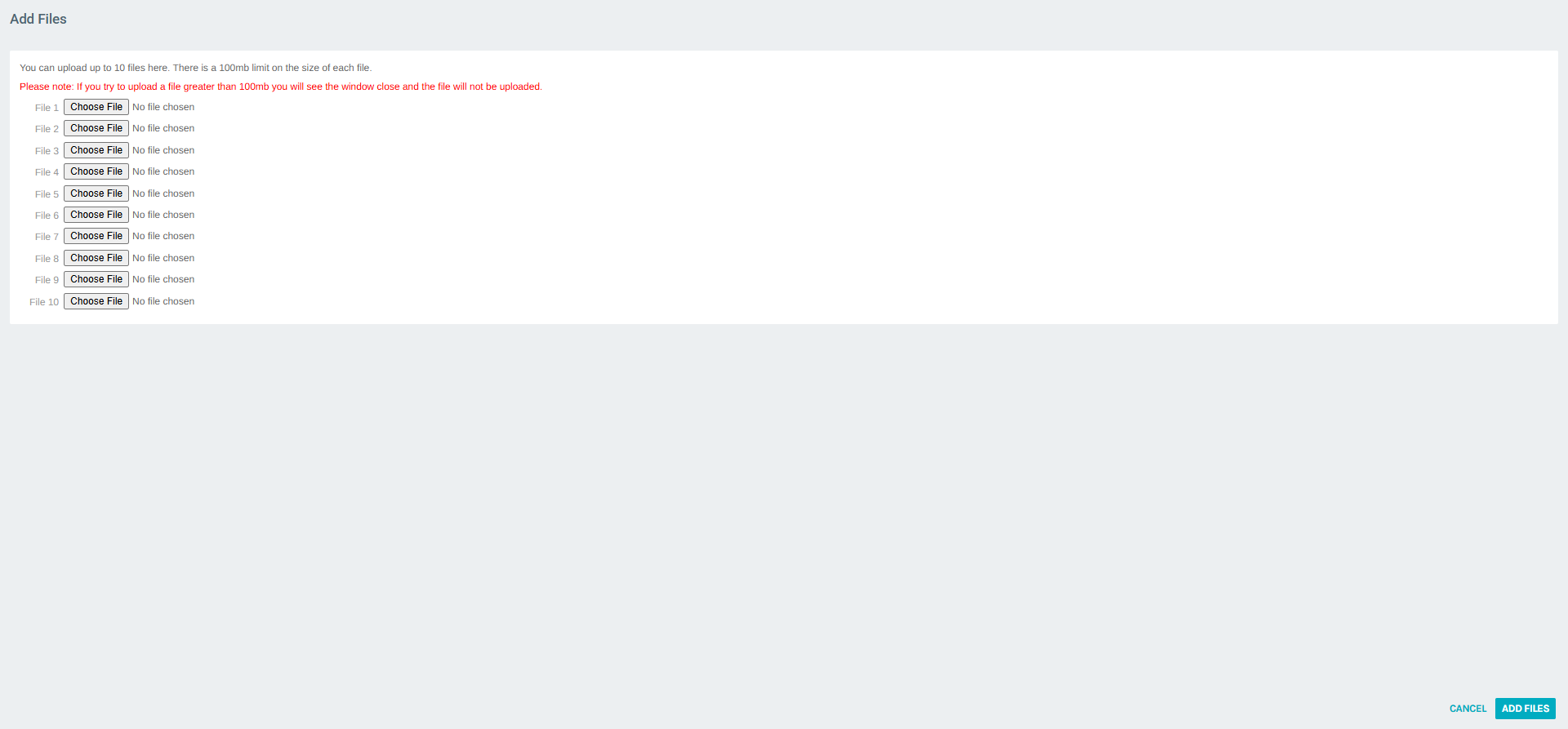
Click ADD FILES to confirm the upload, or CANCEL to abort.
Note: If a file exceeds 100 MB, the upload window will close silently and the file will not be saved.
Adding Folders
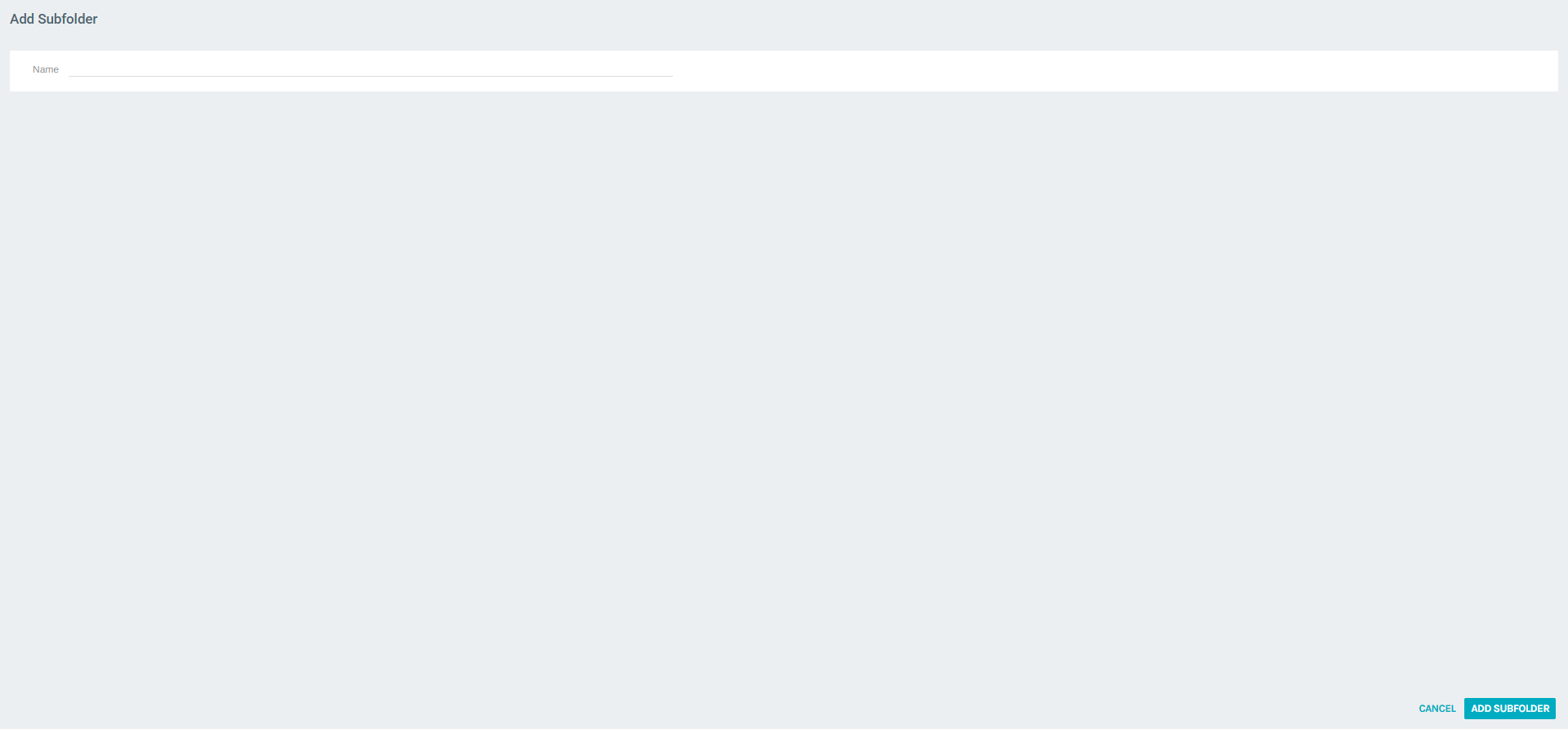
Click ADD FOLDER to create a new subfolder inside the current folder. Enter a name and click ADD SUBFOLDER to save.
Personal Folders
My Documents and My Images are personal folders visible only to the logged-in user. They are created automatically per user account and work identically to the Company folders.
Company Images
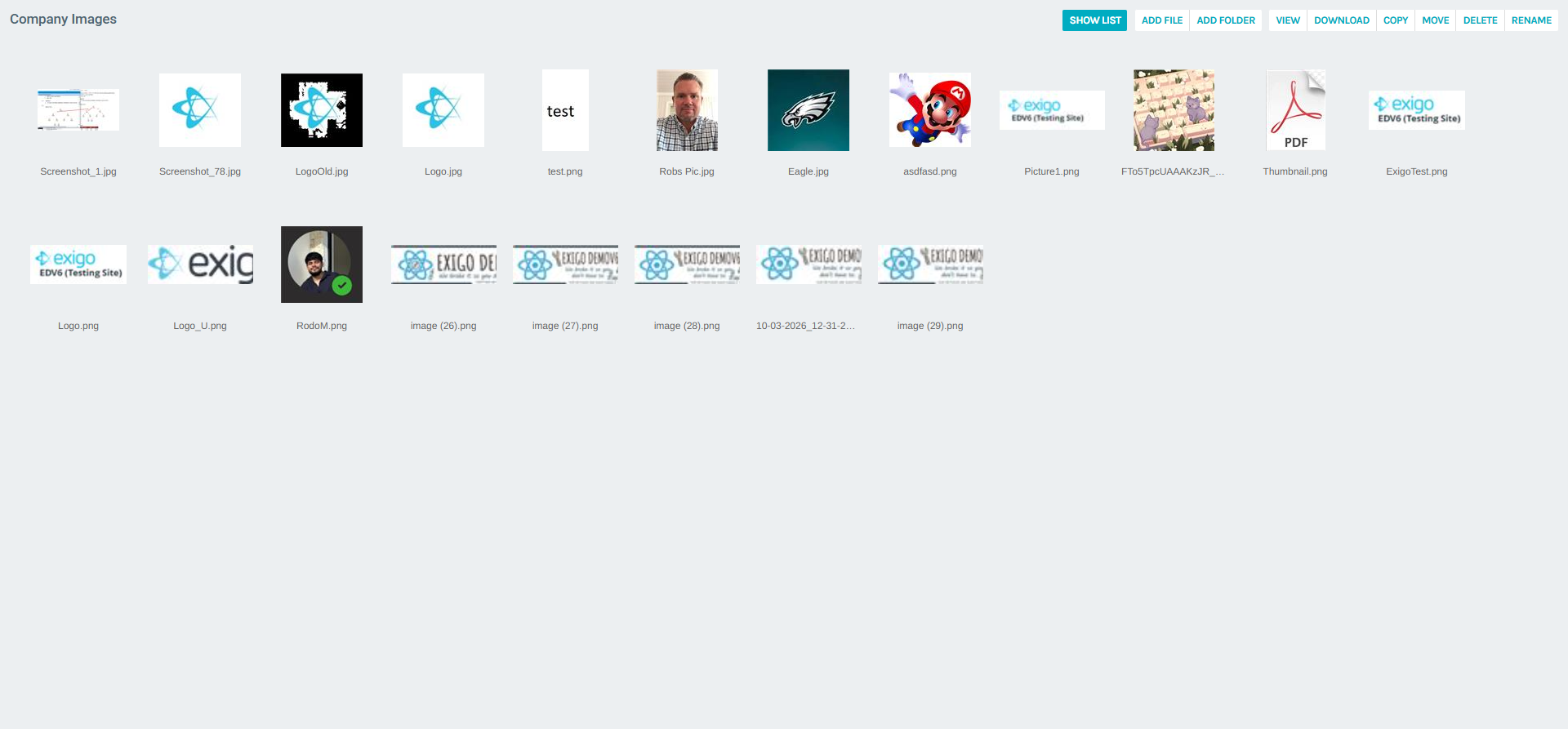
The Company Images folder stores shared image assets accessible to all admin users. In Thumbnails view, images are displayed as visual previews, making it easy to browse graphic assets.
Trash
The Trash folder holds deleted items. Items in Trash can be permanently deleted or restored by using the context menu actions.
Summary
| Feature | Description |
|---|---|
| Company Documents | Shared documents accessible to all admin users |
| Company Images | Shared images accessible to all admin users |
| My Documents / My Images | Private storage per user |
| Trash | Holding area for deleted files and folders |
| Thumbnails / List toggle | Switch between grid and list views |
| ADD FILE | Upload up to 10 files (max 100 MB each) |
| ADD FOLDER | Create a subfolder in the current location |
| Context menu (⋮) | View, Copy, Move, Edit, Delete per item |