Customer Messaging
Overview
The Customer Messaging module is accessible under the Customer section in the Exigo admin panel. It provides a centralized hub for managing all outbound communication with customers, including Auto Responders, Broadcasts, and Email Templates. Messages can be delivered via Email, SMS, and Push Notification channels.
Accessing the Module
Navigate to: Customer > Messaging in the left sidebar.
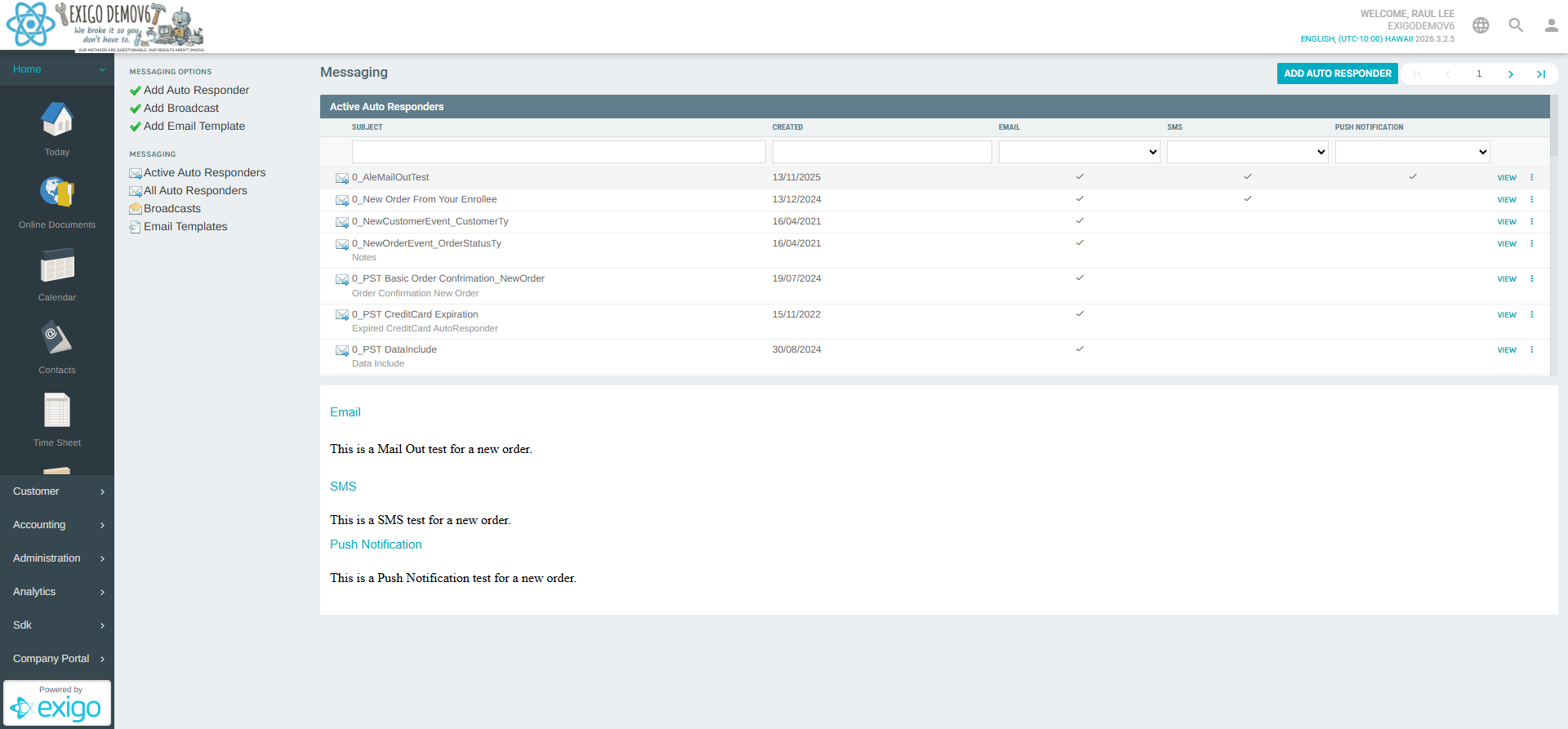
Messaging Portal Overview
The portal is divided into two main sections:
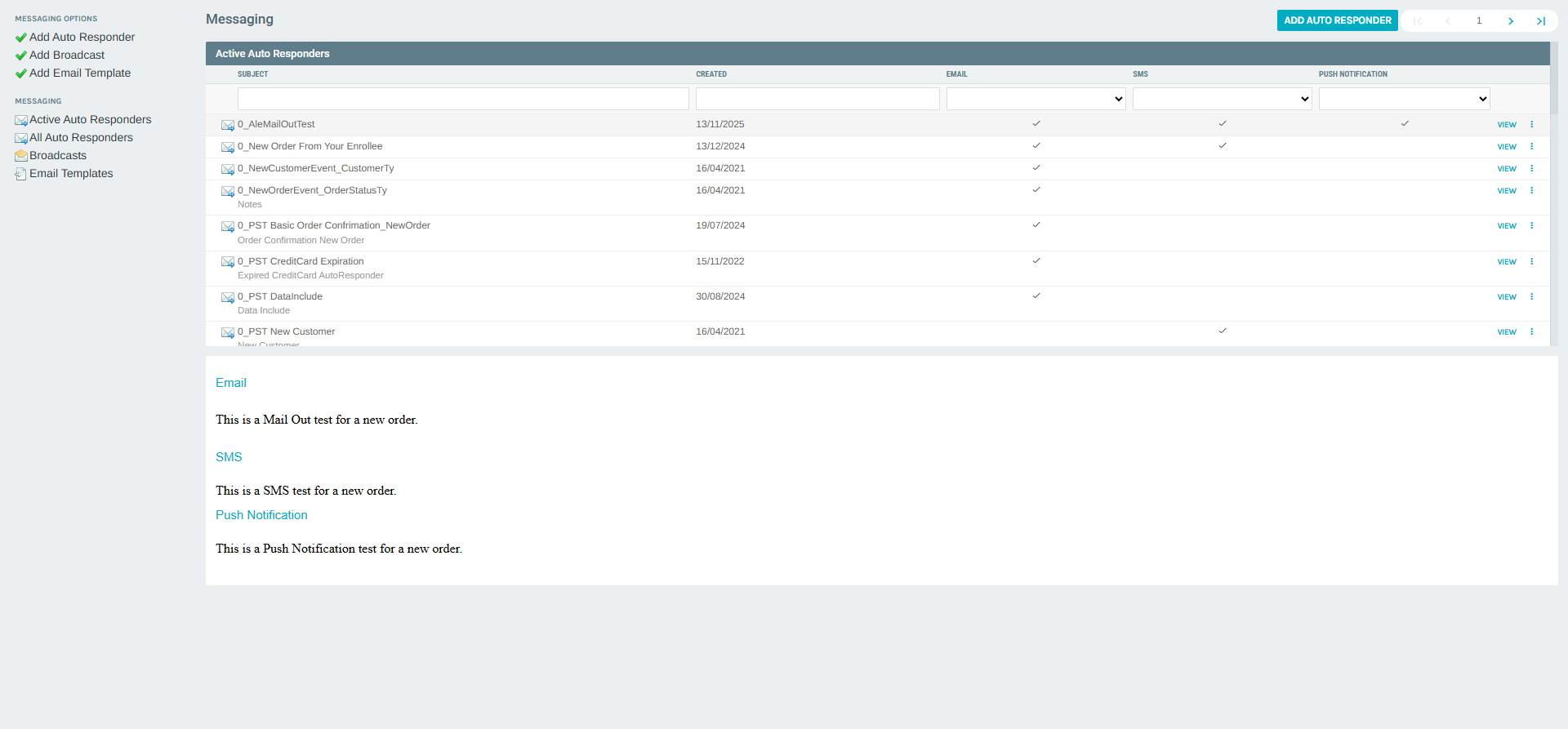
MESSAGING OPTIONS (Quick Actions)
Located at the top of the portal, these buttons allow you to quickly create new messaging resources:
| Button | Description |
|---|---|
| Add Auto Responder | Create a new triggered auto-responder message |
| Add Broadcast | Create a new one-time broadcast message |
| Add Email Template | Create a new reusable email template |
MESSAGING (Navigation Links)
The left navigation panel provides quick access to the main lists:
| Link | Description |
|---|---|
| Active Auto Responders | Lists all currently active auto-responders |
| All Auto Responders | Lists every auto-responder regardless of active status |
| Broadcasts | Lists all broadcast messages |
| Email Templates | Lists all reusable email templates |
Active Auto Responders
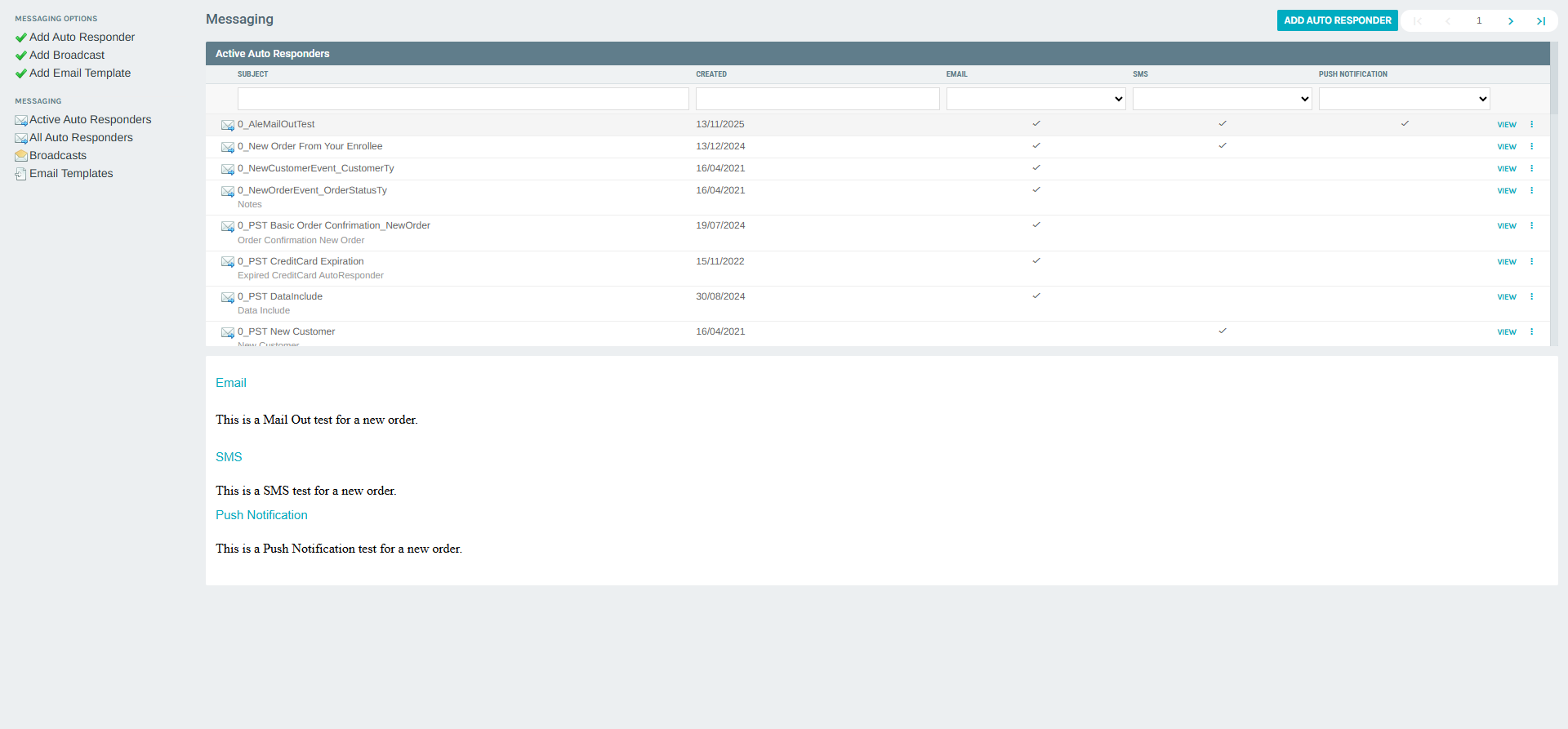
The default view within the Messaging Portal displays the Active Auto Responders list. Clicking any row in the list opens a content preview panel below the table, showing the Email, SMS, and Push Notification content for that responder.
List Columns
| Column | Description |
|---|---|
| SUBJECT | The name/subject line of the auto-responder |
| CREATED | Date the auto-responder was created |
| Checkmark icon if an email message is configured | |
| SMS | Checkmark icon if an SMS message is configured |
| PUSH NOTIFICATION | Checkmark icon if a push notification is configured |
| VIEW | Action button to open the content preview for the selected row |
| more_vert | Context menu button for additional actions |
Filtering
- SUBJECT and CREATED columns support inline text search boxes.
- EMAIL, SMS, and PUSH NOTIFICATION columns support dropdown filters (No / Yes).
Row Actions (Context Menu)
Clicking the more_vert button on any row opens a context menu with the following options:
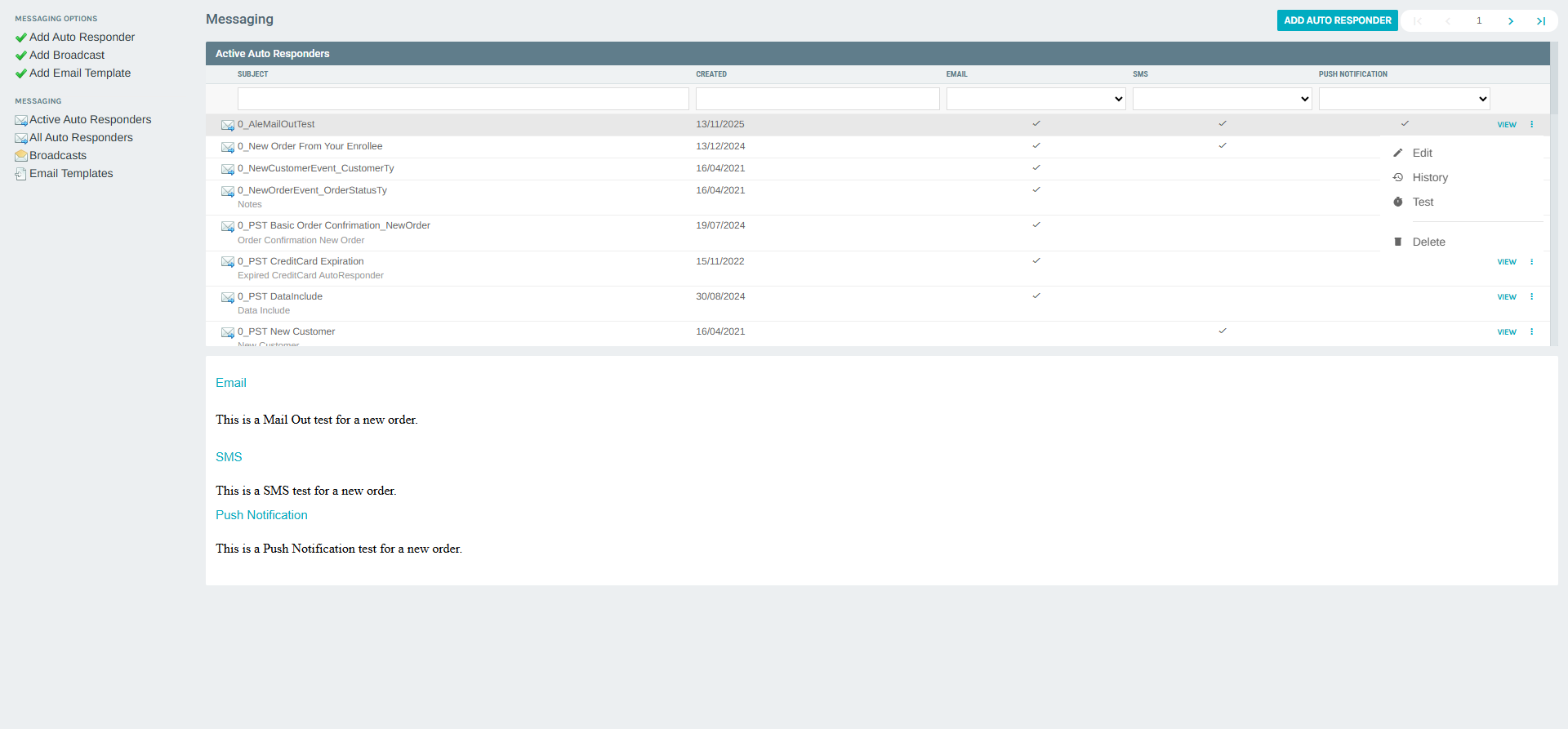
| Action | Description |
|---|---|
| Edit | Open the auto-responder editor |
| History | View the change log for this auto-responder |
| Test | Send a test message for this auto-responder |
| Delete | Permanently delete this auto-responder |
Content Preview Panel
Clicking VIEW on a row displays the message content below the list in a preview panel. The preview shows: - Email — the HTML/text body of the email message - SMS — the SMS text content - Push Notification — the push notification content
Broadcasts
The Broadcasts list displays all one-time broadcast messages configured in the system.
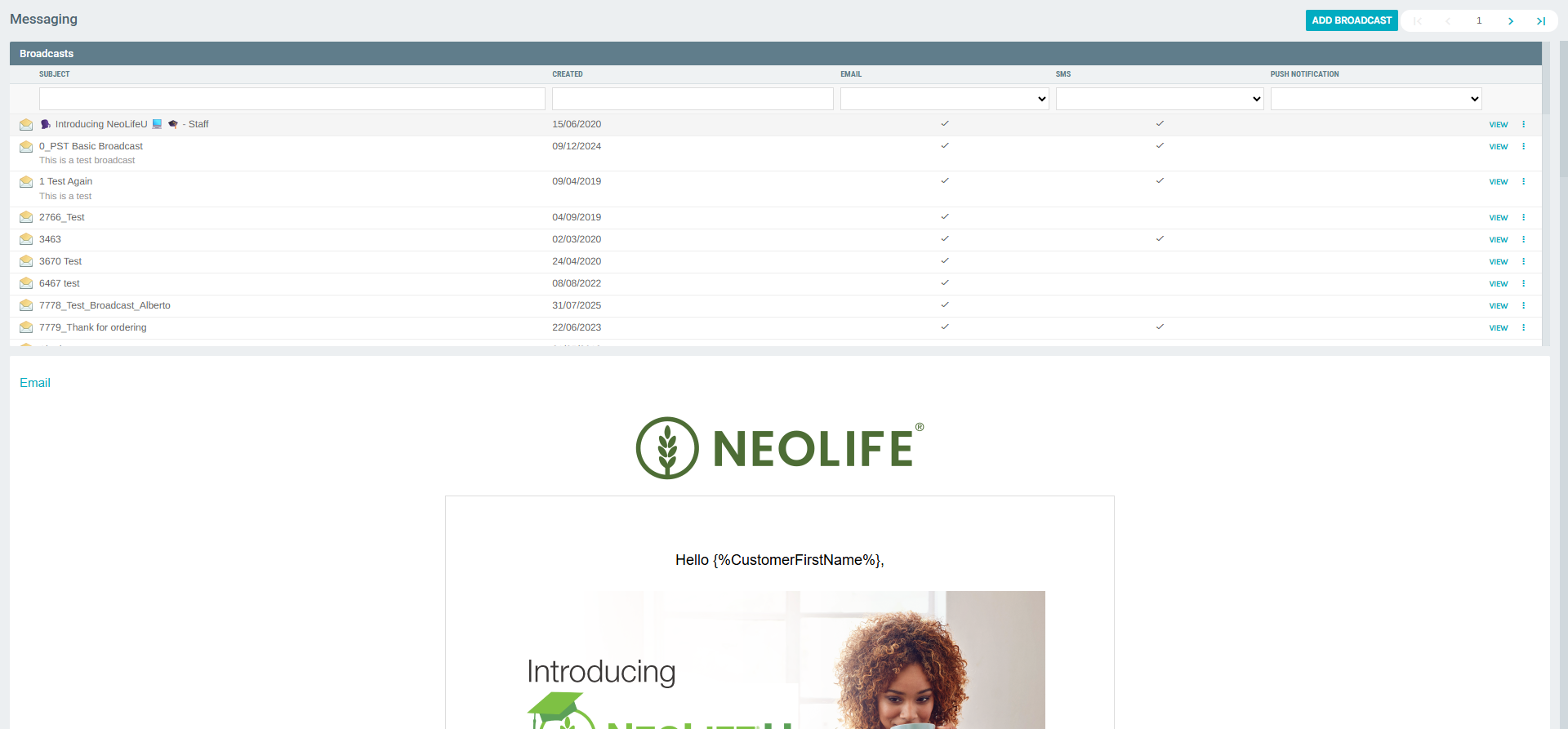
List Columns
| Column | Description |
|---|---|
| SUBJECT | The name/subject of the broadcast |
| CREATED | Date the broadcast was created |
| Checkmark icon if an email channel is enabled | |
| SMS | Checkmark icon if an SMS channel is enabled |
| PUSH NOTIFICATION | Checkmark icon if a push notification channel is enabled |
| VIEW | Button to preview the broadcast content |
| more_vert | Context menu with Edit, History, Test, and Delete actions |
Email Templates
The Email Templates list shows all reusable templates that can be applied when creating Auto Responders or Broadcasts.
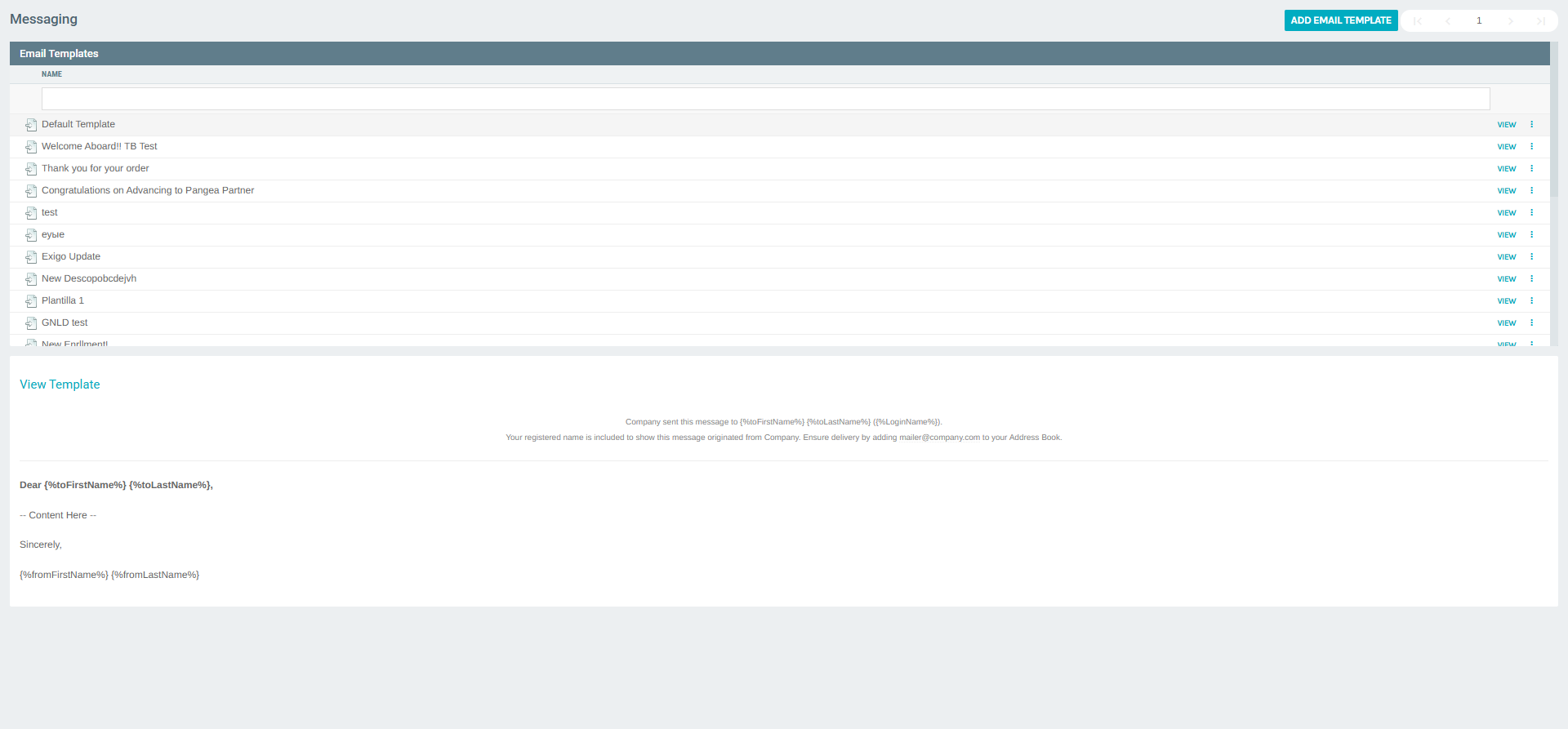
List Columns
| Column | Description |
|---|---|
| NAME | The name of the email template |
| VIEW | Button to preview the template content |
| more_vert | Context menu with Edit and Delete actions |
A ADD EMAIL TEMPLATE button at the top opens the template editor to create a new template.
Creating a New Auto Responder
Clicking Add Auto Responder from the portal opens a template selector dialog:
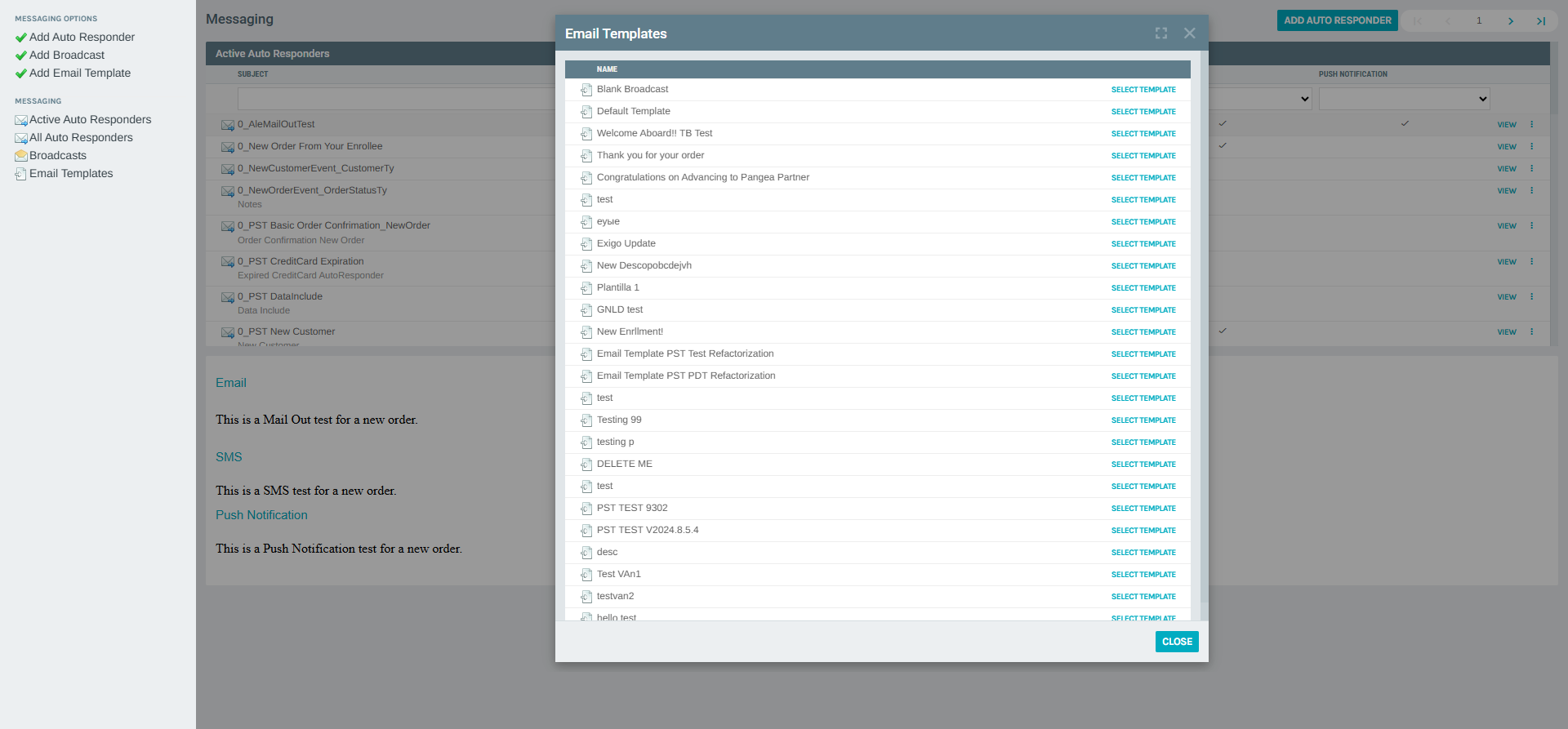
The available options include Blank Broadcast and any previously created Email Templates. Selecting a template opens the full Auto Responder editor in a new page.
Auto Responder Editor — Message Tab
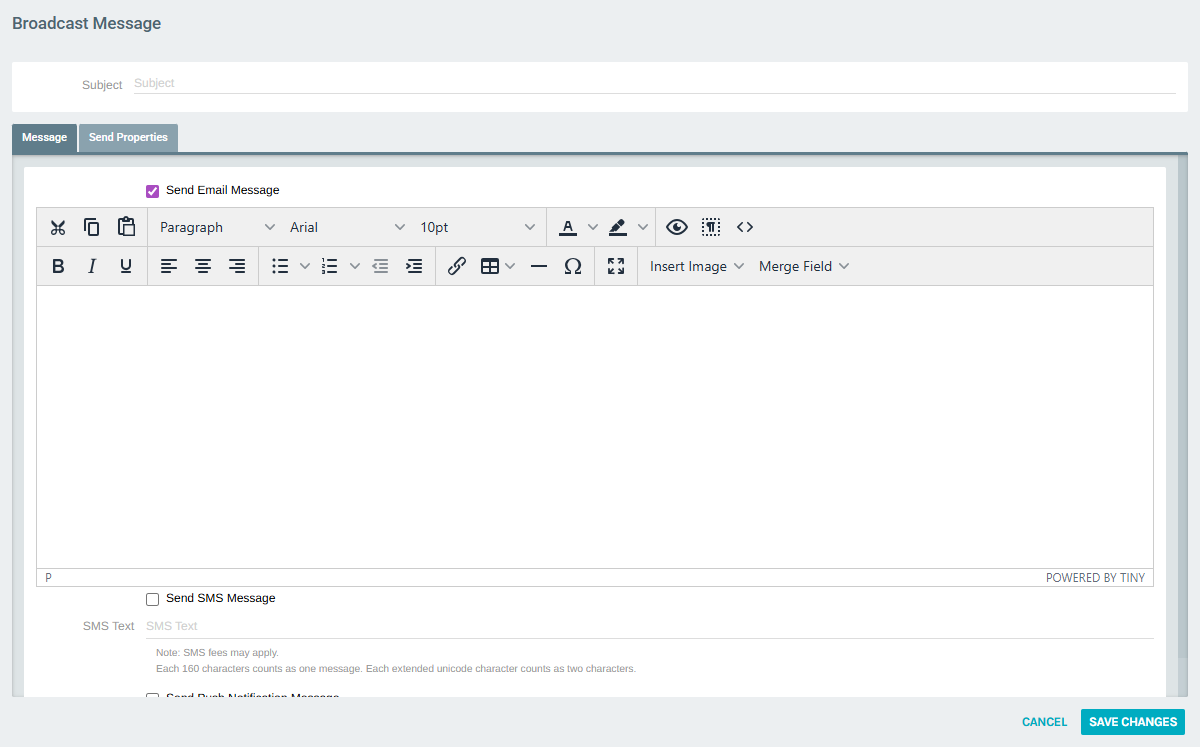
The editor contains a Subject field at the top and two tabs:
Message tab includes:
- Send Email Message checkbox — enables the email channel
- Rich text editor (TinyMCE) for composing the HTML email body
- Toolbar supports: text formatting, fonts, colors, alignment, lists, links, tables, images, and custom merge fields
- Send SMS Message checkbox — enables the SMS channel
- Plain text box for composing the SMS body (160 characters per message)
- Send Push Notification Message checkbox — enables the push notification channel
Auto Responder Editor — Send Properties Tab
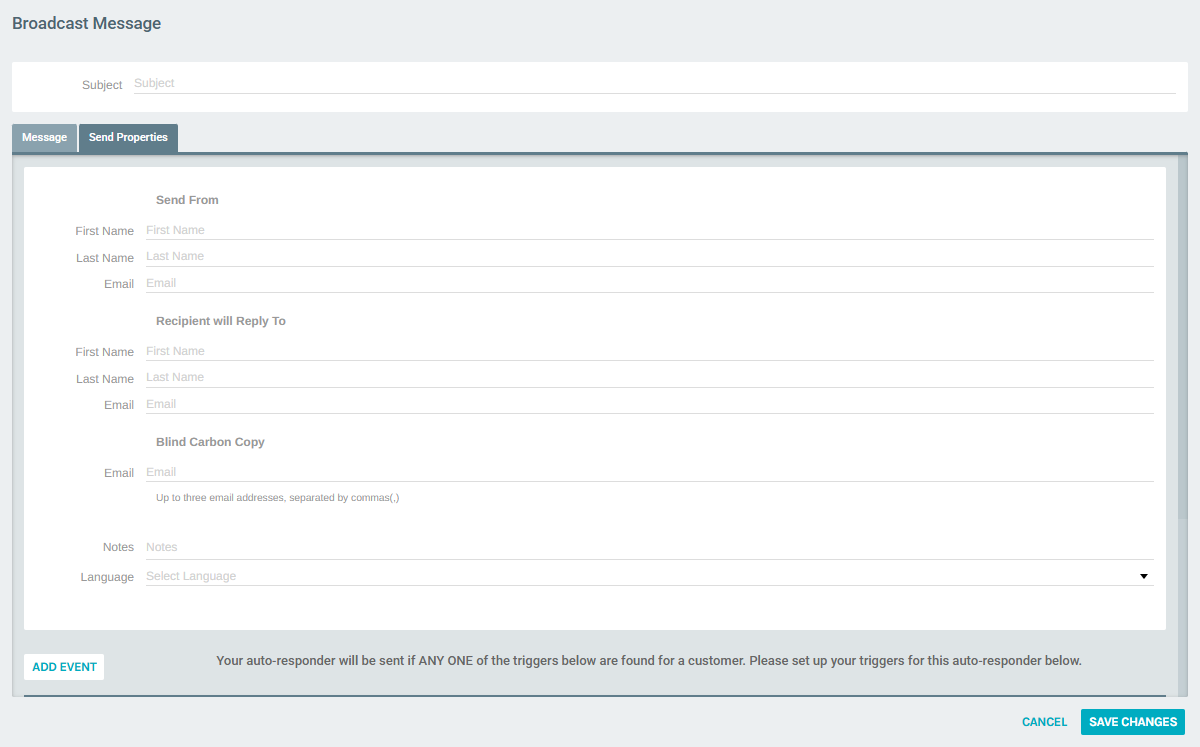
The Send Properties tab contains:
| Field | Description |
|---|---|
| Send From — First Name | Sender's first name shown to the recipient |
| Send From — Last Name | Sender's last name |
| Send From — Email | Sender's email address |
| Reply To — First Name | First name for the reply-to address |
| Reply To — Last Name | Last name for the reply-to address |
| Reply To — Email | Reply-to email address |
| Blind Carbon Copy — Email | Up to three BCC addresses (comma-separated) |
| Notes | Internal notes for the auto-responder |
| Language | Language selector for the message |
| ADD EVENT | Button to add a trigger event |
| Trigger Events table | Defines when the auto-responder fires (Event, Field, Condition, Value) |
| Send this responder to the | Dropdown to select recipient type (e.g., Customer) |
| Include this Data (email only) | Optional data include for email content |
| Order Template | Optional order template to attach |
Trigger Events
The auto-responder fires when any one of the configured trigger conditions is met. Each trigger defines: - EVENT — The system event (e.g., New Order, New Customer) - FIELD — The customer or order field to evaluate (e.g., Country, Order Status) - CONDITION — The comparison operator (e.g., equals) - VALUE — The expected value (e.g., United States, 7. Accepted)
Notes
- All three channels (Email, SMS, Push Notification) can be enabled independently for any single Auto Responder or Broadcast.
- Auto-responders fire automatically based on configured triggers; broadcasts are sent manually or on a schedule.
- Email Templates are reusable layouts that can be applied to both Auto Responders and Broadcasts.
- The VIEW action in the list opens a content preview without navigating away from the list.
- SMS charges may apply per message segment (every 160 characters).