Creating Genders (Admin)
This guide explains how to create and manage Gender options in Exigo Admin. Gender entries are used as selectable values on customer records.
Overview
The Gender setting is found under Administration > Settings > Company Settings. Each gender entry consists of a short ID (a single character code) and a Description (the display name). Common defaults include Female (F), Male (M), and Unspecified (U).
Step-by-step
1) Navigate to Settings
- In the left navigation sidebar, expand Administration
- Click Settings
- The Company Settings page loads in the main content area
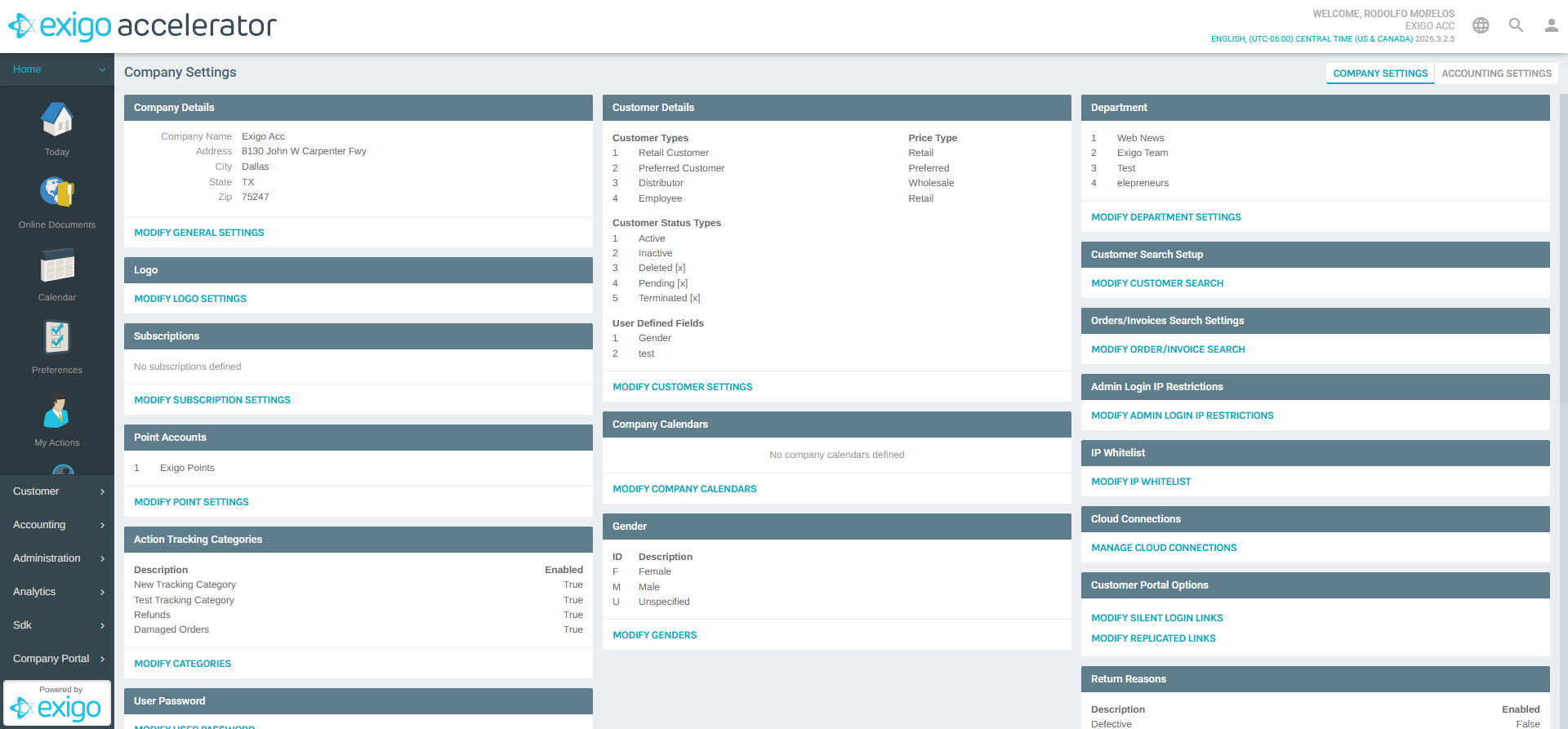
2) Locate the Gender Section
Scroll down on the Company Settings page to find the Gender section. It displays a table with two columns:
| Column | Description |
|---|---|
| ID | A single-character identifier (e.g., "F", "M", "U") |
| Description | The display name for the gender (e.g., "Female", "Male", "Unspecified") |
Below the table is a MODIFY GENDERS button.
3) Open the Company Genders Popup
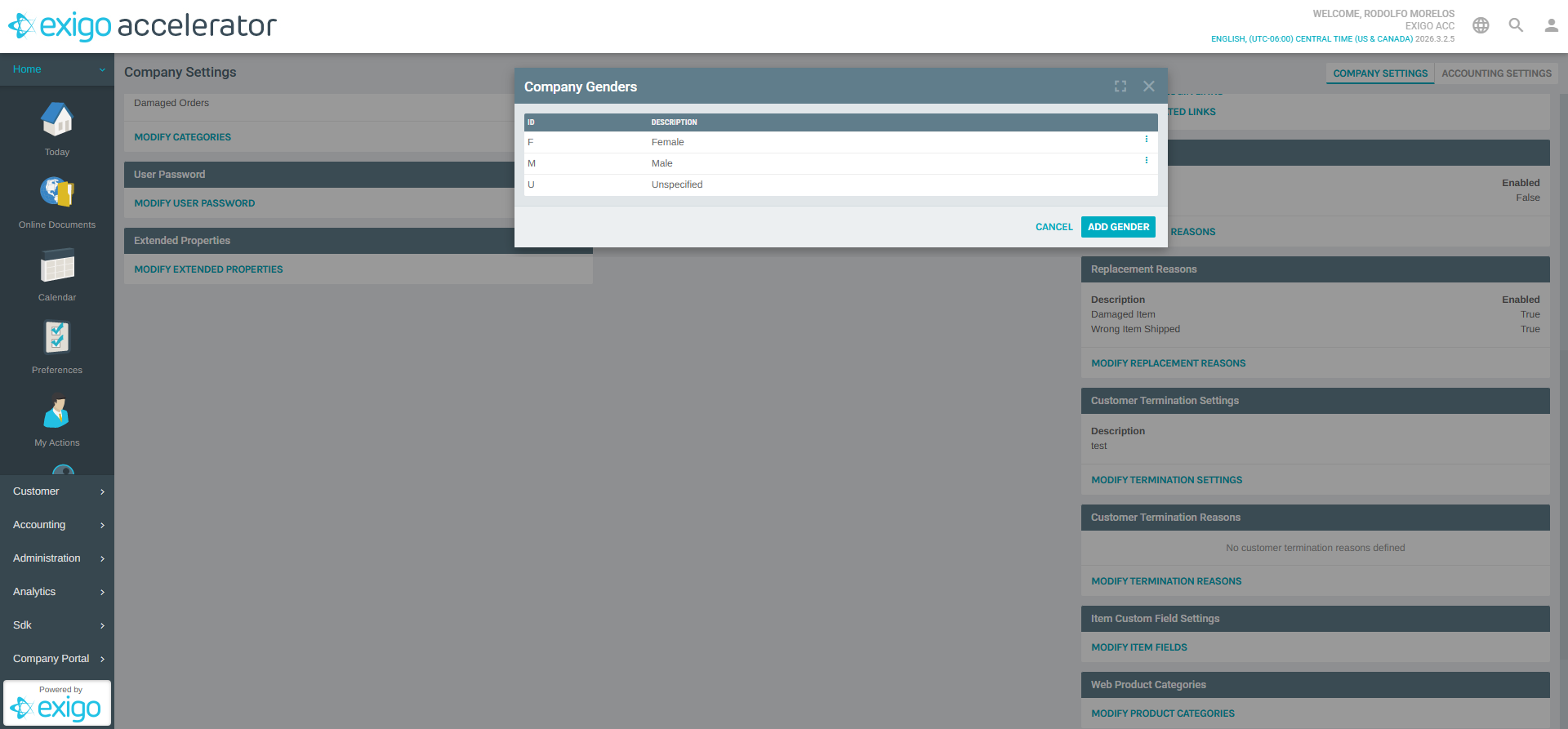
Click MODIFY GENDERS to open the Company Genders popup. This popup shows:
- The full list of existing genders with their ID and Description
- An ADD GENDER button at the top
- A three-dot menu (more_vert) on each row for editing or deleting
4) Add a New Gender
Click ADD GENDER to open the Add Gender form.
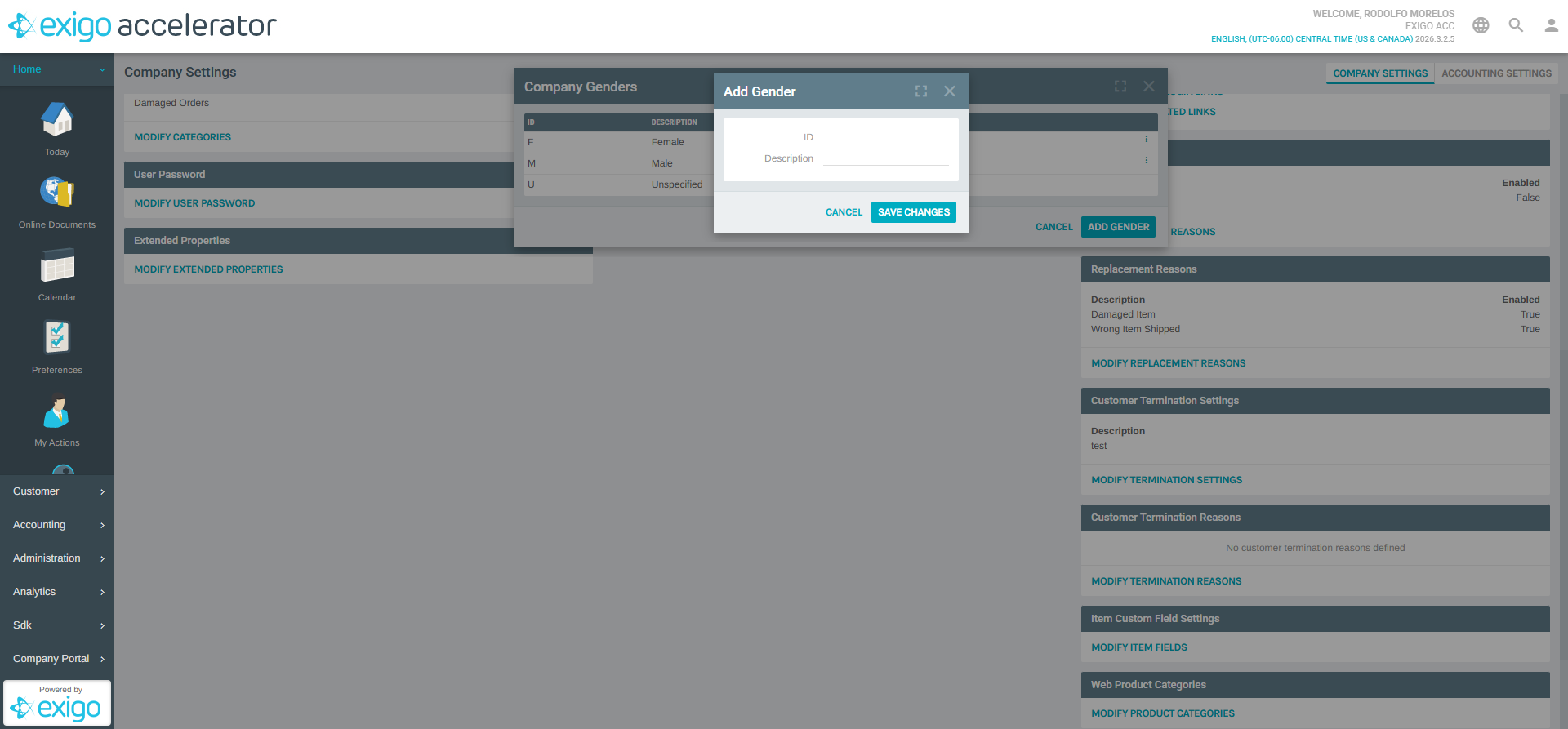
Fill in the following fields:
| Field | Description |
|---|---|
| ID | A unique single-character code for the gender (required). This value is stored in the database and cannot be changed after creation. |
| Description | A human-readable label for the gender (required). This is what users see in dropdown menus and customer records. |
Click SAVE CHANGES to create the gender, or CANCEL to discard.
5) Edit or Delete an Existing Gender
From the Company Genders popup, click the three-dot menu icon on any gender row to access options for editing or deleting the entry.
Notes
- The ID field is a single character and must be unique across all genders
- Once created, the ID cannot be modified -- only the Description can be updated
- Gender values appear in customer creation and edit forms as a dropdown selection
- Gender data is accessible through the Exigo API for integration with external systems