Customer Search
Overview
Customer > Customer Search is the primary tool in the Exigo admin panel for locating and managing customer records. It displays all customers in a paginated grid and provides powerful search and filtering capabilities, allowing administrators to quickly find any customer by a wide range of criteria.
Accessing Customer Search
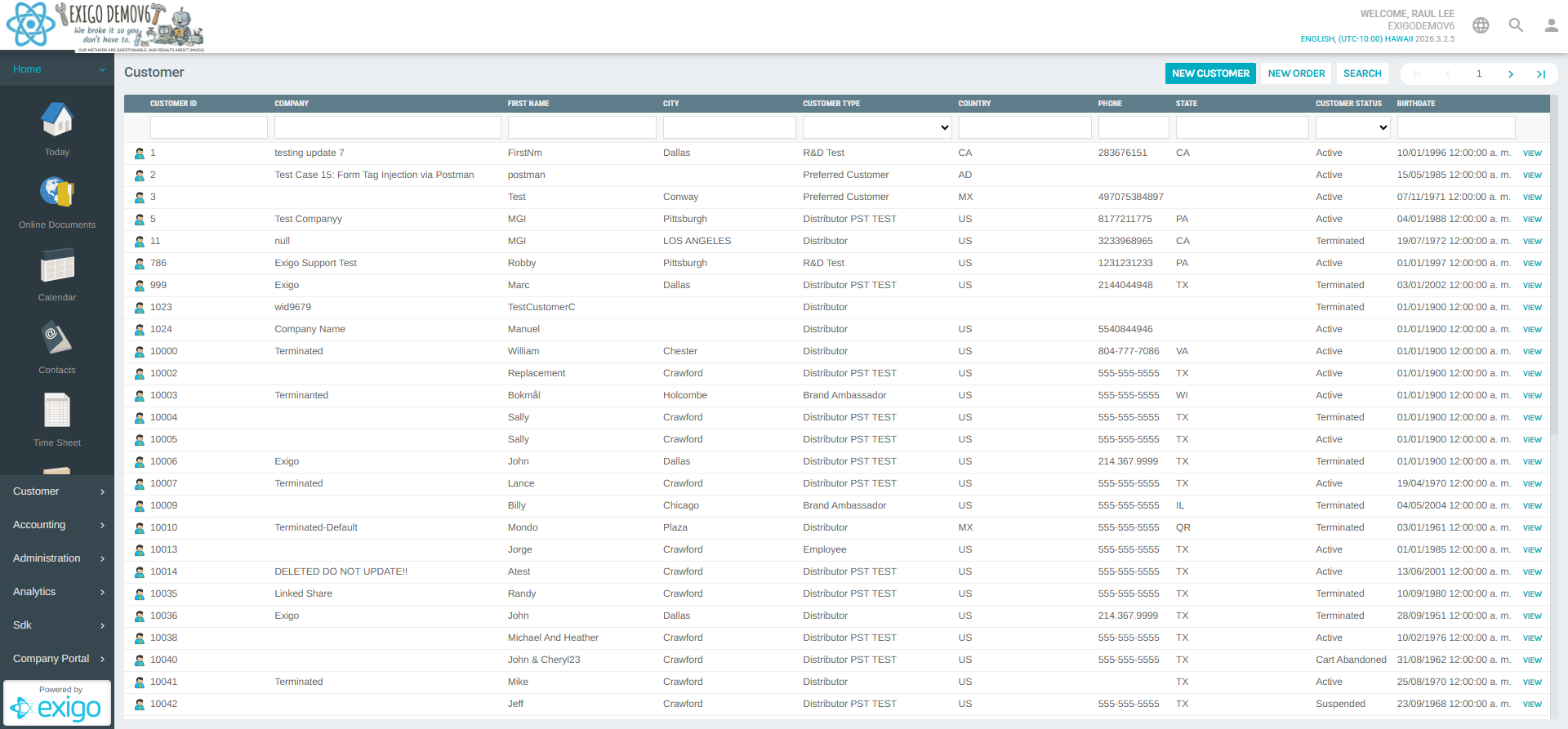
Navigate to Customer > Customer Search from the left sidebar.
List View
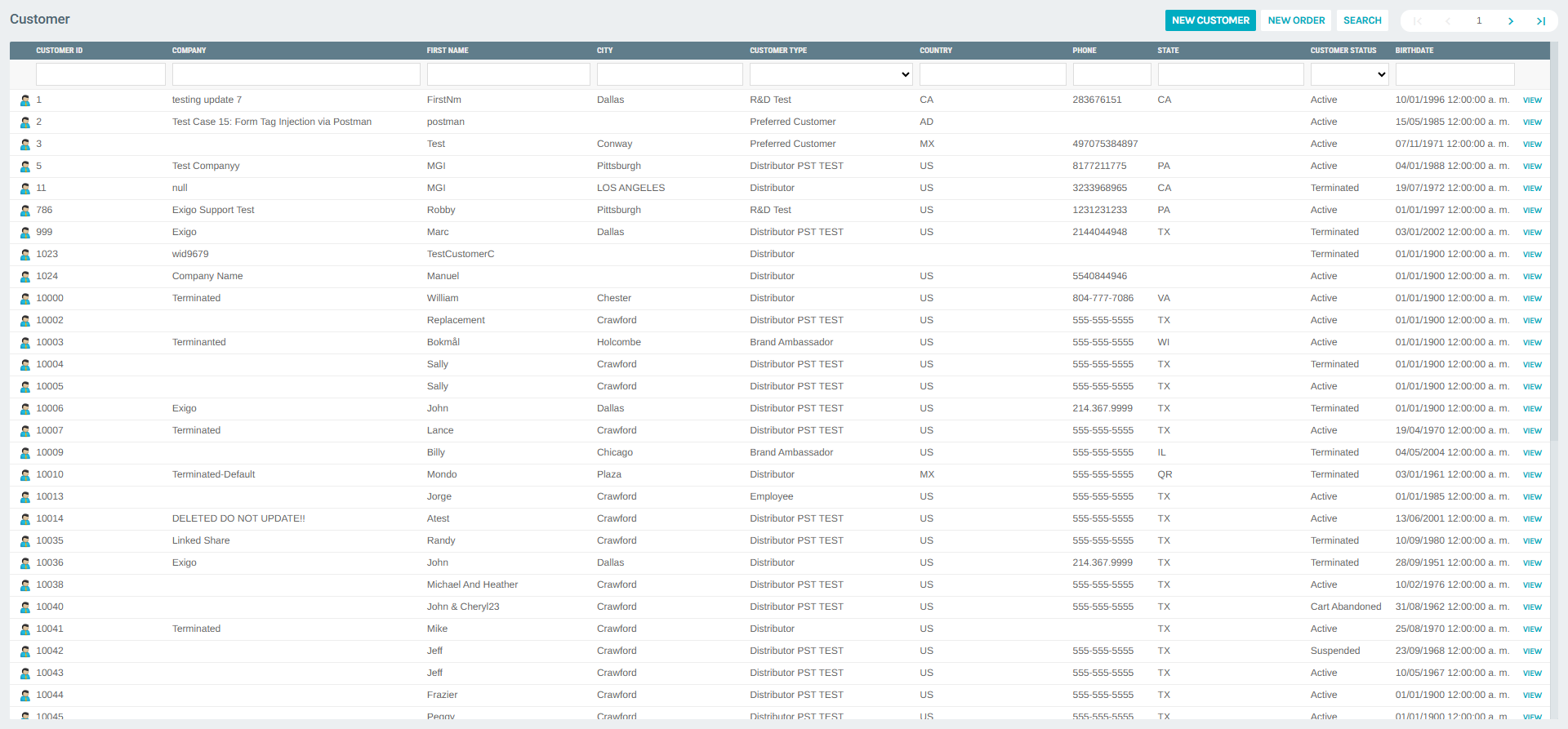
The main Customer Search page presents a sortable, paginated grid of all customers. Each row displays:
| Column | Description |
|---|---|
| Customer ID | Unique numeric identifier for the customer |
| Company | Company name associated with the account |
| First Name | Customer's first name |
| City | City of the customer's primary address |
| Customer Type | Classification of the customer (e.g., Distributor, Preferred Customer, Employee) |
| Country | ISO country code of the customer |
| Phone | Primary phone number |
| State | State/Province of the customer's address |
| Customer Status | Current account status (e.g., Active, Terminated, Cancelled, Suspended) |
| Birthdate | Customer's date of birth |
Each row includes a VIEW button that opens the Customer Portal for that record.
Inline Column Filters
Each column in the grid header contains an inline filter field. Typing in these fields instantly filters the list:
- Customer ID – Filter by exact or partial ID
- Company – Filter by company name
- First Name – Filter by first name
- City – Filter by city name
- Customer Type – Dropdown selector with all available customer types
- Country – Filter by country code
- Phone – Filter by phone number
- State – Filter by state/province abbreviation
- Customer Status – Dropdown selector with all available statuses
- Birthdate – Filter by birth date
Pagination
The top-right of the list shows navigation controls to move between pages of results (first, previous, page number field, next, last).
Action Bar
The top of the Customer Search page includes three primary action buttons:
| Button | Action |
|---|---|
| NEW CUSTOMER | Opens the form to create a new customer record |
| NEW ORDER | Opens the order creation wizard |
| SEARCH | Opens the Search panel (see below) |
Search Panel
Clicking SEARCH opens a popup dialog with two search modes.
Basic Search
The Basic Search panel provides a quick lookup using a single field:
- Find – Enter a search term
- In – Select the field to search in (dropdown with options including: Customer ID, Company, First Name, City, Type, Country, Phone, State, Customer Status, Birth Date, Tracking Number, Order ID, Auto Order ID, Rank, Entry Date, Email, Zip, Login Name, Web Alias, Tax ID, Party ID, and custom price type fields)
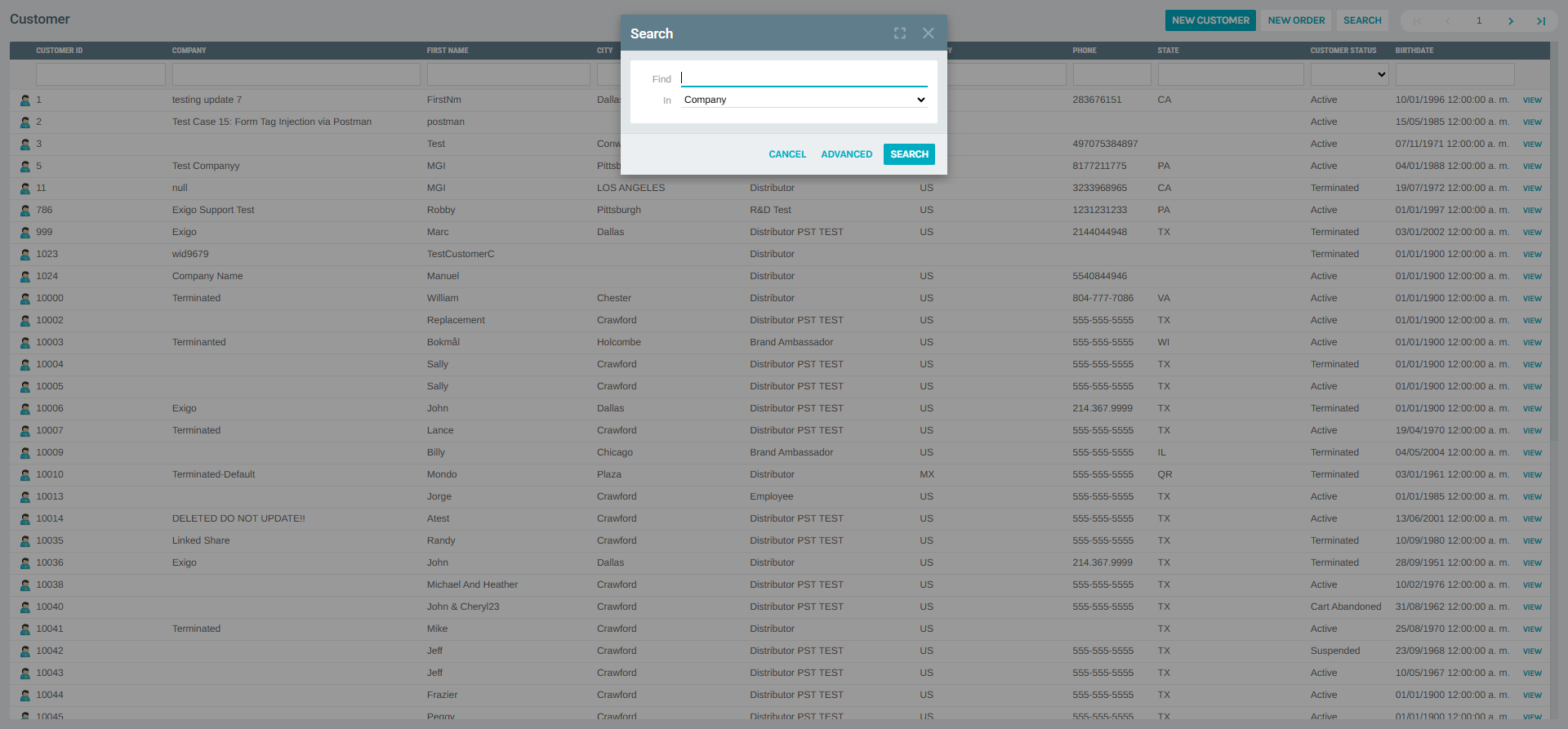
Click SEARCH to execute the query, ADVANCED to switch to the advanced form, or CANCEL to dismiss the panel.
Advanced Search
The Advanced Search panel allows combining up to 10 criteria with And logic:
Each criteria row consists of: - Field selector – Choose which customer attribute to filter - Operator – Condition (e.g., equals, contains, starts with) - Value – The value to match
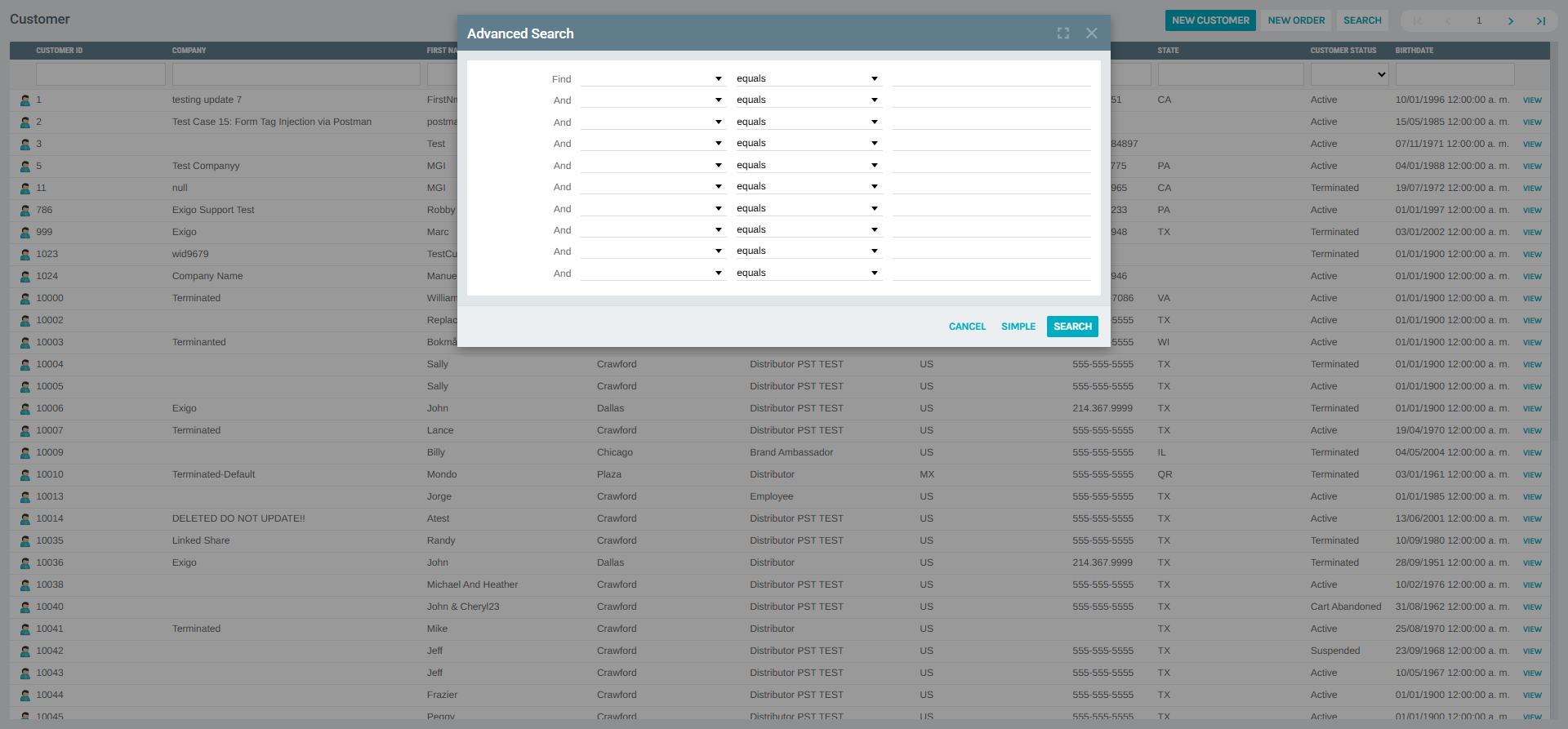
Click SEARCH to run the query, SIMPLE to return to basic search, or CANCEL to close.
Customer Portal
Clicking VIEW on any customer row opens that customer's Customer Portal. This portal provides a comprehensive view of all customer data, with a left-hand navigation menu and a content pane.
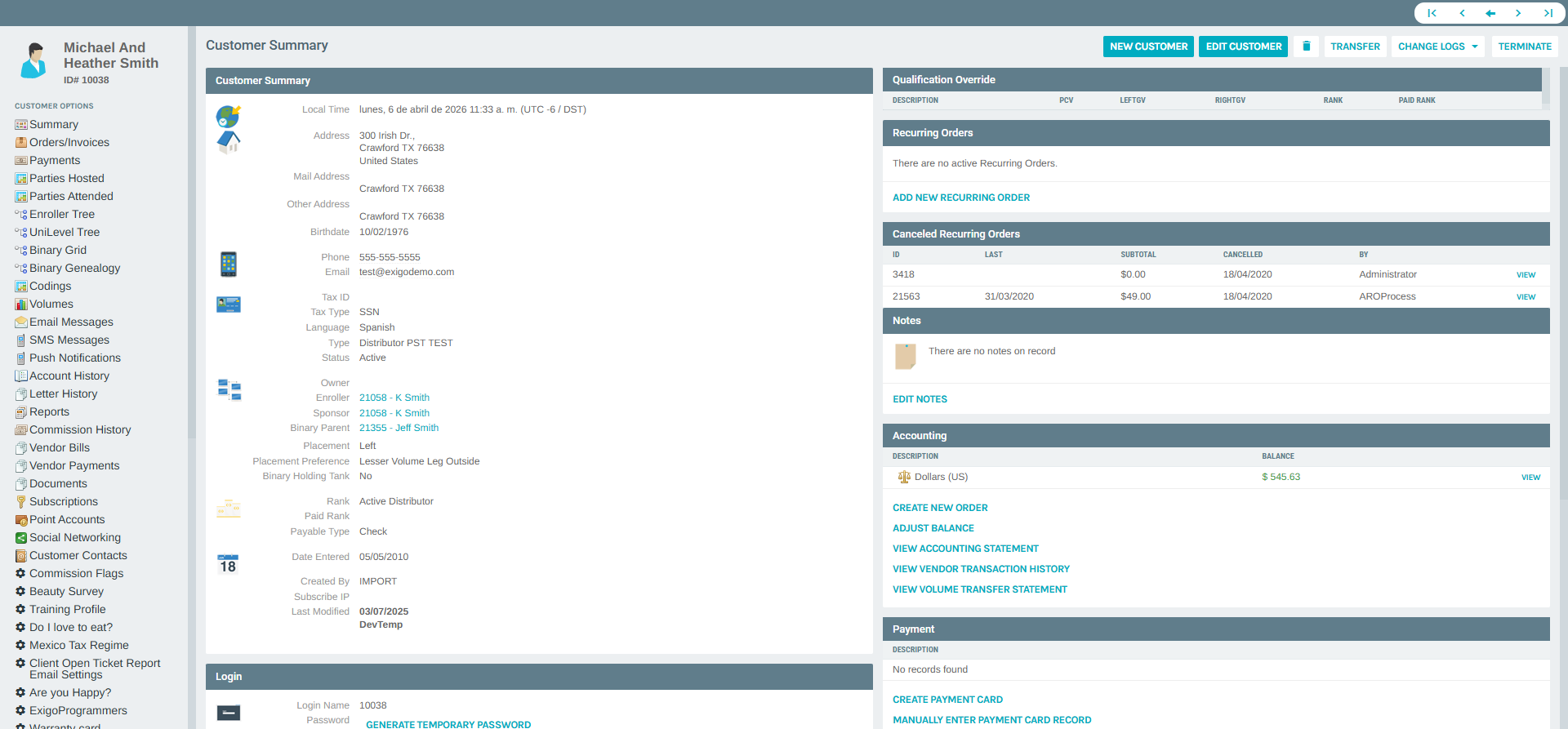
Portal Navigation Tabs
The Customer Portal includes the following sections:
| Section | Description |
|---|---|
| Summary | Core customer profile data, recurring orders, accounting balances, and payment methods |
| Orders/Invoices | Full order history and invoice records |
| Payments | Payment transaction history |
| Parties Hosted | Party events hosted by this customer |
| Parties Attended | Party events attended by this customer |
| Enroller Tree | Graphical enroller tree view |
| UniLevel Tree | Unilevel downline tree |
| Binary Grid | Binary structure grid |
| Binary Genealogy | Binary genealogy view |
| Codings | Customer coding records |
| Volumes | Commission volume history |
| Email Messages | Email communications sent to this customer |
| SMS Messages | SMS messages sent to this customer |
| Push Notifications | Push notification history |
| Account History | Action tracking and account history log |
| Letter History | Letters sent to this customer |
| Reports | Customer-specific reports |
| Commission History | Commission payment records |
| Vendor Bills | Bills from vendors |
| Vendor Payments | Vendor payment records |
| Documents | Attached documents |
| Subscriptions | Active and past subscriptions |
| Point Accounts | Loyalty or reward point balances |
| Social Networking | Linked social network accounts |
| Customer Contacts | Associated contact persons |
| Extended Properties | Custom extended property groups defined for the company |
Summary Page Actions
From the Customer Summary sub-page, the following actions are available:
- NEW CUSTOMER – Create a new customer record
- EDIT CUSTOMER – Open the full customer edit form
- Delete – Permanently delete the customer record
- TRANSFER – Transfer the customer to a different position in the tree
- CHANGE LOGS – View the audit trail of changes to this customer
- TERMINATE – Set the customer status to Terminated
Portal Pagination
At the top of the Customer Portal, navigation arrows allow browsing to the first, previous, next, and last customer in the current search results, without returning to the list.
Tips
- Use the inline column filters for quick lookups by a known value.
- Use the Advanced Search when you need to combine multiple criteria (e.g., customers of a specific type in a specific state who are Active).
- The Customer Type and Customer Status dropdowns in the column filters reflect all types/statuses configured for the company.
- The VIEW button opens the Customer Portal in the same page context; use the portal's pagination arrows to navigate through the filtered result set.