Home > Contacts
Overview
The Contacts module, accessible from Home > Contacts in the Exigo admin panel, provides a personal address book for storing and managing business and personal contact information. Contacts are user-specific and are not shared across the organization—each admin user maintains their own contact list.
The module is hosted in the Exigo Company Portal and supports creating, editing, and deleting individual contact records with detailed information across two tabs: General and Addresses.
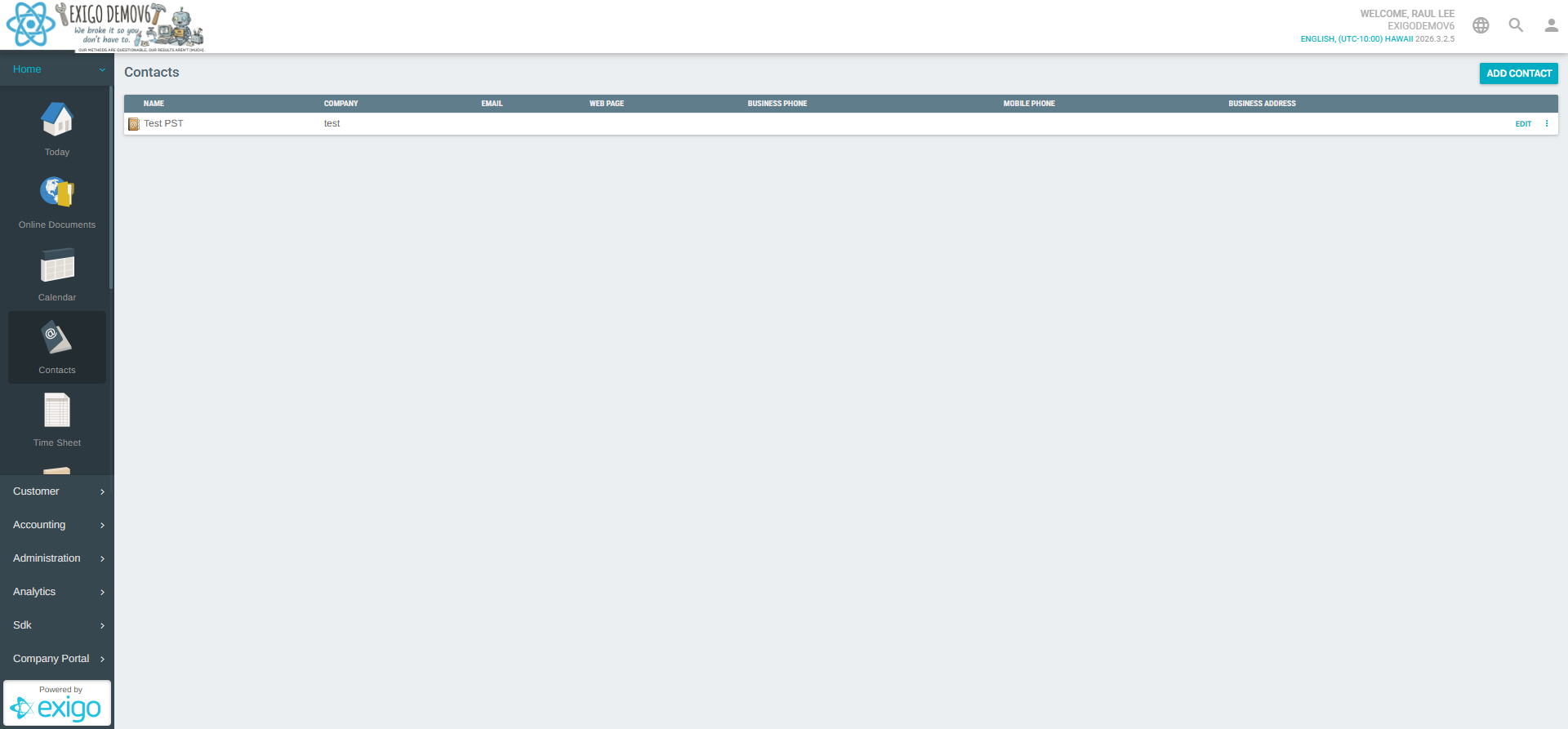
Navigating to Contacts
- Log in to the Exigo admin panel.
- In the left sidebar, expand the Home section.
- Click Contacts.
The Contacts list will open in a new browser context (Company Portal at vg7.exigo.com).
Contacts List
The Contacts list displays all contacts saved by the current user in a sortable table.
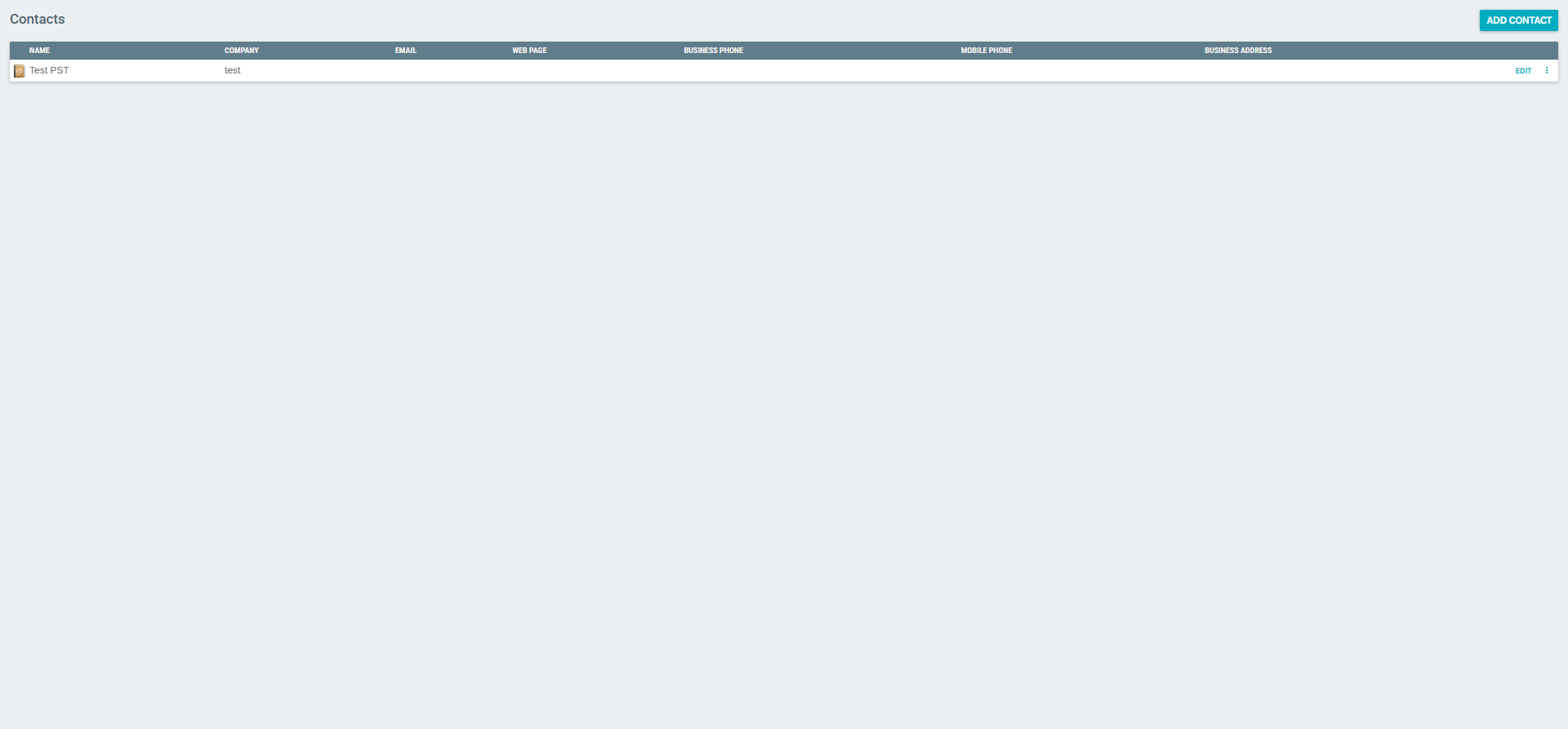
Table Columns
| Column | Description |
|---|---|
| Name | Full name of the contact |
| Company | Company or organization name |
| Primary email address | |
| Web Page | Contact's website URL |
| Business Phone | Office or primary phone number |
| Mobile Phone | Mobile phone number |
| Business Address | Physical business address |
| (Actions) | Edit button and context menu for additional options |
Actions
Each contact row provides:
- EDIT – Opens the Edit Contact form for the selected contact.
- more_vert (⋮) – Opens a context menu with additional options.
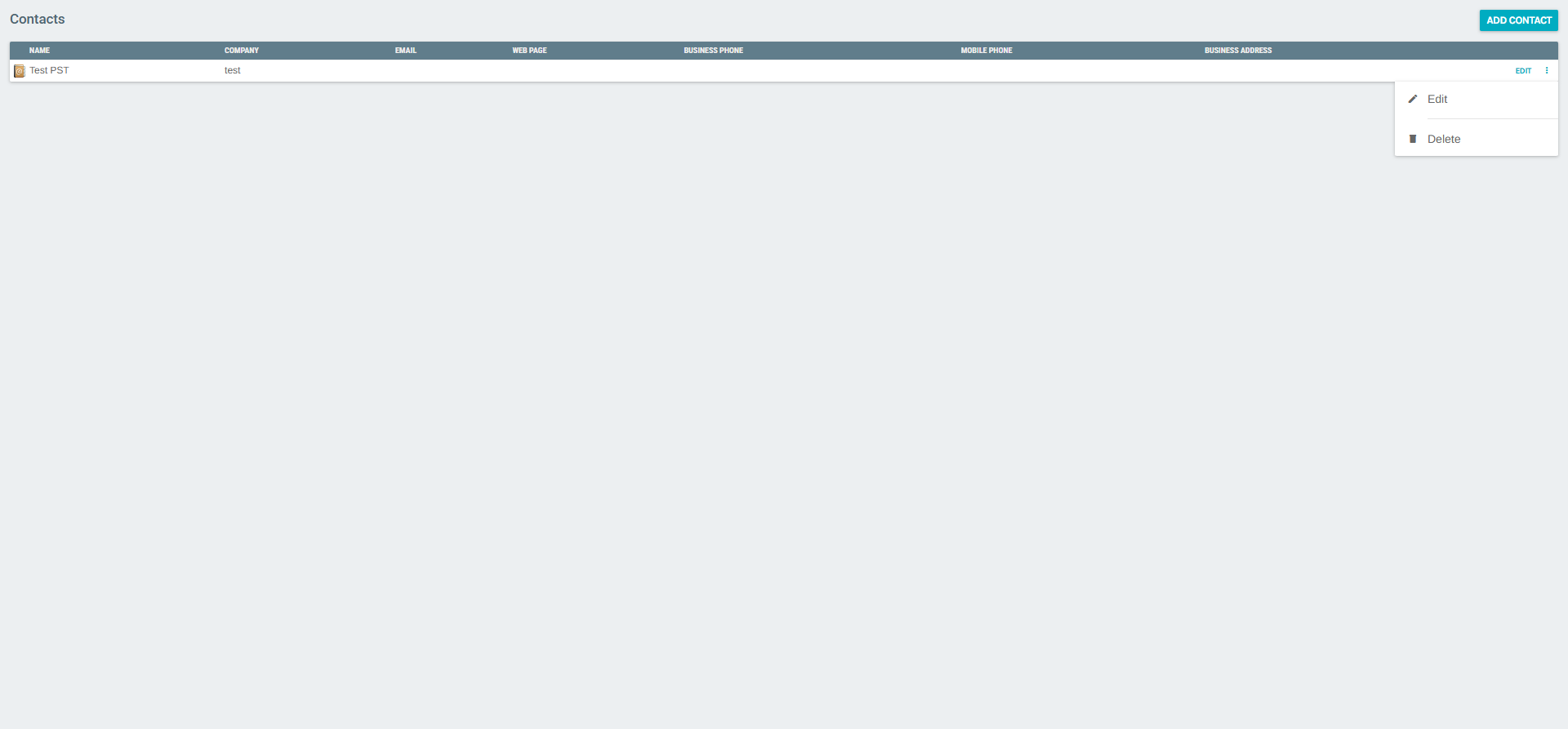
The context menu contains:
| Option | Description |
|---|---|
| Edit | Opens the Edit Contact form |
| Delete | Permanently removes the contact |
Adding a New Contact
Click the ADD CONTACT button at the top of the Contacts list to open the Create Contact form.
The form is organized into two tabs: General and Addresses.
General Tab
The General tab captures the core contact details.
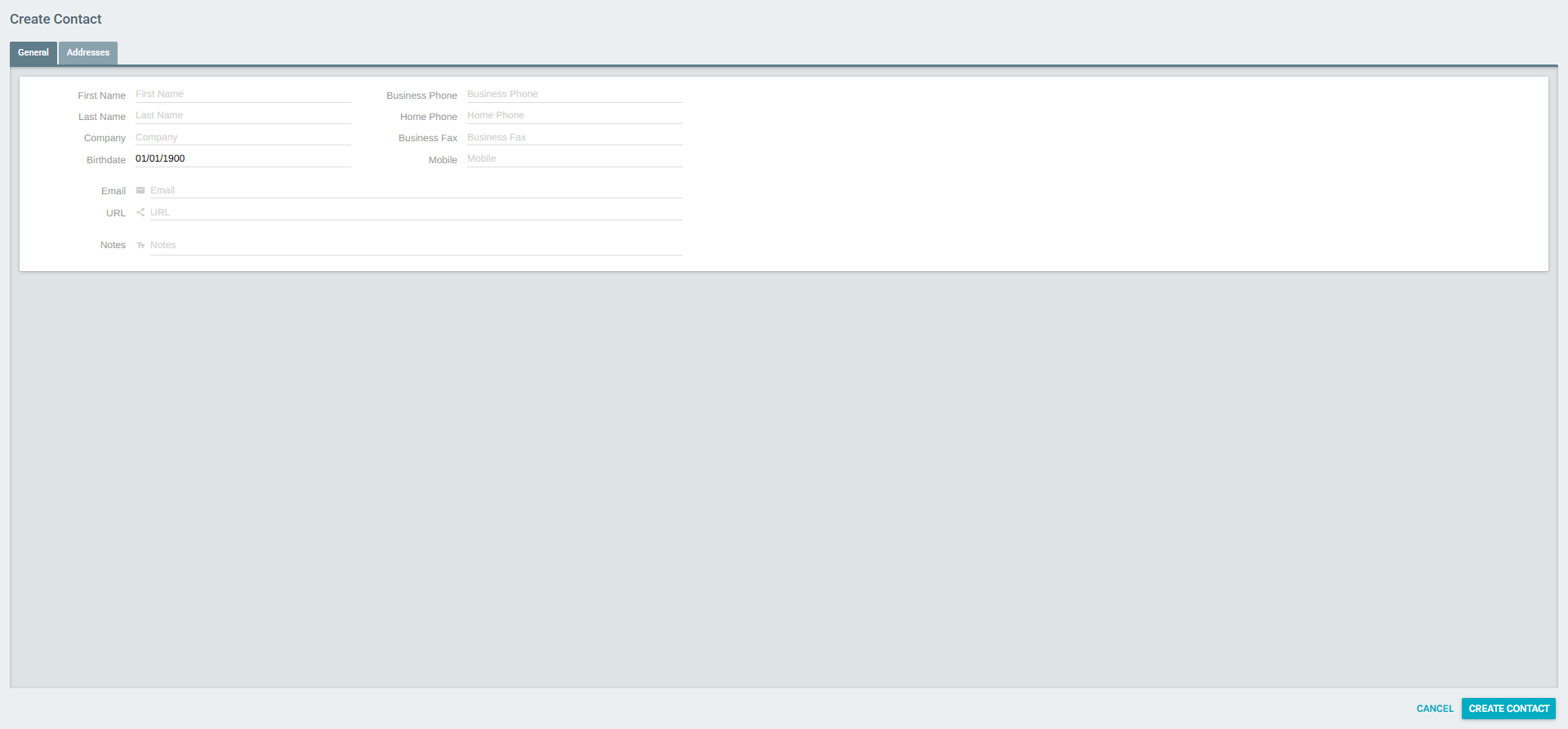
| Field | Description |
|---|---|
| First Name | Contact's first name |
| Last Name | Contact's last name |
| Company | Company or organization |
| Birthdate | Date of birth (defaults to 01/01/1900) |
| Primary email address | |
| URL | Personal or business website |
| Notes | Free-text notes about the contact |
| Business Phone | Office phone number |
| Home Phone | Home phone number |
| Business Fax | Fax number |
| Mobile | Mobile phone number |
Addresses Tab
The Addresses tab allows entering up to three separate addresses for each contact.
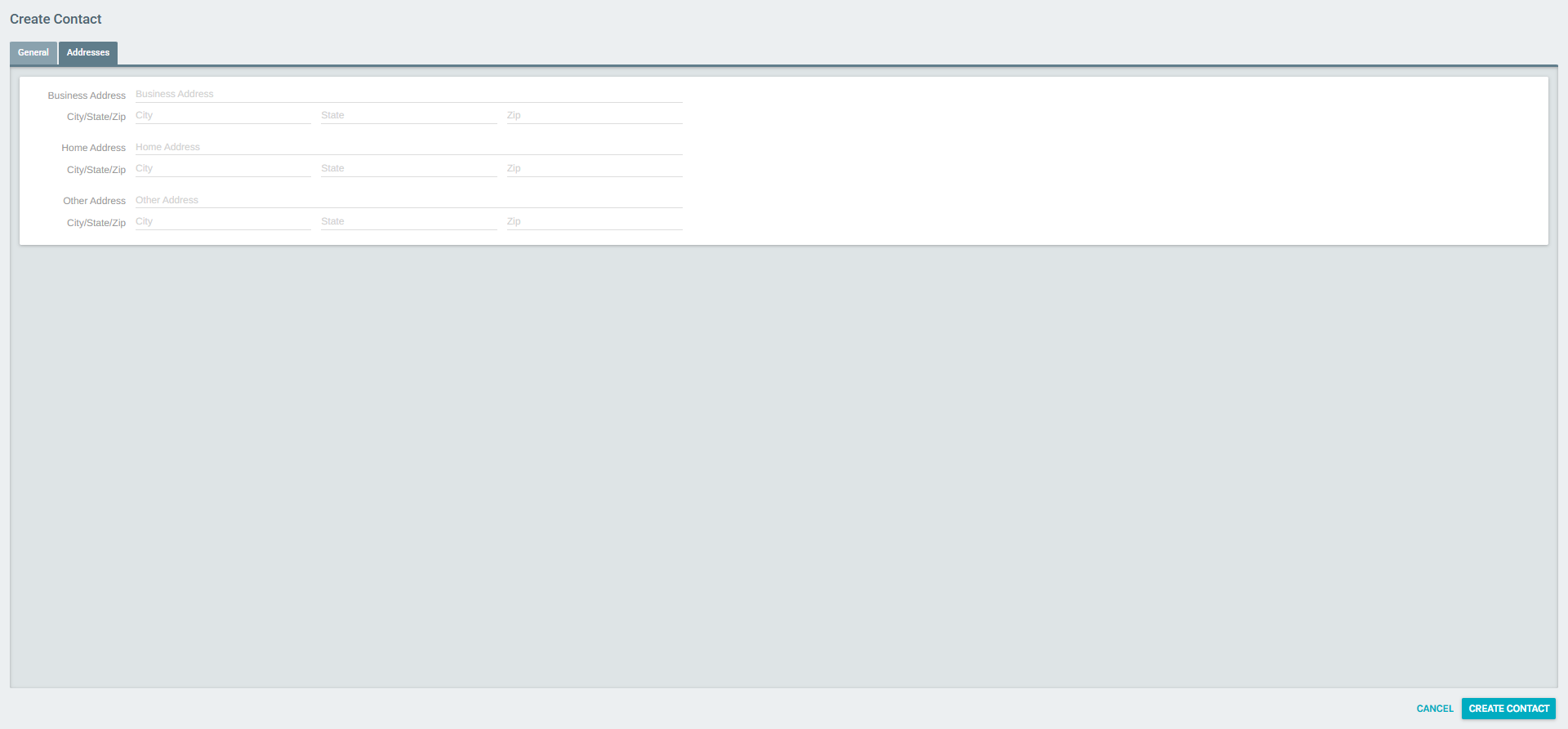
| Address Type | Fields |
|---|---|
| Business Address | Street address, City, State, Zip |
| Home Address | Street address, City, State, Zip |
| Other Address | Street address, City, State, Zip |
After filling in the required fields, click CREATE CONTACT to save.
Editing a Contact
To edit an existing contact:
- From the Contacts list, click EDIT next to the contact, or select Edit from the context menu (⋮).
- The Edit Contact form opens with all previously saved information pre-filled.
- Modify the desired fields across the General and Addresses tabs.
- Click SAVE CHANGES to apply the updates.
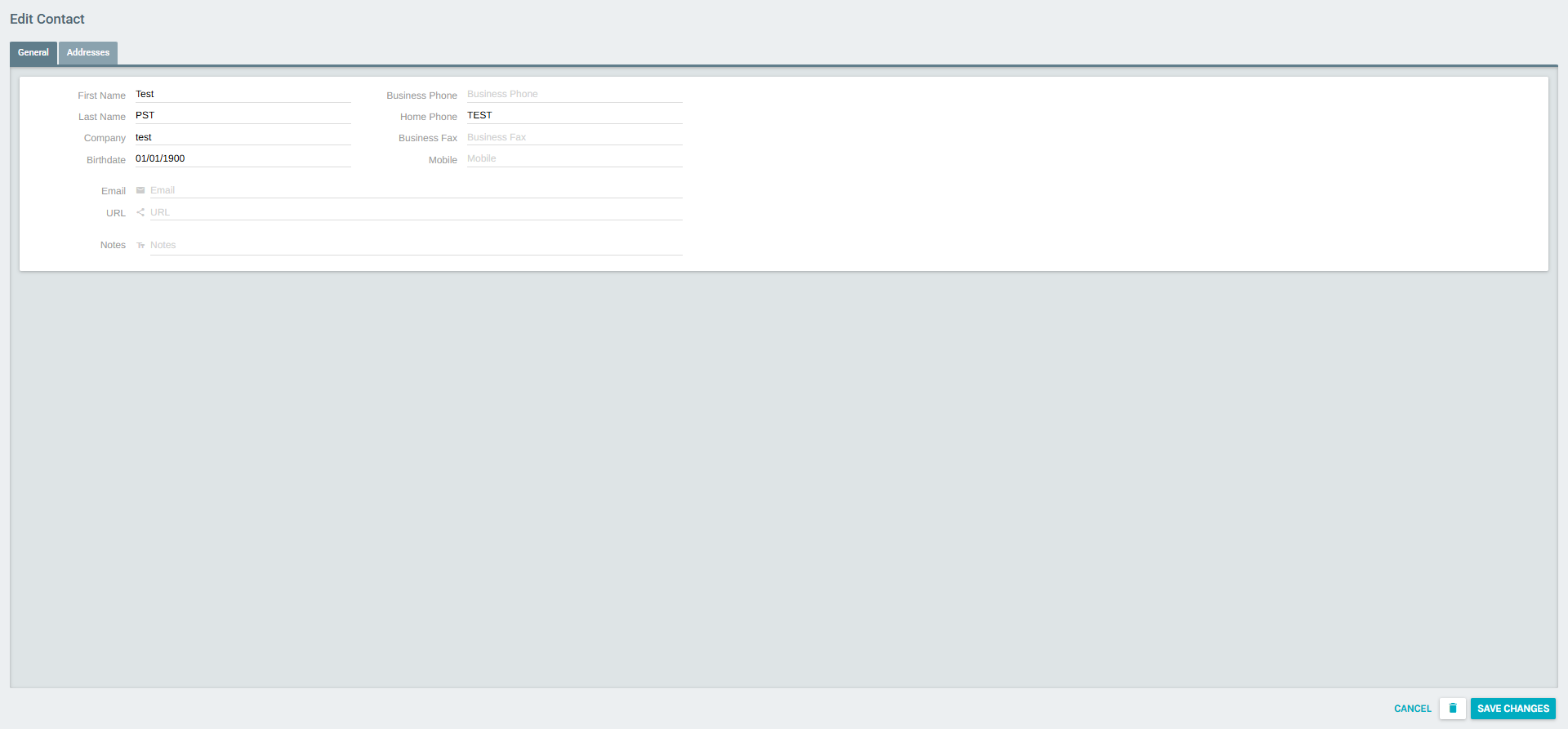
The Edit Contact form also includes a delete (trash icon) button in the header to remove the contact directly from the edit view.
Deleting a Contact
Contacts can be deleted in two ways:
- From the Contacts list: click the context menu (⋮) and select Delete.
- From the Edit Contact form: click the trash icon in the form header.
Permanent Action
Deleting a contact is permanent and cannot be undone.
Summary
| Feature | Description |
|---|---|
| Location | Home > Contacts |
| Scope | Per-user (not shared organization-wide) |
| Contact Fields | Name, Company, Birthdate, Email, Phone numbers, URL, Notes |
| Address Types | Business, Home, Other |
| Actions | Add, Edit, Delete |