Accounting Overview
Overview
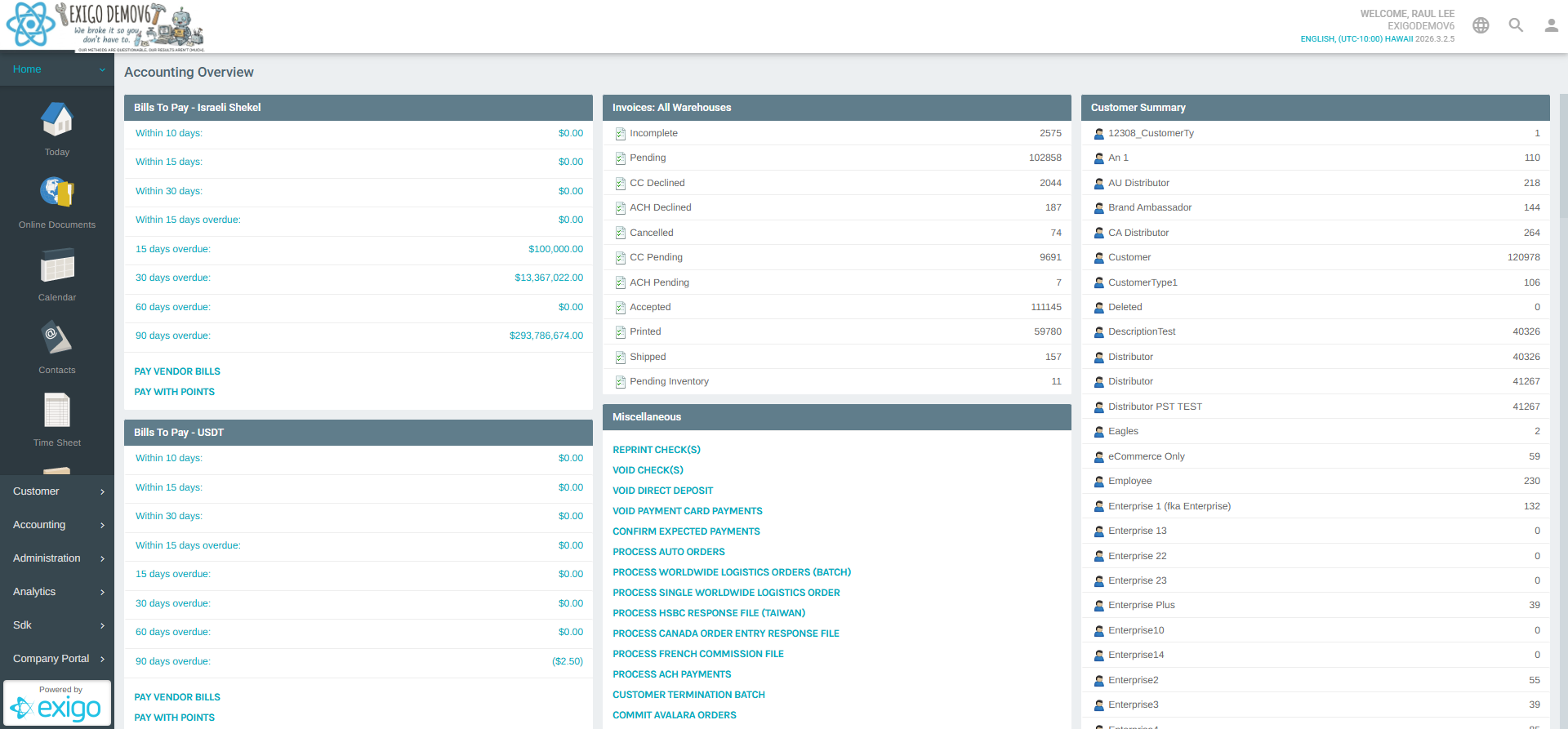
The Accounting Overview module is accessible under the Accounting section in the Exigo admin panel. It serves as a centralized dashboard that consolidates key financial and operational data, including vendor bills due by currency, invoice status counts, batch processing actions, payout history, and a customer type summary.
Accessing the Module
Navigate to: Accounting > Accounting Overview in the left sidebar.
Page Sections
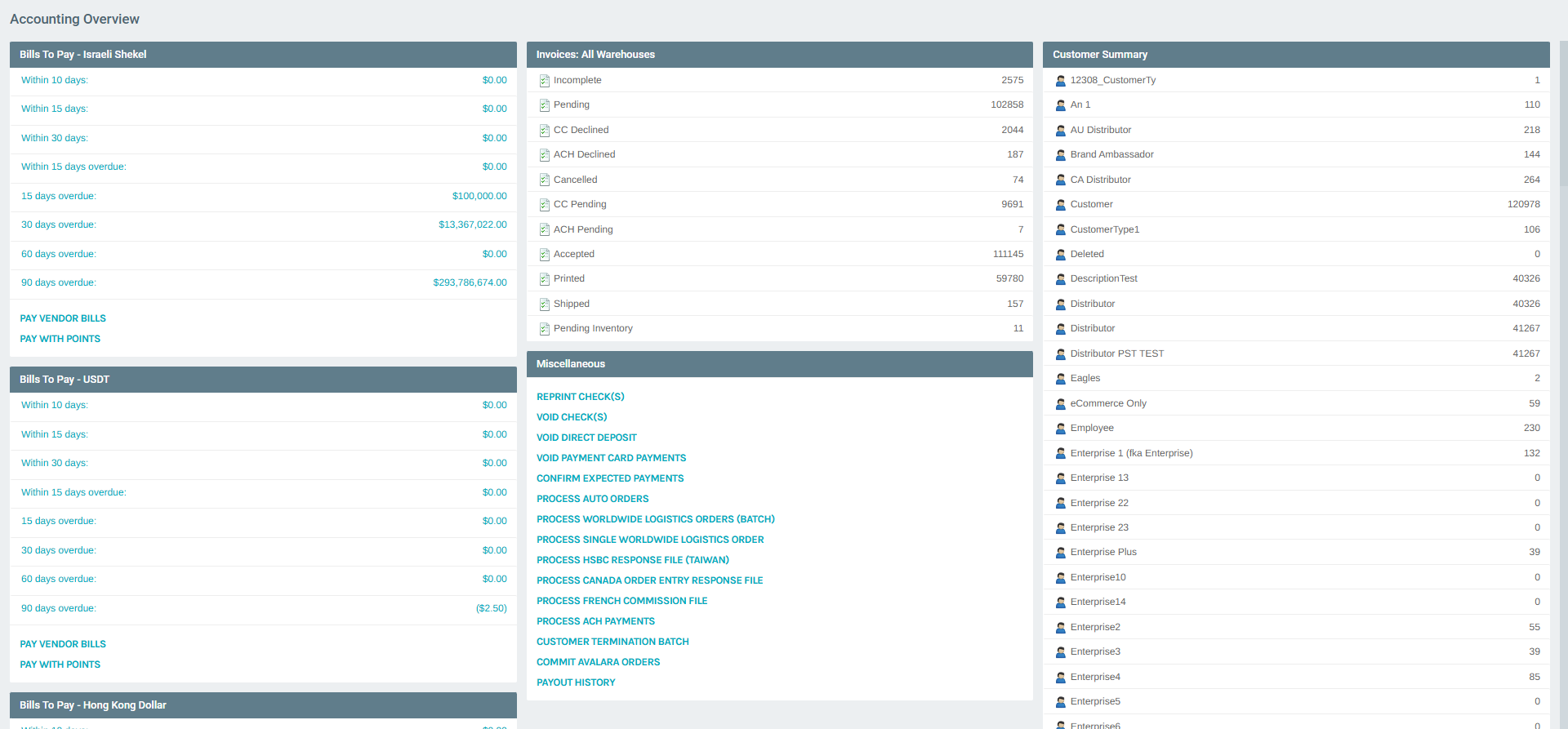
The Accounting Overview page is organized into four main sections:
Bills To Pay
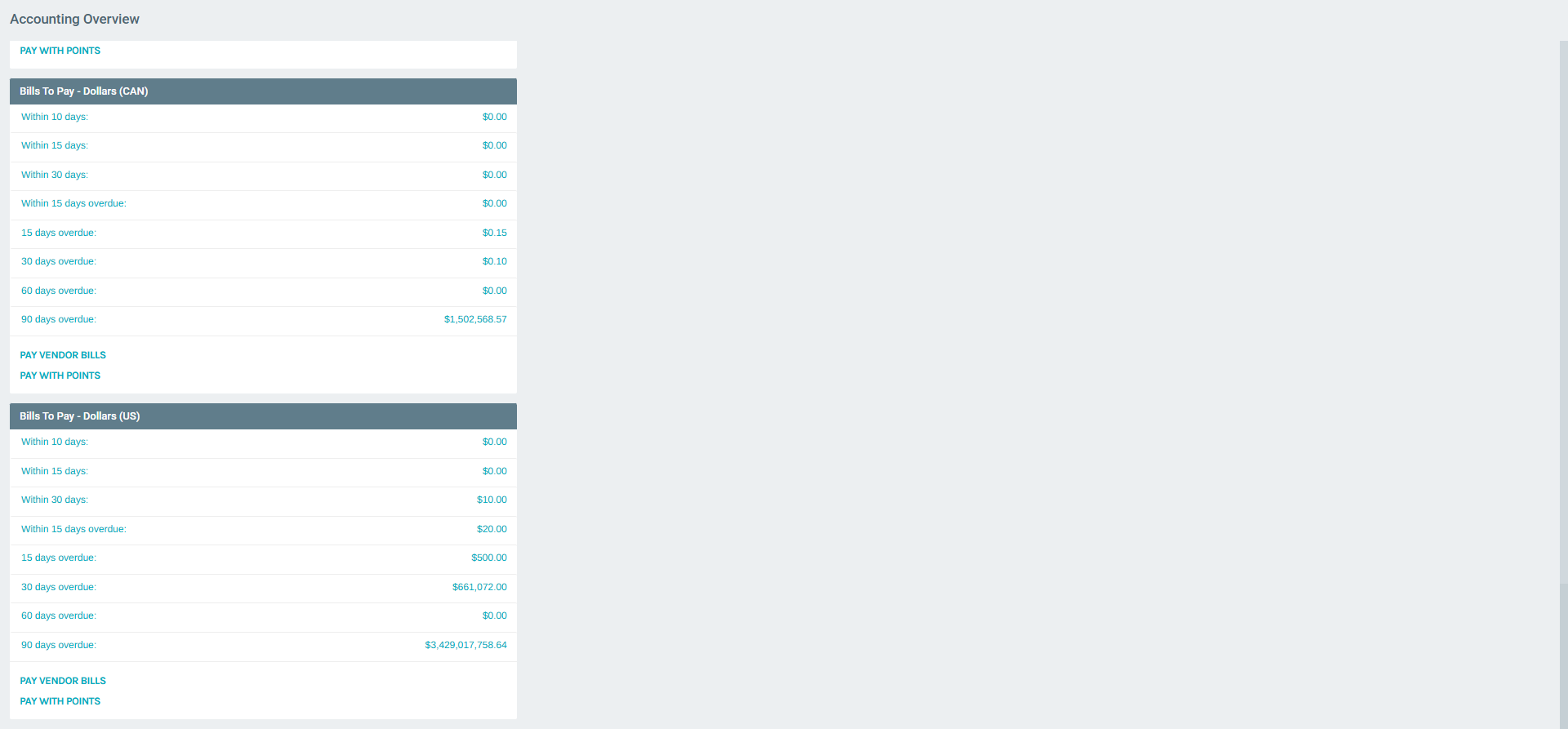
The Bills To Pay section is repeated for each configured currency in the system. Each currency block displays the total amount of vendor bills that fall within specific due-date windows, along with quick action buttons.
Due-Date Timescales
Each currency block shows amounts grouped by the following timescales:
| Timescale | Description |
|---|---|
| Within 10 days | Bills due within the next 10 days |
| Within 15 days | Bills due within the next 15 days |
| Within 30 days | Bills due within the next 30 days |
| Within 15 days overdue | Bills overdue by up to 15 days |
| 15 days overdue | Bills overdue between 15 and 30 days |
| 30 days overdue | Bills overdue between 30 and 60 days |
| 60 days overdue | Bills overdue between 60 and 90 days |
| 90 days overdue | Bills overdue more than 90 days |
Clicking any timescale link navigates to the Vendor Bill List filtered by that currency and timescale.
Supported Currencies
Bills To Pay sections are displayed for every configured currency, including: - Dollars (US) - Dollars (CAN) - Euro - Pounds (UK) - Australian Dollar - Hong Kong Dollar - Pesos (MEX) - Rouble (Russia) - Israeli Shekel - USDT
Actions
Each currency block includes two quick-action buttons:
| Button | Description |
|---|---|
| PAY VENDOR BILLS | Opens the vendor bill payment workflow for that currency |
| PAY WITH POINTS | Opens the points-based vendor bill payment workflow for that currency |
Invoices: All Warehouses
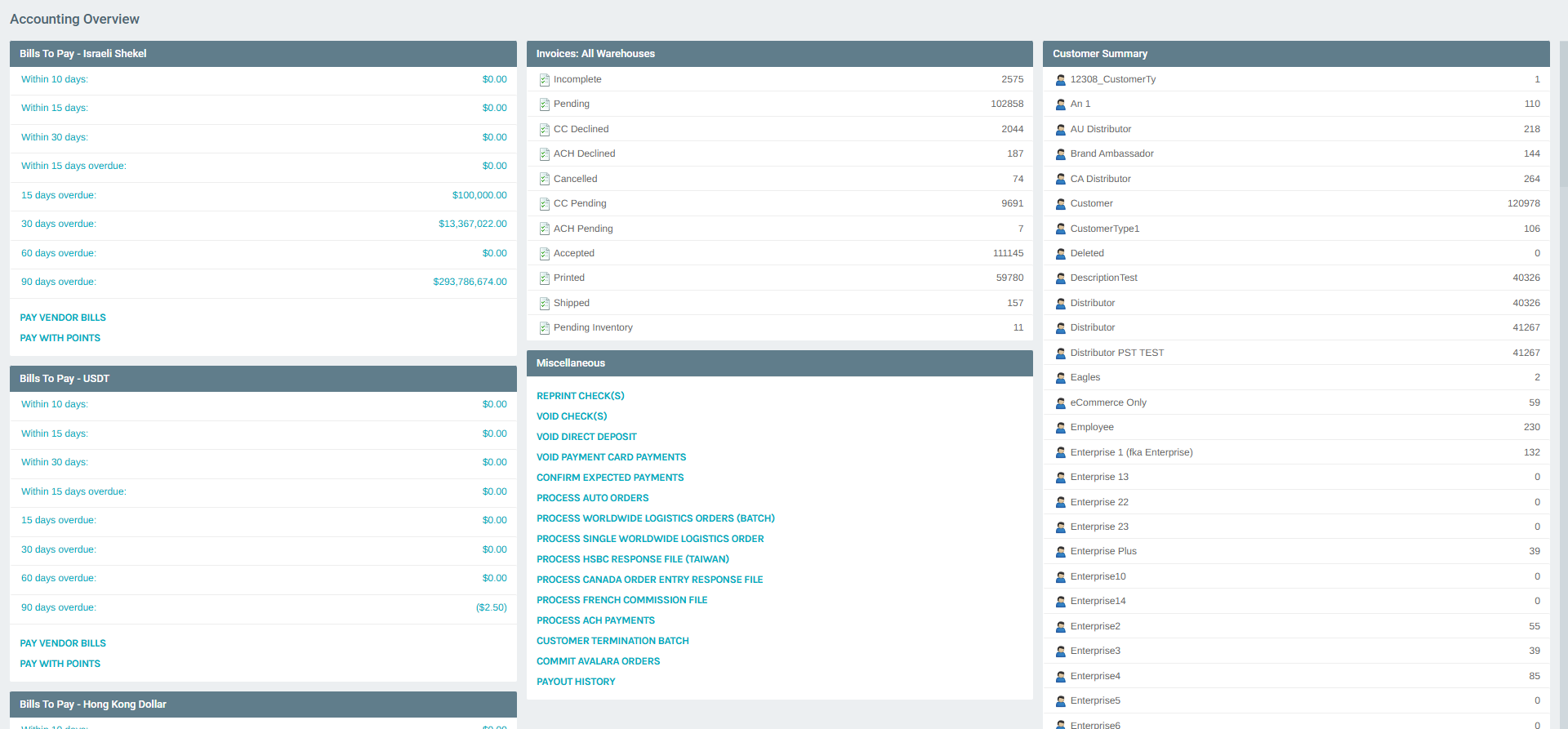
The Invoices section provides a real-time count of all invoices across all warehouses, grouped by their current status.
| Status | Description |
|---|---|
| Incomplete | Orders started but not submitted |
| Pending | Orders awaiting processing |
| CC Declined | Orders with a declined credit card |
| ACH Declined | Orders with a declined ACH payment |
| Cancelled | Orders that have been cancelled |
| CC Pending | Orders with a pending credit card authorization |
| ACH Pending | Orders with a pending ACH authorization |
| Accepted | Orders that have been accepted and are being processed |
| Printed | Orders that have been printed for fulfillment |
| Shipped | Orders that have been shipped |
| Pending Inventory | Orders on hold due to insufficient inventory |
Each status count is clickable and navigates to the invoice list filtered by that status.
Miscellaneous
The Miscellaneous section provides a set of batch processing and administrative action buttons.
| Action | Description |
|---|---|
| REPRINT CHECK(S) | Reprint previously issued commission checks |
| VOID CHECK(S) | Void previously issued checks |
| VOID DIRECT DEPOSIT | Void a direct deposit payment batch |
| VOID PAYMENT CARD PAYMENTS | Void payment card payment batches |
| CONFIRM EXPECTED PAYMENTS | Commit and confirm expected payment records |
| PROCESS AUTO ORDERS | Run the auto-order processing batch |
| PROCESS WORLDWIDE LOGISTICS ORDERS (BATCH) | Process a batch of worldwide logistics orders |
| PROCESS SINGLE WORLDWIDE LOGISTICS ORDER | Process a single worldwide logistics order |
| PROCESS HSBC RESPONSE FILE (TAIWAN) | Upload and process an HSBC response file (Taiwan) |
| PROCESS CANADA ORDER ENTRY RESPONSE FILE | Process a Canada order entry response file |
| PROCESS FRENCH COMMISSION FILE | Process a French commission payment file |
| PROCESS ACH PAYMENTS | Access the ACH payment list and initiate processing |
| CUSTOMER TERMINATION BATCH | Configure and run the customer termination batch |
| COMMIT AVALARA ORDERS | Commit tax calculations for orders via Avalara |
Payout History
The PAYOUT HISTORY section provides a link to view the historical record of all commission and payment disbursements made to customers and distributors.
Customer Summary
The Customer Summary section displays a count of customers grouped by their customer type. This provides a quick snapshot of the distribution of customer types registered in the system.
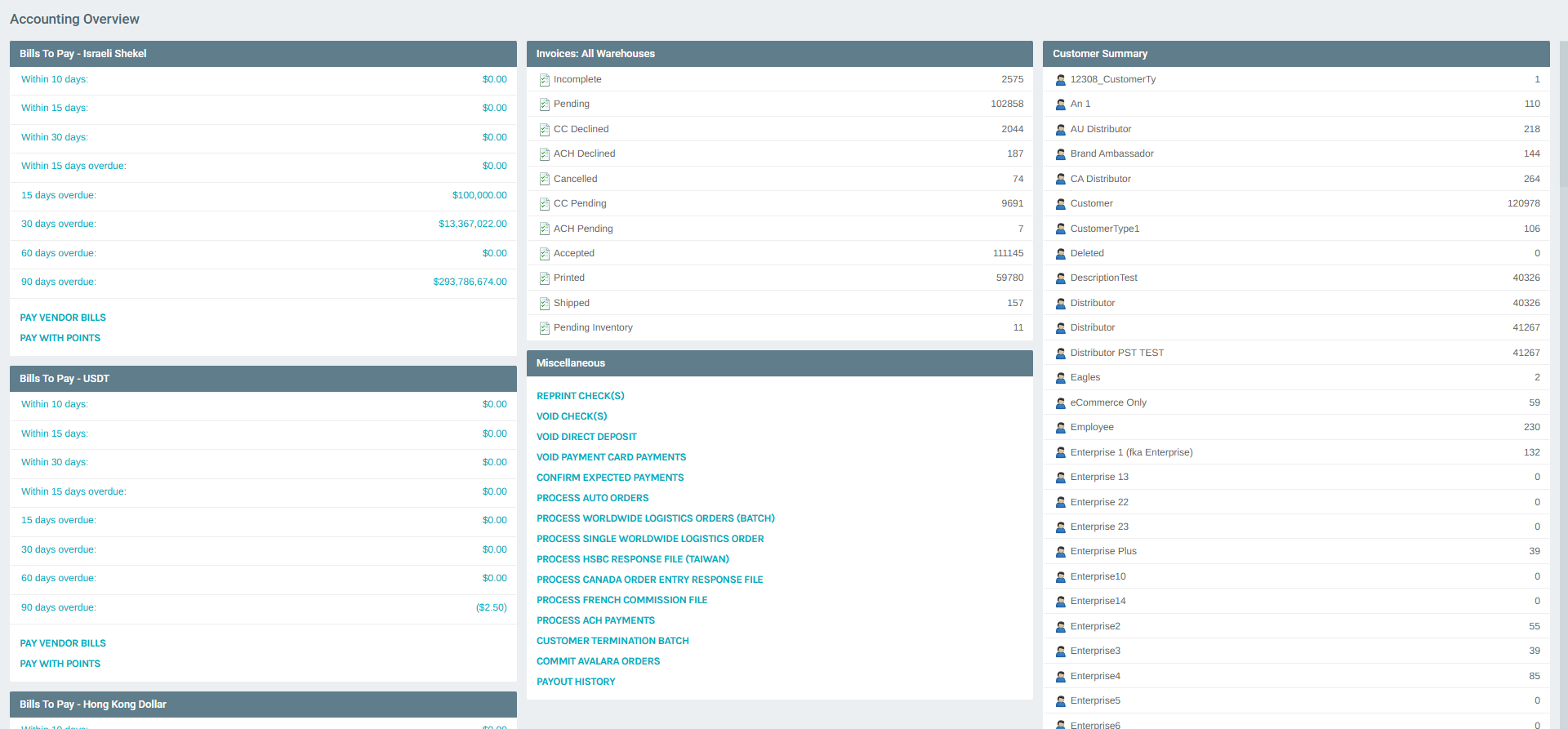
Each row shows: - Customer Type Name — the configured type label - Count — the total number of customers of that type
This data is read-only and reflects live counts from the database.