Home My Actions
Overview
Home > My Actions is a personal action tracking tool in the Exigo admin panel. It displays a consolidated list of all customer history (action tracking) records that have been assigned to the currently logged-in admin user. Administrators can monitor the status of each action, filter by status, edit records, and navigate directly to the related customer profile.
Accessing My Actions
- Log in to the Exigo admin panel.
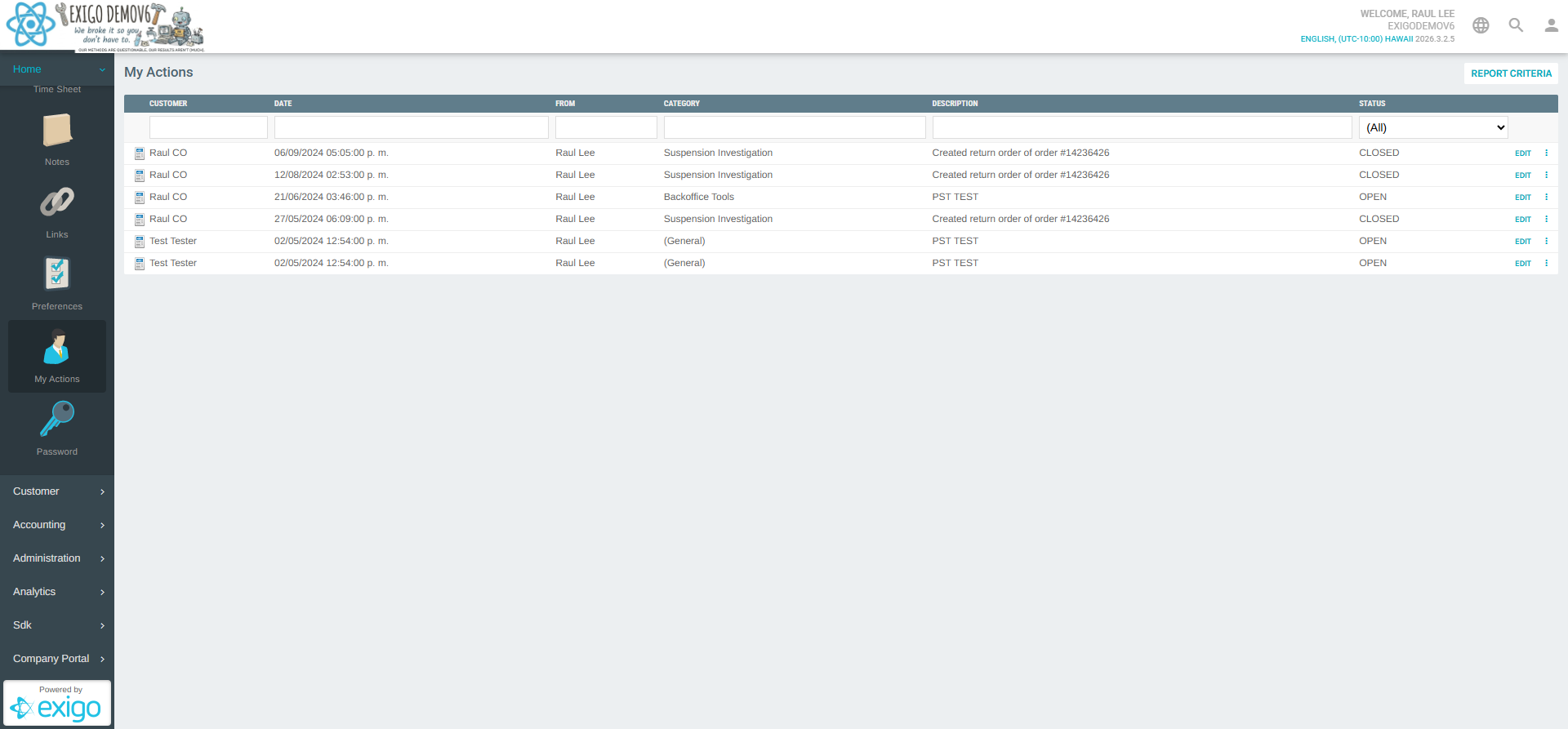
- In the left navigation sidebar, click Home to expand the submenu.
- Select My Actions.
My Actions List
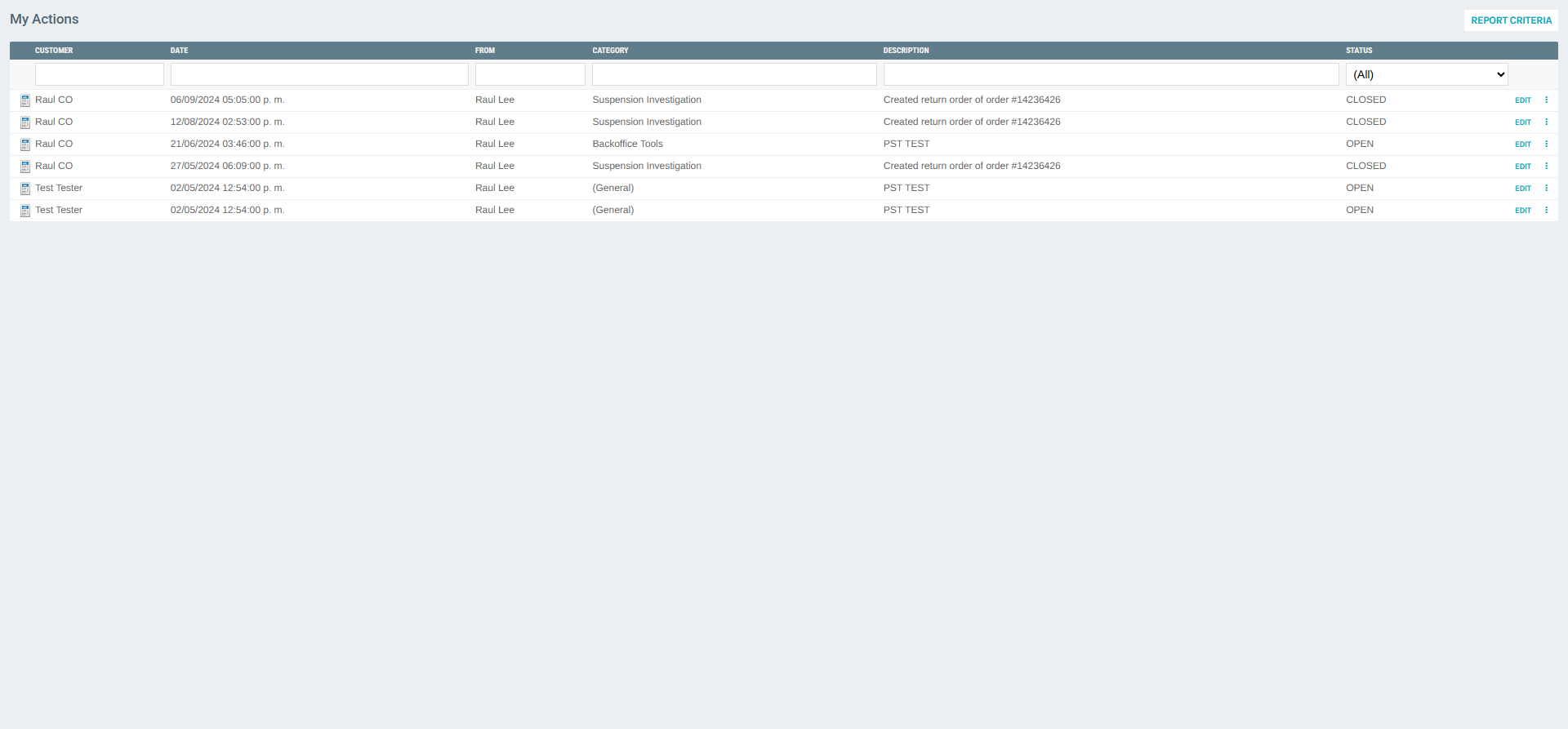
The main view presents a sortable and filterable data table with the following columns:
| Column | Description |
|---|---|
| Customer | The name of the customer associated with the action. |
| Date | The date and time the action was logged. |
| From | The admin user who created or logged the action. |
| Category | The type/category of the action (e.g., Suspension Investigation, Backoffice Tools). |
| Description | A short summary of what occurred or what task needs attention. |
| Status | The current status of the action: OPEN, CLOSED, Pending, Solved, or New. |
Filter Bar
Below the column headers, each column has an inline search box for filtering. The Status column provides a dropdown filter with the following options:
- (All)
- Open
- Closed
- New
- Pending
- Solved
Row Actions
Each row in the list includes two action controls:
- EDIT link — Opens the Edit Action form for that record directly.
- more_vert (⋮) button — Opens a context menu with additional options.
Context Menu Options
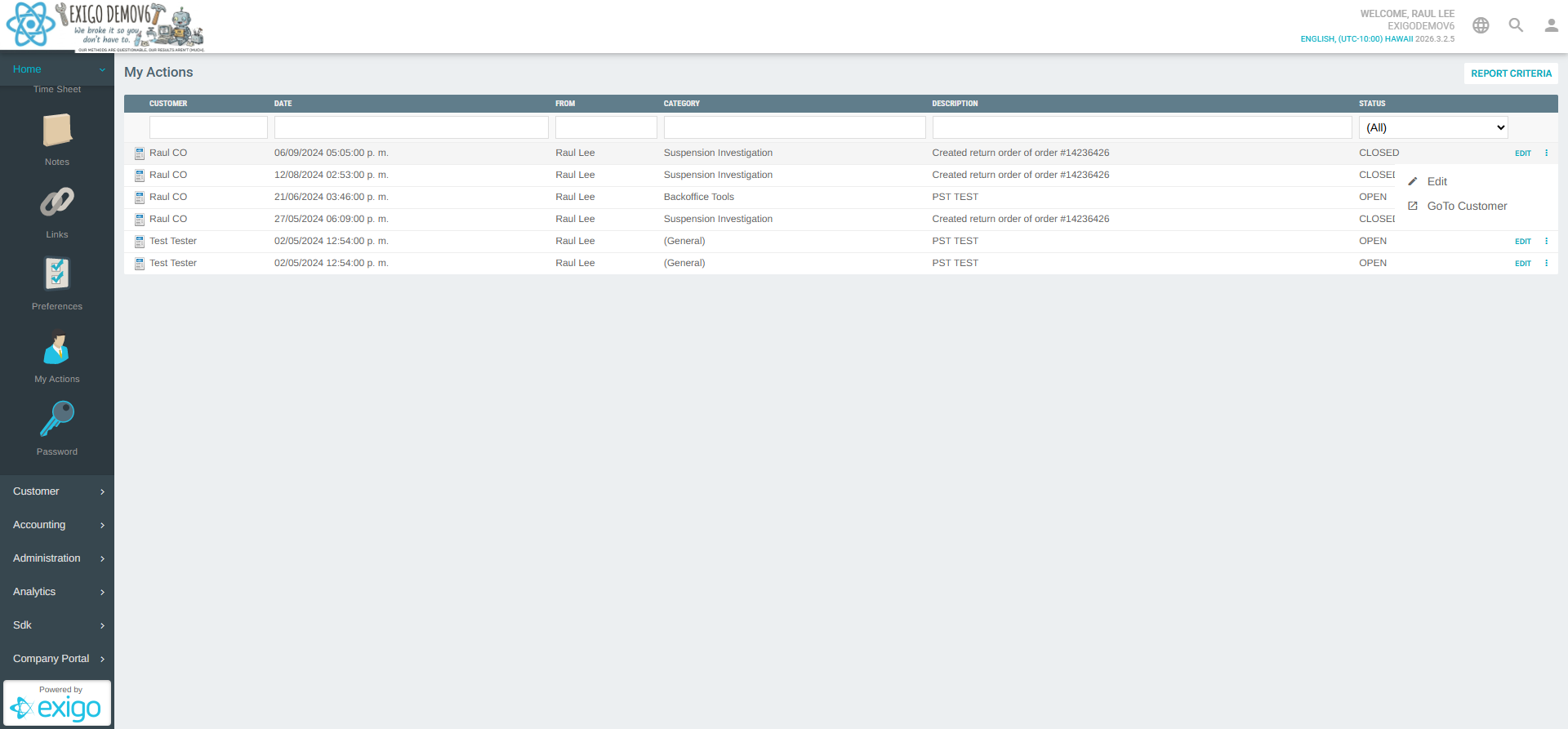
Right-clicking or tapping the ⋮ button on any row reveals the context menu:
| Option | Description |
|---|---|
| Edit | Opens the Customer History Edit form to update the action record. |
| GoTo Customer | Navigates to the Customer Portal page for the associated customer. |
Editing an Action
Clicking EDIT or the context menu Edit option opens the Customer History edit form.
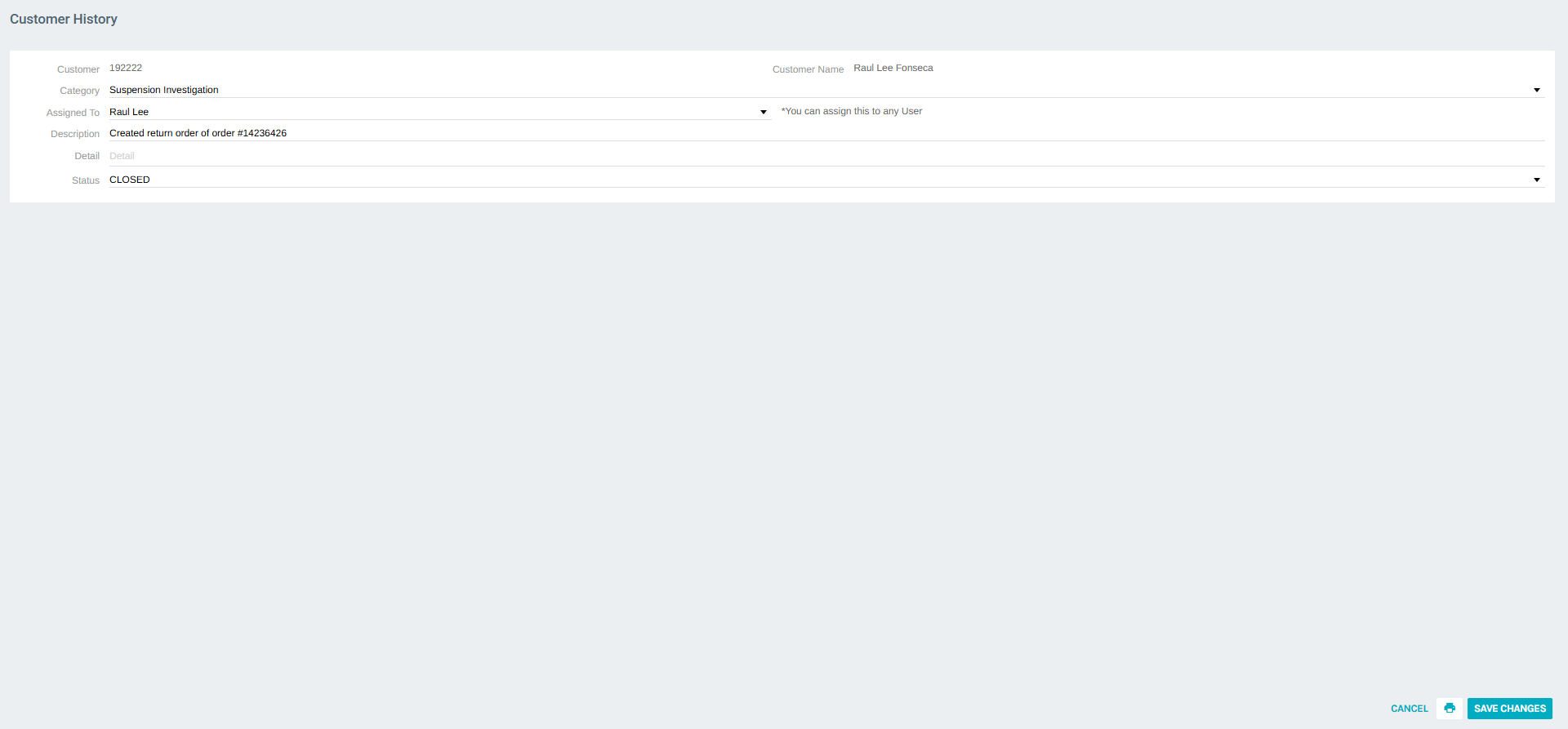
The form contains the following fields:
| Field | Description |
|---|---|
| Customer | The customer ID (read-only). |
| Customer Name | The full name of the associated customer (read-only). |
| Category | Dropdown to classify the action (e.g., Suspension Investigation, General, Backoffice Tools). |
| Assigned To | Dropdown to assign the action to any admin user. |
| Description | Short text describing the action taken (required). |
| Detail | Multi-line text area for extended notes or details about the action (required). |
| Status | Dropdown to set the current status: Open, Closed, New, Pending, Solved. |
Use the SAVE CHANGES button to persist the edits, or CANCEL to discard them. A print icon is also available to print the action record.
Report Criteria
At the top of the My Actions list, the REPORT CRITERIA link opens a report filter dialog that allows generating a filtered Customer History Report.
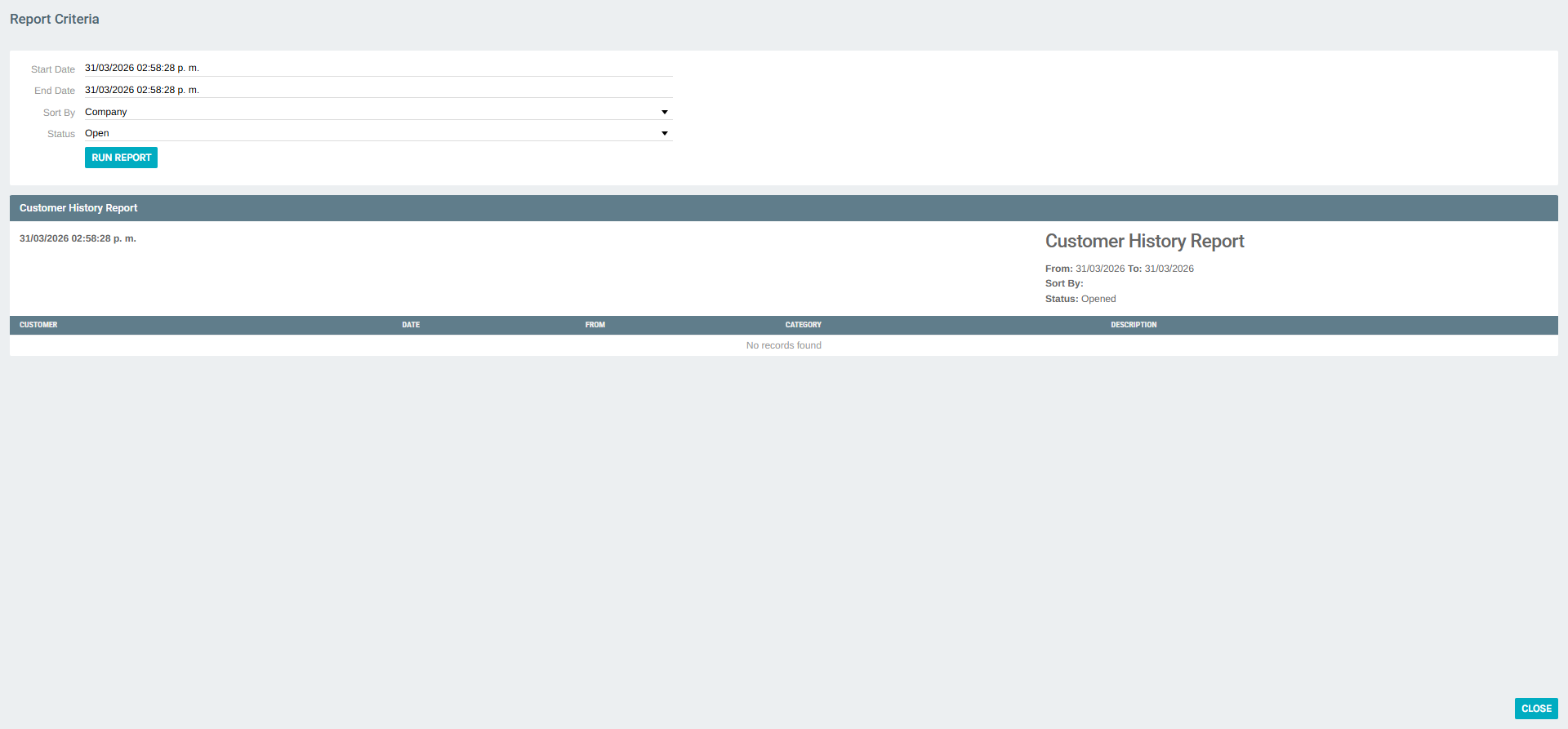
Report Criteria Fields
| Field | Description |
|---|---|
| Start Date | The beginning of the date range for the report. |
| End Date | The end of the date range for the report. |
| Sort By | Sort the results by Company or another field. |
| Status | Filter records by status (e.g., Open, Closed). |
Click RUN REPORT to generate and display the filtered results. The report includes Customer, Date, From, Category, and Description columns.
Home Today Notification
When there are open action tracking items assigned to the current user, the Home > Today dashboard widget displays a notification link:
There are X open Action Tracking items that have been assigned to you.
Clicking this link navigates directly to the My Actions list filtered to show assigned open items.
Summary
| Feature | Details |
|---|---|
| Location | Home > My Actions |
| Purpose | View, filter, and manage action tracking records assigned to the current user |
| Key Actions | Edit action details, change status, navigate to customer, run date-range reports |
| Status Options | Open, Closed, New, Pending, Solved |