Accounting / Reports
Overview
The Reports module under Accounting is the main entry point for standard (canned) reports and for opening the custom report builder. Administrators can run pre-built reports grouped by business area (customers, sales, banking, inventory, and more), or switch to Report Home to manage personal reports, shared reports, templates, and Report Designer for ad-hoc reporting.
Navigation: Accounting > Reports (Report/ReportPortal)
Reports portal (standard reports)
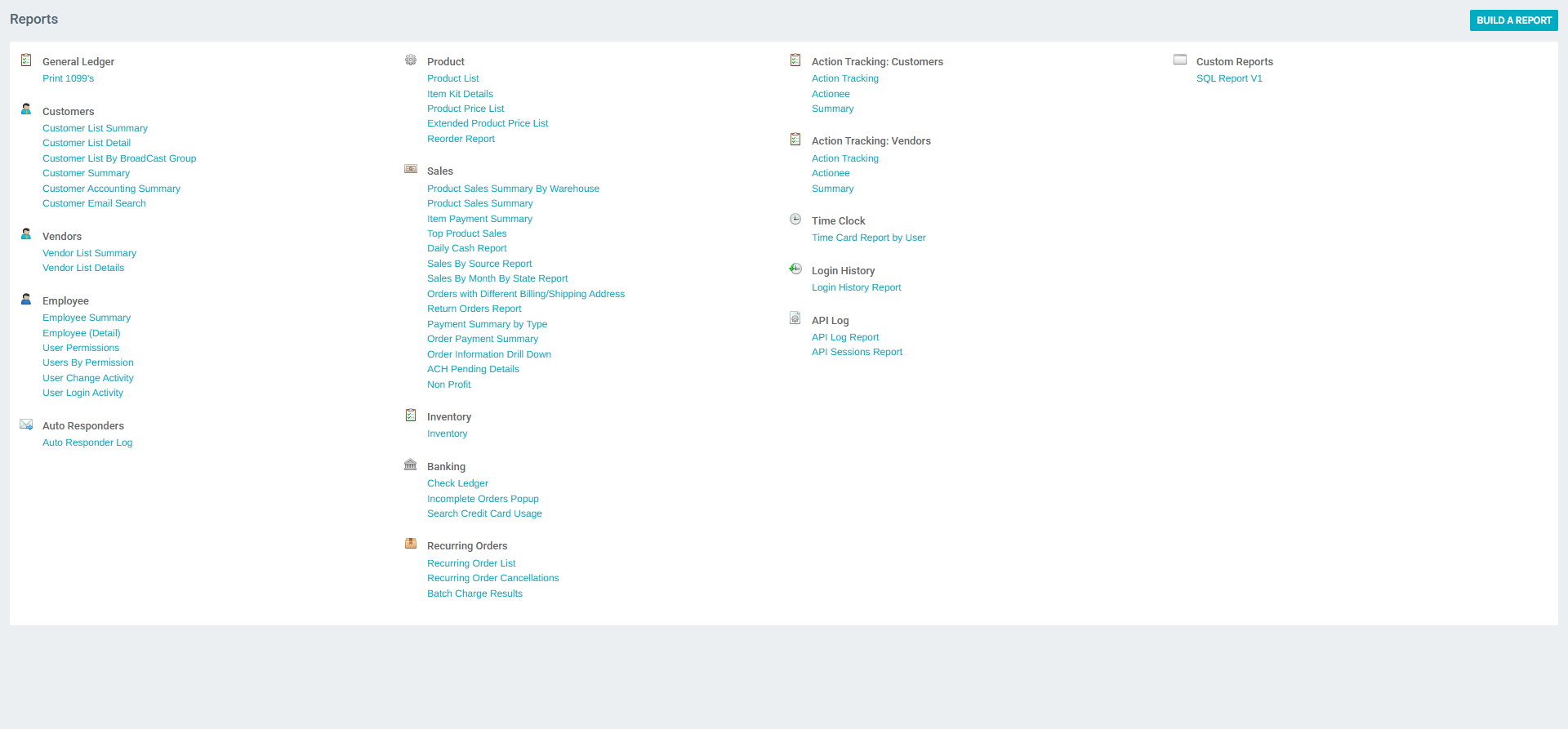
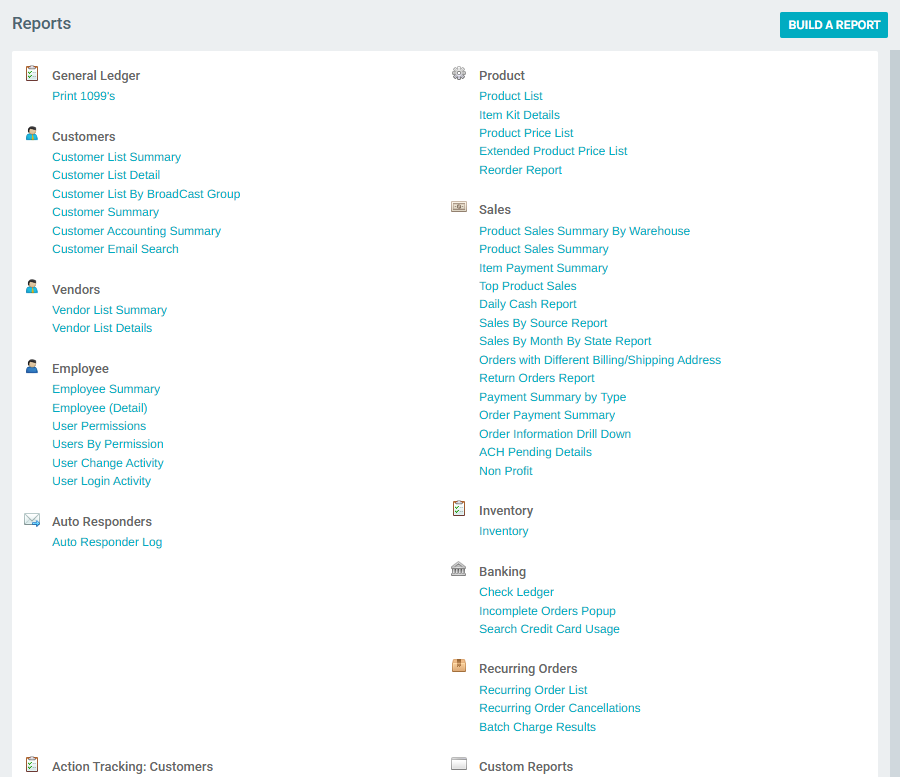
The portal lists report categories as section headings. Under each heading, individual report names appear as links. Selecting a report name runs or opens that report (behavior depends on the report; many open a parameter screen or export dialog).
Primary action
| Control | Description |
|---|---|
| BUILD A REPORT | Navigates to Report Home, where you can open CREATE A NEW REPORT, use Report Templates, and access reports saved under My Reports and Shared Reports. |
Example categories (as shown in the demo environment)
Categories and example report titles include:
| Category | Example reports |
|---|---|
| General Ledger | Print 1099's |
| Customers | Customer List Summary, Customer List Detail, Customer Summary, Customer Accounting Summary, Customer Email Search, … |
| Vendors | Vendor List Summary, Vendor List Details |
| Employee | Employee Summary, Employee (Detail), User Permissions, Users By Permission, User Change Activity, User Login Activity |
| Auto Responders | Auto Responder Log |
| Product | Product List, Item Kit Details, Product Price List, Extended Product Price List, Reorder Report |
| Sales | Product Sales Summary By Warehouse, Daily Cash Report, Sales By Source Report, Order Payment Summary, ACH Pending Details, … |
| Inventory | Inventory |
| Banking | Check Ledger, Incomplete Orders Popup, Search Credit Card Usage |
| Recurring Orders | Recurring Order List, Recurring Order Cancellations, Batch Charge Results |
| Action Tracking: Customers / Vendors | Action Tracking, Actionee, Summary |
| Time Clock | Time Card Report by User |
| Login History | Login History Report |
| API Log | API Log Report, API Sessions Report |
| Custom Reports | SQL Report V1 (and other custom entries your company enables) |
Exact titles and availability depend on company configuration and security.
Report Home (custom and saved reports)
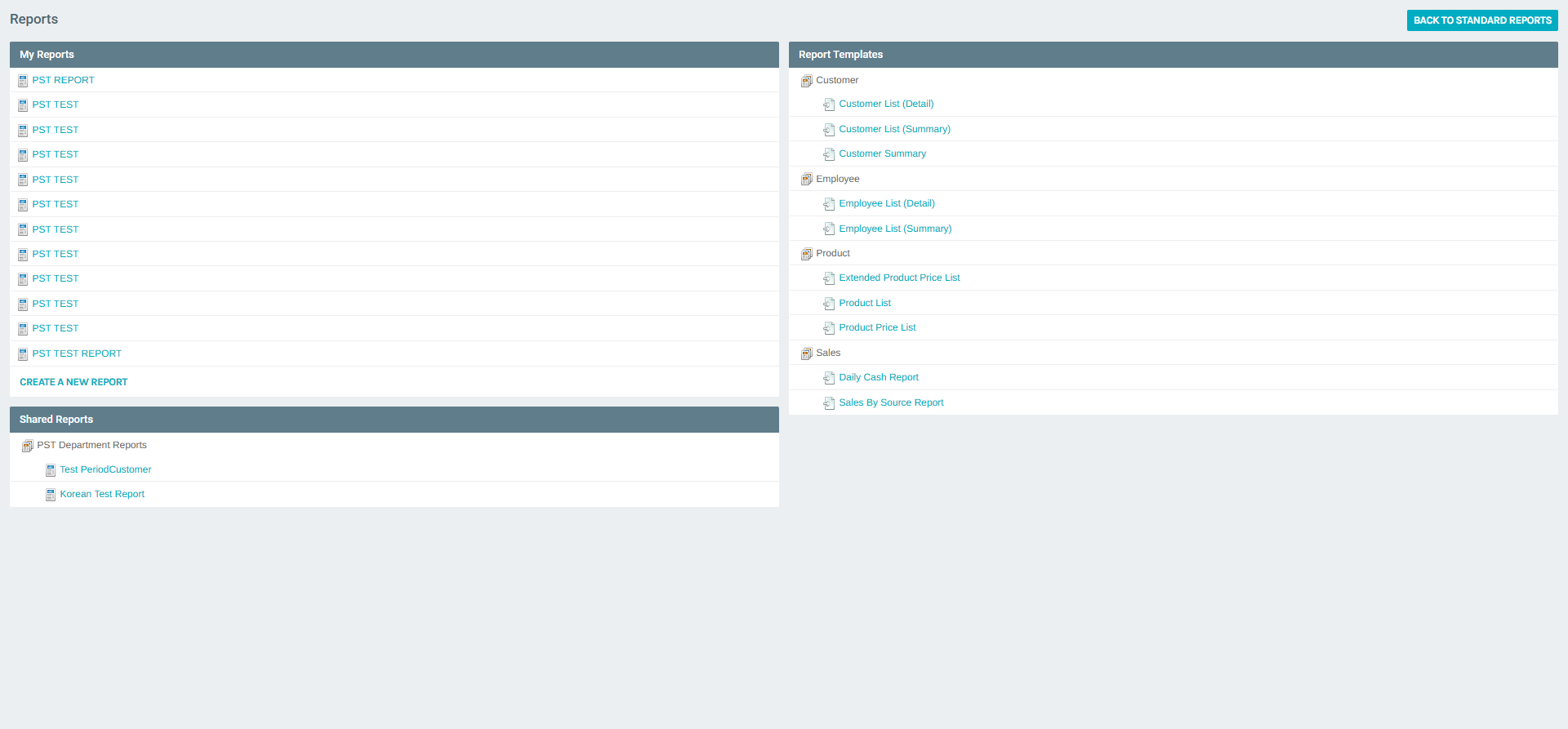
BUILD A REPORT opens Report Home (Report/ReportHome).
Sections
| Section | Description |
|---|---|
| My Reports | Reports you have created or that are assigned to you; each entry runs the saved definition. |
| CREATE A NEW REPORT | Starts the flow to build a new custom report (typically opens Report Designer in a new context/tab). |
| Shared Reports | Reports shared at department or company level (e.g., department folders). |
| Report Templates | Starting points based on standard report types (Customer, Employee, Product, Sales, …). Choosing a template opens the designer pre-seeded for that data domain. |
Use BACK TO STANDARD REPORTS to return to the categorized portal.
Report Designer
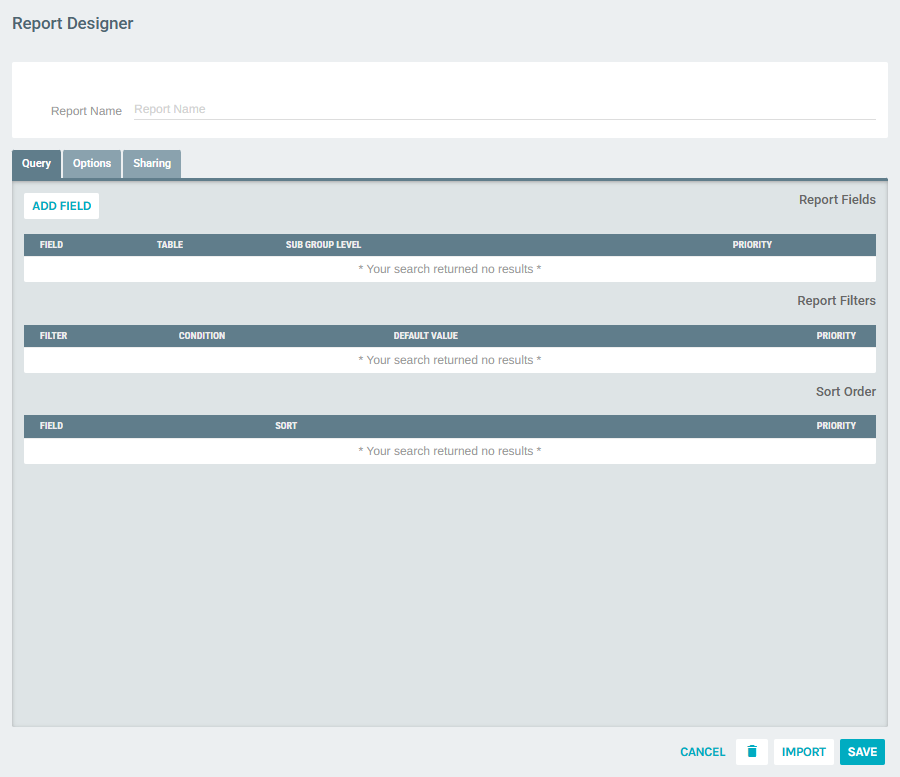
Report Designer (Report/ReportDesigner) is where custom reports are defined: fields, filters, sort order, options, and sharing.
Toolbar
| Control | Description |
|---|---|
| SAVE | Saves the report definition (requires Report Name and valid configuration). |
| IMPORT | Imports report definition data (when supported). |
| delete | Removes the report (when editing an existing report and permissions allow). |
| CANCEL | Discards changes and leaves the designer. |
Main fields
| Field / area | Description |
|---|---|
| Report Name | Display name of the custom report (required). |
| Query / Options / Sharing | Tabs for query definition, runtime options, and who may run or edit the report. |
| ADD FIELD | Adds a column to the report output. |
| Report Fields | Table of selected fields with Table, Sub Group Level, and Priority. |
| Report Filters | Prompt filters (filter name, condition, default value, priority). |
| Sort Order | Fields and ascending/descending priority for output ordering. |
The URL may include dataSystemTypeId, which scopes the designer to a particular data system (for example general reporting vs. commission-specific reporting elsewhere in the product).
Key workflows
Run a standard report
- Go to Accounting > Reports.
- Scroll to the relevant category.
- Click the report name and complete any parameters or export options shown.
Create a custom report from scratch
- From Reports, click BUILD A REPORT.
- Click CREATE A NEW REPORT (or start from a Report Templates entry).
- In Report Designer, set Report Name, use ADD FIELD and filter/sort sections as needed, configure Options and Sharing, then SAVE.
Return to the report catalog
From Report Home, click BACK TO STANDARD REPORTS.