Accounting / Commissions
Overview
The Commissions module provides a comprehensive environment for managing the entire commissions lifecycle: configuring commission plans, running commission calculations, reviewing results, accepting runs, and generating reports. Administrators can monitor all commission runs across plans, drill into individual run details, manage period end dates, and access deep data analysis tools.
Navigation: Accounting > Commissions
Commissions Portal
The Commissions Portal is the main entry point for the module. It is organized into two main sections:
- Live Plan Header — Displays the active commission plan name and version (e.g.,
LIVE - (ENTERPLANNAME) V.2024.1.5.6). Provides quick-action links: - Run Commission Preview — Start a new commission calculation preview.
- Run Additional Archive — Run an additional archive for the current plan.
-
Manage Period End Date — Define or adjust period end dates.
-
Commission Studio — A navigation panel with links to all commission run views and plan documentation:
- All Commission Runs
- Accepted Runs
- Archive Runs
- Commission Plan Specification
- Glossary of Terms
- Customer Types
- Hierarchical Trees
- Period Types
- Bonuses
- Rank Groups
- Volume
- Qualification Overrides
- Reports
The right panel (iframe) defaults to the All Commission Runs list.
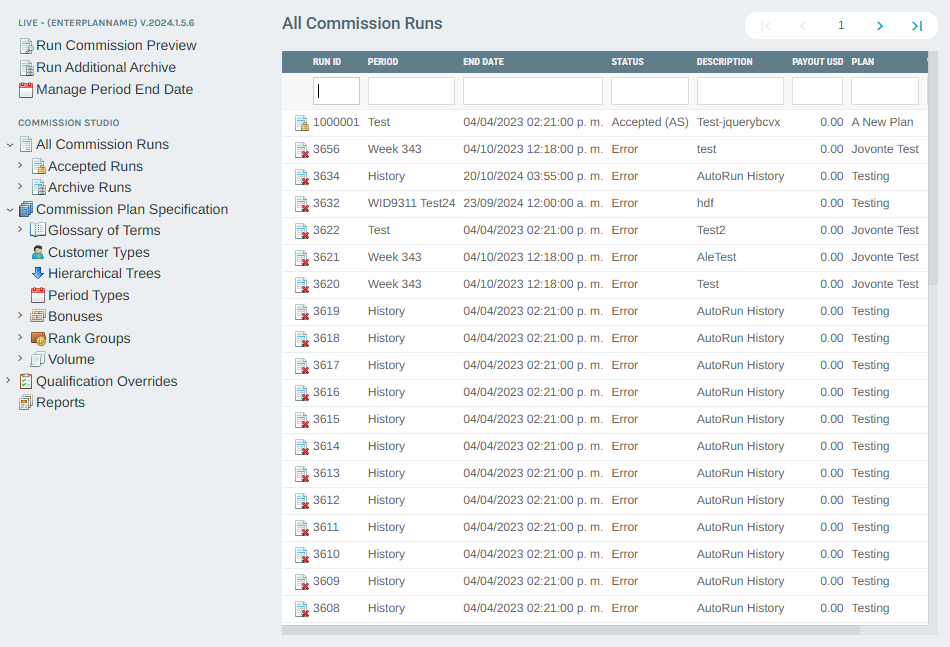
Commission Runs List
The commission runs list provides a paginated, searchable table of all commission runs for the active plan. The table is available in three filtered views accessible from the portal sidebar:
- All Commission Runs — Every run regardless of status.
- Accepted Runs — Only runs with a status of
AcceptedorAccepted (AS). - Archive Runs — Only archived runs.
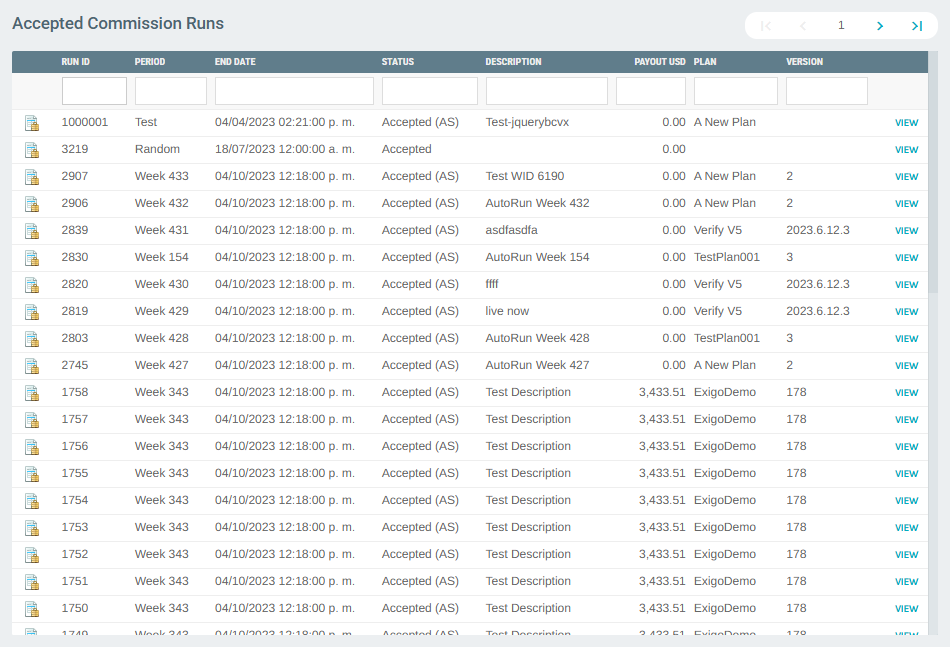
Column Descriptions
| Column | Description |
|---|---|
| Run ID | Unique identifier for the commission run. |
| Period | The period name associated with the run (e.g., "Week 343", "Random"). |
| End Date | The period end date/time for this run. |
| Status | Run status: Accepted, Accepted (AS) (archived server), Error, Archive. |
| Description | Free-text label set by the administrator when creating the run. |
| Payout USD | Total commission payout amount in USD for this run. |
| Plan | The commission plan used for this run. |
| Version | The plan version number at the time the run was executed. |
Run Status Values
| Status | Meaning |
|---|---|
Accepted |
Run has been reviewed and accepted. Data is live on the primary server. |
Accepted (AS) |
Run has been accepted and moved to the archive server for long-term storage. |
Error |
The run encountered one or more errors during calculation. |
Archive |
Run has been archived. |
Row Actions
Each row includes a VIEW button:
- For active accepted runs — Opens the full Commission Run detail page (ViewCommissionRun).
- For archived runs — Opens the Restore Commission Run page to bring the run data back for a selected time period.
Restore Commission Run
When clicking VIEW on a run with status Accepted (AS), a restore dialog appears. This is because the data has been moved off the primary server to the archive server.
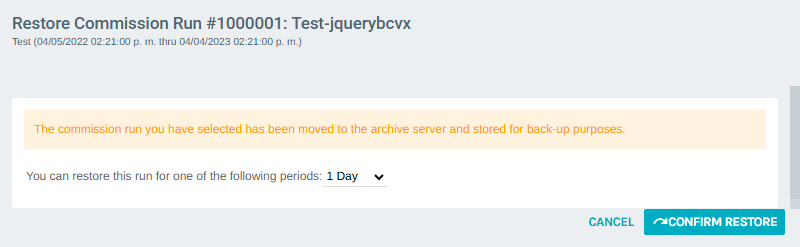
The restore screen displays: - Run ID and Description - Period date range - A message explaining the run is on the archive server - A duration selector (1 Day, 3 Days, 7 Days, 14 Days, 30 Days, 60 Days) for how long to make the data available - CONFIRM RESTORE button to initiate the restore - CANCEL option
Commission Run Detail
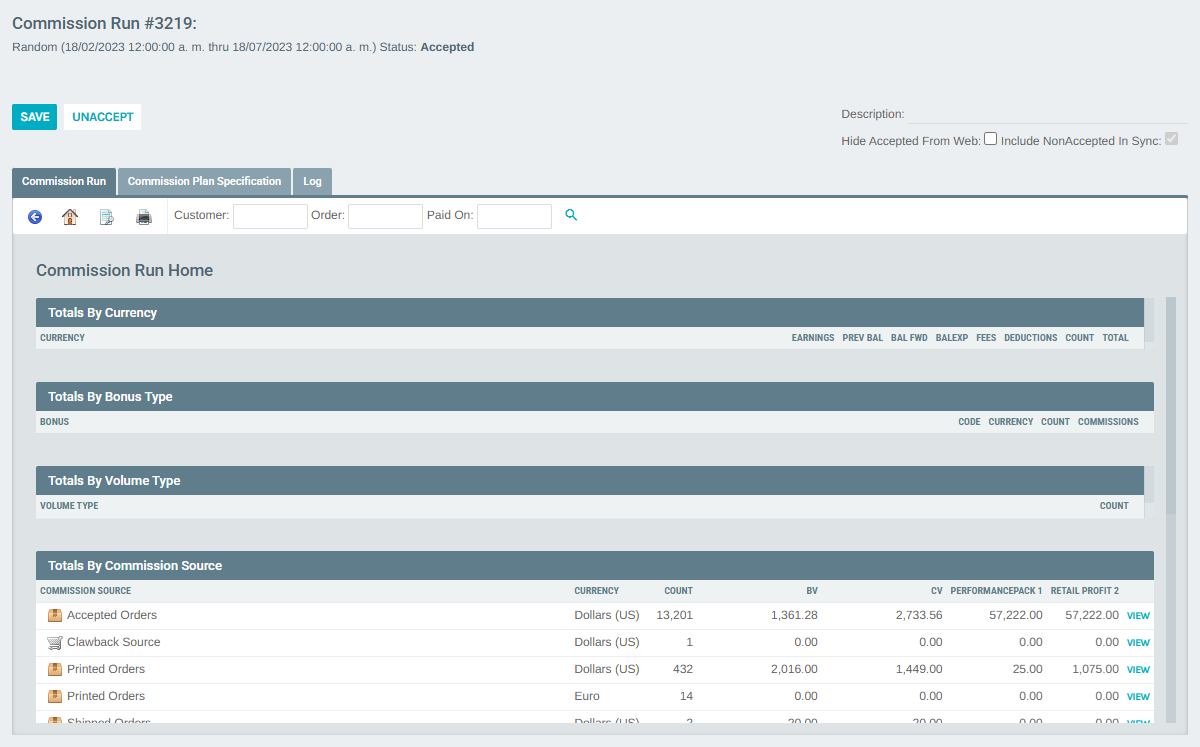
For runs stored on the primary server (status: Accepted), clicking VIEW opens the full Commission Run detail page.
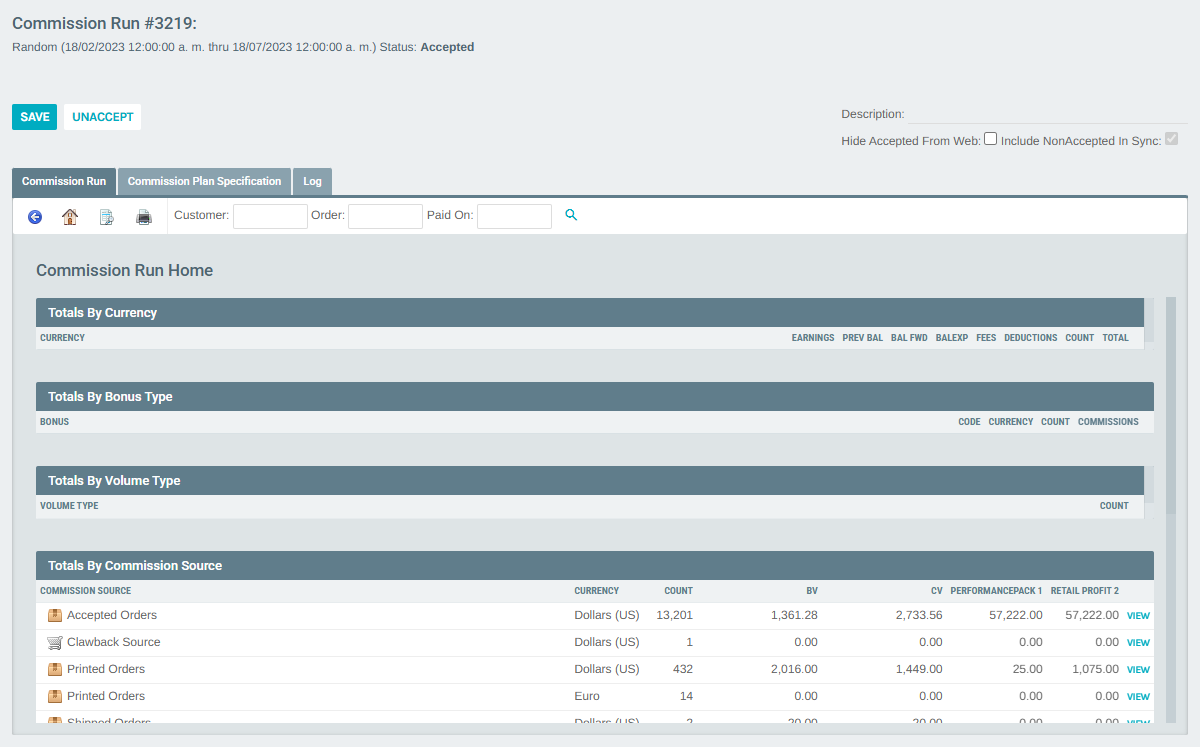
Header Information
- Run ID and Description
- Period name and date range
- Status badge
Header Actions
| Action | Description |
|---|---|
| SAVE | Save changes to the run's description or settings. |
| UNACCEPT | Revert the run back to a non-accepted state for re-processing. |
| Description field | Editable text label for the commission run. |
| Hide Accepted From Web | Checkbox to hide this run's commissions from distributor-facing web portals. |
| Include NonAccepted In Sync | Checkbox to include non-accepted items in data sync operations. |
Tabs
| Tab | Contents |
|---|---|
| Commission Run | The main run data view (default). Contains the Commission Run Home, totals, and data analysis tools. |
| Commission Plan Specification | Displays the full plan spec associated with this run. |
| Log | Shows the computation log for this run, including errors and messages. |
Commission Run Home
The home view within the run detail shows aggregate totals for the run:
Totals By Currency — Summarizes earnings, balance carried forward, fees, deductions, and total payout per currency.
Totals By Bonus Type — Shows how many commissions were paid per bonus type/code, broken down by currency.
Totals By Volume Type — Lists the volume types applied during the run.
Totals By Commission Source — Breaks down commissions by the originating order status (Accepted Orders, Printed Orders, Shipped Orders, Clawback Source). Each row has a VIEW link to drill into the detail.
Excluded Sources — Shows orders that were present in the period but excluded from commission calculations (e.g., CC Declined, Pending, ACH Pending, Incomplete). Each row has a VIEW link.
Data Analysis Tools
From the Commission Run Home, a Data Analysis section provides direct links to advanced analytical views:
| Analysis View | Description |
|---|---|
| Qualification And Rank Advancement | Shows each distributor's qualification status and rank changes during this run. |
| View Commission Amount Joined With Unilevel Tree | Combines commission amounts with the unilevel tree structure. |
| View Full Unilevel Tree With Matching Commission | Full organizational tree with commission data overlay. |
| View Qualified And Vested Levels | Shows level qualification and vesting status per distributor. |
| Commission Statement by Currency | Aggregated commission statements grouped by currency. |
| Commission Detail By Originating Currency | Detailed commission breakdown by the source currency of each order. |
| Order Source And Payout | Maps each order to its resulting payout. |
| Full Unilevel Tree With Source | Full tree including the commission source for each node. |
| Service Source Research | Investigates service-based commission sources. |
| Binary Home | Binary tree commission data view. |
| Print Statement Batch | Batch print commission statements for all distributors in the run. |
| Commission Detail | Full detail of every commission line in the run. |
Sub-Navigation Tools
Within the run, a filter bar allows searching by: - Customer — Filter results to a specific customer ID. - Order — Filter by order ID. - Paid On — Filter by payment date.
An Export To Excel option and Print option are also available.
Run Commission Preview
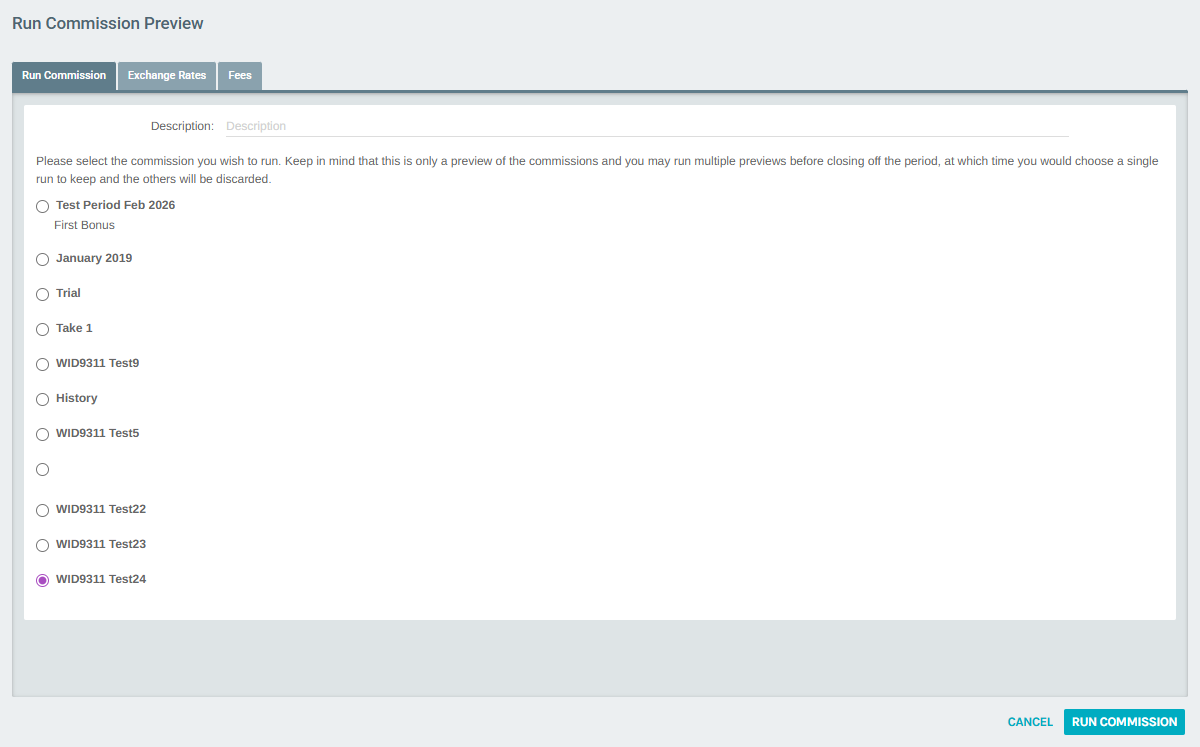
Accessible from the portal header, this page initiates a new commission calculation preview.
Form Fields
| Field | Description |
|---|---|
| Description | A label for this preview run to distinguish it from others. |
| Period selector (radio buttons) | Select the open period to run commissions against. Only periods that have been configured and are not yet closed are available. |
Tabs
| Tab | Description |
|---|---|
| Run Commission | Main tab for period selection and run description. |
| Exchange Rates | Configure or review currency exchange rates to apply to this run. |
| Fees | Configure any fees to be applied during the run. |
Actions
- RUN COMMISSION — Submits the preview run. Results will appear in the All Commission Runs list with a status of
PrevieworError. - CANCEL — Returns to the portal without running.
Note: Running a commission preview does not close the period. Administrators can run multiple previews before selecting a final run to accept and close the period.
Manage Period End Date
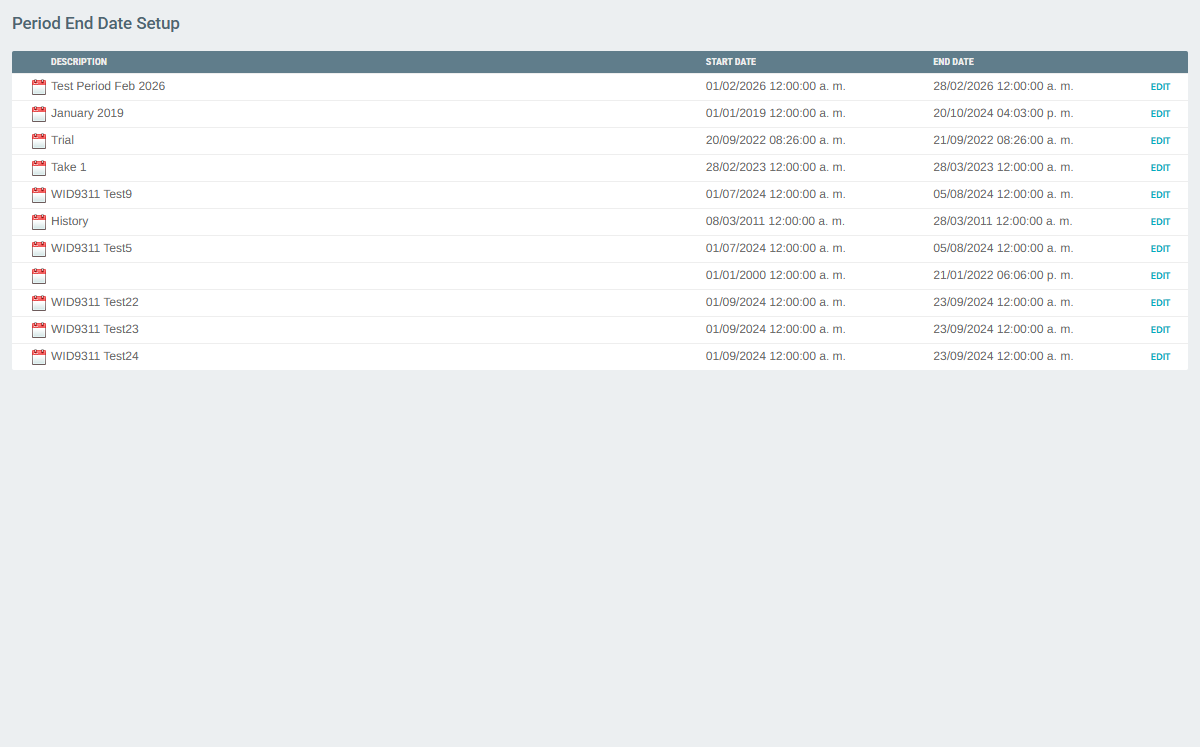
Accessible from the portal header, this section allows administrators to configure period end dates for each commission plan period.
Column Descriptions
| Column | Description |
|---|---|
| Description | The name of the period (e.g., "Test Period Feb 2026", "Week 343"). |
| Start Date | The beginning of the commission period. |
| End Date | The closing date of the period. Commission calculations only include orders up to this date. |
Each row has an EDIT button to modify the period's start and end dates.
Commission Reports
The Reports section allows administrators to create and manage custom commission reports using the built-in Report Designer.
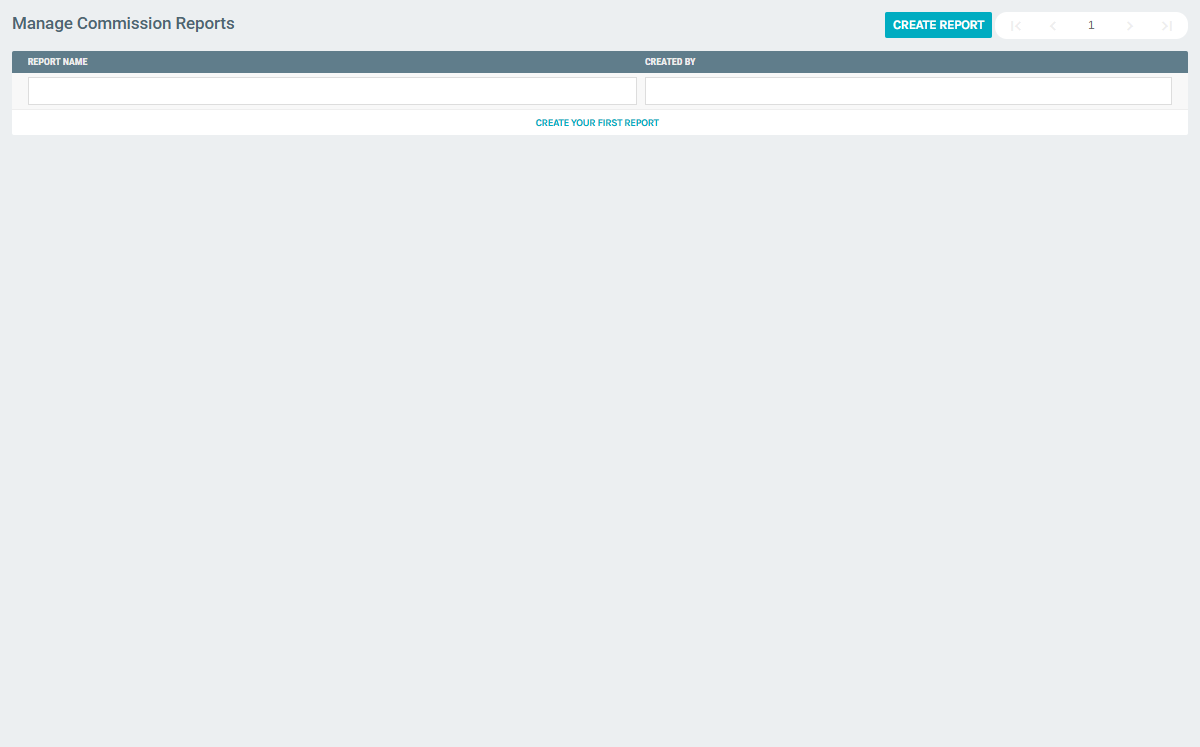
- CREATE REPORT button — Opens the Report Designer configured for commission data (
dataSystemTypeId=2). - The report list shows existing reports with their name and creator.
- When no reports exist, a CREATE YOUR FIRST REPORT prompt is displayed.
Key Workflows
Running a Commission Preview
- Navigate to Accounting > Commissions.
- Click Run Commission Preview in the portal header.
- Enter a Description for the preview run.
- Select the Period to run against.
- Optionally configure Exchange Rates and Fees in the respective tabs.
- Click RUN COMMISSION.
- The run will appear in All Commission Runs with a status indicating success or error.
Accepting a Commission Run
- Navigate to All Commission Runs or Accepted Runs.
- Click VIEW on a run with status
Accepted. - Review the totals and data analysis sections.
- If the run is correct, it is already in accepted state. Use UNACCEPT if re-processing is needed.
Restoring an Archived Run
- Navigate to Accepted Runs.
- Click VIEW on a run with status
Accepted (AS). - Select a restore duration (1–60 days).
- Click CONFIRM RESTORE.
- The run data will be available on the primary server for the selected duration.
Managing Period End Dates
- Navigate to Accounting > Commissions.
- Click Manage Period End Date in the portal header.
- Click EDIT on the desired period.
- Adjust the start and/or end date as needed and save.