Configuring Warehouse Availability
This guide explains how to configure warehouse availability in the Exigo platform, including which currencies each warehouse supports, setting a default currency, and managing payment type restrictions per warehouse.
Table of Contents
- Overview
- Accessing Warehouse Availability Settings
- Warehouses List
- Configuring Currency Availability per Warehouse
- Warehouse Setup Fields
- Currency Availability Table
- Configuring Payment Restrictions by Warehouse
- Viewing Payment Restrictions
- Adding a Payment Restriction
- Editing or Removing a Restriction
Overview
Warehouse availability configuration allows administrators to control:
- Which currencies each warehouse accepts for transactions
- Which currency is set as the default for a warehouse
- Which payment types are restricted to specific warehouses
These settings ensure that customers can only use the currencies and payment methods appropriate for the warehouse fulfilling their order.
Accessing Warehouse Availability Settings
Navigation Path
- Log in to the Exigo Admin portal at
login.exigo.com - From the left sidebar, navigate to Administration > Settings
- On the Company Settings page, click the ACCOUNTING SETTINGS tab at the top right
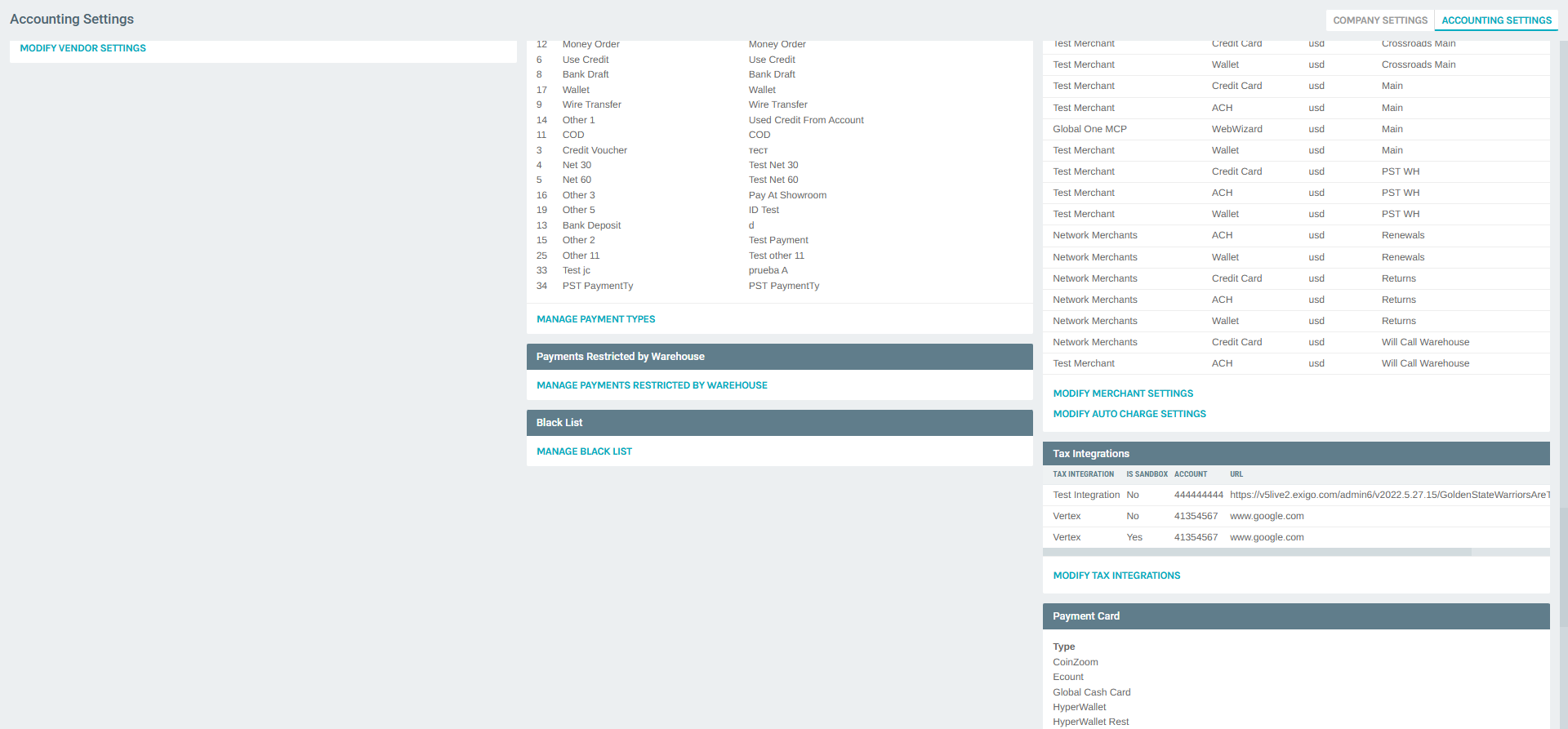
The Accounting Settings summary page shows a Warehouses column on the right side listing all configured warehouses. Below the list you will find two action links:
- Modify Warehouse Settings — opens the Warehouses tab in the Accounting Settings popup
- Manage Payments Restricted by Warehouse — navigates to the payment restrictions manager
Warehouses List
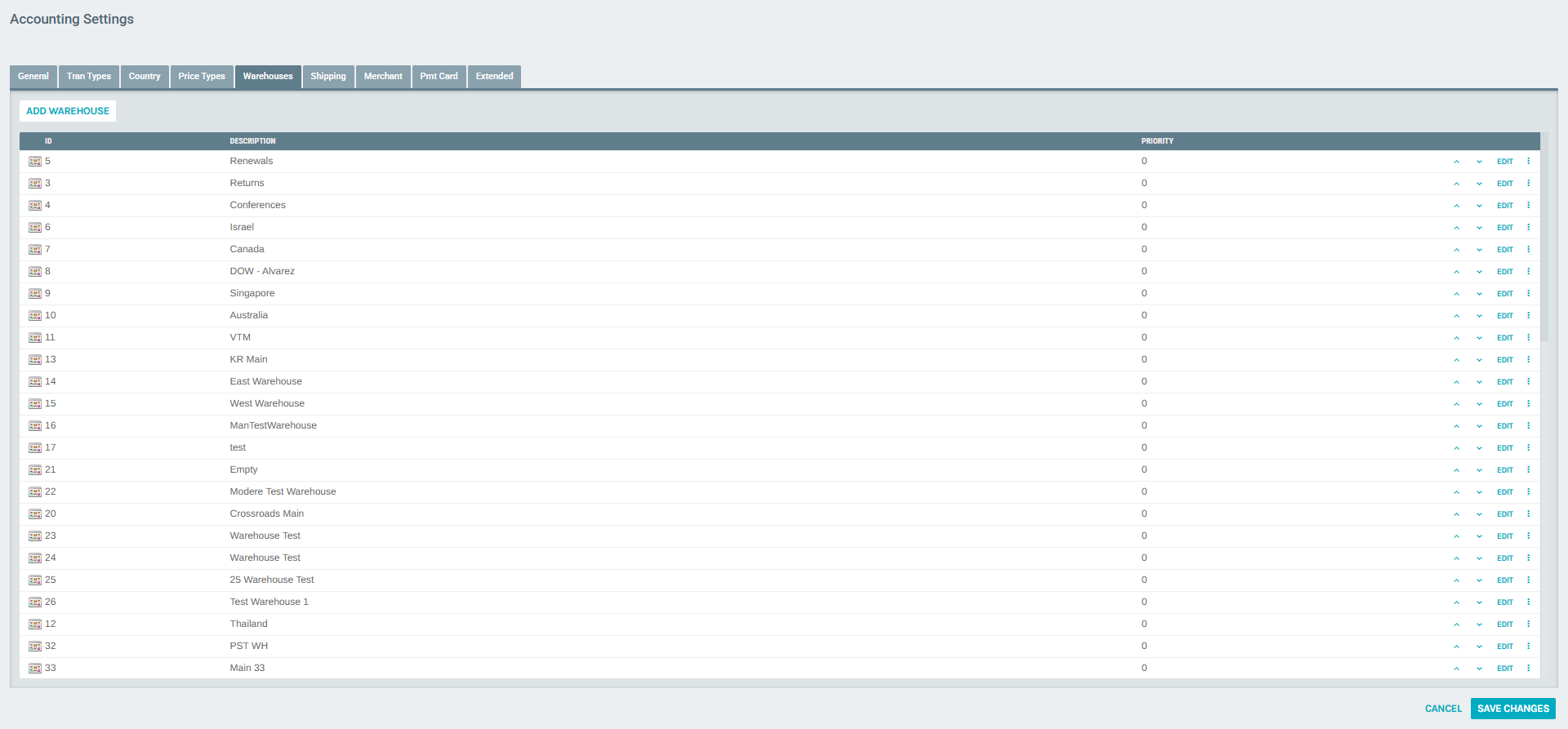
Clicking Modify Warehouse Settings opens the Warehouses tab of the Accounting Settings popup. This tab displays all warehouses in a table with the following columns:
| Column | Description |
|---|---|
| ID | Unique numeric identifier for the warehouse |
| Description | Name of the warehouse |
| Priority | Display order (higher priority = appears first in dropdowns) |
Each row has: - ▲ / ▼ arrows to reorder the warehouse priority - An EDIT link to open the Warehouse Setup form - A ⋮ (more_vert) menu with Edit and Delete options
Configuring Currency Availability per Warehouse
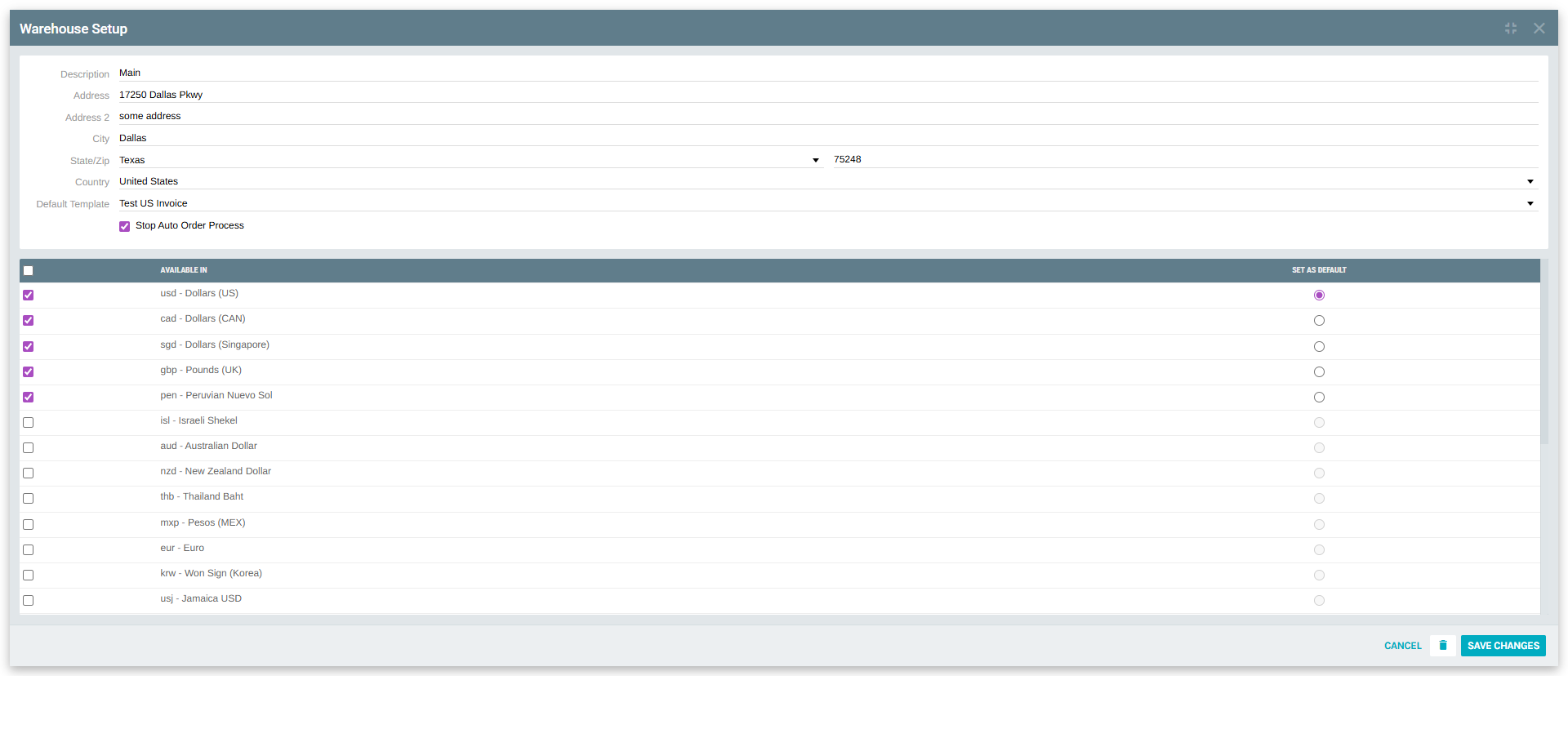
Click EDIT next to a warehouse to open the Warehouse Setup form.
Warehouse Setup Fields
| Field | Description |
|---|---|
| Description | Name of the warehouse |
| Address / Address 2 | Physical address of the warehouse location |
| City | City of the warehouse |
| State/Zip | State dropdown and ZIP code |
| Country | Country where the warehouse is located |
| Default Template | Default invoice template used for orders from this warehouse |
| Stop Auto Order Process | When checked, prevents automatic order processing for this warehouse |
Currency Availability Table
Below the basic fields is the Currency Availability table, listing all currencies configured in the system. For each currency you can:
| Column | Description |
|---|---|
| Checkbox (Available In) | Check to make this currency available for orders through this warehouse |
| Available In | Currency name and code (e.g., usd - Dollars (US)) |
| Set as Default | Radio button — select one currency as the default for this warehouse |
Rules: - Only one currency can be set as default per warehouse (radio button) - The default radio button is only selectable when the currency's "Available In" checkbox is checked - Unchecking a currency automatically disables the Set as Default radio button for that currency
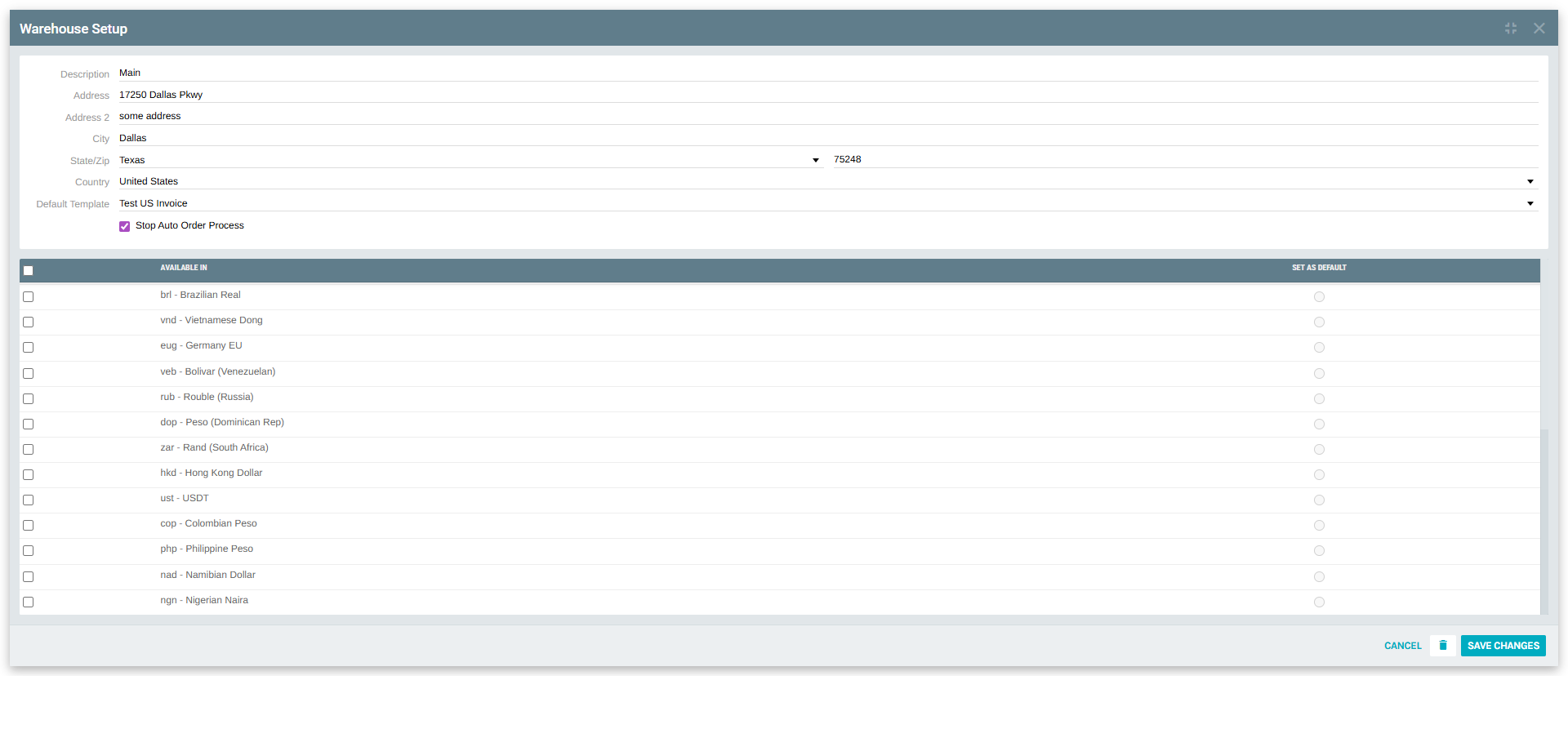
Click SAVE CHANGES to apply your currency availability configuration.
Configuring Payment Restrictions by Warehouse
Payment restrictions allow you to limit specific payment types to only certain warehouses. This is useful when, for example, a regional warehouse should only accept local payment methods.
Viewing Payment Restrictions
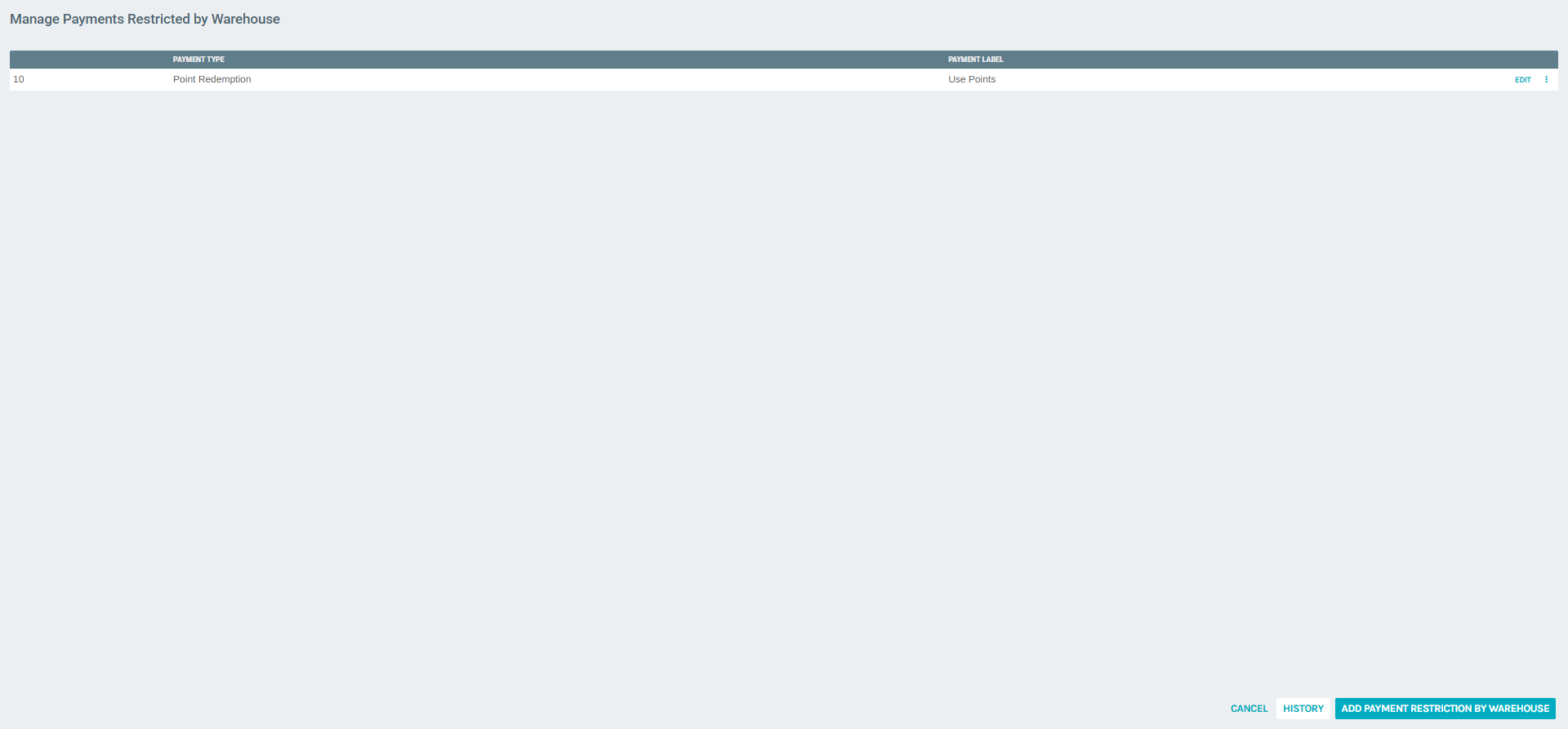
From the Accounting Settings summary page, click Manage Payments Restricted by Warehouse.
The list shows all existing payment restrictions with:
| Column | Description |
|---|---|
| Payment Type | Numeric ID of the payment type |
| Payment Label | Display name of the restricted payment type |
Each row has an EDIT link and a ⋮ context menu for editing or deleting the restriction.
Adding a Payment Restriction
- Click ADD PAYMENT RESTRICTION BY WAREHOUSE at the bottom right
- The Add Payment Restriction by Warehouse form opens
- Select the Payment Type from the dropdown (e.g., Bank Transfer, Credit Card, etc.)
- In the Warehouses list, check the warehouses where this payment type should be restricted (i.e., not available)
- Click SAVE CHANGES
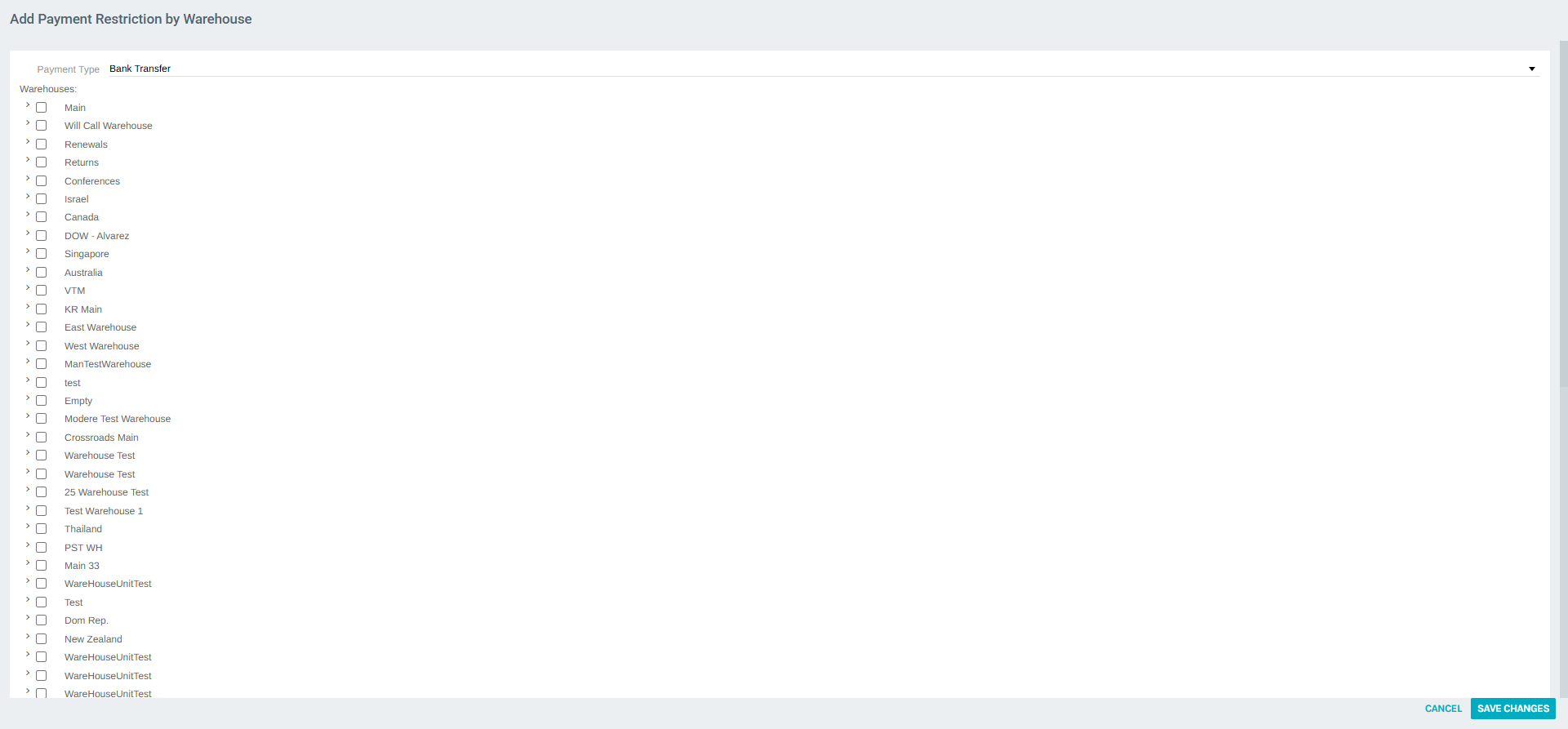
Note: Checking a warehouse means that payment type will be blocked for orders going through that warehouse.
Editing or Removing a Restriction
- Click EDIT next to an existing restriction to modify which warehouses it applies to
- Click the ⋮ context menu and select Delete to remove the restriction entirely
Summary
| Setting | Location | Purpose |
|---|---|---|
| Currency availability per warehouse | Warehouses tab → EDIT warehouse | Control which currencies a warehouse accepts and set the default |
| Payment restrictions by warehouse | Accounting Settings summary → Manage Payments Restricted by Warehouse | Block specific payment types from being used at certain warehouses |