Home > Calendar (Admin)
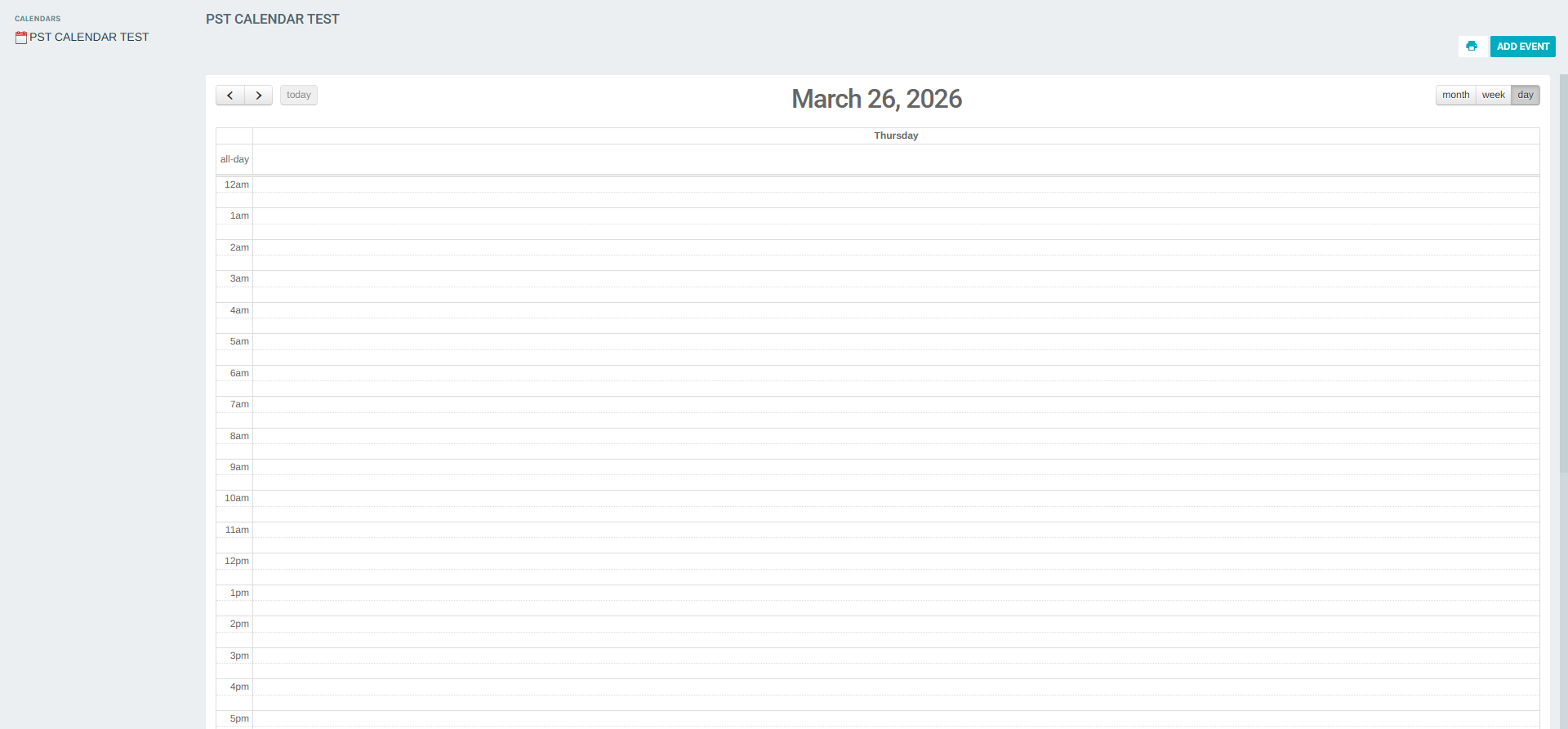
The Calendar module in Exigo Admin provides a shared scheduling system where admin users can create and manage events organized by named calendars. It supports multiple views and allows attaching files to events.
Navigate to it via the left sidebar: Home → Calendar.
Overview
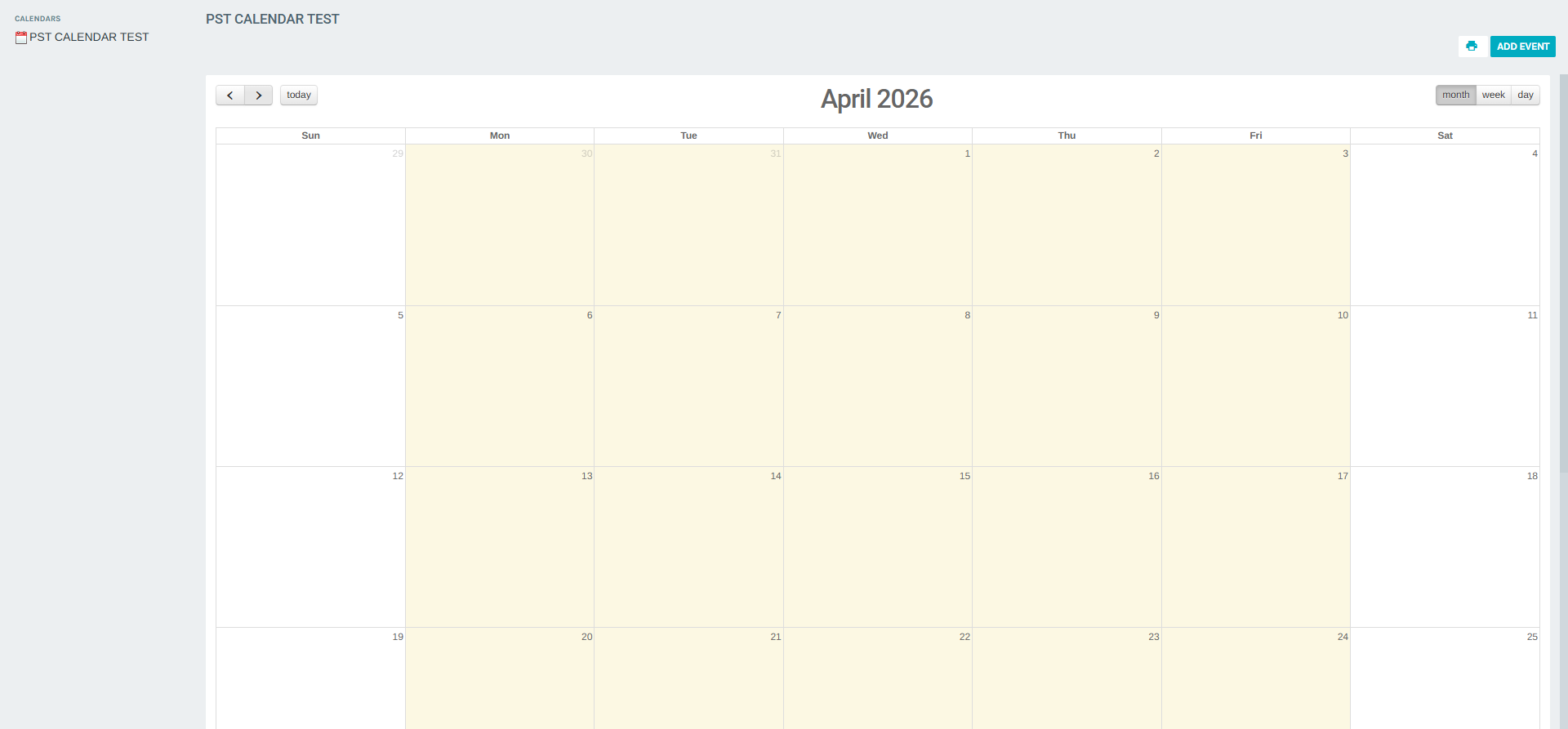
The Calendar page is divided into two areas:
- Left panel — Lists all available calendars. Clicking a calendar name loads it in the main area.
- Main area — Displays the selected calendar with navigation controls and view options.
Each calendar is independent and can be viewed in Day, Week, or Month mode.
Calendar Views
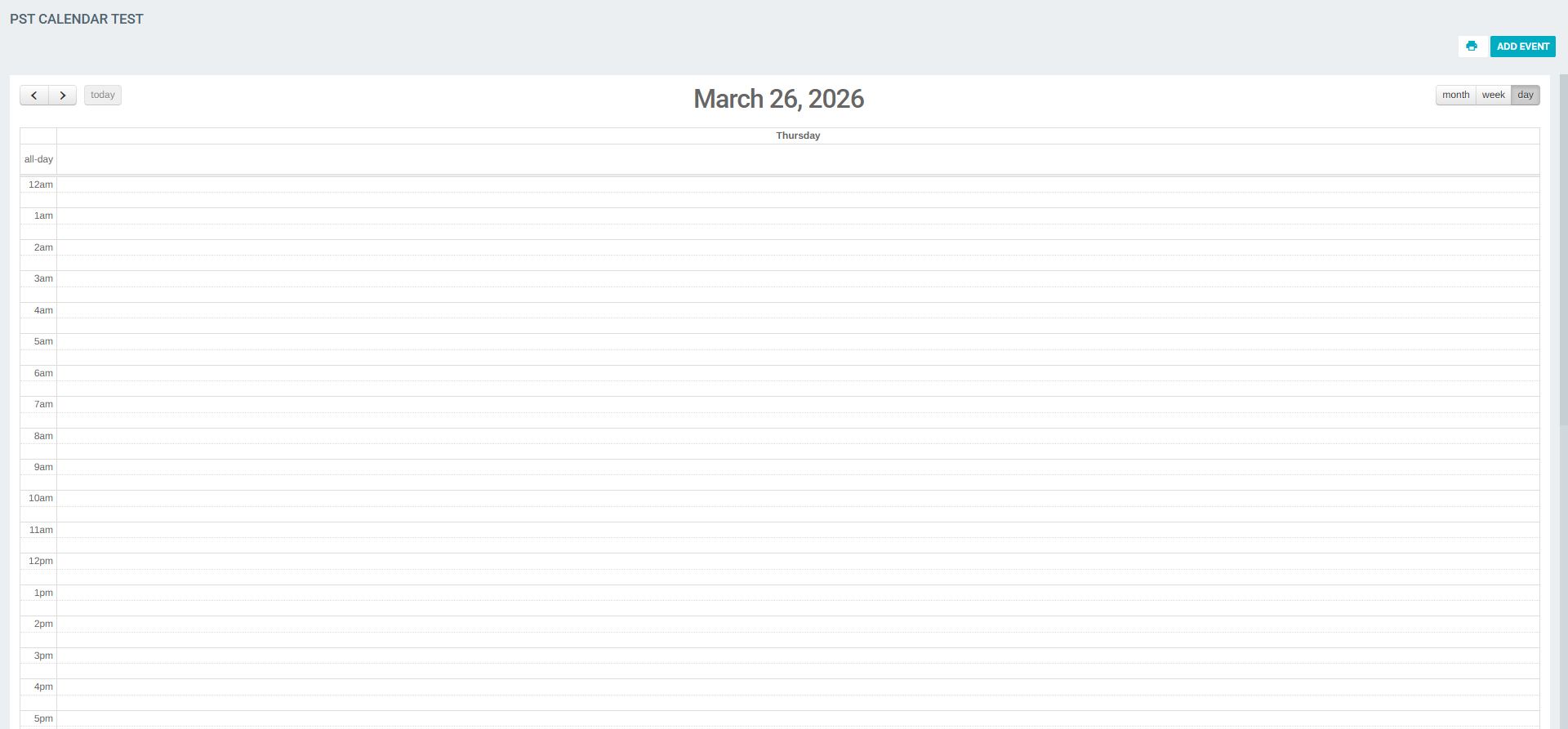
Day View
Shows all time slots for a single day (from 12 am to 11 pm) in a vertical timeline. Today's date is highlighted. Use this view to see or add events with precise scheduling.
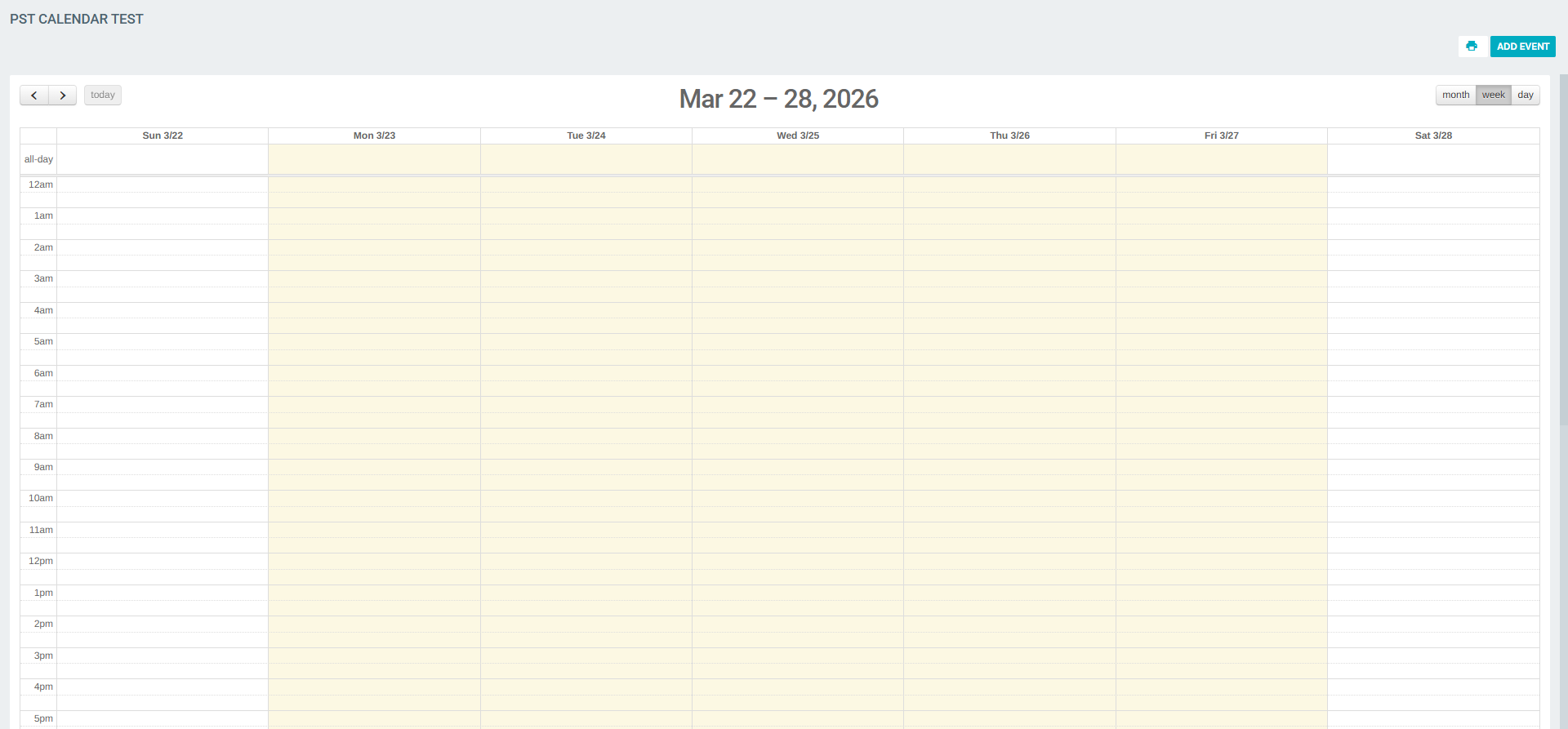
Week View
Displays the full 7-day week (Sunday through Saturday) in a horizontal grid with hourly rows. This is useful for seeing the week's workload at a glance.
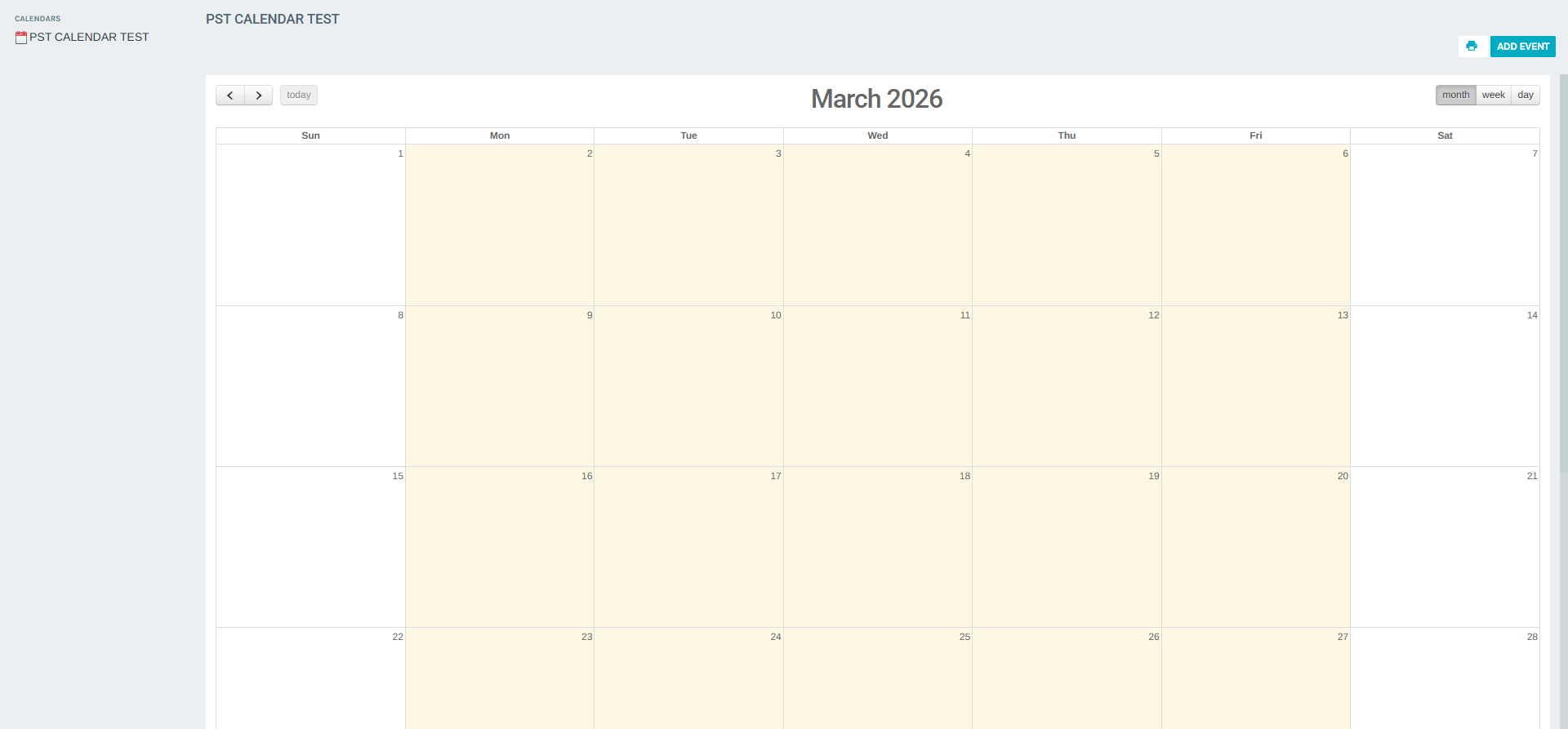
Month View
Shows the entire month in a traditional calendar grid. Each day cell can display events when they have been added. Today's date is highlighted with a distinct style.
Navigation Controls
The toolbar at the top of the calendar provides the following controls:
| Button | Description |
|---|---|
| prev (‹) | Navigate to the previous day, week, or month |
| next (›) | Navigate to the next day, week, or month |
| today | Jump back to the current date |
| month | Switch to Month view |
| week | Switch to Week view |
| day | Switch to Day view |
| Print the current calendar view |
Adding Events
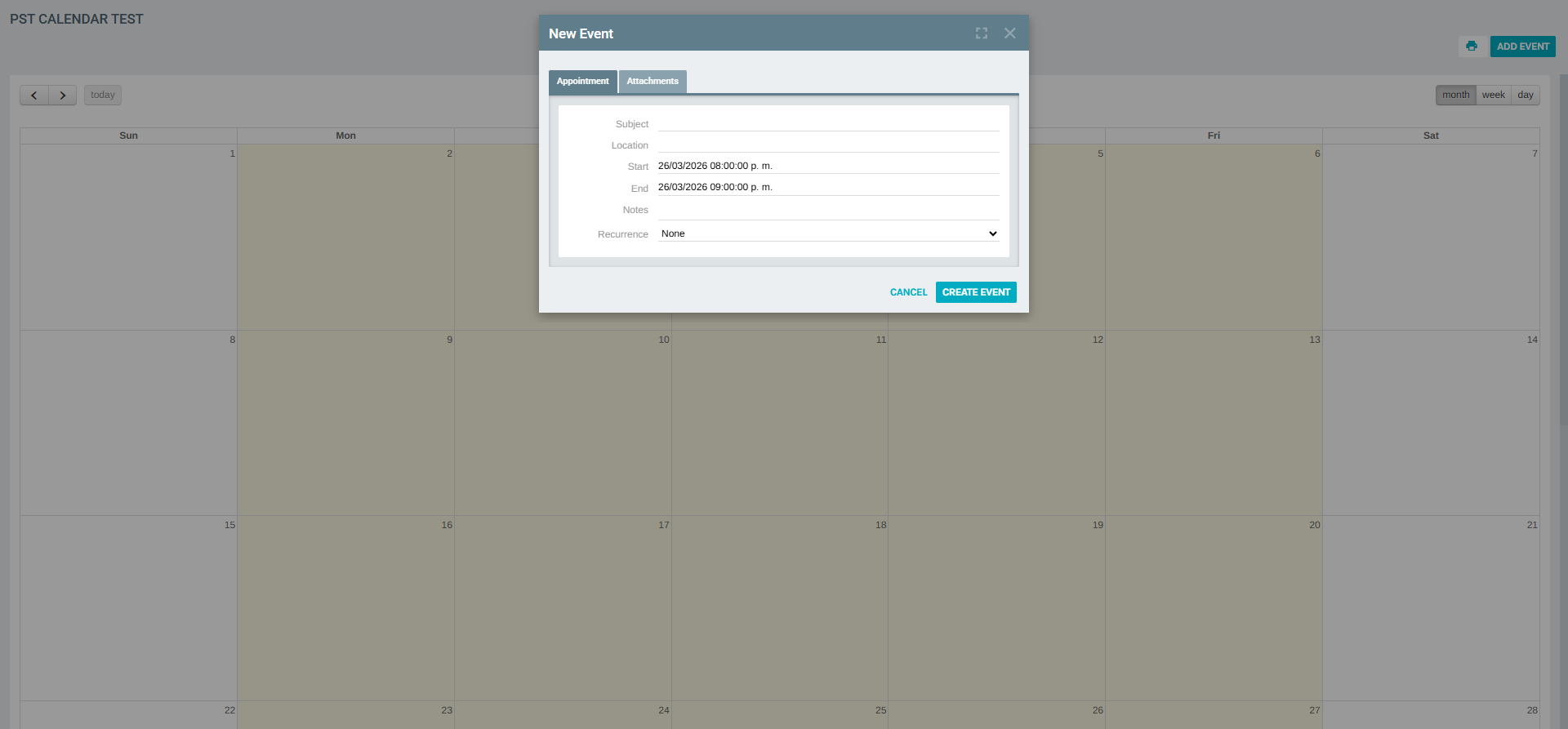
Click ADD EVENT in the toolbar to open the New Event dialog. The form has two tabs:
Appointment Tab
| Field | Description |
|---|---|
| Subject | Title of the event (required) |
| Location | Physical or virtual location of the event |
| Start | Start date and time (pre-filled with current day) |
| End | End date and time (defaults to 1 hour after start) |
| Notes | Free-text description or additional details |
| Recurrence | Repeat pattern: None, Weekly, or Monthly |
Attachments Tab
Allows uploading up to 10 files to attach to the event. Use this to share relevant documents, images, or resources alongside the event.
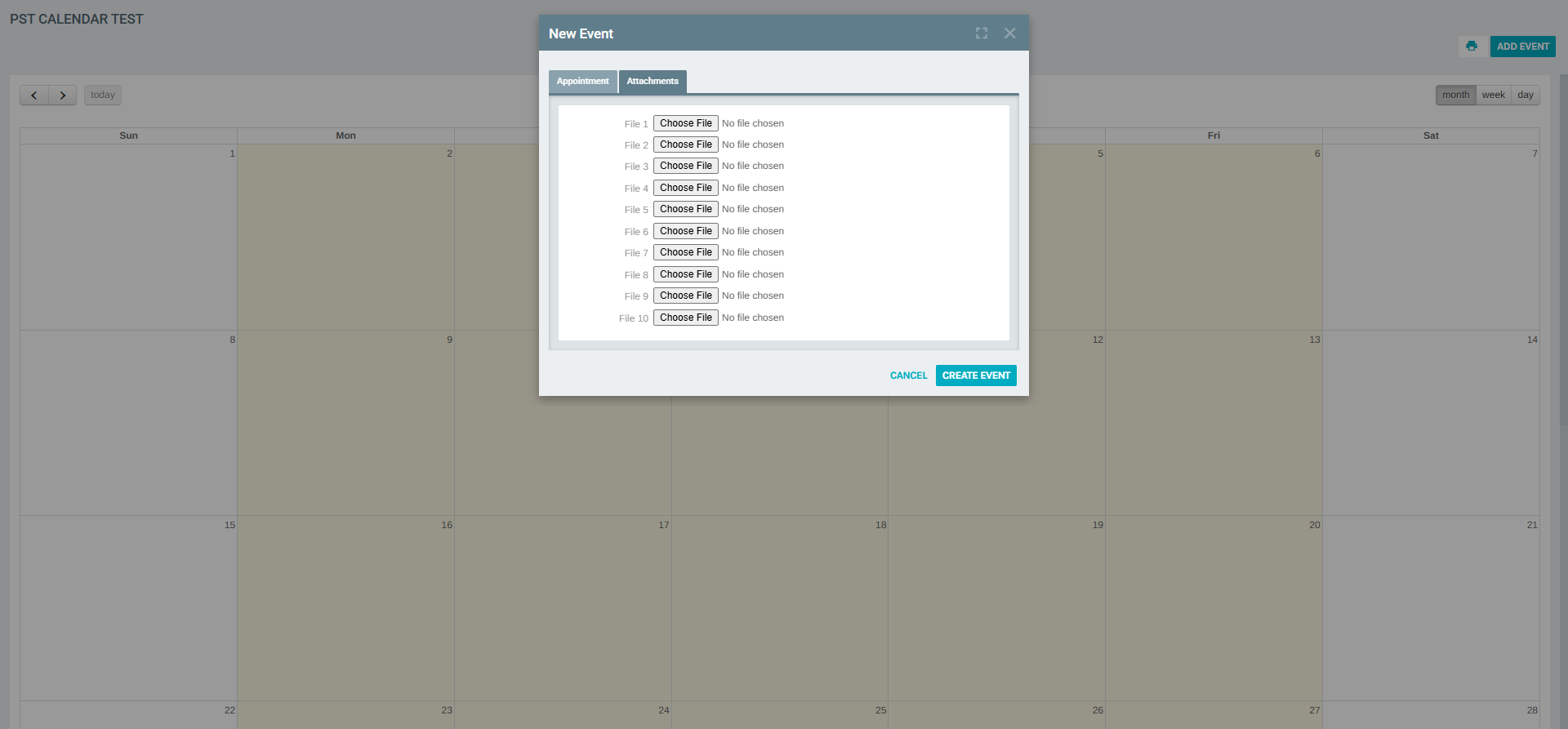
Click CREATE EVENT to save, or CANCEL to discard.
Summary
| Feature | Description |
|---|---|
| Multiple Calendars | The left panel lists all available calendars; click one to open it |
| Day / Week / Month | Three view modes to browse events at different granularities |
| prev / next / today | Navigation buttons to move across dates |
| ADD EVENT | Opens a dialog to create a new event with subject, location, time, notes, and recurrence |
| Attachments | Up to 10 files can be attached to each event |
| Prints the current calendar view |