Accounting / Invoices
Overview
The Invoices module provides a centralized view of all orders across warehouses, organized by their fulfillment status. Administrators can monitor invoice volumes, process batch charges, manage back orders, and drill down into individual order details directly from this module.
Navigation: Accounting > Invoices
Invoices Warehouse Dashboard
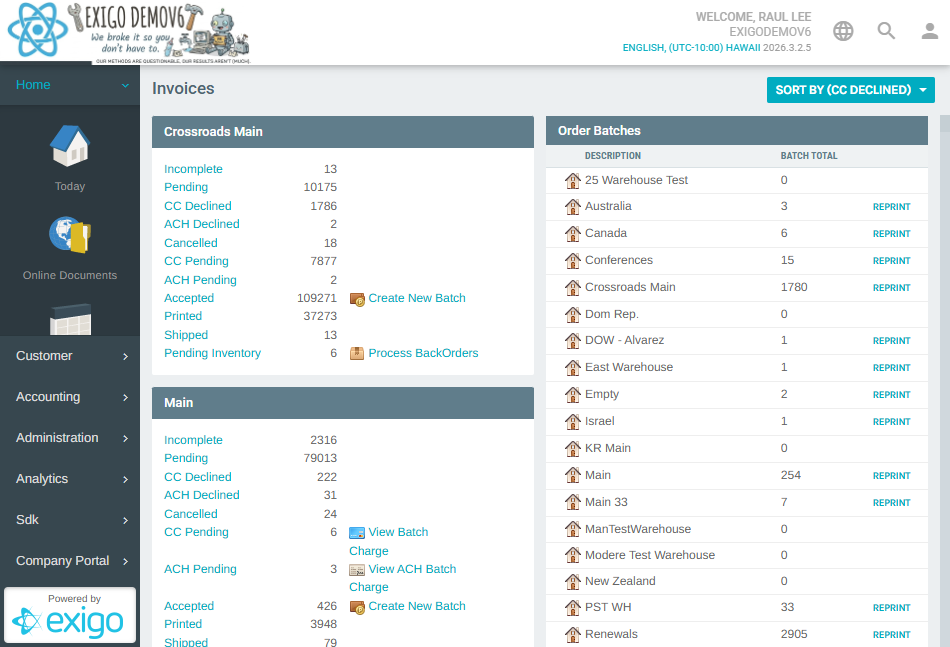
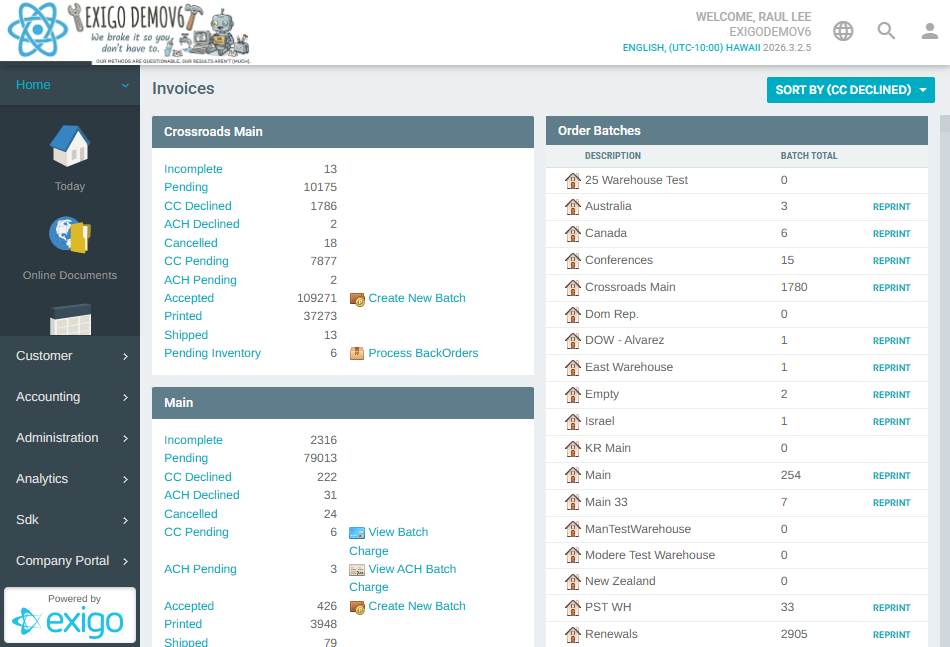
When you access the Invoices module, you are presented with a dashboard that groups invoice counts by warehouse and order status.
Sort Order
A SORT BY button at the top allows sorting the warehouse list by a specific status (e.g., "CC DECLINED") to prioritize the most urgent warehouse groups.
Per-Warehouse Status Counts
Each warehouse section displays the following order status counters:
| Status | Description |
|---|---|
| Incomplete | Orders started but not yet submitted |
| Pending | Orders awaiting processing |
| CC Declined | Orders where the credit card was declined |
| ACH Declined | Orders where the ACH/bank draft was declined |
| Cancelled | Cancelled orders |
| CC Pending | Orders with credit card charge pending |
| ACH Pending | Orders with ACH charge pending |
| Accepted | Successfully accepted orders |
| Printed | Orders that have been printed |
| Shipped | Shipped orders |
| Pending Inventory | Orders awaiting inventory availability |
Per-Warehouse Actions
Depending on the warehouse configuration, the following action links may appear alongside the status counts:
- Create New Batch — Initiates a new batch for accepted orders in the warehouse.
- View Batch Charge — Opens a view of the current credit card batch charge process.
- View ACH Batch Charge — Opens the ACH debit batch charge process.
- Process BackOrders — Triggers processing of back-ordered items for the warehouse.
Clicking on any status count number navigates to a filtered list showing all orders in that warehouse with that status.
Invoice Status List
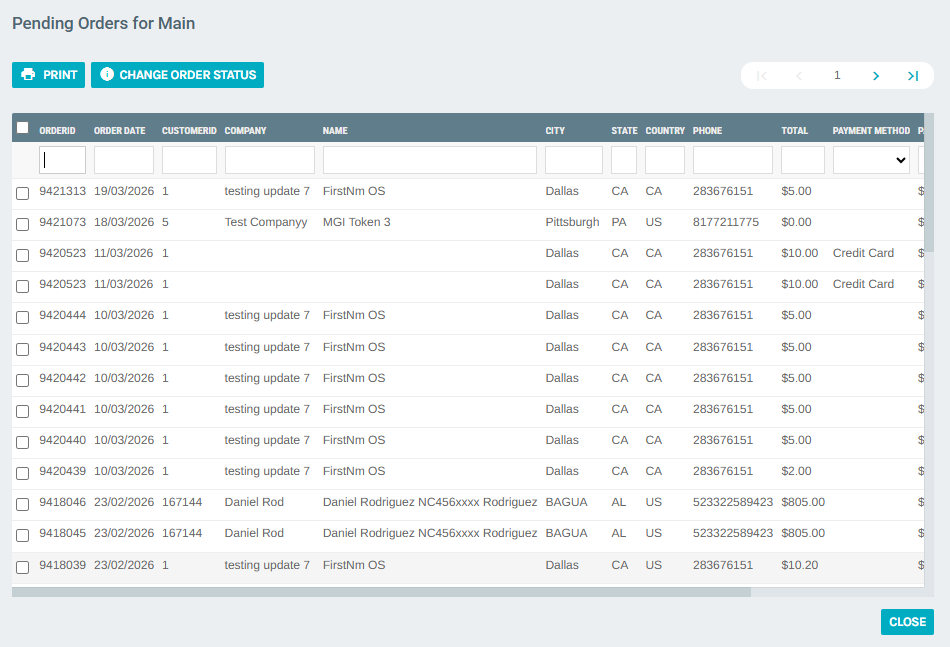
When a status count is clicked from the warehouse dashboard, the Invoice Status List opens, showing all orders matching that warehouse and status.
Toolbar Actions
| Button | Function |
|---|---|
| Prints the current list of orders | |
| CHANGE ORDER STATUS | Updates the order status for all selected (checked) orders in bulk |
| CLOSE | Returns to the warehouse dashboard |
Pagination controls allow navigating through large result sets.
List Columns
| Column | Description |
|---|---|
| Checkbox | Select individual orders for bulk actions |
| ORDERID | Unique order identifier |
| ORDER DATE | Date the order was placed |
| CUSTOMERID | Customer's ID number |
| COMPANY | Customer's company name |
| NAME | Customer's full name |
| CITY | Shipping city |
| STATE | Shipping state/province |
| COUNTRY | Shipping country |
| PHONE | Customer's phone number |
| TOTAL | Order total amount |
| PAYMENT METHOD | Payment method used (dropdown filter available) |
| PAYMENT TOTAL | Amount paid |
| TRACKING NUMBER | Shipment tracking number (if available) |
Filtering
Each column header has an inline search box. The Payment Method column provides a dropdown with all configured payment methods (Cash, Credit Card, ACH Debit, Net 30, Wallet, etc.) for quick filtering.
Row Actions — Context Menu
Clicking the ⋮ (more_vert) button on any row opens a context menu with the following options:
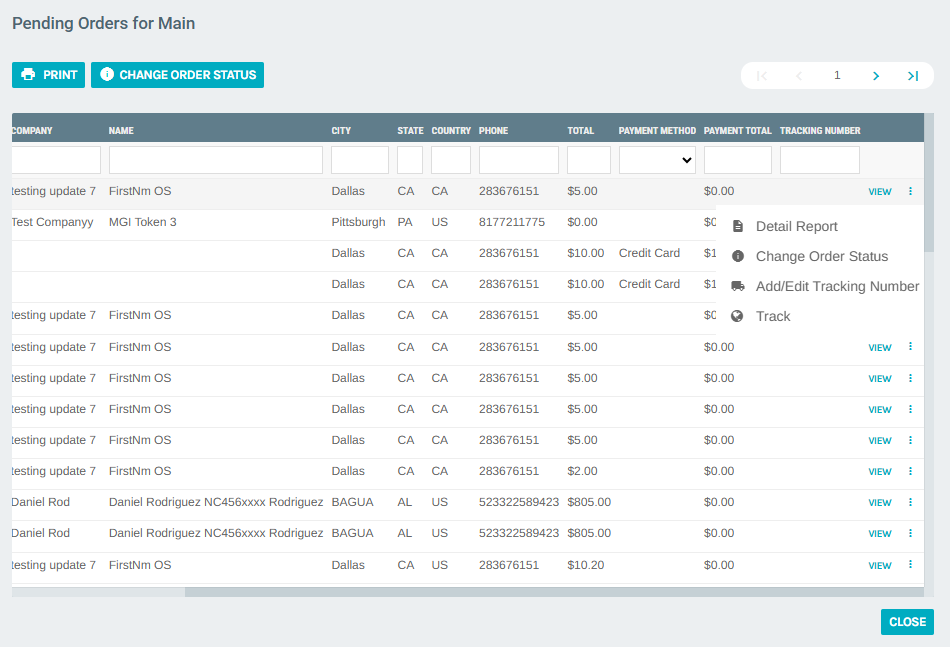
| Action | Description |
|---|---|
| Detail Report | Opens a technical detail report for the order (Order Data, Calculation Data, Order Line, Engine Trace) |
| Change Order Status | Changes the status of this individual order |
| Add/Edit Tracking Number | Opens the tracking number management form for the order |
| Track | Opens the list of tracking numbers for the order |
VIEW Button
Clicking VIEW on any row opens the full Order Invoice in a new browser tab.
Order Invoice View
The Order Invoice View provides a human-readable invoice layout and order management options. It opens in a new browser tab.
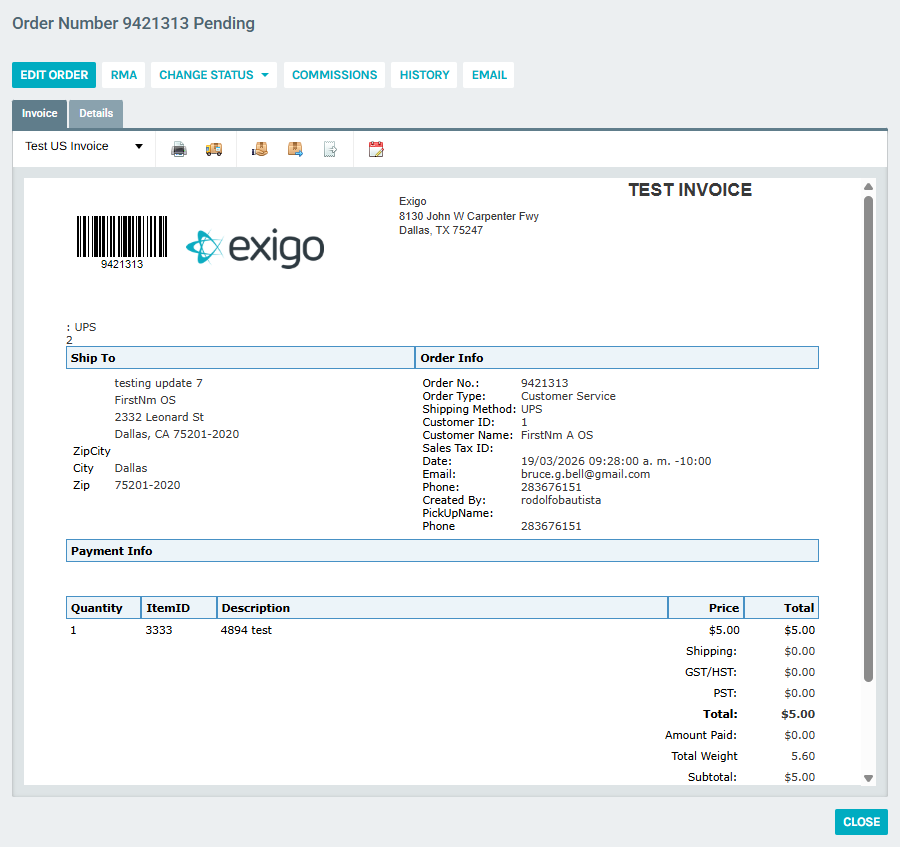
Invoice Header Actions
| Button/Link | Function |
|---|---|
| EDIT ORDER | Opens the order edit form |
| RMA | Initiates a Return Merchandise Authorization |
| CHANGE STATUS | Changes the order status |
| COMMISSIONS | Views commission data associated with this order |
| HISTORY | Views the change log for this order |
| Sends the invoice via email | |
| CLOSE | Closes the view |
Invoice Tab
The Invoice tab displays the formatted printable invoice, including:
- Company / Ship-to information (address, ship method, customer name)
- Order Info (Order No., Order Type, Shipping Method, Customer ID, Date, Email, Phone, Created By)
- Payment Info
- Line items table (Quantity, Item ID, Description, Price, Total)
- Summary totals (Shipping, Tax, Total, Amount Paid, Subtotal, Total Weight)
A template selector dropdown at the top allows switching between available invoice layouts (e.g., "Test US Invoice").
Additional quick actions: - Print Invoice — Prints the formatted invoice - Track Order — Opens the tracking number list - Return Order — Initiates an order return - Replace Order — Creates a replacement order - Move Order — Moves the order to a different warehouse or customer - Change Order Date — Modifies the order date
Details Tab
The Details tab displays raw technical data for the order, including:
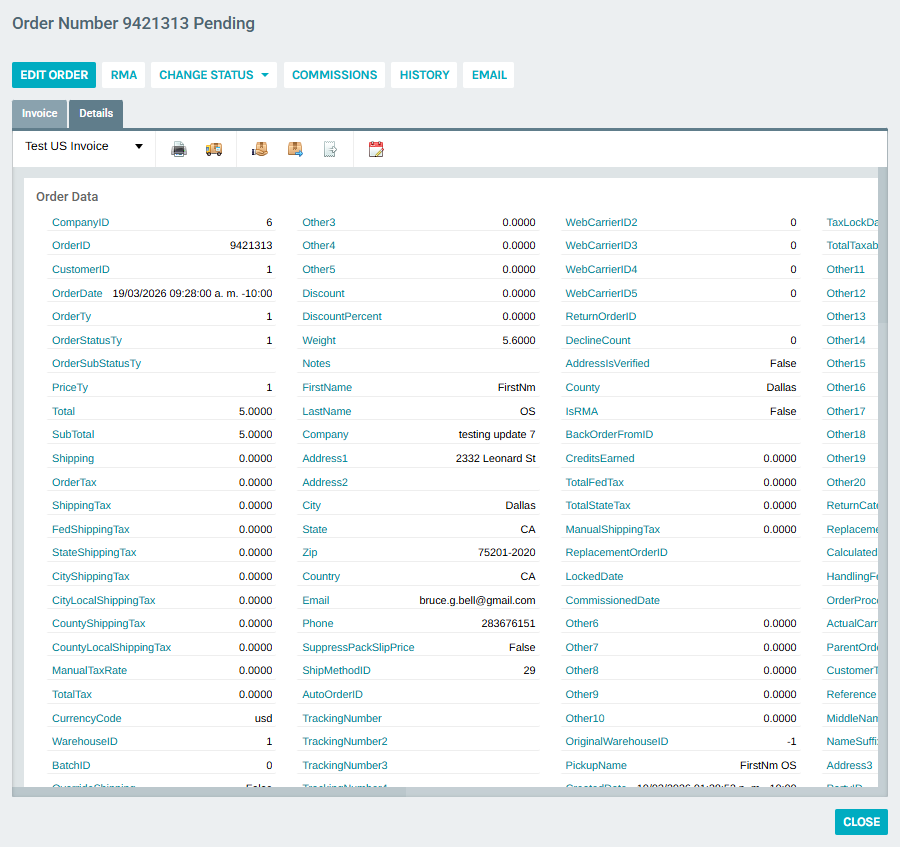
- Order Data — All raw database fields for the order record (CompanyID, OrderID, CustomerID, Total, SubTotal, Shipping, Tax fields, Weight, Address, Email, etc.)
- Order Calculation Data — Tax and shipping calculation parameters (rates, methods, integration results)
- Order Detail — Line item details (Item codes, quantities, prices, BV/CV volumes, tax values)
- Order Engine Trace — XML trace output from the order calculation pipeline, showing which modules ran and their results
Order Detail Report
The Detail Report (accessible from the context menu) provides the same technical data as the Details tab, but displayed as a standalone page with sections for Order Data, Order Calculation Data, Order Detail lines, and Order Engine Trace XML.
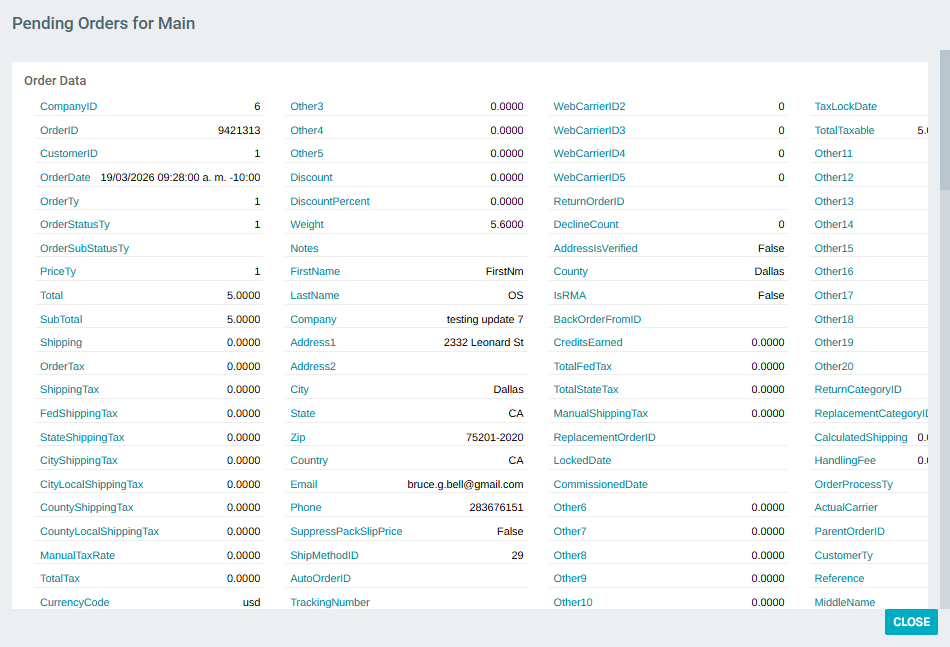
This report is primarily used for debugging order calculation issues or auditing order records.
Key Workflows
Processing CC Declined Orders (Batch)
- From the warehouse dashboard, note the CC Declined count for a warehouse.
- Click the count to open the filtered Invoice Status List.
- Select all relevant orders using checkboxes.
- Click CHANGE ORDER STATUS to bulk-update their status.
Alternatively, use the View Batch Charge link to re-run the credit card batch for the warehouse.
Adding a Tracking Number
- Open the Invoice Status List for any warehouse/status.
- Click ⋮ on the desired order row.
- Select Add/Edit Tracking Number.
- Enter the carrier and tracking number(s) on the tracking management form.
Processing Back Orders
- From the warehouse dashboard, identify warehouses with Pending Inventory counts.
- Click Process BackOrders to trigger fulfillment of back-ordered items.